iMac doesn't connect via ethernet to network, but macbook does. Wifi is fine on both.

Hi,


I'm trying to connect my iMac via cable (ethernet) to my network to access my NAS. That's a bit slow over wireless.

iMac is early-2009 and running fine on El Captian (10.11.6). In the past the ethernet was working fine, but with the El Capitan update a couple of years ago that broke down and I switched to wireless (no need for a NAS that time). With the NAS, I'd like to connect via cable again to speed up things a bit.


System preferences/Network says the following status for ethernet: Not connected: the cable for Ethernet is connected, but your computer does not have an IP address.

Configuring IPv4 is set 'using DHCP'

No problems connecting via wireless.


I found the solutions for the broken ethernet after security updates around 2016.

I've checked the System Information/Software/Installations and the only version for 'incompatible Kernel Extension Configuration Data' is version 11.6.1. The problem reports from 2016 refer to a faulty 3.28.1.

However, I executed the suggested 'sudo softwareupdate --background' while connected via Wifi and rebooted.

No succes in getting the ethernet connection up.


I've have other devices succesfully connecting to the network via ethernet. My NAS is connected via cable and can be seen on the network, so does a Windows laptop. The refurbished Macbook (mid-2010, running El Capitan 10.11.6 as well) that I recently purchased perfectly connects via the Ethernet to my network. As in: that is getting an IP address via DHCP and I'm using the same cable.


I can't see any differences between the iMac and the MacBook in network configurations (looking via the system preferences Network app). Both have the same version 'incompatible kernel extension configuration data' installed.


Does anybody have some good suggestions in further troubleshooting? The iMac is detecting the cable, so hardware issue is not my first thought.

Any suggestions to do a more thorough comparison of iMac vs Macbook config? Not afraid to dig into files.

OBS,iMac (20-inch Early 2009), OS X El Capitan (10.11.6)

Posted on Oct 7, 2018 8:12 AM

Reply

Similar questions

3 replies

Oct 8, 2018 2:27 PM in response to michiel171

Hi michiel171,

Thank you for posting in the Apple Support Communities. I see you may be running into an issue with connectivity via ethernet on an early 2009 iMac.

You've done some excellent troubleshooting so far, and a good next step would be to try creating a new network location. Here's How to use network locations on your Mac :

How to add or remove a network location

  1. Choose Apple menu () > System Preferences, then click Network.
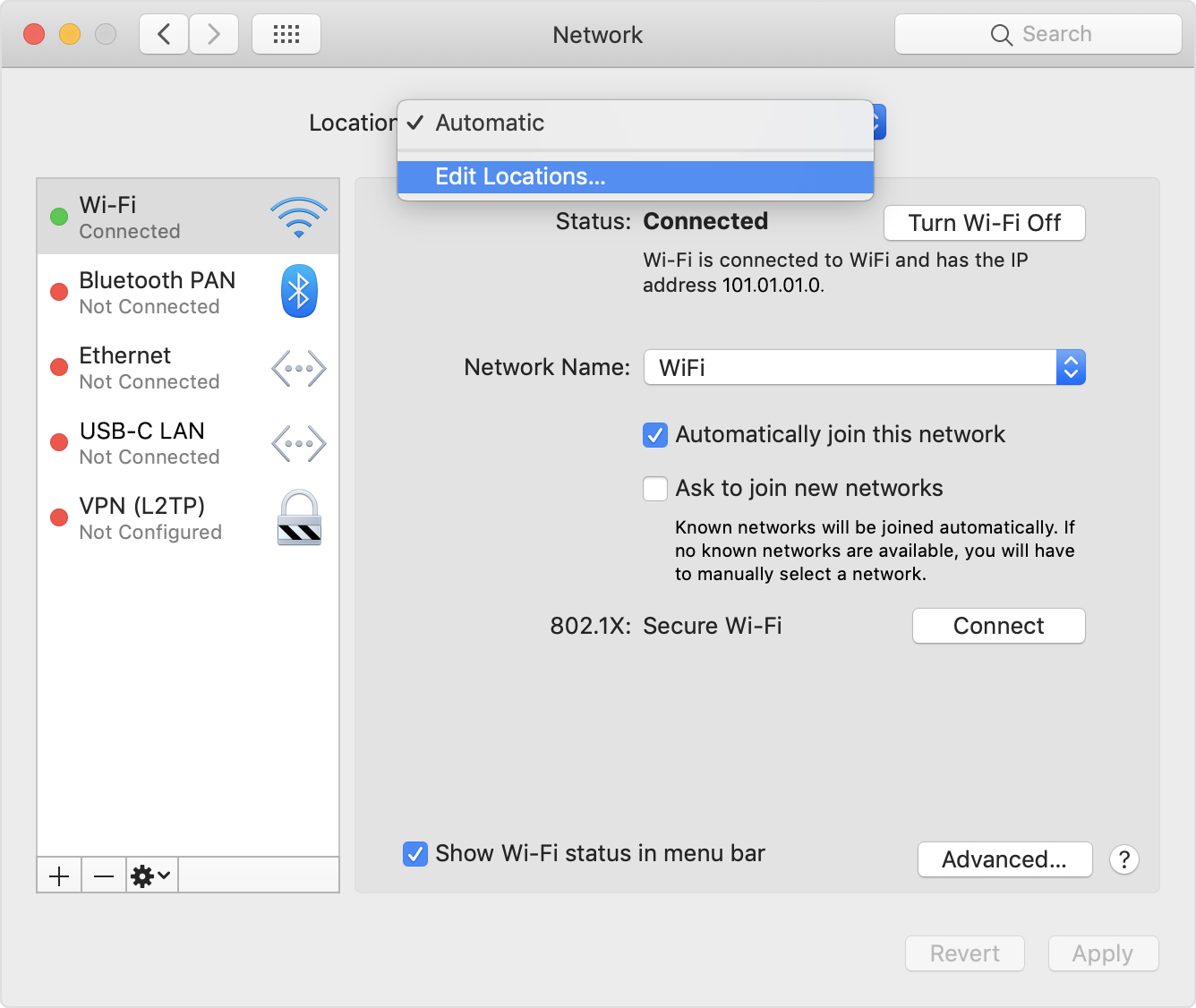
  2. The Location pop-up menu shows the name of your currently selected set of network settings. The default location is named Automatic. Choose Edit Locations from this menu.User uploaded file
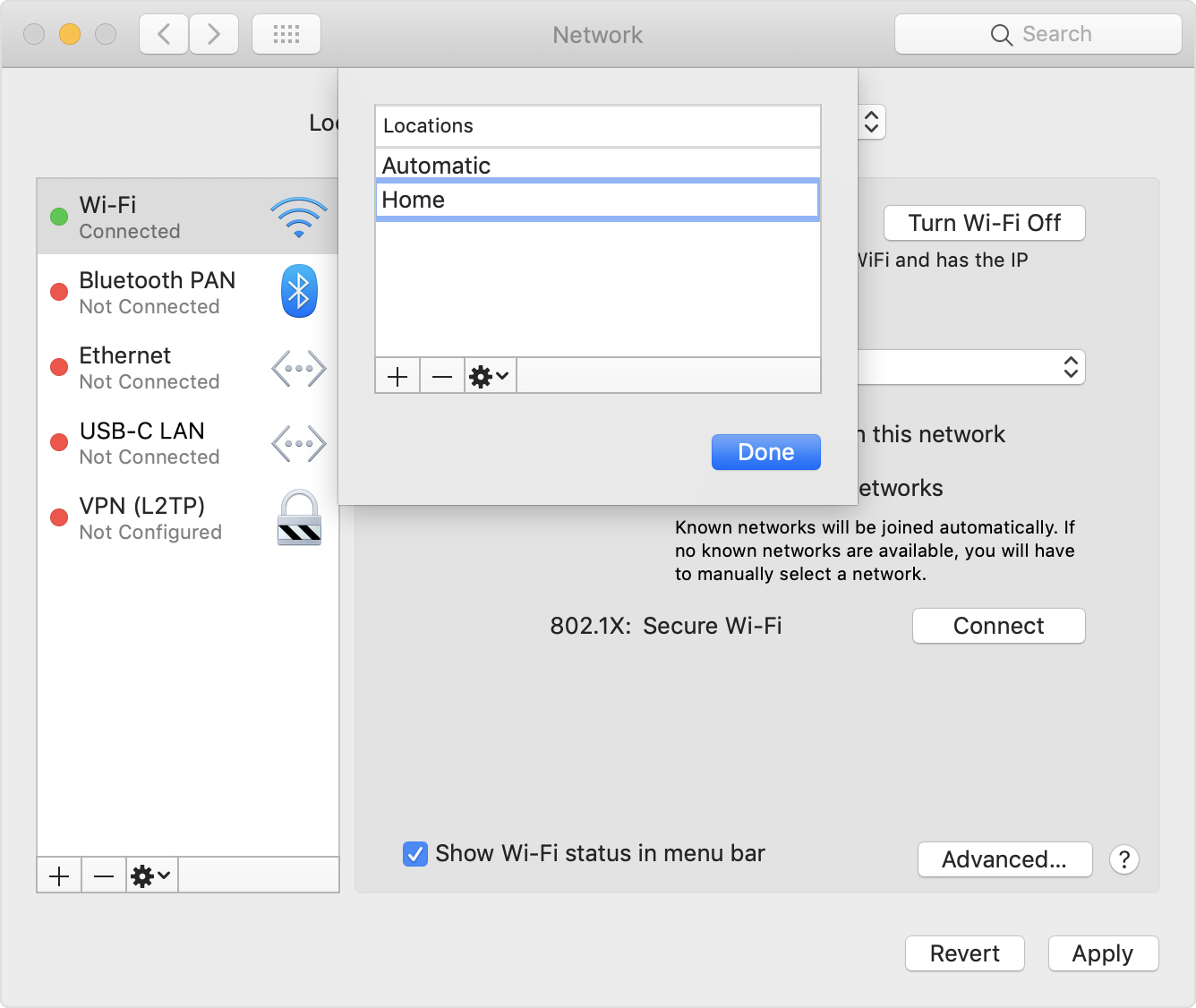
  3. Click the Add (+) button below the list of locations, then type a name for the new location, such as Work or Home or Mobile. (To remove a location, use the Remove (–) button below the list.)
    User uploaded file
  4. Click Done. The Location menu should now show the name of your new location. Any changes you now make to your Wi-Fi, Ethernet, or other network settings will be saved to that location when you click Apply. The network settings in your previous location remain as you left them, so you can use the Location menu to switch back at any time.
  5. Click Apply to save your settings and complete the switch from the previous location to the new one. Your Mac then automatically tries to determine the correct settings for each type of network. If you need to change the settings manually, remember to click Apply again after making your changes.


You can use the above steps to remove your Ethernet connection and re-create it. Then, test it out.


If the issue persists, creating a new user account and testing there is a great way to further narrow things down. This will help determine if you have a user-specific issue, or if it's system-wide. Here's How to test an issue in another user account on your Mac :

Use another account for testing

If another user account is already set up on your Mac, you can simply log out of your account (Apple menu > Log Out) and log in with the other account. But the best way to test is with a newly created account:

  1. Choose Apple menu () > System Preferences, then click Users & Groups.
  2. Click User uploaded file, then enter an administrator name and password.
  3. Click the Add button (+) below the list of users.
  4. Complete the fields shown for a Standard or Administrator account, then click Create Account (or OK).

If you plan to test with any of the documents in your own account, make those documents available to the new account. Drag them to the Shared folder of the Users folder on your hard drive (~/Users/Shared). You can then move them to other folders after you log in as the new user.

Then log out of your account and log in with the new account:

  1. Choose Apple menu > Log out.
  2. At the login window, log in with the name and password of the new account. If you're also asked to sign in with an iCloud account or Apple ID, skip that step.

Now try to reproduce the issue in the new account. If you need to set up an email account or other account in order to test, you can do so.


Depending on the results, you'll find some additional steps in the article I linked above.

I hope this is helpful.

Kindest regards.

Oct 11, 2018 5:26 AM in response to michiel171

Hi michiel171,

Thanks for the follow-up. If you found the issue persisted in a new user account, there are a few more steps you can try from the test user article. It sounds like the next best step to try from there will be to Use safe mode to isolate issues with your Mac :

What is safe mode?

Safe mode (sometimes called safe boot) is a way to start up your Mac so that it performs certain checks and prevents some software from automatically loading or opening. Starting your Mac in safe mode does the following:

  • Verifies your startup disk and attempts to repair directory issues, if needed
  • Loads only required kernel extensions
  • Prevents startup items and login items from opening automatically
  • Disables user-installed fonts
  • Deletes font caches, kernel cache, and other system cache files

If your Mac has an issue that goes away when you start up in safe mode, you might be able to isolate the cause.

User uploaded file

Start up in safe mode

To start up in safe mode:

  1. Start or restart your Mac, then immediately press and hold the Shift key. The Apple logo appears on your display. If you don't see the Apple logo, learn what to do.
  2. Release the Shift key when you see the login window. If your startup disk is encrypted with FileVault, you might be asked to log in twice: once to unlock the startup disk, and again to log in to the Finder.

To leave safe mode, restart your Mac without pressing any keys during startup.


You'll find additional information on how to troubleshoot and issue in safe mode in the article above. You might also try creating a new test user account with admin privileges, as this is the most effective way to test with a new user account. I hope this helps to narrow things down further.

Take care.

This thread has been closed by the system or the community team. You may vote for any posts you find helpful, or search the Community for additional answers.

iMac doesn't connect via ethernet to network, but macbook does. Wifi is fine on both.

Welcome to Apple Support Community
A forum where Apple customers help each other with their products. Get started with your Apple Account.