Hi wesley9229,
Welcome to Apple Support Communities. I understand that when you connect your iPhone to your PC it will charge, but it seems to disconnect and reconnect to the PC frequently. I know it's important for your iPhone to stay connected and recognized by your PC; I'd like to help. First, I'd suggest ensuring the iOS software on your iPhone is up-to-date with iOS 12.0.1:
Update your iPhone, iPad, or iPod touch
If you're already up-to-date, or the behavior persists after updating, use the steps below:
- Unplug all USB accessories from your computer except for your device. Try each USB port to see if one works. Then try a different Apple USB cable.
- Restart your computer and iPhone, iPad, or iPod.
- Try connecting your device to another computer. If you have the same issue on another computer, contact Apple Support.
The steps differ depending on if you downloaded iTunes from the Microsoft Store or from Apple.
Follow these steps to reinstall the Apple Mobile Device USB driver:
- Disconnect your device from your computer.
- Unlock your iOS device and go to the Home screen. Then reconnect your device. If iTunes opens, close it.
- Click and hold (or right-click) the Start button, then choose Device Manager.
- Locate and expand the Portable Devices section.
- Look for your connected device (such as Apple iPhone), then right-click on the device name and choose Update driver.
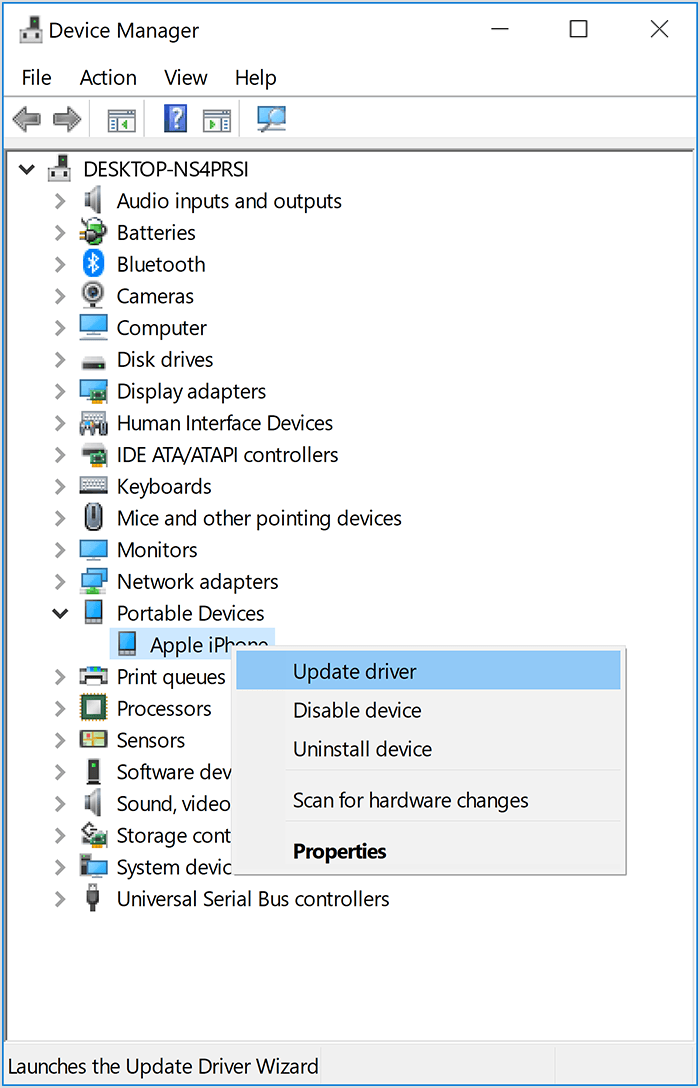
- Select "Search automatically for updated driver software."
- After the software installs, go to Settings > Update & Security > Windows Update and verify that no other updates are available.
- Open iTunes.
Follow these steps to reinstall the Apple Mobile Device USB driver:
- Disconnect your device from your computer.
- Unlock your iOS device and go to the Home screen. Then reconnect your device. If iTunes opens, close it.
- Press the Windows and R key on your keyboard to open the Run command.
- In the Run window, enter:
%ProgramFiles%\Common Files\Apple\Mobile Device Support\Drivers
- Click OK.
- Right-click on the
usbaapl64.inf
or usbaapl.inf
file and choose Install.
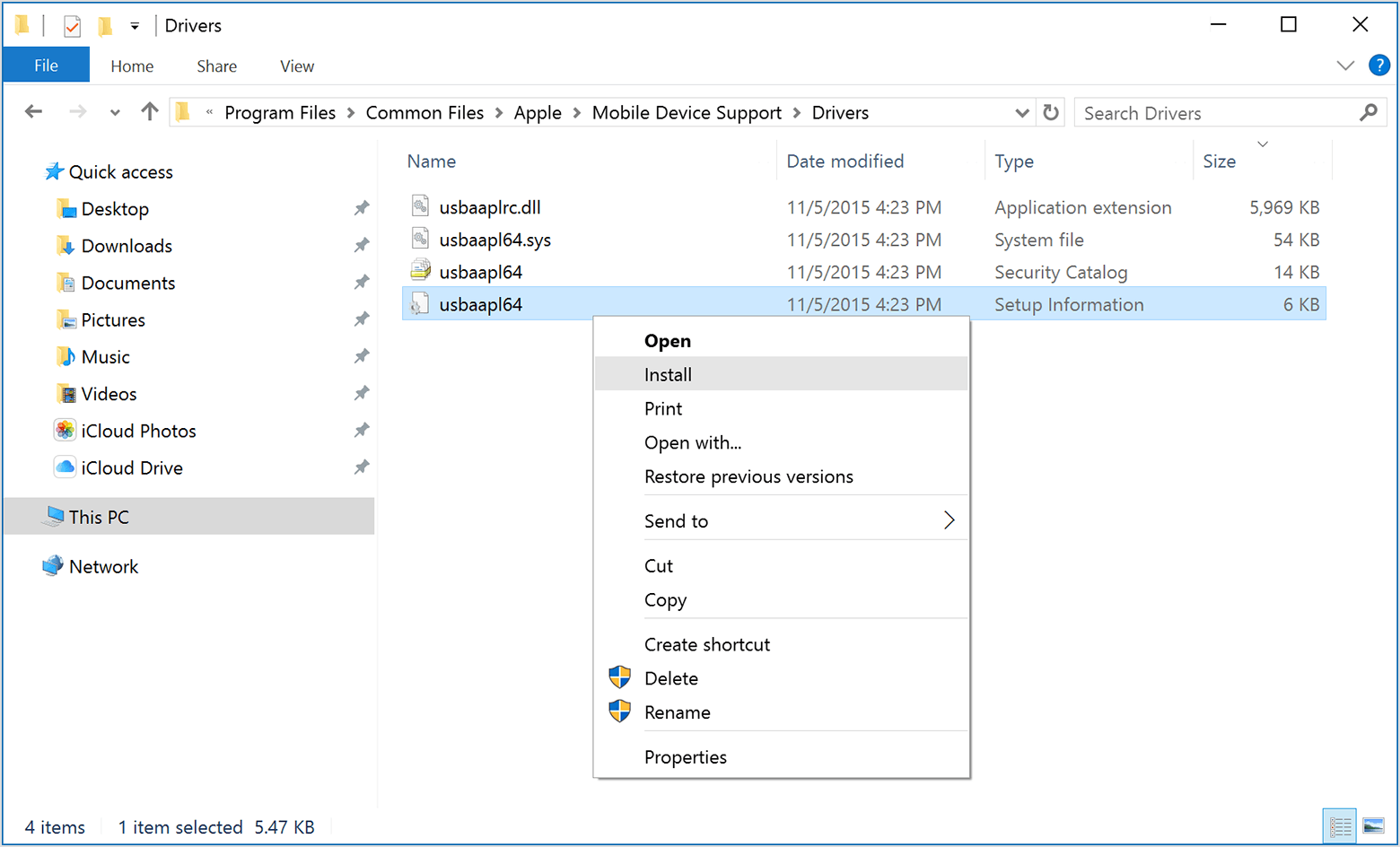
You might see other files that start with usbaapl64
or usbaapl
. Make sure to install the file that ends in .inf. If you’re not sure which file to install, right-click a blank area in the File Explorer Window, click View, then click Details to find the correct file type. You want to install the Setup Information file.
- Disconnect your device from your computer, then restart your computer.
- Reconnect your device and open iTunes.
Check Device Manager to see if the Apple Mobile Device USB driver is installed. Follow these steps to open Device Manager:
- Press the Windows and R key on your keyboard to open the Run command.
- In the Run window, enter
devmgmt.msc
, then click OK. Device Manager should open.
- Locate and expand the Universal Serial Bus controllers section.
- Look for the Apple Mobile Device USB driver.
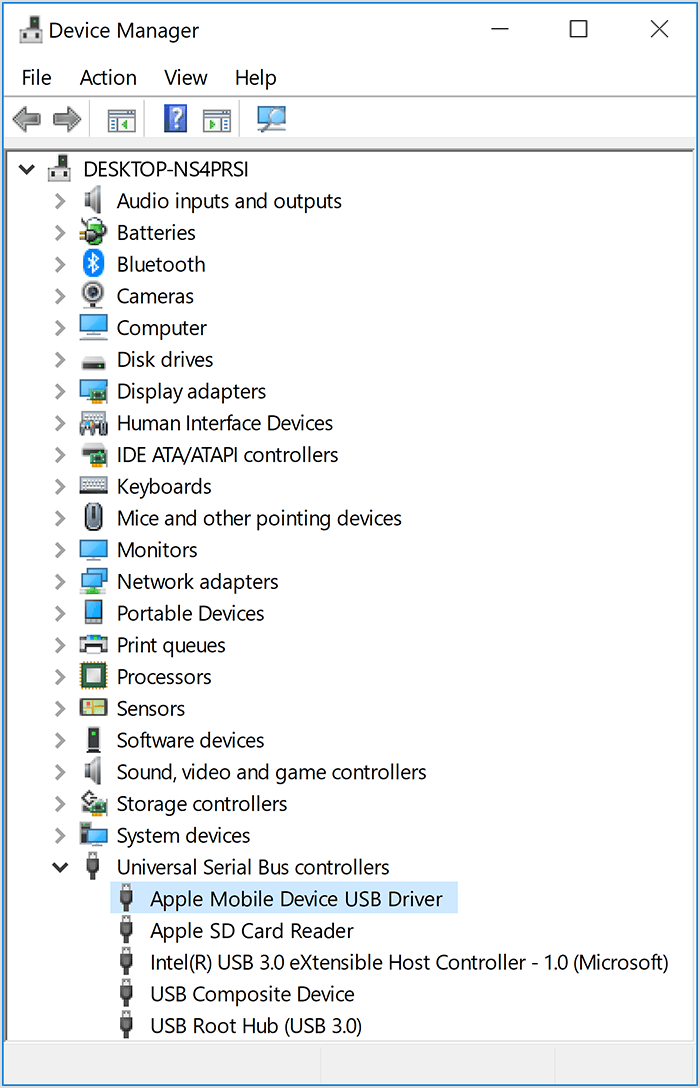
If you don't see the Apple Mobile Device USB Driver or you see Unknown Device:
- Connect your device to your computer with a different USB cable.
- Connect your device to a different computer. If you have the same issue on another computer, contact Apple Support.
If you see the Apple Mobile Device USB driver with an error symbol:
If you see  ,
,  , or
, or  next to the Apple Mobile Device USB driver, follow these steps:
- Restart the Apple Mobile Device Service.
- Check for and resolve issues with third-party security software, then restart your computer.
- Try to install the
usbaapl64.inf
or usbaapl.inf
file again.
If the issue persists, contact Apple Support.
If iTunes doesn't recognize your iPhone, iPad, or iPod
Best Regards.


