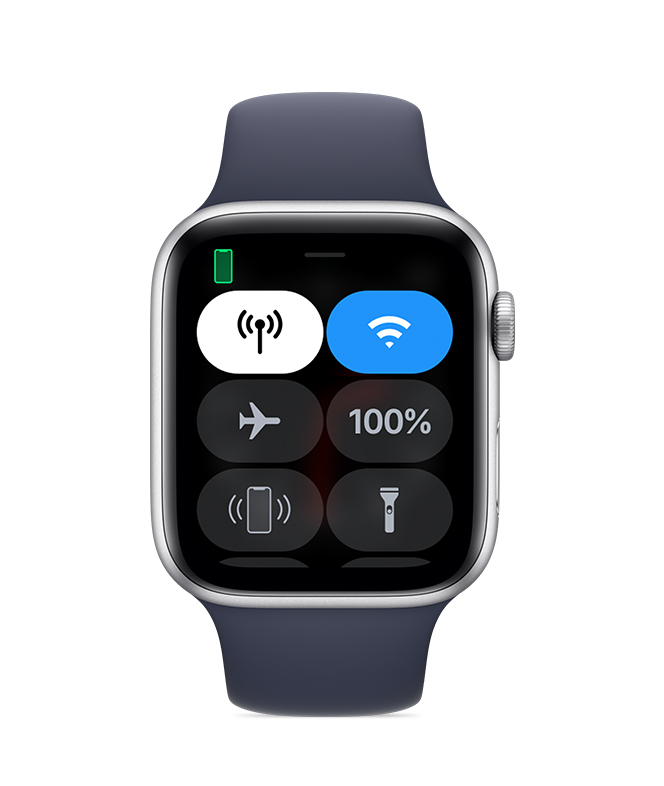
If you see the Do Not Disturb or Airplane Mode icons on your watch face, you need to turn the settings off in Control Center.
Touch and hold the bottom of the watch face, wait for Control Center to show, then swipe up. Tap the highlighted Do Not Disturb and Airplane Mode icons to turn off the settings.

Make sure that your Apple Watch can connect to your iPhone, cellular, or Wi-Fi. To send and receive SMS/MMS from cellular models of Apple Watch, your paired iPhone must be powered on and connected to Wi-Fi or cellular, but your iPhone doesn’t need to be nearby.
Even if your iPhone isn’t connected or powered on, you can send and receive iMessages on your Apple Watch when your Apple Watch is connected to Wi-Fi or cellular.
Learn how your Apple Watch makes connections and get help if your devices disconnect.
If your iPhone can't send or receive messages, try to fix messages on your iPhone.
On your iPhone, open the Apple Watch app, tap the My Watch tab, then tap General > Apple ID.

On your iPhone, go to Settings > Messages and make sure that iMessage is turned on.
Then tap Send & Receive and make sure that you're using the same Apple ID that your Apple Watch is using.
If you aren't signed in, sign in to iMessage with your Apple ID.
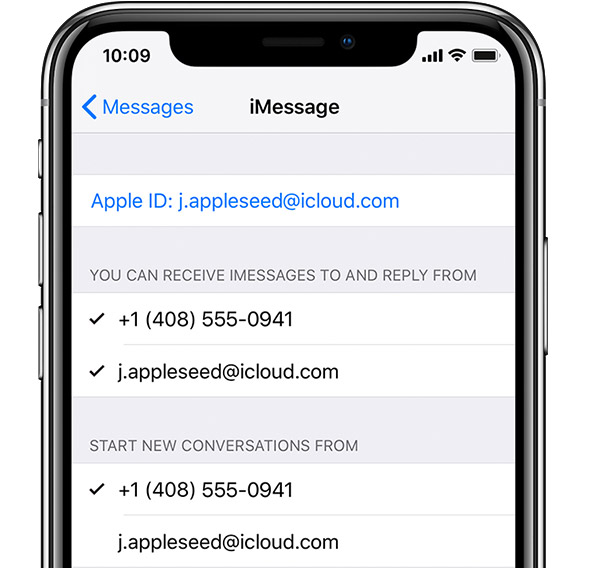
Tap Settings > Messages > Send & Receive. Tap your Apple ID, then tap Sign Out.
Then tap Settings > Messages. Turn iMessage off, then turn it back on

Tap Settings > Messages > Send & Receive > Use your Apple ID for iMessage, then sign in.
Here's how to restart your Apple Watch and iPhone.
Here's how to update your Apple Watch and iPhone.