Workout Notification Replies Unsent

When I do a workout, my wife receives a notification and can reply to it as an iMessage.


When she does a workout, I receive a notification but even time I reply to that, the message fails to be sent: "Unsent Message This message to [name redacted] didn't go through: '[message redacted]'"


They have never worked for me, either on my 'Series 0' Watch or my new Series 4.


Any ideas?

Apple Watch, watchOS 5

Posted on Oct 15, 2018 1:31 AM

Reply
Question marked as Top-ranking reply

Posted on Oct 16, 2018 12:30 PM

Hi Richard Morris,

Thank you for posting in the Apple Support Communities. I see you're unable to send replies to workout notifications.

Are you able to send other messages from your Apple Watch? If not, the article titled If you can’t send or receive messages on your Apple Watch will be a great place to start:

Check Control Center

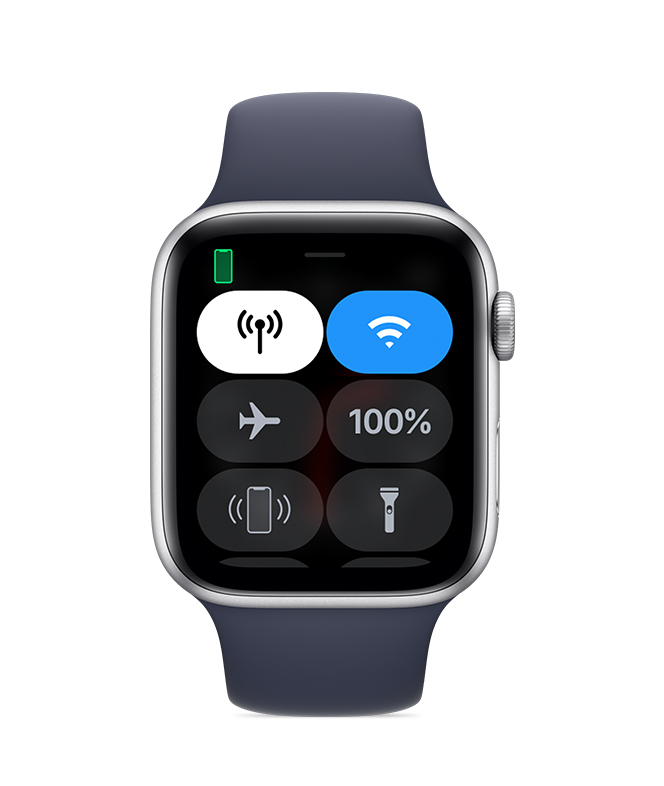
If you see the Do Not Disturb or Airplane Mode icons on your watch face, you need to turn the settings off in Control Center.

Touch and hold the bottom of the watch face, wait for Control Center to show, then swipe up. Tap the highlighted Do Not Disturb and Airplane Mode icons to turn off the settings.


User uploaded file

Check your connection

Make sure that your Apple Watch can connect to your iPhone, cellular, or Wi-Fi. To send and receive SMS/MMS from cellular models of Apple Watch, your paired iPhone must be powered on and connected to Wi-Fi or cellular, but your iPhone doesn’t need to be nearby.

Even if your iPhone isn’t connected or powered on, you can send and receive iMessages on your Apple Watch when your Apple Watch is connected to Wi-Fi or cellular.

Learn how your Apple Watch makes connections and get help if your devices disconnect.


User uploaded file

Try sending a message from your iPhone

If your iPhone can't send or receive messages, try to fix messages on your iPhone.


Make sure that you signed in

On your iPhone, open the Apple Watch app, tap the My Watch tab, then tap General > Apple ID.


User uploaded file

Check your iMessage settings

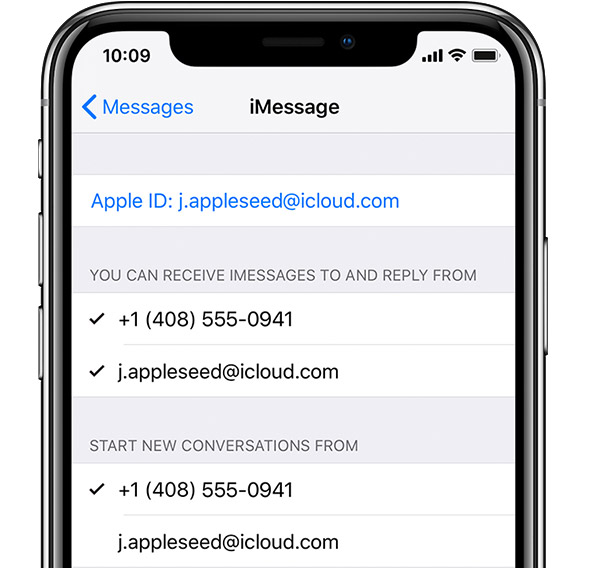
On your iPhone, go to Settings > Messages and make sure that iMessage is turned on.

Then tap Send & Receive and make sure that you're using the same Apple ID that your Apple Watch is using.

If you aren't signed in, sign in to iMessage with your Apple ID.

User uploaded file

Sign out of iMessage

Tap Settings > Messages > Send & Receive. Tap your Apple ID, then tap Sign Out.

Then tap Settings > Messages. Turn iMessage off, then turn it back on


User uploaded file

Sign in to iMessage again

Tap Settings > Messages > Send & Receive > Use your Apple ID for iMessage, then sign in.


Restart your Apple Watch and iPhone

Here's how to restart your Apple Watch and iPhone.


Check for updates

Here's how to update your Apple Watch and iPhone.


Also, you mentioned this happened on another Apple Watch as well. Did you set up the Series 4 using a backup from another Apple Watch? If you complete the steps above and find the issue persists, unpairing and re-pairing your Apple Watch and then setting it up as new will be a great way to narrow this down. Here's how to Unpair and erase your Apple Watch :

Disconnect your devices

  1. Keep your Apple Watch and iPhone close together as you unpair them.
  2. Open the Apple Watch app on your iPhone.
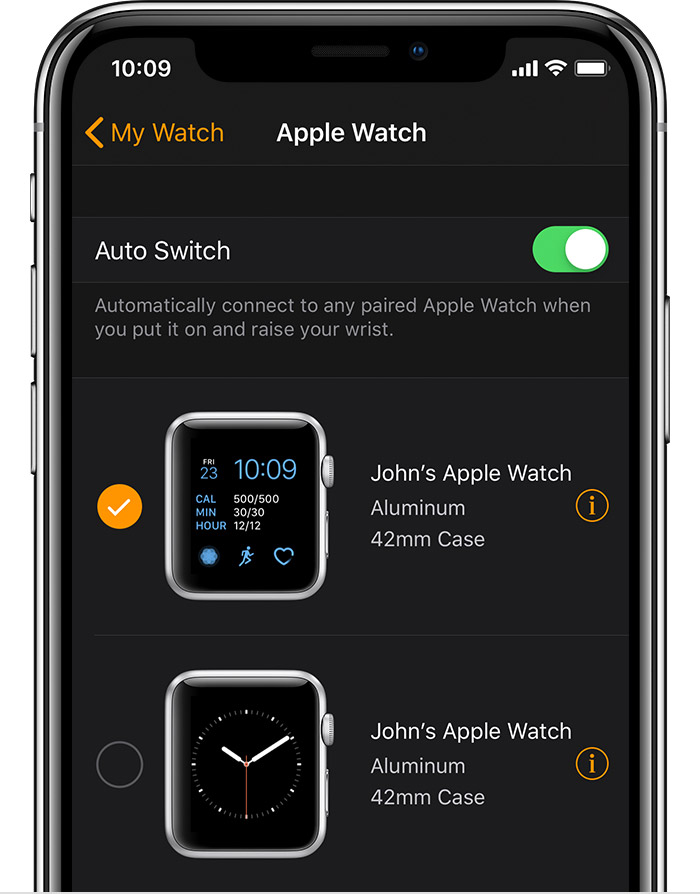
  3. Go to the My Watch tab and tap your watch at the top of the screen.
  4. Tap User uploaded file next to the watch that you want to unpair.
    User uploaded file
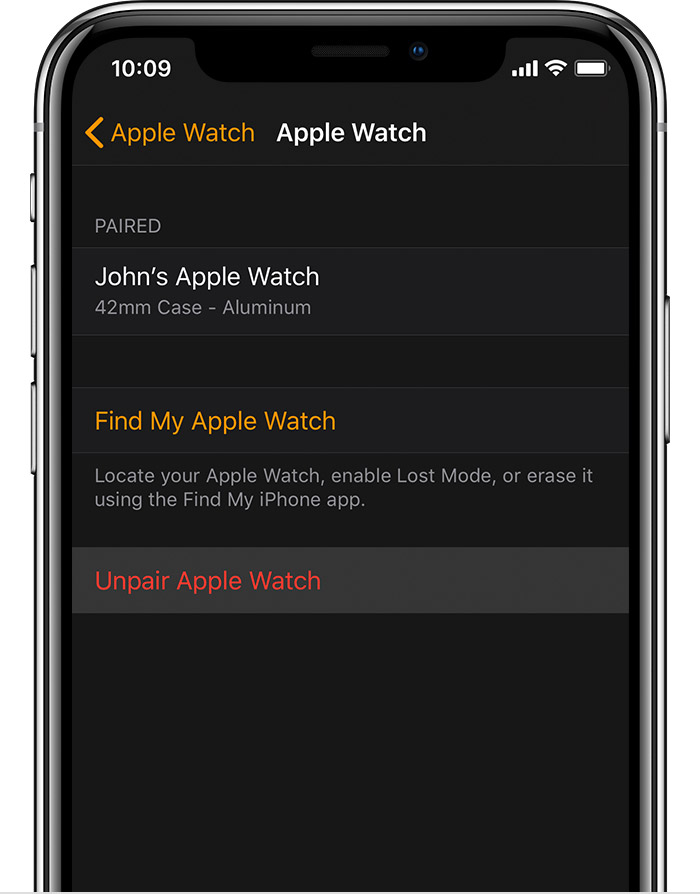
  5. Tap Unpair Apple Watch.
    User uploaded file
  6. For Apple Watch Series 4 (GPS + Cellular) or Apple Watch Series 3 (GPS + Cellular), choose to keep or remove your cellular plan.
    • If you want to pair your Apple Watch and iPhone again, keep your plan.
    • If you don't want to pair your Apple Watch and iPhone again, remove your plan. If you aren't going to pair with a different watch or iPhone, you might need to contact your carrier to cancel your cellular subscription.
  7. Tap again to confirm. You might need to enter your Apple ID password to disable Activation Lock. Before erasing all content and settings on your Apple Watch, your iPhone creates a new backup of your Apple Watch. You can use the backup to restore a new Apple Watch. After your Apple Watch unpairs, you'll see the Start Pairing message.
  8. Use these steps to set up your Apple Watch again.


For testing purposes, when you set up your Apple Watch again, be sure to set it up as new. Then, while it's set up as new, test it out to see if you're able to recreate the issue. This will help to rule out the possibility of the issue coming from content stored in the backup.

I hope the information I've provided helps.

Have a great day.
5 replies
Question marked as Top-ranking reply

Oct 16, 2018 12:30 PM in response to Richard Morris

Hi Richard Morris,

Thank you for posting in the Apple Support Communities. I see you're unable to send replies to workout notifications.

Are you able to send other messages from your Apple Watch? If not, the article titled If you can’t send or receive messages on your Apple Watch will be a great place to start:

Check Control Center

If you see the Do Not Disturb or Airplane Mode icons on your watch face, you need to turn the settings off in Control Center.

Touch and hold the bottom of the watch face, wait for Control Center to show, then swipe up. Tap the highlighted Do Not Disturb and Airplane Mode icons to turn off the settings.


User uploaded file

Check your connection

Make sure that your Apple Watch can connect to your iPhone, cellular, or Wi-Fi. To send and receive SMS/MMS from cellular models of Apple Watch, your paired iPhone must be powered on and connected to Wi-Fi or cellular, but your iPhone doesn’t need to be nearby.

Even if your iPhone isn’t connected or powered on, you can send and receive iMessages on your Apple Watch when your Apple Watch is connected to Wi-Fi or cellular.

Learn how your Apple Watch makes connections and get help if your devices disconnect.


User uploaded file

Try sending a message from your iPhone

If your iPhone can't send or receive messages, try to fix messages on your iPhone.


Make sure that you signed in

On your iPhone, open the Apple Watch app, tap the My Watch tab, then tap General > Apple ID.


User uploaded file

Check your iMessage settings

On your iPhone, go to Settings > Messages and make sure that iMessage is turned on.

Then tap Send & Receive and make sure that you're using the same Apple ID that your Apple Watch is using.

If you aren't signed in, sign in to iMessage with your Apple ID.


User uploaded file

Sign out of iMessage

Tap Settings > Messages > Send & Receive. Tap your Apple ID, then tap Sign Out.

Then tap Settings > Messages. Turn iMessage off, then turn it back on


User uploaded file

Sign in to iMessage again

Tap Settings > Messages > Send & Receive > Use your Apple ID for iMessage, then sign in.


Restart your Apple Watch and iPhone

Here's how to restart your Apple Watch and iPhone.


Check for updates

Here's how to update your Apple Watch and iPhone.


Also, you mentioned this happened on another Apple Watch as well. Did you set up the Series 4 using a backup from another Apple Watch? If you complete the steps above and find the issue persists, unpairing and re-pairing your Apple Watch and then setting it up as new will be a great way to narrow this down. Here's how to Unpair and erase your Apple Watch :

Disconnect your devices

  1. Keep your Apple Watch and iPhone close together as you unpair them.
  2. Open the Apple Watch app on your iPhone.
  3. Go to the My Watch tab and tap your watch at the top of the screen.
  4. Tap User uploaded file next to the watch that you want to unpair.
    User uploaded file
  5. Tap Unpair Apple Watch.
    User uploaded file
  6. For Apple Watch Series 4 (GPS + Cellular) or Apple Watch Series 3 (GPS + Cellular), choose to keep or remove your cellular plan.
    • If you want to pair your Apple Watch and iPhone again, keep your plan.
    • If you don't want to pair your Apple Watch and iPhone again, remove your plan. If you aren't going to pair with a different watch or iPhone, you might need to contact your carrier to cancel your cellular subscription.
  7. Tap again to confirm. You might need to enter your Apple ID password to disable Activation Lock. Before erasing all content and settings on your Apple Watch, your iPhone creates a new backup of your Apple Watch. You can use the backup to restore a new Apple Watch. After your Apple Watch unpairs, you'll see the Start Pairing message.
  8. Use these steps to set up your Apple Watch again.


For testing purposes, when you set up your Apple Watch again, be sure to set it up as new. Then, while it's set up as new, test it out to see if you're able to recreate the issue. This will help to rule out the possibility of the issue coming from content stored in the backup.

I hope the information I've provided helps.

Have a great day.

Oct 17, 2018 8:19 AM in response to Richard Morris

Hi Richard Morris,

Thanks for the follow-up. It sounds like the issue is only with sending the Workout notifications.

When you set up your new Apple Watch 4, did you set it up using data from your previous Watch? If so, temporarily setting your Apple Watch up as a new device will be your next best step. If the issue was present on another Apple Watch, there's a possibility that it carried over from the backup.

Here's how you can Unpair and erase your Apple Watch :

Disconnect your devices

  1. Keep your Apple Watch and iPhone close together as you unpair them.
  2. Open the Apple Watch app on your iPhone.
  3. Go to the My Watch tab and tap your watch at the top of the screen.
  4. Tap User uploaded file next to the watch that you want to unpair.
    User uploaded file
  5. Tap Unpair Apple Watch.
    User uploaded file
  6. For Apple Watch Series 4 (GPS + Cellular) or Apple Watch Series 3 (GPS + Cellular), choose to keep or remove your cellular plan.
    • If you want to pair your Apple Watch and iPhone again, keep your plan.
    • If you don't want to pair your Apple Watch and iPhone again, remove your plan. If you aren't going to pair with a different watch or iPhone, you might need to contact your carrier to cancel your cellular subscription.
  7. Tap again to confirm. You might need to enter your Apple ID password to disable Activation Lock. Before erasing all content and settings on your Apple Watch, your iPhone creates a new backup of your Apple Watch. You can use the backup to restore a new Apple Watch. After your Apple Watch unpairs, you'll see the Start Pairing message.
  8. Use these steps to set up your Apple Watch again.


The steps above will help you to set up your Apple Watch as new for testing. I hope this is helpful.

Kindest regards.

This thread has been closed by the system or the community team. You may vote for any posts you find helpful, or search the Community for additional answers.

Workout Notification Replies Unsent

Welcome to Apple Support Community
A forum where Apple customers help each other with their products. Get started with your Apple Account.