'Image Capture' files corrupt in Mojave

New-ish user to Mac OS--Mojave 10.14 running on an older MacBook Air.


I'm trying to scan documents on my HP M1217/nfw MFP using the Preview app. I can scan the documents and save them as PDF, TIFF or PNG, but none of the files can be opened. Clicking on the file in Finder results in an error windows stating the file can't be opened and "It may be damaged or use a file format that Preview doesn’t recognize." In Preveiw, if I try to insert an image (or pdf file) to an existing file, then nothing appears after inserting the file.


Any suggestions?


THANKS

MacBook Air, macOS Mojave (10.14)

Posted on Oct 27, 2018 10:12 AM

Reply
Question marked as Top-ranking reply

Posted on Oct 28, 2018 2:32 PM

Hi gpbeau,

Thanks for the follow-up information.

If the HP website suggests the latest drivers are for macOS 10.13, the scanner drivers may still need to be updated for macOS 10.14 by the manufacturer.

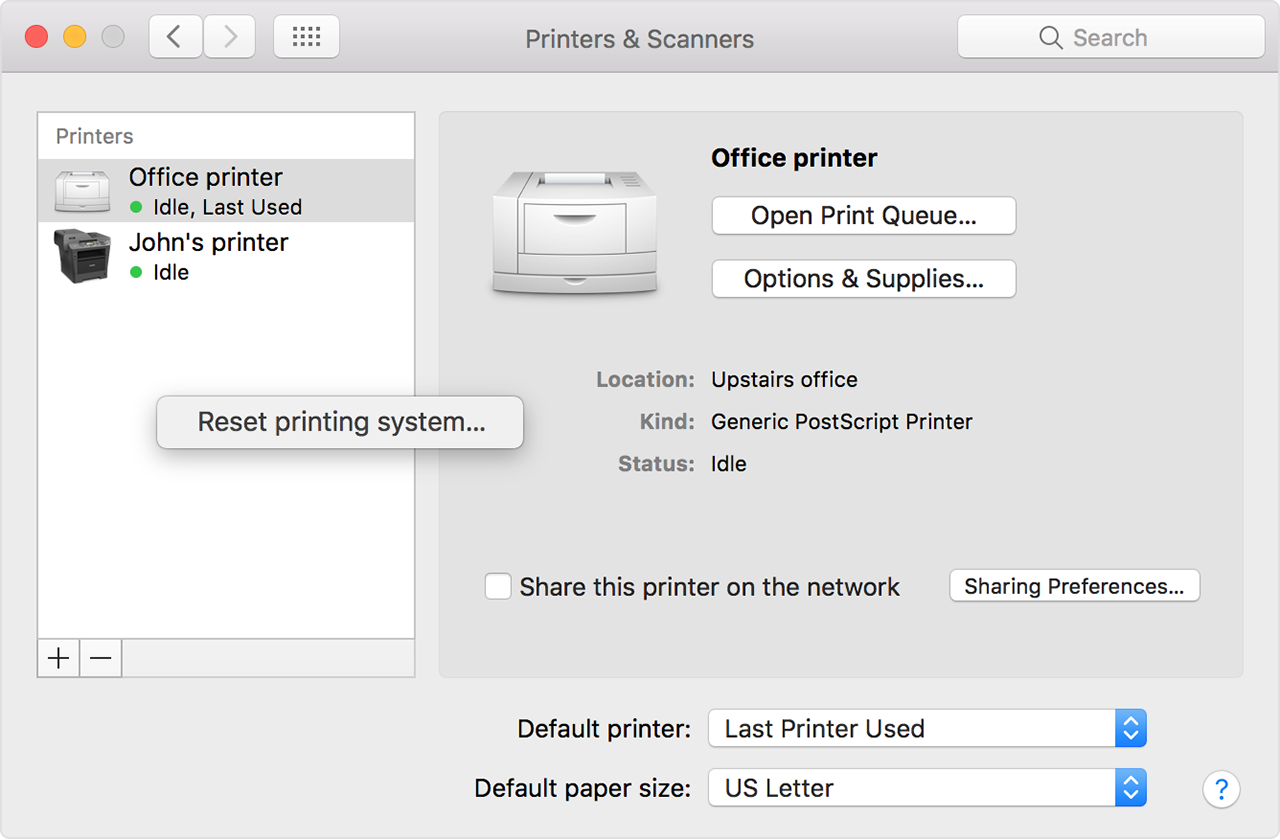
In addition to testing in the new admin user account, you might also try a reset of the print system. This will remove all added printers and scanners, so you'll need to re-add them after. You'll find the steps needed in the article If you can't print from your Mac or iOS device :

Reset the printing system

If the issue continues, reset the printing system on your Mac. This removes all printers and scanners—including their print jobs and settings—from Printers & Scanners preferences.

  1. Choose Apple menu > System Preferences, then click Printers & Scanners.
  2. While holding down the Control key on your keyboard, click anywhere in the list of devices.
  3. Choose “Reset printing system” from the menu that appears:

User uploaded file


Then, test it out. While you may ultimately need to reach out to HP for a possible update specific to macOS Mojave, resetting the print system and testing in a new admin account will help to rule out possible issues on the Mac side.

Kindest regards.

Similar questions

4 replies
Question marked as Top-ranking reply

Oct 28, 2018 2:32 PM in response to gpbeau

Hi gpbeau,

Thanks for the follow-up information.

If the HP website suggests the latest drivers are for macOS 10.13, the scanner drivers may still need to be updated for macOS 10.14 by the manufacturer.

In addition to testing in the new admin user account, you might also try a reset of the print system. This will remove all added printers and scanners, so you'll need to re-add them after. You'll find the steps needed in the article If you can't print from your Mac or iOS device :

Reset the printing system

If the issue continues, reset the printing system on your Mac. This removes all printers and scanners—including their print jobs and settings—from Printers & Scanners preferences.

  1. Choose Apple menu > System Preferences, then click Printers & Scanners.
  2. While holding down the Control key on your keyboard, click anywhere in the list of devices.
  3. Choose “Reset printing system” from the menu that appears:

User uploaded file


Then, test it out. While you may ultimately need to reach out to HP for a possible update specific to macOS Mojave, resetting the print system and testing in a new admin account will help to rule out possible issues on the Mac side.

Kindest regards.

Oct 28, 2018 1:21 PM in response to Joseph_S.

Thanks for the detailed response.


All drivers are up to date--The Software Update function doesn't find anything. I did download the latest package from HP's website, although it doesn't tell us it supports 10.14 (the list goes up to 10.13).


Yes, I can still scan using my Windows machines. I was using Windows on this MacBook for years using a Bootcamp partition and everything worked splendidly. This MacBook Air machine now with Mojave can print just fine. When I try to scan (either using the Mac or HP utilities, the scanner responds and scans the document, it's just that neither app responds with an image after the scan. So, the scanner operates, but no preview or even saved file (PDF, TIFF or PNG) gets created. I've tried a USB connection with the same results.


I can try an alternate account, but expect the same results.


Any other thoughts?


THANKS

Oct 28, 2018 9:21 AM in response to gpbeau

Hi gpbeau,

Welcome to the Apple Support Communities. I see you're encountering an issue with scanning documents.

Have you ever been able to scan and open documents using this scanner? If so, when was the last time?

To isolate things, are you able to use Preview with other non-scanned files? This would help rule out the Preview app as the culprit.

Depending on how old your scanner is, you may need to manually check for driver updates. For newer models, most will automatically update. However, it's a good idea to check for updates in the App Store and then double-check the manufacturer website for any updates as well.

First, here's How to update the software on your Mac :

How to get updates for macOS Mojave

If you already upgraded to macOS Mojave:

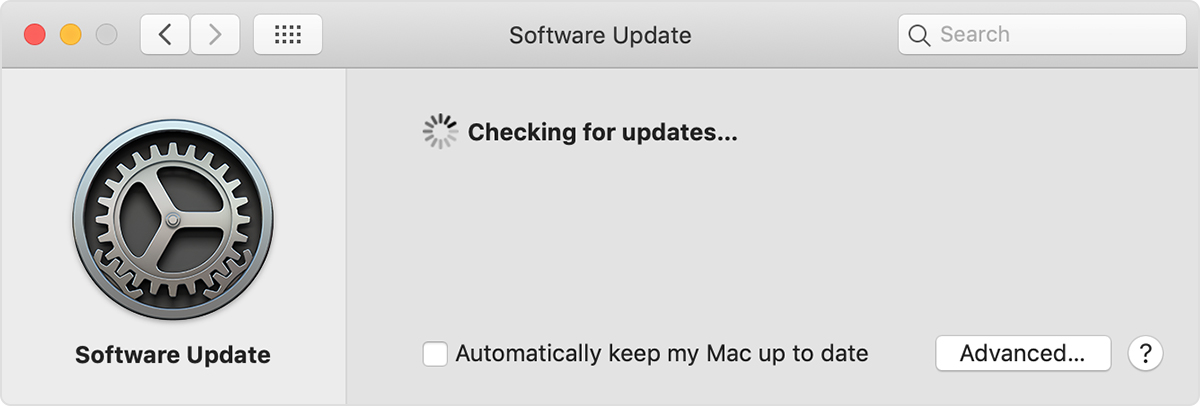
  1. Choose System Preferences from the Apple () menu, then click Software Update to check for updates:
    User uploaded file
  2. If any updates are available:
    • Click the Update Now button to install all available updates.
    • Or click ”More info” to see details about each update and select specific updates to install.
  3. When Software Update says that your Mac is up to date, macOS and all of its apps are also up to date. That includes Safari, iTunes, Books, Messages, Mail, Calendar, Photos, and FaceTime.

To automatically install macOS updates in the future, including apps downloaded from the App Store, select ”Automatically keep my Mac up to date.” Your Mac will notify you when updates require your Mac to restart, so you can always choose to install those later.


If there are no automatic updates available, this resource will direct you to the manufacturer website where you can double-check for manual updates: Printer and scanner drivers for Mac .

If everything is up-to-date, there are a few other possibilities to consider. You mentioned this is a multi-function printer; are you able to print successfully, or do you encounter an issue with that function as well?

Also, you might consider testing this in a newly-created admin user account if all updates are installed. This would help narrow things down as either system-wide or user account-specific. Here's How to test an issue in another user account on your Mac :

Use another account for testing

If another user account is already set up on your Mac, you can simply log out of your account (Apple menu > Log Out) and log in with the other account. But the best way to test is with a newly created account:

  1. Choose Apple menu () > System Preferences, then click Users & Groups.
  2. Click User uploaded file, then enter an administrator name and password.
  3. Click the Add button (+) below the list of users.
  4. Complete the fields shown for a Standard or Administrator account, then click Create Account (or OK).

If you plan to test with any of the documents in your own account, make those documents available to the new account. Drag them to the Shared folder of the Users folder on your hard drive (~/Users/Shared). You can then move them to other folders after you log in as the new user.

Then log out of your account and log in with the new account:

  1. Choose Apple menu > Log out.
  2. At the login window, log in with the name and password of the new account. If you're also asked to sign in with an iCloud account or Apple ID, skip that step.

Now try to reproduce the issue in the new account. If you need to set up an email account or other account in order to test, you can do so.

If the issue doesn't happen in the other account

If the issue doesn't happen in the new user account, the issue is related to the settings or files in your own account.

If you need help with a specific alert or issue, search the Apple Support website for the text of the alert. If the issue happens in only one app in your account, it might be related to one of that app's settings. Check the app's documentation or support website for help.

You can remove the new user account when you're done testing. Follow the steps for creating a new account, but click the Remove button (–) instead of the Add button (+). Before removing the account, make sure that you don't need any of the files or settings you created or copied in that account.

If the issue happens in the other account

If the issue happens in the other user account:


I hope this helps you.

Take care.

This thread has been closed by the system or the community team. You may vote for any posts you find helpful, or search the Community for additional answers.

'Image Capture' files corrupt in Mojave

Welcome to Apple Support Community
A forum where Apple customers help each other with their products. Get started with your Apple Account.