Unable to move messages to mailbox trash
Help please. On my ipad I canning move certain messages to trash. How can I resolve this please? Thank you.
Help please. On my ipad I canning move certain messages to trash. How can I resolve this please? Thank you.
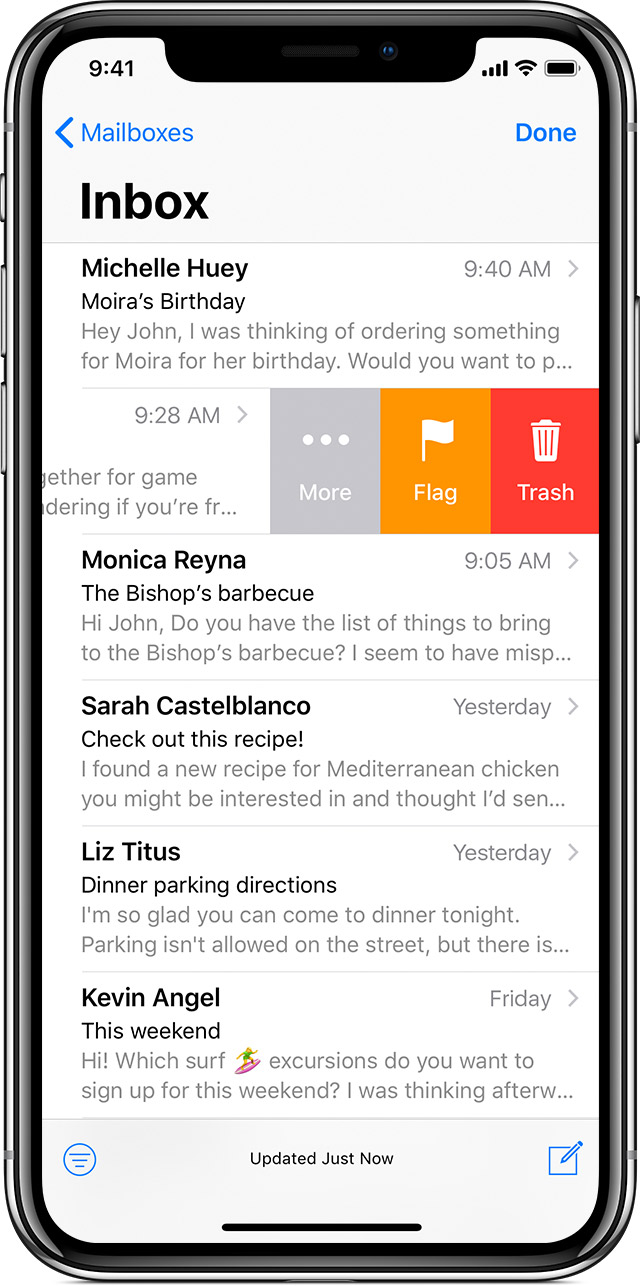
If you're seeing an Archive instead of the Trash option as mentioned above, these steps should help:Delete a single email
- Open Mail and go to your Inbox.
- Find the email you want to delete.
- Quickly swipe left over the message.
To undo deleting an email, shake your device, then tap Undo.
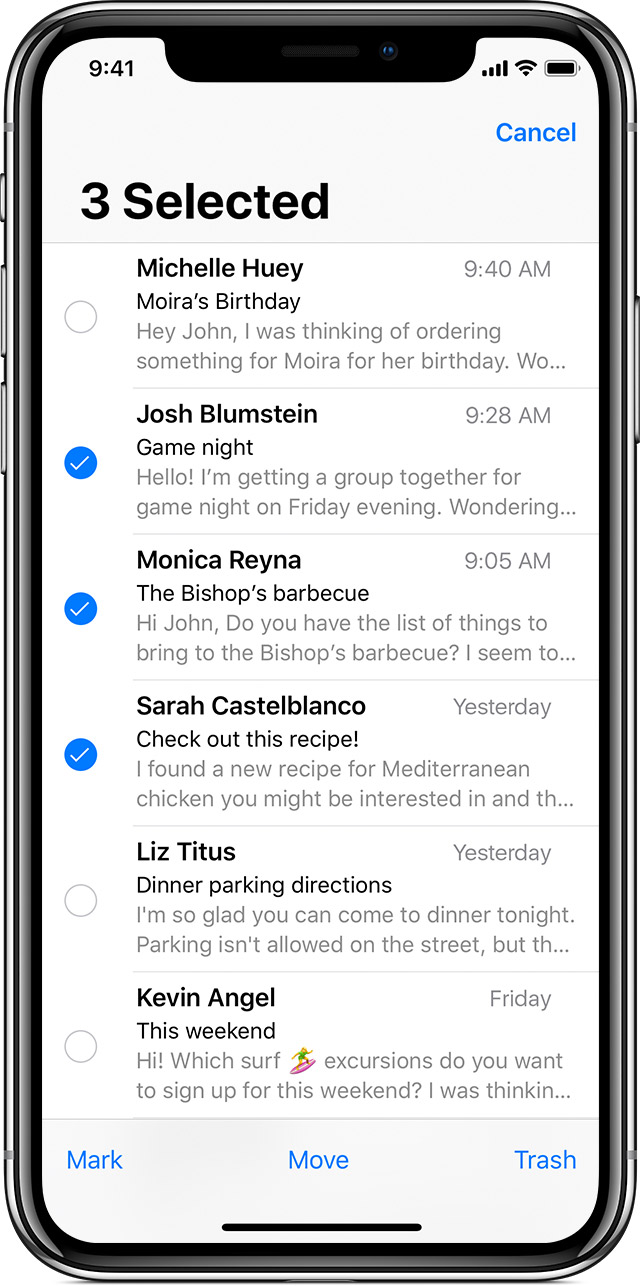
Delete multiple emails
- Open Mail and go to your Inbox.
- Tap Edit, then select the emails you want to delete.
- When you're ready, tap Trash.
Depending on the type of email account you have, you might see Archive instead of Trash when you try to delete emails. You can edit your mailbox behavior settings to change this.
Hopefully this information is helpful!Edit mailbox behavior settings
To manage your iCloud email account, which ends with icloud.com, me.com, or mac.com, follow these steps:
- Go to Settings > Passwords & Accounts.
- Tap the iCloud email account that you want to manage.
- Scroll to the bottom of the screen and tap Mail.
- Tap Advanced.
If you have a secondary iCloud email account on your iOS device, follow these steps:
- Go to Settings > Passwords & Accounts.
- Tap the iCloud email account that you want to manage.
- Tap Account > Mail > Advanced.
If you have another type of email account:
- Go to Settings > Passwords & Accounts.
- Tap the email account that you want to manage.
- Tap Account, then tap Advanced.
From here, you can also choose whether to delete or archive messages. When you swipe left over a message that you want to discard, you'll see Archive or Trash based on the settings you select.
If you're seeing an Archive instead of the Trash option as mentioned above, these steps should help:Delete a single email
- Open Mail and go to your Inbox.
- Find the email you want to delete.
- Quickly swipe left over the message.
To undo deleting an email, shake your device, then tap Undo.
Delete multiple emails
- Open Mail and go to your Inbox.
- Tap Edit, then select the emails you want to delete.
- When you're ready, tap Trash.
Depending on the type of email account you have, you might see Archive instead of Trash when you try to delete emails. You can edit your mailbox behavior settings to change this.
Hopefully this information is helpful!Edit mailbox behavior settings
To manage your iCloud email account, which ends with icloud.com, me.com, or mac.com, follow these steps:
- Go to Settings > Passwords & Accounts.
- Tap the iCloud email account that you want to manage.
- Scroll to the bottom of the screen and tap Mail.
- Tap Advanced.
If you have a secondary iCloud email account on your iOS device, follow these steps:
- Go to Settings > Passwords & Accounts.
- Tap the iCloud email account that you want to manage.
- Tap Account > Mail > Advanced.
If you have another type of email account:
- Go to Settings > Passwords & Accounts.
- Tap the email account that you want to manage.
- Tap Account, then tap Advanced.
From here, you can also choose whether to delete or archive messages. When you swipe left over a message that you want to discard, you'll see Archive or Trash based on the settings you select.
Unable to move messages to mailbox trash