MacBook Air 2011 SSD not mounted

Hi


I have a MacBook AirCore i7" 11" (Mid-2011)1.8 GHz Core i7 (I7-2677M) on which the SSD was almost full (About 1.4 GB remaining of 248 GB) when it failed to boot one day. Booting into recovery mode with Disk Utility shows the disk present, but it is not mounted. Verifying permissions prompted to run a repair on the disk which then stops before completion and advises that it can't be repaired and that I should back up my files and reformat the disk.


I have also seen a message which reported that there wasn't enough free space to perform a repair on the disk.


All I want to do is back up the files but as this is a proprietary SSD I am unsure how this is possible with a disk that won't mount?


Many thanks

MacBook Air, MacBook Air i7" 1.8 11" (Mid-2011)

Posted on Nov 14, 2018 11:19 AM

Reply
Question marked as Top-ranking reply

Posted on Nov 21, 2018 9:08 AM

I tried this using a Thunderbolt 2 cable to connect the failing MacBook Air (2011) to a MacBook Pro (2011). Even though the cable cost £35 (ouch) the recovery has almost finished. A small price to pay compared to the cost of recovery using a specialist data recovery company, or losing all the data.


As per instructions, the drive appeared in Disk Utility of the MacBook Pro computer and it was simply a matter of hitting the Mount button for the drive to become available.


I used Carbon Copy Cloner on a free trial to clone the entire drive after attempts to use the Unix cp and rsync commands from Terminal proved somewhat troublesome - it appears that some of the files on the damaged MacBook Air drive were unreadable which causes a standard file copy to fail continuously.


Many thanks to jameson.h for this solution!

Similar questions

2 replies
Question marked as Top-ranking reply

Nov 21, 2018 9:08 AM in response to Teddy_B

I tried this using a Thunderbolt 2 cable to connect the failing MacBook Air (2011) to a MacBook Pro (2011). Even though the cable cost £35 (ouch) the recovery has almost finished. A small price to pay compared to the cost of recovery using a specialist data recovery company, or losing all the data.


As per instructions, the drive appeared in Disk Utility of the MacBook Pro computer and it was simply a matter of hitting the Mount button for the drive to become available.


I used Carbon Copy Cloner on a free trial to clone the entire drive after attempts to use the Unix cp and rsync commands from Terminal proved somewhat troublesome - it appears that some of the files on the damaged MacBook Air drive were unreadable which causes a standard file copy to fail continuously.


Many thanks to jameson.h for this solution!

Nov 15, 2018 2:30 PM in response to Pollenator

Hi Pollenator,

Welcome to Apple Support Communities. I understand that you're unable to boot your Mac outside of recovery mode, Disk Utility is unable to or doesn't have enough space to repair your disk, and you've seen a message suggesting that you back up your files and reformat the disk. I can see why you'd reach out for assistance with backing up your information; I'd like to help. I'd recommend that you use target disk mode to back up the files you need from your Mac; after verifying your connection, start with the set of steps titled "Start up in target disk mode,", even though you mention your disk won't mount, then move to the next set titled "If the target disk doesn't appear on the other Mac," which will help you to mount the disk:

Target disk mode can be useful when you need to move files quickly between computers, or get files from a Mac that doesn't have a working display. It requires two Mac computers that are connected by cable using any of these ports:

Target disk mode doesn't support connections that use an Apple USB-C Charge Cable, USB-A to USB-A cable, or Mini DisplayPort User uploaded file cable.

User uploaded file

Connect your computers with the correct cable

Depending on which ports your Mac computers have, use a Thunderbolt 3, USB-C, Thunderbolt 2, or FireWire cable to connect them to each other. Then start up in target disk mode.

If you're connecting with Thunderbolt 3 (USB-C) or USB-C:

User uploaded file

Start up in target disk mode

Take either of these steps on the Mac that you want to use as a disk:

  • Turn on the Mac and immediately press and hold the T key while it starts up.
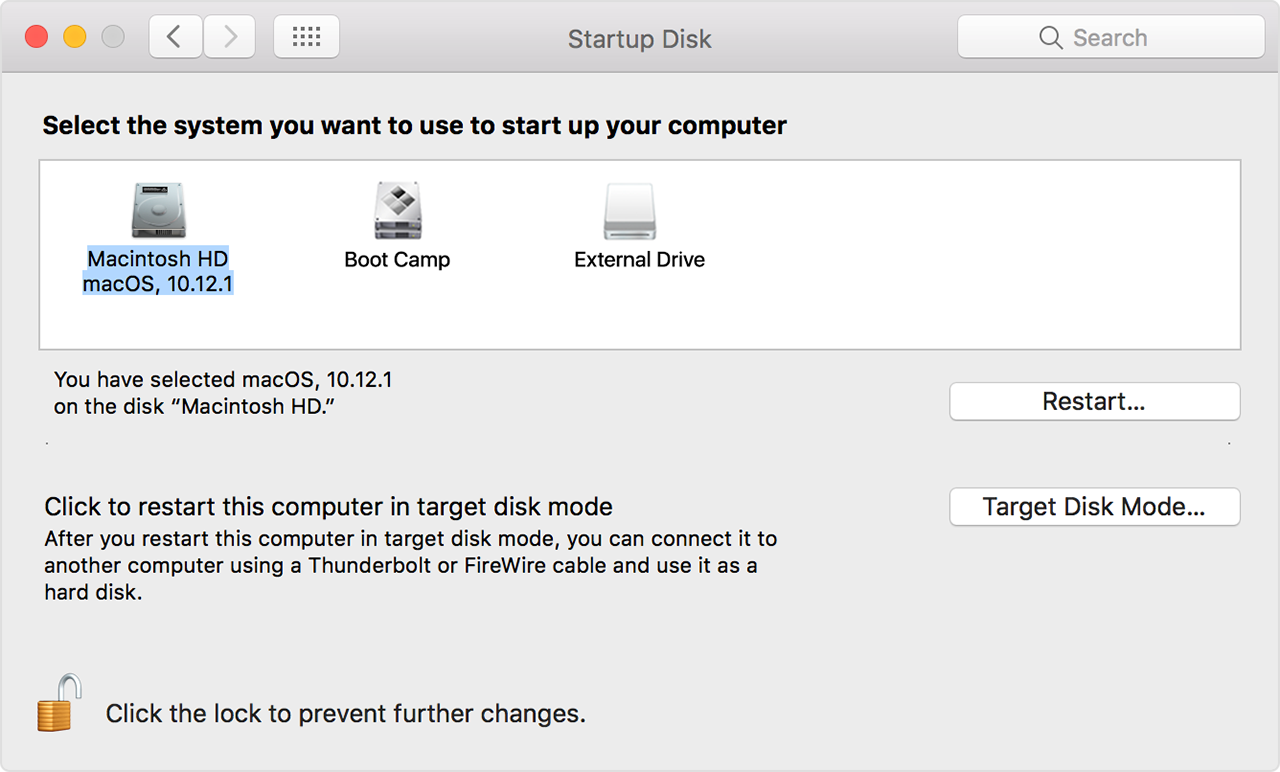
  • If the Mac is already turned on, you can instead choose Apple () menu > System Preferences, then click Startup Disk. Click Target Disk Mode, then click Restart when you're asked to confirm.
    User uploaded file

The Mac starts up in target disk mode, then appears as a disk on the other Mac. You can now use it as you would any other disk. To exit target disk mode, press and hold the power button on the Mac you're using as a disk. Then disconnect the cable.

User uploaded file

If the target disk doesn't appear on the other Mac

If the Mac you started up in target disk mode doesn't appear as a disk on the other Mac, follow these steps to mount the disk:

  1. Open Disk Utility on the other Mac. It's in the Utilities folder of your Applications folder.
  2. If the connection between your computers is good and you followed the steps to start up in target disk mode, the target disk should appear as a volume in the Disk Utility sidebar. Select that volume, then choose File > Mount from the menu bar, or click Mount in the toolbar.
  3. If the target disk is FileVault-encrypted, you're asked to enter a password to unlock the disk and mount it. Enter the administrator password for the Mac that you started up in target disk mode.

The disk should now be mounted and available to your Mac. However, if it's formatted for APFS, your Mac must be using High Sierra. Earlier versions of the Mac operating system don't mount APFS-formatted volumes.

How to use target disk mode to move files to another computer

If you're able to successfully move your files, this guide will help you with erasing your disk and reinstalling macOS: How to reinstall macOS from macOS Recovery

If you aren't able to use another Mac for target disk mode, I'd recommend reaching out to Apple for further assistance prior to erasing your disk: Contact Apple Support


Best Regards.

This thread has been closed by the system or the community team. You may vote for any posts you find helpful, or search the Community for additional answers.

MacBook Air 2011 SSD not mounted

Welcome to Apple Support Community
A forum where Apple customers help each other with their products. Get started with your Apple Account.