iCloud Drive showing different files on MacBook than on iMac/iPhone

I've been having a lot of troubles with my iCloud Drive. I have a MacBook Air (2012), iMac (2011) and an iPhone 6s all linked to the same iCloud account. This seems to work just fine, whenever I for example update my calendar on one of the three devices, the other two devices sync just fine.


I do have a problem with my iCloud Drive, however. At first, the iCloud Drive was empty on my MacBook (I did a clean installation last week, but I believe this problem was always present before that. I didn't really use my MacBook the last 1-2 years, and when I did I never really used iCloud to begin with). Whenever I uploaded something on my iMac, it would sync to my iPhone, but the iCloud Drive on my MacBook would stay empty. Vice versa, when I uploaded something on my MacBook, it wouldn't show up on my iMac or iPhone.


I've tried A LOT of things. I think I've spent about 20 hours already trying different stuff I found online (basic things such as logging in and out, but also 'complex' (to me) things like trying to install a new macOS via an external drive and other things like that), but I think it's time to just start here and see if you could help me.


I would really appreciate it if someone would guide me through this process. If this means trying everything again (logging in and out, deleting all my iCloud Drive files etc etc) I will, as long as someone helps me through the process.


I really hope someone can help me!


Bas

MacBook Air, iOS 10, OS X Yosemite 10.10.5, Mid 2012

Posted on Nov 22, 2018 7:56 AM

Reply

Similar questions

2 replies

Nov 23, 2018 6:54 PM in response to Baas68

Hi Baas68,

Welcome to Apple Support Communities. I understand that you're successfully using iCloud Drive on your iPhone and iMac, but you're unable to get files to sync to or from your MacBook Air. I also see that you've already tried signing out and back in to iCloud on the MacBook. I know it's important to be able to access your iCloud Drive files on all of your devices; I'd like to help. I'd recommend that you verify the following requirements are met and that iCloud Drive has been set up correctly on your MacBook Air:
  1. Update your iPhone, iPad, or iPod touch to the latest iOS, and your Mac to the latest macOS.
  2. Set up iCloud on all of your devices.
  3. Make sure that you’re signed in to iCloud with the same Apple ID on all of your devices.

If you have a device that can't update to the latest iOS or macOS, see the minimum system requirementsto use iCloud Drive.

On your Mac

User uploaded file

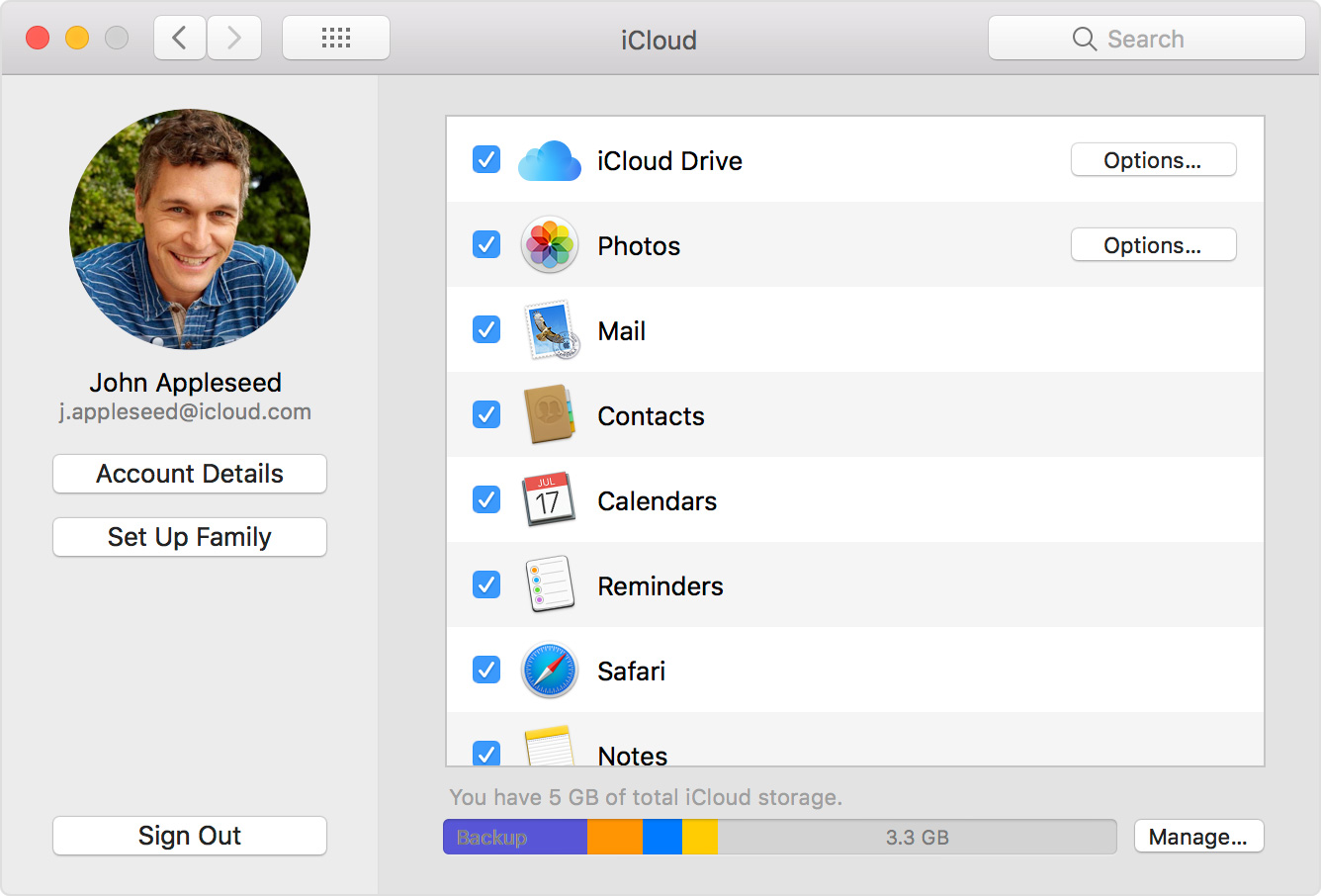
  1. Go to Apple menu > System Preferences and select iCloud.
  2. Sign in with your Apple ID, if you need to.
  3. Select iCloud Drive.

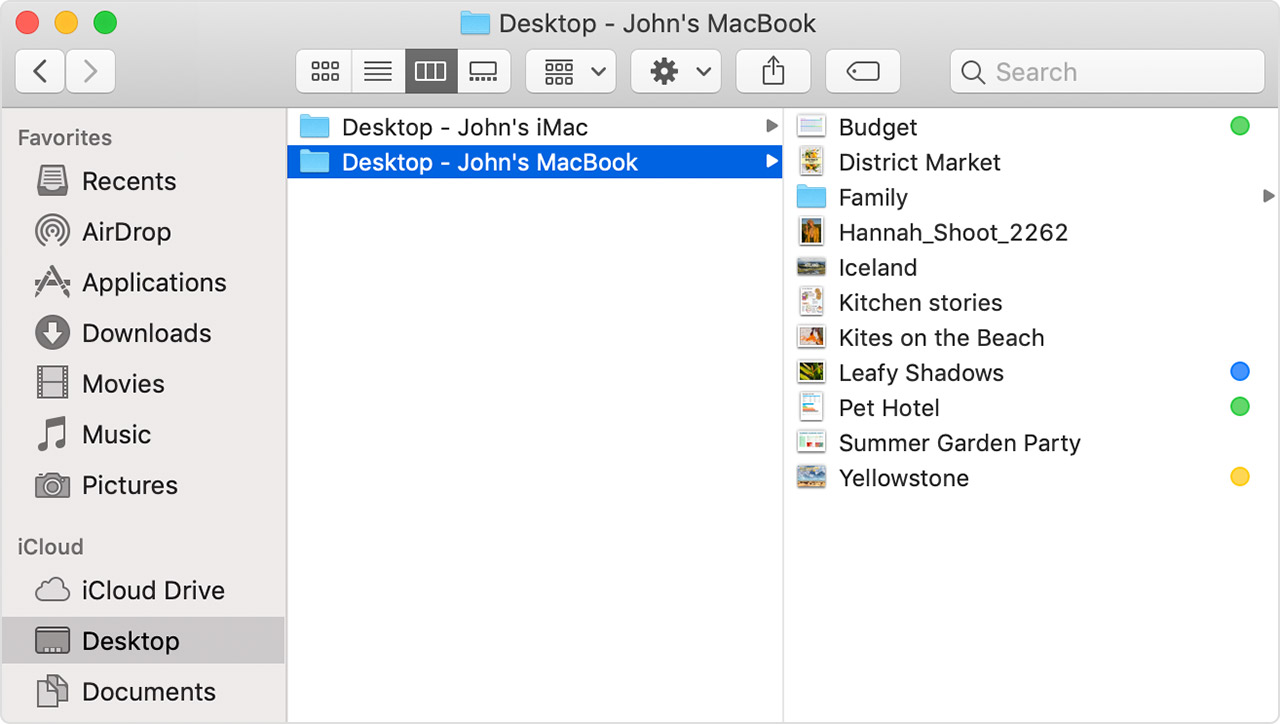
If you want to add the files from your Mac Desktop and Documents folder to iCloud Drive, update your Mac to macOS Sierra or later then turn on Desktop and Documents. On your Mac, you can find the files on your Desktop and in your Documents folder in Finder under iCloud. If you add a second Mac Desktop, the files from your second Mac won't automatically merge with the files on your first Mac. Go to your Desktop and Documents folders in iCloud Drive, then look for a folder with the same name as your second Mac.


Set up iCloud Drive

After you've verified you meet the requirements and iCloud Drive is set up properly, use the steps in the following guide to enable Desktop & Documents on the MacBook Air:

Turn on Desktop and Documents

Turn on Desktop and Documents on every Mac that you want to use with iCloud Drive.

  1. From your Mac, go to Apple menu User uploaded file > System Preferences > iCloud.
  2. Make sure that iCloud Drive is turned on.
  3. Next to iCloud Drive, click Options.
  4. Choose Desktop & Documents Folders.
  5. Click Done.

In Finder, you'll see your Desktop and Documents folder in the iCloud section of your sidebar. If you add a second Mac Desktop, you'll find those files in the Desktop folder in iCloud Drive. A folder is created with the same name as your second Mac.

User uploaded file

Access your Desktop and Documents files on another device

When you add your Desktop and Documents to iCloud Drive, all of your files move to iCloud and any new files you create are automatically stored in iCloud too. Then you can find your files on all of your devices.

If you want to store your files in iCloud Drive and another cloud storage service, you can keep copies of your files in both, but you can't keep folders from a third-party cloud service in iCloud Drive. You can keep your other cloud service folders in a different place on your Mac, like the home folder.

Your files upload to iCloud each time your device connects to the Internet. Depending on your Internet speed, the time it takes for you to see your files on your other devices might vary.

On your Mac

You can find the files on your Desktop and in your Documents folder in Finder under iCloud. You can also search for the titles with Spotlight.

User uploaded file

You can organize and combine folders from multiple Macs when you turn on Desktop and Documents on those computers too. After you turn on Desktop and Documents on a second Mac, you'll find its files in folders with the same name as your second Mac inside your original Desktop and Documents folders. Then you can combine your files manually, but iCloud doesn’t automatically merge the files in case you want to keep them separate. Any edits you make are seamlessly updated in iCloud Drive. There’s no need to manage your folders and files again on your other devices.

Add your Desktop and Documents files to iCloud Drive

If you continue to have trouble, could you let me know which macOS version you're using on the MacBook Air?


Best Regards.

This thread has been closed by the system or the community team. You may vote for any posts you find helpful, or search the Community for additional answers.

iCloud Drive showing different files on MacBook than on iMac/iPhone

Welcome to Apple Support Community
A forum where Apple customers help each other with their products. Get started with your Apple Account.