
connecting new wireless printer

Please help......I have been trying for 2 days to connect a new wireless HP Printer with my Mac. I am so frustrated.

macOS High Sierra (10.13.6)

Posted on Nov 23, 2018 7:16 PM

Reply
Question marked as Top-ranking reply

Posted on Nov 23, 2018 8:13 PM

Pm, is this what you've done?

Installing the driver in macOS or OS X 10.7 and later


To install the HP driver through Apple Software Update, create a new print queue on the Mac.


NOTE:
Where is the download button? Your HP drivers automatically download and install through Apple Software Update, but if you want to manually download drivers, go to HP Printer Drivers for macOS and OS X Mavericks and later (in English) or HP Printer Drivers for OS X Mountain Lion and OS X Lion (in English) on the Apple support site.
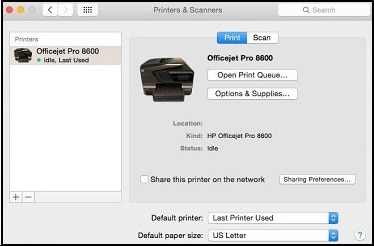


  1. Click the Apple menu, then click System Preferences.
  2. Depending on your operating system version, click Print & Fax, Print & Scan, or Printers & Scanners.User uploaded file
  3. Check if the name of your printer displays in the Printers list. Do one of the following steps, depending on if the printer is listed or not.
    • If your printer is listed, remove and re-add the printer to confirm communication and to make sure the correct driver is used. Click the name of your printer, then click the minus sign User uploaded file to delete the printer. Once the printer is removed, click the plus sign User uploaded file, click Add Printer or Scanner, click the name of your printer, then continue to the next step.
    • If your printer is not listed, click the plus sign, click Add Printer or Scanner, click the name of your printer, then continue to the next step.
    • If your printer is not listed in the Add Printer or Scanner window, make sure the printer is connected to the Mac with a USB cable, or that it is on the same wired or wireless network as your Mac. See the Frequently asked questions in this document to resolve connection issues, try to add the printer again, then continue to the next step.
  4. Click the Use or Print Using menu, then select the name of your printer.
    NOTE:

    Selecting a Generic driver option from the Use menu can result in limited printer functionality.
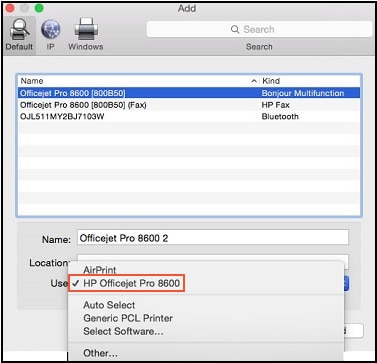

    User uploaded file
  5. Click Add to add the printer to the list.
  6. Close the System Preferences window.
  7. Try to print, scan, or fax, depending on your printer functionality.


  • If you can print, scan, or fax, you installed the driver and can now use your printer.
  • If you cannot print, scan, or fax, see the Frequently asked questions on scanning issues and methods, driver support information, and to troubleshoot printer connection issues.

HP Printers - Installing a Mac Print Driver Using Apple Software Update | HP® Customer Support


1 reply
Question marked as Top-ranking reply

Nov 23, 2018 8:13 PM in response to PamDubb

Pm, is this what you've done?

Installing the driver in macOS or OS X 10.7 and later


To install the HP driver through Apple Software Update, create a new print queue on the Mac.


NOTE:
Where is the download button? Your HP drivers automatically download and install through Apple Software Update, but if you want to manually download drivers, go to HP Printer Drivers for macOS and OS X Mavericks and later (in English) or HP Printer Drivers for OS X Mountain Lion and OS X Lion (in English) on the Apple support site.


  1. Click the Apple menu, then click System Preferences.
  2. Depending on your operating system version, click Print & Fax, Print & Scan, or Printers & Scanners.User uploaded file
  3. Check if the name of your printer displays in the Printers list. Do one of the following steps, depending on if the printer is listed or not.
    • If your printer is listed, remove and re-add the printer to confirm communication and to make sure the correct driver is used. Click the name of your printer, then click the minus sign User uploaded file to delete the printer. Once the printer is removed, click the plus sign User uploaded file, click Add Printer or Scanner, click the name of your printer, then continue to the next step.
    • If your printer is not listed, click the plus sign, click Add Printer or Scanner, click the name of your printer, then continue to the next step.
    • If your printer is not listed in the Add Printer or Scanner window, make sure the printer is connected to the Mac with a USB cable, or that it is on the same wired or wireless network as your Mac. See the Frequently asked questions in this document to resolve connection issues, try to add the printer again, then continue to the next step.
  4. Click the Use or Print Using menu, then select the name of your printer.
    NOTE:

    Selecting a Generic driver option from the Use menu can result in limited printer functionality.


    User uploaded file
  5. Click Add to add the printer to the list.
  6. Close the System Preferences window.
  7. Try to print, scan, or fax, depending on your printer functionality.


  • If you can print, scan, or fax, you installed the driver and can now use your printer.
  • If you cannot print, scan, or fax, see the Frequently asked questions on scanning issues and methods, driver support information, and to troubleshoot printer connection issues.

HP Printers - Installing a Mac Print Driver Using Apple Software Update | HP® Customer Support


This thread has been closed by the system or the community team. You may vote for any posts you find helpful, or search the Community for additional answers.

connecting new wireless printer

Welcome to Apple Support Community
A forum where Apple customers help each other with their products. Get started with your Apple Account.