Hi chotetawan,
Welcome to Apple Support Communities. I understand that you're having trouble using Continuity Camera on your Mac. I also see that you've done some troubleshooting on your own; I appreciate you including the steps you've taken so far. I know what a great feature this is to use; I'd like to help. I see that your system meets all the requirements to use Continuity Camera, but I'd like you to verify that you have two-factor authentication set up for your Apple ID as well:
Your Mac and iOS device are signed in to iCloud with the same Apple ID that is using two-factor authentication.
Use Continuity Camera on your Mac
If so, test to see if you're able to use other Continuity features such as Handoff or Universal Clipboard without issue:
Use Handoff with any Mac, iPhone, iPad, iPod touch, or Apple Watch that meets the Continuity system requirements. Handoff works when your devices are near each other and set up as follows:
- Each device is signed in to iCloud with the same Apple ID.
To see the Apple ID used by Apple Watch, open the Apple Watch app on your iPhone, then go to General > Apple ID.
- Each device has Bluetooth turned on.
- Each Mac, iPhone, iPad, or iPod touch has Wi-Fi turned on.
- Each device has Handoff turned on:
- Mac: Choose Apple () menu > System Preferences, then click General. Select “Allow Handoff between this Mac and your iCloud devices.”
- iPhone, iPad, iPod touch: Go to Settings > General > Handoff, then turn on Handoff.
- Apple Watch: In the Apple Watch app on your iPhone, tap General and turn on Enable Handoff.
Apple Watch supports handing off from watch to iPhone, or from watch to Mac using OS X Yosemite or later.
- On one of your devices, open an app that works with Handoff.
Apps that work with Handoff include Mail, Maps, Safari, Reminders, Calendar, Contacts, Pages, Numbers, Keynote, and numerous third-party apps.
- Use the app to start a task, such as writing an email or document.
- If switching to your Mac, click the app's icon in the Dock:

If switching to your iPhone, iPad, or iPod touch:
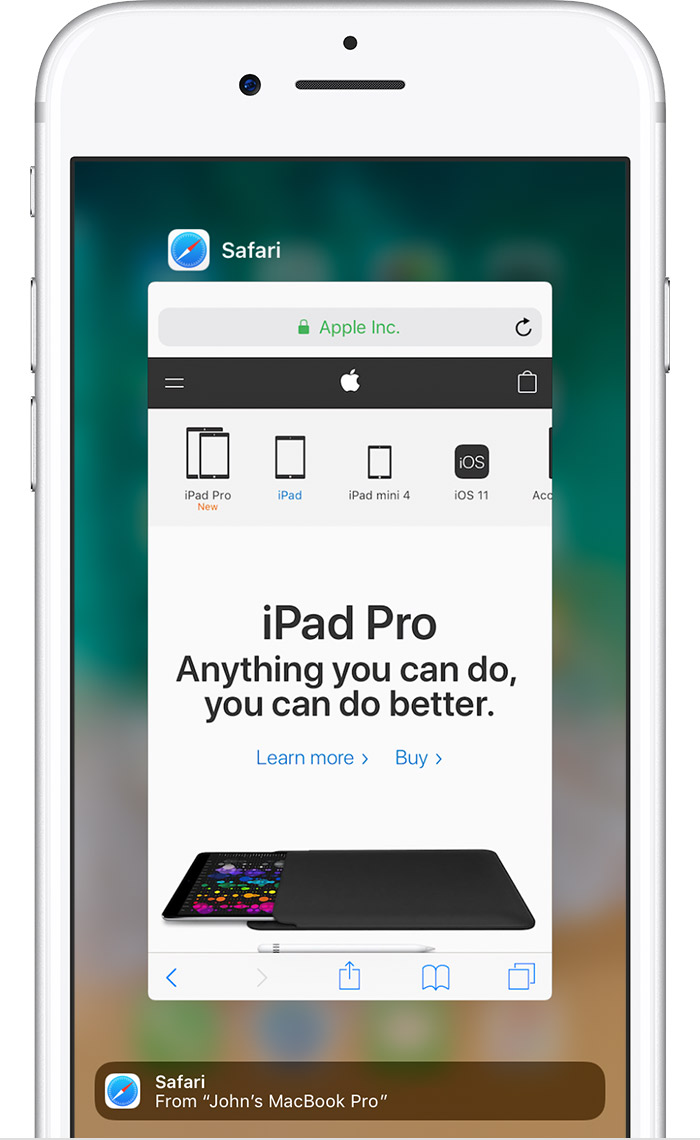
- Unlock your device.
- Open the multitasking screen, as you would when switching between apps.
- Tap the app banner at the bottom of the screen.

With Universal Clipboard, you can copy content such as text, images, photos, and videos on one Apple device, then paste the content on another Apple device.
Use Universal Clipboard with any Mac, iPhone, iPad, or iPod touch that meets the Continuity system requirements. It works when your devices are near each other and set up as follows:
- Each device is signed in to iCloud with the same Apple ID.
- Each device has Bluetooth turned on.
- Each device has Wi-Fi turned on.
- Each device has Handoff turned on:
- Mac: Choose Apple () menu > System Preferences, then click General. Select “Allow Handoff between this Mac and your iCloud devices.”
- iPhone, iPad, iPod touch: Go to Settings > General > Handoff, then turn on Handoff.
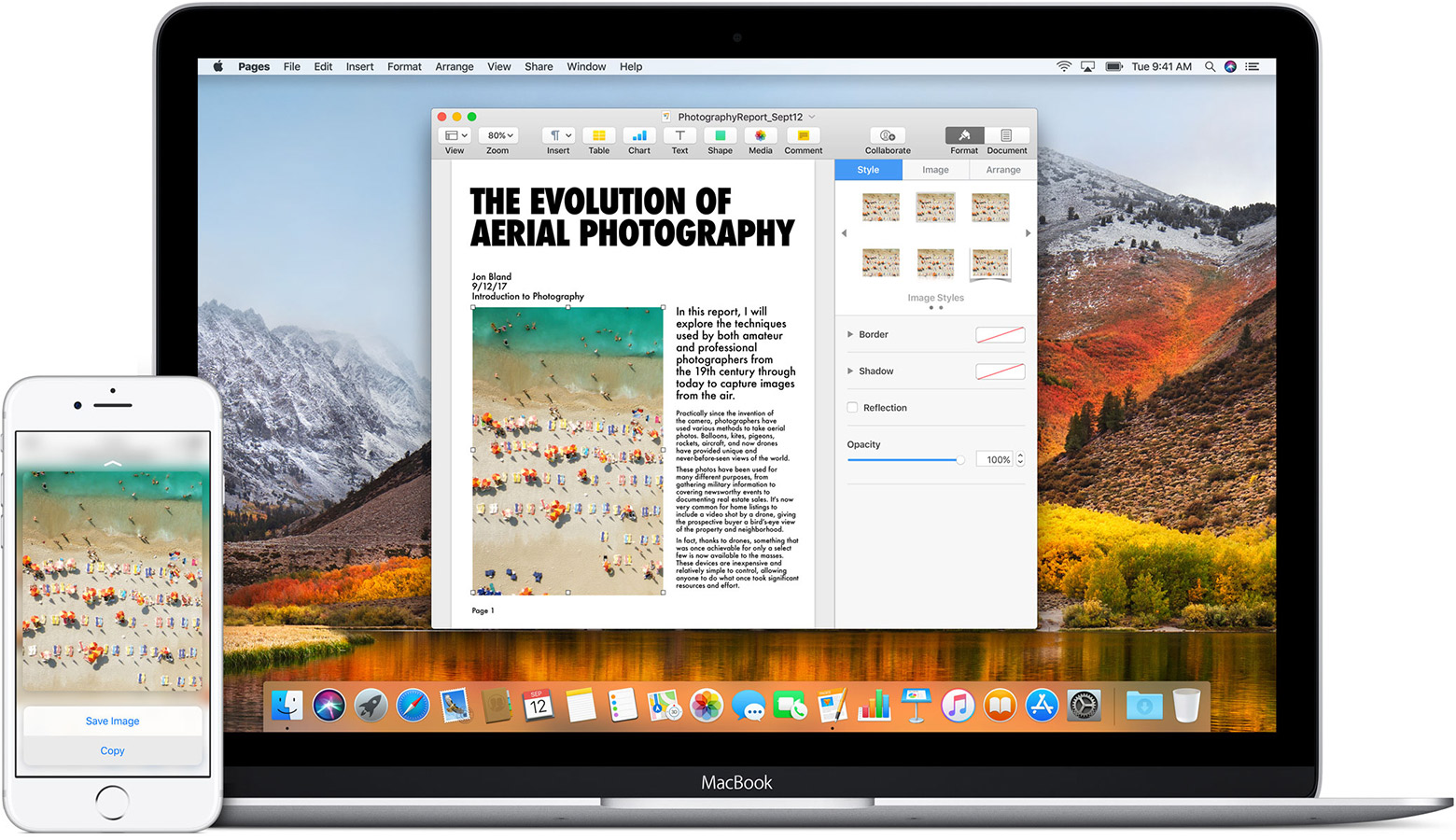
- On one device, copy the text, image, or other content as you normally would.
You can also use Universal Clipboard to copy entire files from one Mac to another. Each Mac requires macOS High Sierra.
- The content is automatically added to the clipboard of your other nearby device. It remains there briefly, or until you replace it by copying something else on either device.
- On the other device, paste the content as you normally would.
With the iPhone Cellular Calls feature, you can make and receive calls from your Mac, iPad, or iPod touch when those devices are on the same network as your iPhone.
Use iPhone Cellular Calls with any Mac, iPhone, iPad, or iPod touch that meets the Continuity system requirements. It works when your devices are near each other and set up as follows:
- Each device is signed in to iCloud with the same Apple ID.
- Each device is signed in to FaceTime with the same Apple ID.
- Each device has Wi-Fi turned on.
- Each device is connected to the same network using Wi-Fi or Ethernet.
- On iPhone, go to Settings > Phone > Calls on Other Devices, then turn on Allow Calls on Other Devices.
- On iPad or iPod touch, go to Settings > FaceTime, then turn on Calls from iPhone.
- On Mac, open the FaceTime app, then choose FaceTime > Preferences. Click Settings, then select Calls From iPhone.
If your carrier supports Wi-Fi calling on other devices, you can set up those devices to make and receive calls even when your iPhone isn't turned on or nearby. Learn about Wi-Fi calling.
Use Continuity to connect your Mac, iPhone, iPad, iPod touch, and Apple Watch
If those features are working properly, use the steps below to test for the Continuity Camera behavior in a new user:
If another user account is already set up on your Mac, you can simply log out of your account (Apple menu > Log Out) and log in with the other account. But the best way to test is with a newly created account:
- Choose Apple menu () > System Preferences, then click Users & Groups.
- Click
 , then enter an administrator name and password.
- Click the Add button (+) below the list of users.
- Complete the fields shown for a Standard or Administrator account, then click Create Account (or OK).
If you plan to test with any of the documents in your own account, make those documents available to the new account. Drag them to the Shared folder of the Users folder on your hard drive (~/Users/Shared). You can then move them to other folders after you log in as the new user.
Then log out of your account and log in with the new account:
- Choose Apple menu > Log out.
- At the login window, log in with the name and password of the new account. If you're also asked to sign in with an iCloud account or Apple ID, skip that step.
Now try to reproduce the issue in the new account. If you need to set up an email account or other account in order to test, you can do so.
How to test an issue in another user account on your Mac
Let me know what you find and we'll keep working together.
Best Regards.


