
Optimize storage
I can’t find the optimise storage option on my phone (iPhone X) I’m losing music from my playlist
iPhone X
I can’t find the optimise storage option on my phone (iPhone X) I’m losing music from my playlist
iPhone X
Use your iOS device to check its storage
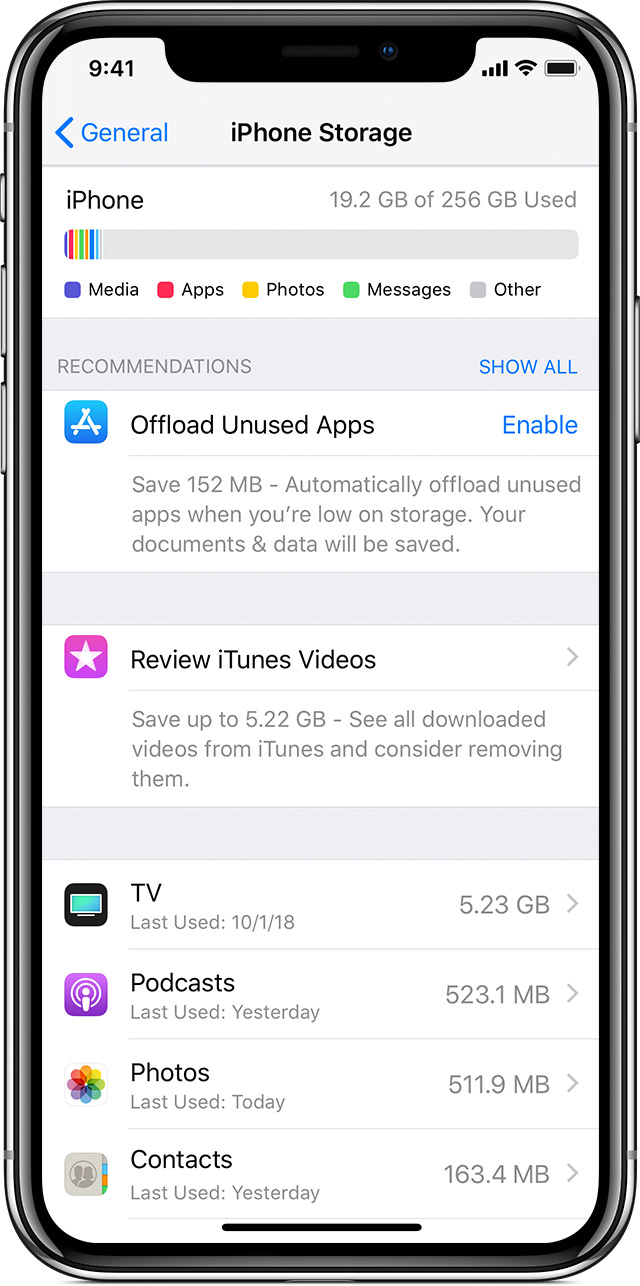
Go to Settings > General > [Device] Storage. You might see a list of recommendations for optimizing your device's storage, followed by a list of installed apps and the amount of storage each one uses. Tap an app's name for more information about its storage. Cached data and temporary data might not be counted as usage.
In the detailed view you can:
If your device is almost full and iOS can't free up space on your device, you might get a Storage Almost Full alert. If you see this alert, you should check the storage recommendations or you need to offload some less-used content like videos and apps.

Content categories
iOS divides the used content in these categories:
iOS only displays the top categories. If a category doesn't take much space, it might be counted as "Other." Storage space taken by "System" is a combination of space taken by iOS and its supporting files. The amount of space required by "System" varies from device to device depending on the device type, model, country, carrier, Siri voices, and more.
Use recommendations to optimize storage
In the Storage section of Settings, iOS might offer recommendations for optimizing your device's storage. Tap Show All to see all the recommendations for your device.
Read the description of each recommendation, then tap Enable to turn it on or tap the recommendation to review the contents you can delete.
How to check the storage on your iPhone, iPad, and iPod touch ...
Use your iOS device to check its storage
Go to Settings > General > [Device] Storage. You might see a list of recommendations for optimizing your device's storage, followed by a list of installed apps and the amount of storage each one uses. Tap an app's name for more information about its storage. Cached data and temporary data might not be counted as usage.
In the detailed view you can:
If your device is almost full and iOS can't free up space on your device, you might get a Storage Almost Full alert. If you see this alert, you should check the storage recommendations or you need to offload some less-used content like videos and apps.
Content categories
iOS divides the used content in these categories:
iOS only displays the top categories. If a category doesn't take much space, it might be counted as "Other." Storage space taken by "System" is a combination of space taken by iOS and its supporting files. The amount of space required by "System" varies from device to device depending on the device type, model, country, carrier, Siri voices, and more.
Use recommendations to optimize storage
In the Storage section of Settings, iOS might offer recommendations for optimizing your device's storage. Tap Show All to see all the recommendations for your device.
Read the description of each recommendation, then tap Enable to turn it on or tap the recommendation to review the contents you can delete.
How to check the storage on your iPhone, iPad, and iPod touch ...
The optimise storage option isn’t in my music / settings file but there is an optimize storage option in photos/ settings
Optimize storage
