Keyboard and touchpad lost after sleep

Occasionally, not always, after the Catalina upgrade, whenever my macbook sleeps, I lose the keyboard and the touchpad.

I must use my fingerprint to log in and once I do, I have no touchpad nor keyboard. I need to reboot everytime this happens.

Posted on Oct 10, 2019 2:08 PM

Reply
Question marked as Top-ranking reply

Posted on May 26, 2020 8:56 PM

Ok, I can confirm that 10.15.5 released today does not fix this issue.

For all the troubled souls like myself in this forum and beyond, here is a temporary workaround I figured out yesterday to get this gremlin out of your sight, until Apple officially fixes this.

Since the bug only occurs when Wi-Fi is on, we can create a process that automatically turns off Wi-Fi upon sleeping and turns it back on from waking up.


  • Install Homebrew

Copy this line to Terminal and hit Enter.

/bin/bash -c "$(curl -fsSL https://raw.githubusercontent.com/Homebrew/install/master/install.sh)"


  • Enter
brew install sleepwatcher

to install Sleepwatcher.


  • Enter the following code to create two files . sleep and .wakeup in the home directory ~/
touch ~/.sleep && chmod 700 ~/.sleep
touch ~/.wakeup && chmod 700 ~/.wakeup


  • Go to ~/ and edit .sleep and .wakeup with a code editor of your choice, I used Xcode. These would dictate how Sleepwatcher would perform.

For .sleep

#!/bin/bash
networksetup setairportpower en0 off


For .wakeup

#!/bin/bash
networksetup setairportpower en0 on


  • Finally, enter the following code in Terminal that would configure launchd to run Sleepwatcher at startup or login
cp /usr/local/Cellar/sleepwatcher/2.2.1/*.plist ~/Library/LaunchAgents
launchctl load ~/Library/LaunchAgents/de.bernhard-baehr.sleepwatcher-20compatibility-localuser.plist


Now everything is set, go on and close the lid, wait awhile and reopen it, notice the Wi-Fi icon is off and quickly turns back on.


Although this is not the most elegant solution, it eases me from the paranoia that makes my blood frozen every time I suspect to see a yet again frozen computer. A moment of idea and inspiration just can't wait an extra 15 seconds.


I'm not an expert in these, if anyone would spot a mistake or suggest a better solution please post here, thank you.


I learned from these sources:

https://www.kodiakskorner.com/log/258

https://gist.github.com/ziadoz/7bddcf346adb89da1e990126c9f82429

https://github.com/wujunchuan/wujunchuan.github.io/issues/9


Similar questions

282 replies

Sep 20, 2020 12:01 PM in response to servo186

This seems to be an issue in the OS upgrade that is causing polling of bluetooth keyboards ahead of checking for the installed MacBook keyboard. The workaround that I found was: 1. Open System Preferences - Bluttooth. 2. Click on the Advanced button. Uncheck the first two buttons that refer to the Bluetooth Setup Assistant. This worked for me.

Oct 8, 2020 5:14 AM in response to armtuk

I have been following this thread for months now, trying all the suggestions, and still I haven't been able to fix this issue. Apple, would you please fix your software !

I've tried disabling bluetooth, I've tried keeping it plugged in, I've tried changing the bloetooth settings. I don't have an external keyboard (used to) nor an external mouse (used to). The most consistent thing I have noticed is that it happens when VPN is running, but even with that I'm not sure it doesn't also happen when VPN is disconnected before I leave the computer. Today it happened with the lid open, plugged in, screen locked, and VPN connected.

Nov 8, 2020 6:01 AM in response to Lancaster54

Hmm, I can confirm that problem still persist and it's not connected to VPN.


I just run into it. I had wifi connected (VPN off), but my internet connection was somehow disabled on my wifi router.

So wifi on and connected, internet off/disabled.

Macbook can't find keyboard and touchpad, somehow touchbar was working.

As I can see, my logitech mouse that was connected to usb hub->usb-c was not working...


Macbook pro 15 2018, 10.15.7.

Nov 13, 2020 12:14 PM in response to jb233

Hi everyone,

I've been following this discussion for months, as I have the same issue with my 2020 MBP 13" 4-port. Not sure if Big Sur will fix this or not, but regardless, I developed a reliable work-around: I wrote an Automator Quick-Action called "Bounce Wi-Fi" and put that on my touchbar. It turns off Wi-Fi, sleeps 1 second, then turns Wi-Fi back on. That causes the system to give up on whatever it's doing to hold up the keyboard/touchpad and it all starts working again.


I placed the "Quick Actions" button on the touchbar where Siri normally sits. Whenever my keyboard hangs upon wake, I tap the Quick Actions, then tap "Bounce Wi-Fi" and I'm back in business.


This takes a small bit of coding, but it's not too bad and definitely remedies the issue.


First, write a bash script and call it "bounce-wifi.sh". I put mine in a "bin" folder under my home directory. Here's the script you can copy/paste into your text editor (TextEdit should work):


#!/bin/bash
port=`/usr/sbin/networksetup -listallhardwareports | grep -A 1 Wi-Fi | tail -n 1 | awk -F': ' '{print $2}'`
/usr/sbin/networksetup -setairportpower $port off
sleep 1
/usr/sbin/networksetup -setairportpower $port on


Next, make the script executable by bringing up Terminal, cd-ing to the directory where you saved the script, and type:

chmod 700 bounce-wifi.sh


You should test the script from Terminal by running it from its directory:

./bounce-wifi.sh


Watch your Wi-Fi icon and you'll see it deactivate and reactivate within a couple of seconds.


Once that script works, next make an Automator button for it. Run Automator, click File->New, and choose Quick Action. Here's a screenshot followed by instructions:
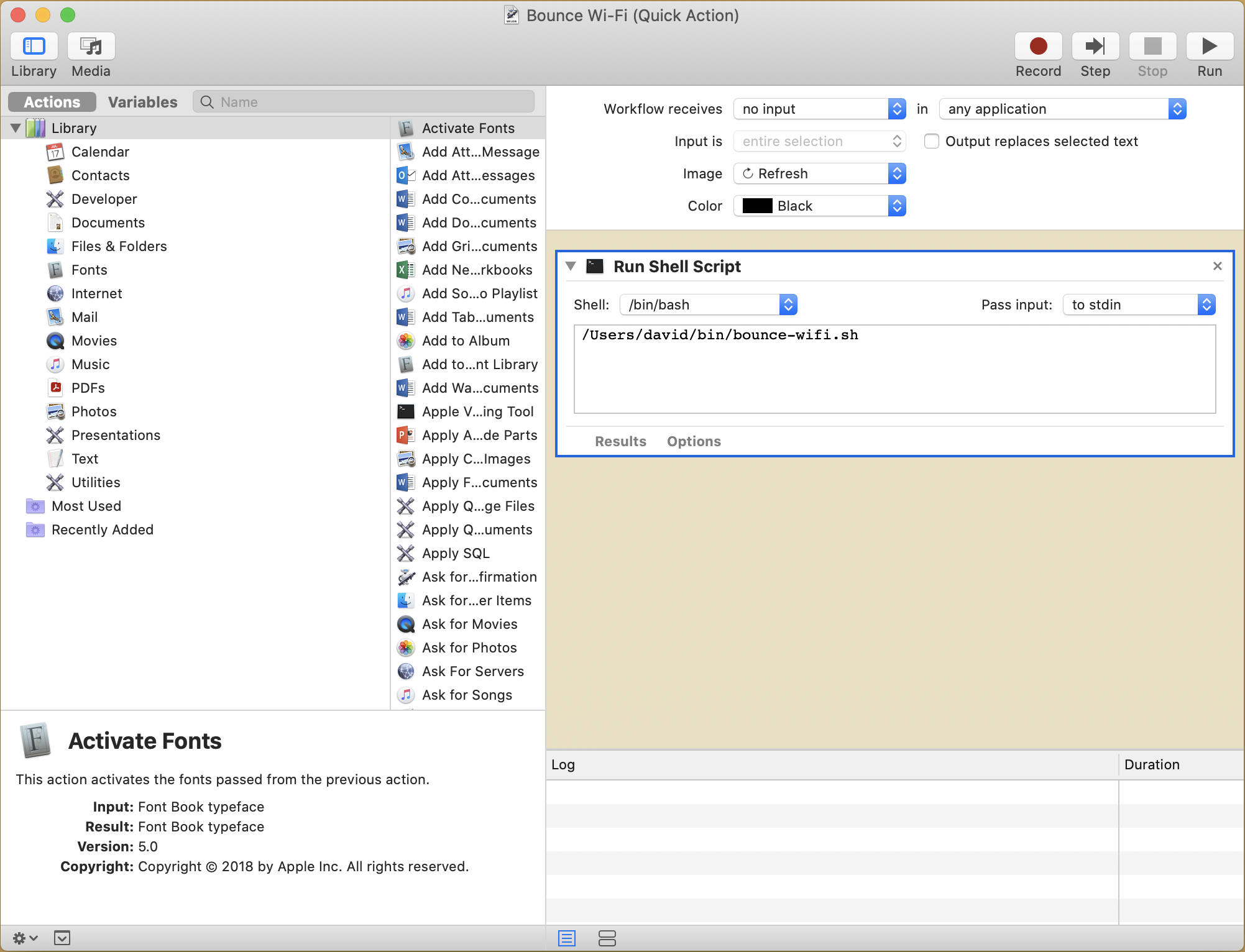


  1. Set "Workflow receives" to "no input".
  2. For fun, I chose a "Refresh" arrow for the Image.
  3. From the left side under Library, scroll down and drag "Run Shell Script" over to the right of your quick action pane.
  4. In the shell script window, type the full path to your "bounce-wifi.sh" script. For me, it was /Users/david/bin/bounce-wifi.sh.
  5. Save the quick action as "Bounce Wi-Fi" and quit Automator.


Lastly, open System Preferences, go to Keyboard, choose "Customize Control Strip..." and drag the "Quick Actions" button to your touchbar. Here are screenshots, showing my Quick Actions where Siri normally is, and showing "Bounce Wi-Fi" when I tap Quick Actions:
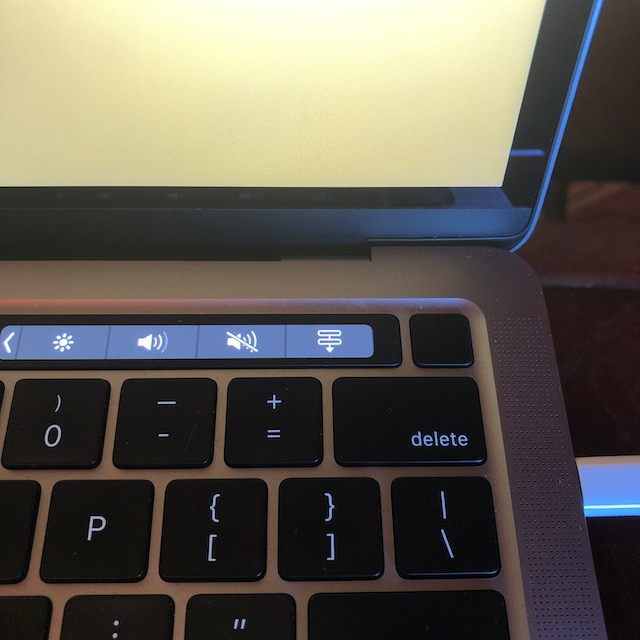
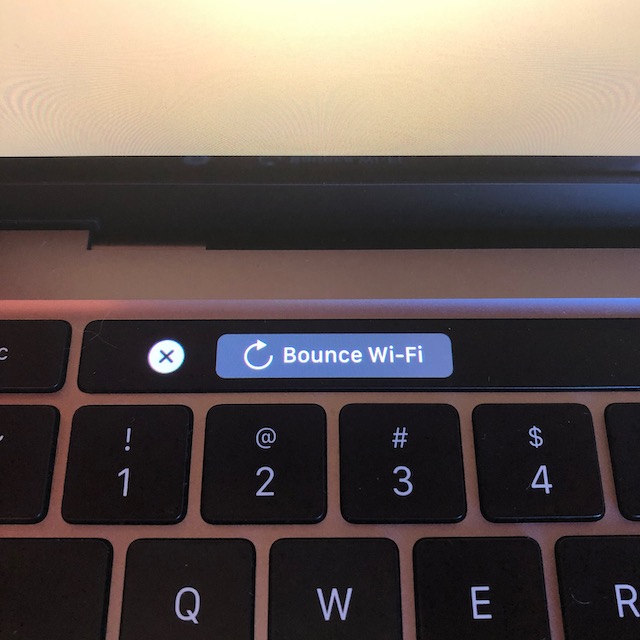


Whenever my keyboard/touchpad hang from sleep, I tap Quick Actions then Bounce Wi-Fi and I'm good to go. I hope this helps.


This thread has been closed by the system or the community team. You may vote for any posts you find helpful, or search the Community for additional answers.

Keyboard and touchpad lost after sleep

Welcome to Apple Support Community
A forum where Apple customers help each other with their products. Get started with your Apple Account.