Time Machine Backups are present but missing

Entering Time Machine I see backups only back as far as 10/10/2019, 19:12. It won't allow a screenshot so I had to take a photo


TM Preferences shows


I Imagine that equates to 19:12


Terminal shows differently:


Unless I'm being particularly dense, TM can't see the backups that tmutil can see. So I am bewildered.


I'm not sure what data Catalina arrived, but I upgraded on pretty much that day

MacBook Pro with Touch Bar

Posted on Oct 12, 2019 12:02 AM

Reply
Question marked as Top-ranking reply

Posted on Oct 24, 2019 9:47 AM

Much work with my NAS vendor has led to cautious optimism. We checked many things. They have been told my by many users that there is a problem and are taking matters very seriously. It may have come down to setting the Bonjour area correctly. This is my NAS user interface. Your NAS will be different, but equivalent settings are likely to be present


These are my two key settings. The lower one was not ticked. Obviously I am using SMB.


Now it is ticked. A simple test showed that this is likely to solve the problem. I will let my standard NAS closedown and restart process happen overnight, and brief you here in the morning with success or failure. A brief test just now leaves me cautiously optimistic

64 replies
Question marked as Top-ranking reply

Oct 24, 2019 9:47 AM in response to Lurkums

Much work with my NAS vendor has led to cautious optimism. We checked many things. They have been told my by many users that there is a problem and are taking matters very seriously. It may have come down to setting the Bonjour area correctly. This is my NAS user interface. Your NAS will be different, but equivalent settings are likely to be present


These are my two key settings. The lower one was not ticked. Obviously I am using SMB.


Now it is ticked. A simple test showed that this is likely to solve the problem. I will let my standard NAS closedown and restart process happen overnight, and brief you here in the morning with success or failure. A brief test just now leaves me cautiously optimistic

Nov 1, 2019 9:50 AM in response to h_bakken

Update-


Copied old .sparsebundle backups from Mojave to another external drive just in case.


Then new TM backup to my NAS (Apple 3TB Time Capsule) - TM said that it had competed a Verification of my TM backup, and in order to "improve reliability" TM must delete all old data and create new backup, so I said OK.


Backup through LAN cable from iMac to LAN port on Time Capsule took around 20 hours for 1.3 TB, after about 4 hours preparing backup.


During the 4 hour backup preparation time I saw the space available on the 3TB NAS go from 900 GB to full 3TB so TM must have been deleting old data, NOT sure why it took so long to to this. It would have been faster to use AirPort Util to delete disk and then create new TM backup disk in TM App. Perhaps it was performing some repair, but did not indicate so.


In any case, backup was successful, and TM now seems to be working just fine. As expected, the old backups are gone (I still have my legacy copy of my old .sparsbundle file on a separate external drive (although doubt I will keep it around for very long now since all data is across to Catalina install).


Also am able to see the new backup in Finder (.backupbundle file), the option to mount disk is no longer there, so cannot use this to get to individual files.


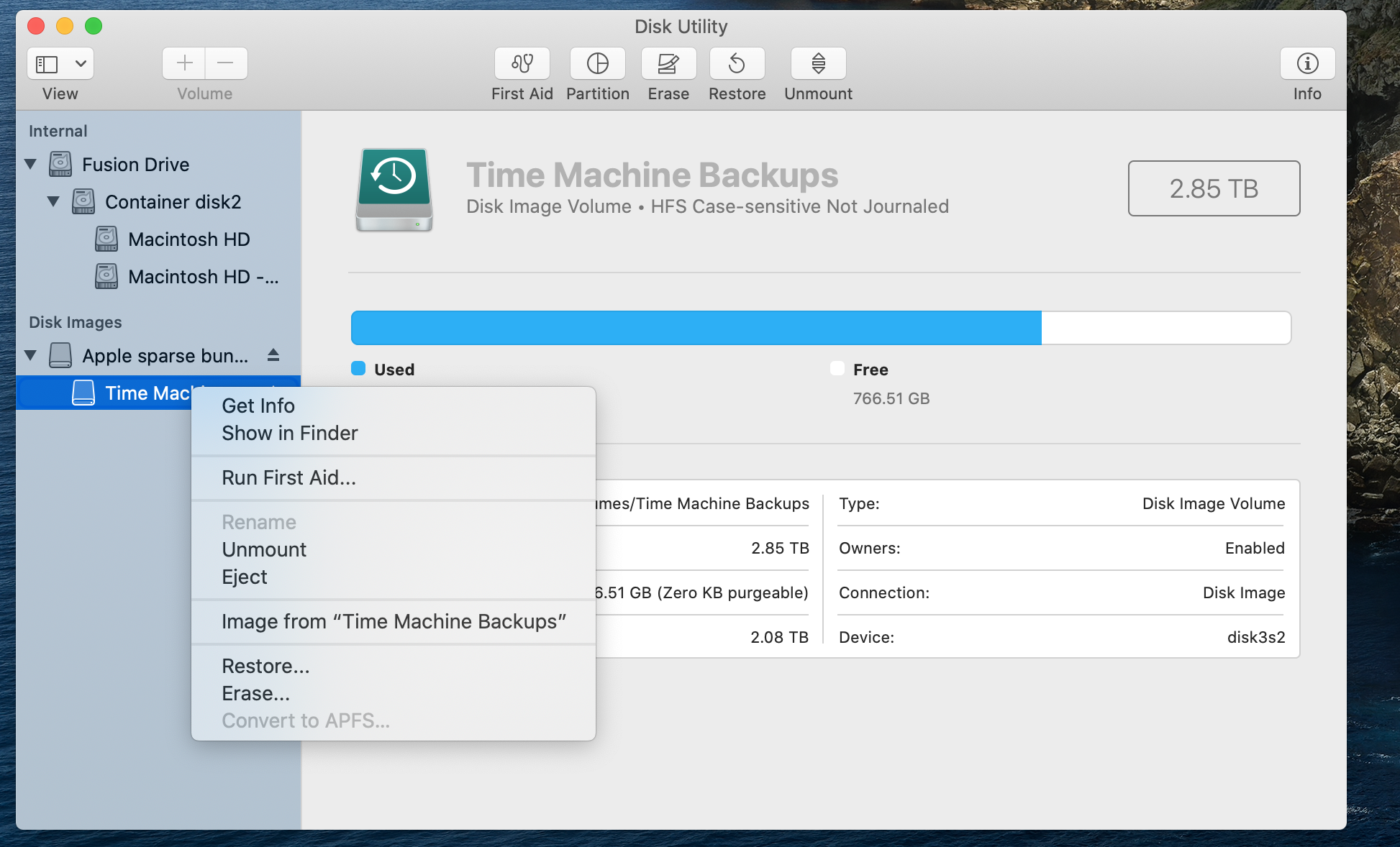
However, I can also see the backup in Disk Util (interestingly enough it is called an Apple sparse bundle disk image here) and can still open Time Machine Backups in finder this way to get to individual files.


So my problem appears to be solved. I am not very tech savvy but appears that the old TM architecture is not stable in Catalina even though the data is there.


My best advice, if you have all your data, let Catalina TM do a new backup. It will likely take a while, use cable if possible (LAN, T3 or USB-C)


If you don't have all your data, use one of the methods I posted above to access the old backup file (changing the extension to .sparsebundle if necessary) and find what you need and copy the files to your new OS, then do a new TM backup in Catalina.


In my case with NAS being Apple perhaps this may not work for those with third party NAS.


Oct 27, 2019 3:03 AM in response to MikCas

MikCas wrote:

For your information:
I backup to my NAS.
So part of my NAS is seen as TM. I have tested several of your problems on my iMac, but these are not visible to me.
It works like this for me: If I open Finder and then click on Time Machine, only the last backup will be visible first.
But if I wait quietly "- / + 3 minute", then all old backups become visible and I can access them normally.

After further investigation I am behind why this happens.
Namely macOS Catalina creates 2 APFS volume. 1 for the operating system and 1 for the Data. macOS-Catalina make sure that the last TM backup can be immediately and very quickly restored in one way or another. If you restart your iMac and hold down CMD + R and you try to restore the last backup you will see 2 options. 1 restore the last backup immediately or restore a backup via your TM. I tested this on my 2nd iMac with the result that if I box for option 1 (restore the last backup immediately) my system will be restored within 2 minutes.
Then I also tested option 2. Clearly more than 30 minutes had to wait in this situation.

So I believe that your Time Machine first shows you this 1st option and only a little later when it has read the data from your NAS, then the other backups that are on your NAS.

I agree. It seems that Catalina has extended Local Snapshots as a much stronger concept, which is great.


My main issue has been happening when the second phase does not happen (reading from the disk) when my NAS fails to connect 'properly'.

Oct 28, 2019 11:03 AM in response to MikCas

In my case, after performing a clean Catalina install, TM backups were accessible in TM and Finder just like with Mojave.


I had failed multiple attempts to restore to Mojave from latest TM backup and Data Migration also failed multiple times.


So I dragged the files I wanted to the new OS and then started a new TM backup over WiFi. After over a day, the backup was not nearly complete so I interrupted it.


Then saw that some of the file folders I dragged contained no data.


I was on with Apple senior advisor, we changed the extension of the backup file from backupbundle to sparsebundle, and immediately could see the old backups in Finder (did not try TM).


I then started dragging files again, this time by individual folder, to make sure it was coming across successfully. I had to go to work before I finished and when I came back 8 hours later, I could no longer see the backups in Finder, but nothing else had changed, the file ext was still sparsebundle and I had not made another attempt at a new TM backup.


My NAS is an Apple 3TB Time Capsule and looks like this in finder (after changing to sparsebundle extension).
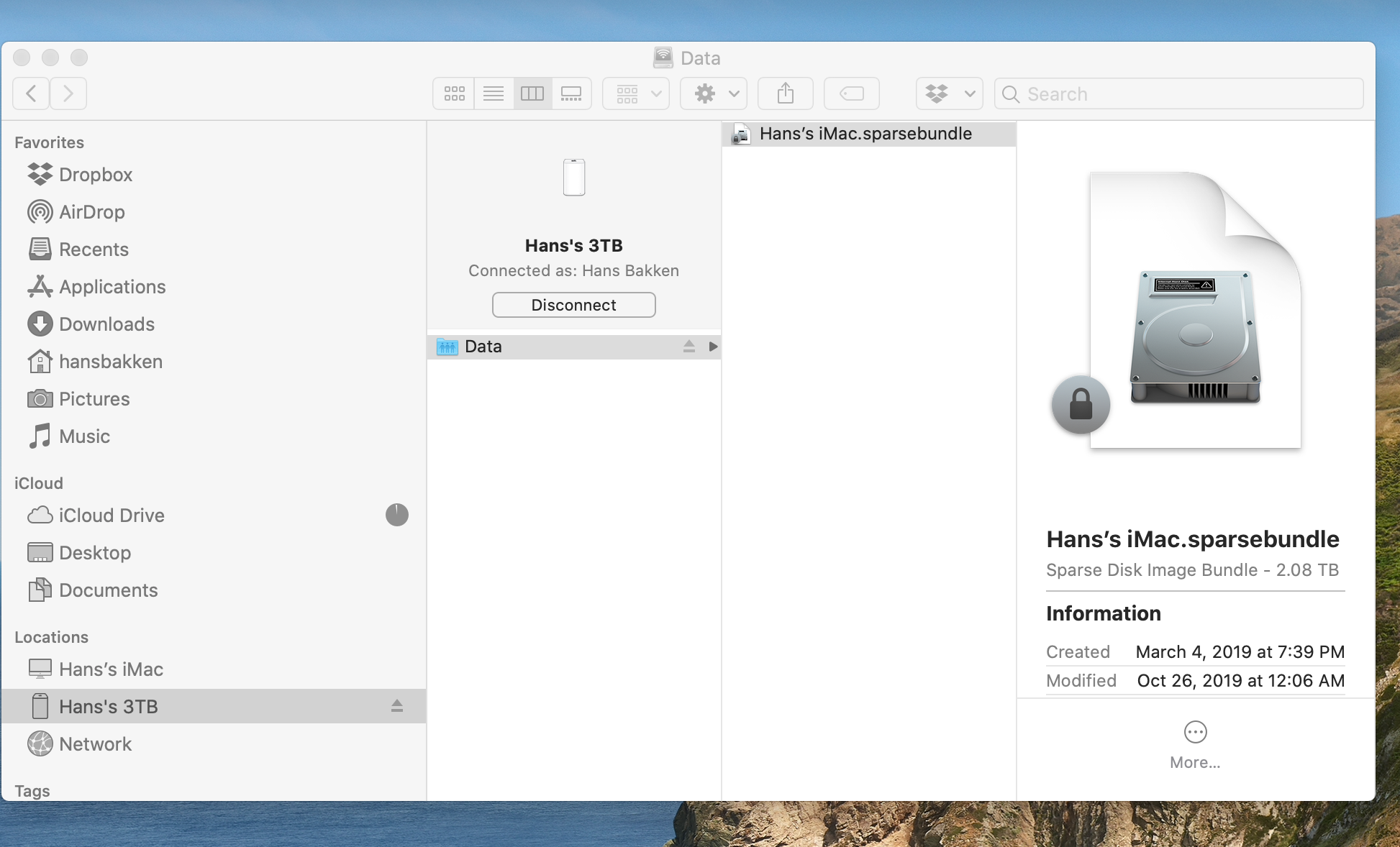


Using the advice from one of you I am able to access the data through Disk Util as such and clicking "Show in Finder"


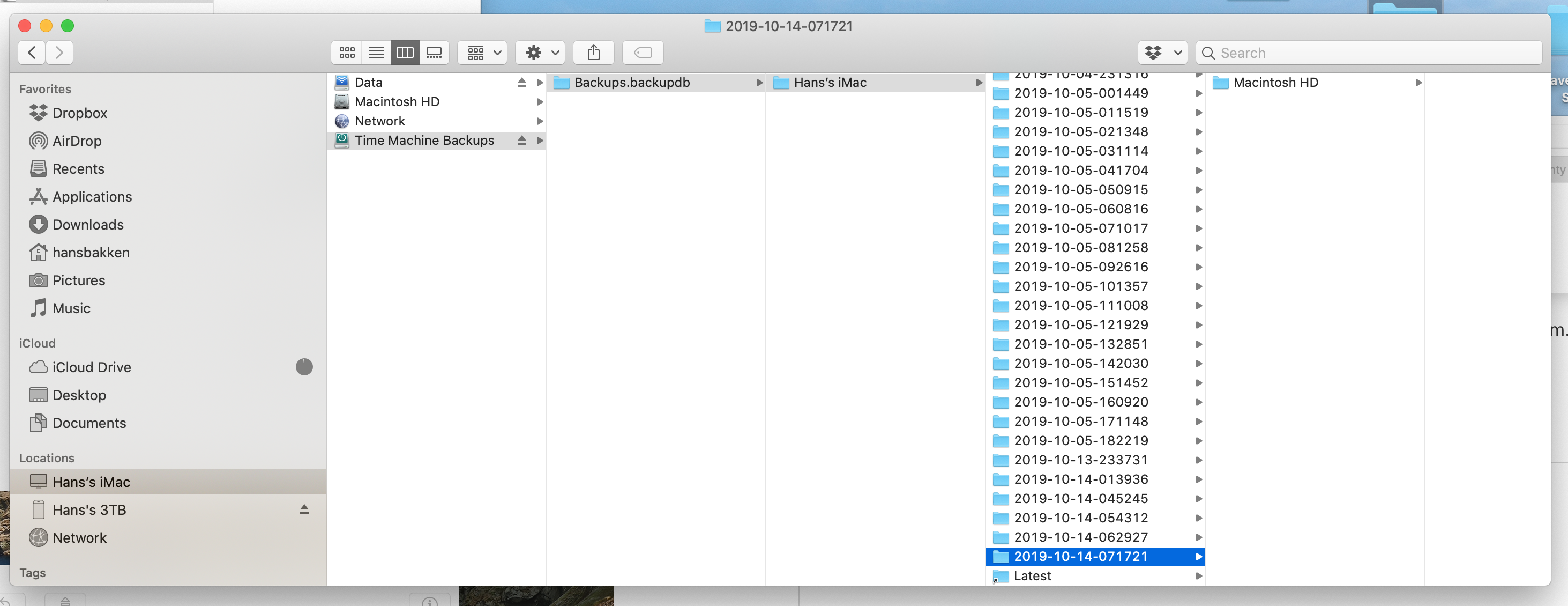
Then I am able to see all the old data and drag and drop what I want, looks like this to root directory, you can see the backup dates as well -


Now I am currently doing this with LAN cable to the NAS LAN port, but I am not sure it makes any difference except the cable is faster. At this point I am certain that I have brought forward all the data that I wanted to save, and it has all come across successfully, no empty folder surprises!


Even though the data is accessible using the above method, TM does NOT work. It shows a snapshot from today on the front panel, and all the dates are visible on the right side of the screen, but you cannot make them open, I have even waited in TM app for 20 minutes and it makes no difference.


You cannot screenshot in TM so can't show you, but all the date lines are there but when I hover, they turn red and nothing happens when I click. And there is only one finder panel, you cannot go backwards.


This evening I will initiate a TM backup (through the LAN cable) and see what things look like in the morning. At this point I have everything I want from old data so nothing to lose.


I also understand that the new backup will again change the name of the backup file to backupbundle.


Hope this helps if you just want your data back.


I have not tried any of this over WiFi either so results may vary if you are not using direct LAN cable to your external drive.


Hans

Oct 13, 2019 3:19 AM in response to Lurkums

I promised you an update. This is what we did, but it has not resulted in success, so is here for your interest. If you are engaged in a support call on this topic it may save time if you make your support agent aware of this thread, since they do not normally look here.


The designed workaround was as follows:


  1. find the backup sparsebundle (whatever its extension) right click and open package contents
  2. Locate the folder Mapped and delete it. Big folder for a big backup. This takes time
  3. rename the file [name].backupbundle to [name].sparsebundle
  4. For comfort, open the sparsebundle either right click and open or double click, to reassure self that the backups exist. This step is comforting but inessential, because issuing tmutil listbackups from Terminal will do the same


The next step was to Enter Time Machine. It was expected that all backups would be seen on the scrolling field of dated Finders. This was not to be. This is why I am documenting the process so that you do not need to follow it, except maybe out of intellectual curiosity.


Next, we watched the filename of [name].sparsebundle and started a backup manually. After looking for and finding the disk, soon after the phase preparing backup started, the file was auto-renamed to [name].backupbundle which was not wholly unexpected.


TM completed the backup, which has proved to be in incremental backup.


I am thus confident my backups are safe. I am also confident that I can use, under guidance, the tmutil command in Terminal to recover any files I may need to recover in the future.


It seems likely that this issue will pass to Engineering since Apple sees TM as fundamental to its product offering.


Note: Even with the file named [name].sparsebundle Enter Time Machine failed to show the backups


More briefing after the next support call, probably later today

Oct 23, 2019 1:49 AM in response to Lurkums

I'm starting to come to a conclusion, based on observation. Remember, I use a NAS drive.


It seems as if I can see all backups when the NAS drive has the .backupbundle that it contains mounted. And mounting it seems unusual. When I observe the status via Disk Utility the Time Machine backup flashes in and out during the 'preparing backup' phase.


From the next two screenshots, taken one immediately after the other you can see that it can see, at present the mounting status


A few minutes later, while TM is still preparing the backup the volume mounts fully and stays mounted:


Since the preparing backup phase happens after it has finished searching for the disk I conclude that 'something' is awry in this area. I never watched it via Disk Utility under Mojave, though, so I can't give a fair comparison, and this may be a mistaken assumption.


I did some extra research on NAS as a Time Machine backup home. The NAS vendor had told me to migrate to afp:// some time ago. This was successful at eliminating the then problems I had with connection. But afp is deprecated. smb is the current thinking. I am running currently, and for these screenshots with smb.


Waiting for that back to finish I watched it reach the end of the preparing backup phase and then fail with no error message. The disk unmounted at around that point. I can't be sure which.


Trying Enter TM at that point gave me a screen that hung for ever awaiting the mounting of the drive. I abandoned it. But this gives me a clue that the location of the problem may be imperfect backup mounting.

Oct 27, 2019 2:53 AM in response to Lurkums

For your information:

I backup to my NAS.

So part of my NAS is seen as TM. I have tested several of your problems on my iMac, but these are not visible to me.

It works like this for me: If I open Finder and then click on Time Machine, only the last backup will be visible first.

But if I wait quietly "- / + 3 minute", then all old backups become visible and I can access them normally.


After further investigation I am behind why this happens.

Namely macOS Catalina creates 2 APFS volume. 1 for the operating system and 1 for the Data. macOS-Catalina make sure that the last TM backup can be immediately and very quickly restored in one way or another. If you restart your iMac and hold down CMD + R and you try to restore the last backup you will see 2 options. 1 restore the last backup immediately or restore a backup via your TM. I tested this on my 2nd iMac with the result that if I box for option 1 (restore the last backup immediately) my system will be restored within 2 minutes.

Then I also tested option 2. Clearly more than 30 minutes had to wait in this situation.


So I believe that your Time Machine first shows you this 1st option and only a little later when it has read the data from your NAS, then the other backups that are on your NAS.

Oct 13, 2019 5:35 AM in response to Lurkums

I found a similar problem. Time Machine says I have backups going back just over a year, but the only ones accessible are about 2 days ago. So I can only assume the new OS only works with newly done backups? Only resolution I found was to do a quick erase of the backup disc and restart with a new full backup. 6hours later that seems to have solved it - but thanks again Apple for not warning us the upgrade totally screws your existing Apple designed backups using Apple Time Machine to an Apple Airport disc from an Apple designed MacBook Pro...

Oct 13, 2019 6:22 AM in response to KJ W

Dear KJW: Your old backups were intact (0.99 probability), they were simply rendered inaccessible by the normal Time Machine interface given to us by Catalina. It's a shame you chose to erase your backup disk. You could have changed the name of the old backup if you wanted to try it out.


If you want to be certain that your backups exist use tmutil from the Terminal app. Enter tmutil listbackups wait a short while for your system to respond and note the date and timestamps at the tail end of the filenames.


With some extra knowledge I hope I never need these are restorable using the same utility.


There's not a lot of point in using the forum to vent at Apple, though I agree that bit can be very satisfying over things like this. They care, as my support experience is showing, but they don't come here.


Oct 23, 2019 2:22 AM in response to Lurkums

After the backup completed I waited a decent period. I noted in Disk Utility that the disk was unmounted (I assume TM does this as it concludes?). In finder, though I could still see the backup bundle.


Enter Time Machine at this point led to a short wait and all my backups back to way past Catalina appeared.


Back in the Mac Present (or I could not type this) the backup is still mounted, according to Disk Utility.


Unless wiser heads disagree I am coming more and more to the conclusion that this is a disk mounting issue. If it is that means I will fall between two support stools. my NAS manufacturer and Apple, with each having the potential to suggest that it is the other ones problem.

Oct 23, 2019 3:00 AM in response to Lurkums

If you test the following, you can see that the problem is definitely related to your NAS. I also have a NAS and the same problems.

So I tested with an external HD. I have made several small TM bakups by using the option and turning things off.

Result: various TM bakups on an external HD which are visible without problems with your TM and are mounted without problems.

Oct 23, 2019 7:25 AM in response to MikCas

MikCas wrote:

If you test the following, you can see that the problem is definitely related to your NAS. I also have a NAS and the same problems.
So I tested with an external HD. I have made several small TM bakups by using the option and turning things off.
Result: various TM bakups on an external HD which are visible without problems with your TM and are mounted without problems.


This is where I am likely to hit a brick wall. I think I can say with 90% certainty that the problem is with the dialogue between TM and the NAS. Since it worked on Mojave with no issues it is the upgrade to Catalina that has rendered the problem that may have been silent before to be loud and visible.


This means either that Catalina is an imperfect implementation of the things TM sends to the NAS and receives from it, or the NAS is imperfect in interpreting that dialogue, or there is a mixture of both.


Knowing that answer I will receive (not our problem) I've posed the question to the NAS vendor's support. It tends to take 2-5 days for an answer


Yours is a good empirical test, and I tend to agree with you

Oct 26, 2019 10:02 AM in response to h_bakken

I would need guidance, but in terminal you can use tmutil to see, manipulate and restore from backups. The .sparsebundle and .backupbundle thing is a red herring. Catalina will always change it to .backupbundle.


issue the command tmutil listbackups in Terminal. Assuming Disk Utility can see your backup (ignore finder) then you will see a list of all your backups.


man tmutil will tell you far more than you need to know about tmutil


What I think you can see when you mention "only todaY" is backups that are somehow stored on your machine. I may also be making a bad assumption own that.


I've never owned a Time Capsule, but isn't it just a cleverly branded NAS that we were intended to buy until Apple withdrew it from sale?


What I believe this mess is caused by is imperfect dialogue between the Mac and the Backup Drive. I don't think it occurs with a plugged in external disk, just one elsewhere in the network. I think this may be the place to aim your support agent

Oct 12, 2019 3:01 AM in response to Lurkums

I'm in conversation with Apple Support about this. I backup to a NAS, and there appears to be something awry with my sparse bundle. The icon shows up thus:


A real sparse bundle should show up thus:


The senior support gentleman has seen this once before. I've been able to brief him that it shows the backup sparsebundle the same incorrect icon on a second machine and that both are on Catalina. He feels, but is not certain, that this is coincident with the upgrade to Catalina.


An interesting further symptom is that the two machines I have access to are attempting 100% backups each time (as far as I can tell)


I think the most useful thing folk might do is contact Apple Support over this issue in order to allow them to gather as much information as possible to narrow this down

This thread has been closed by the system or the community team. You may vote for any posts you find helpful, or search the Community for additional answers.

Time Machine Backups are present but missing

Welcome to Apple Support Community
A forum where Apple customers help each other with their products. Get started with your Apple Account.
