Unable to open files

I updated to Catalina 10.15.1 last night.


This morning I cannot open files using Numbers, Pages or Keynote. Message simply states " The document "XXX" could not be opened".


When I go to the file on yesterday's Time Machine. the file can be opened.


When I bring the copied file back once again it cannot be opened.


MacBook Air 13", macOS 10.15

Posted on Oct 31, 2019 2:25 AM

Reply
27 replies

Dec 3, 2019 2:30 AM in response to Cambs_Lad

Hi Cambs_Lad


Open up the Console form Launchpad and you'll see system.log in the left-hand panel. This holds all your system events but only for a fixed time (about 5 logons). Click on syslog and it will open in the right-hand panel. There'll be a lot stuff in it, particularly if you leave your Mac switched on. If you're switching your Mac off overnight a new sessions starts with BOOT_TIME which you can search for from the Spyglass field at the top of the dialog. You can also search for SHUTDOWN_TIME to find the end of a session.


I've seen a few messages in my syslog that say


"... -iMac com.apple.xpc.launchd[1] (com.apple.xpc.launchd.user.domain.502.100111.Aqua): Caller not allowed to perform action: seedusaged.2608, action = service removal, code = 150: Operation not permitted while System Integrity Protection is engaged ..."


and at the point of failure when attempting to copy and paste a file from one folder to another I got the following dialog



and in the syslog a message "... assertion failed: 19B88: libxpc.dylib ...". The reference to "xpc" may be significant?


Finally I've also noted a fundamental change in how logon (virtual machine) is run. In the past the default shell has been the Bourne Again Shell lovingly referred to as BASH. When I run a terminal session (yeh, I know, I'm a sad person!) I now get a message that says I should switch to using the Z Shell or zsh (see below). This came in with Catalina apparently. It maybe that Apple apps need to run in zsh and that this is triggering the problem.
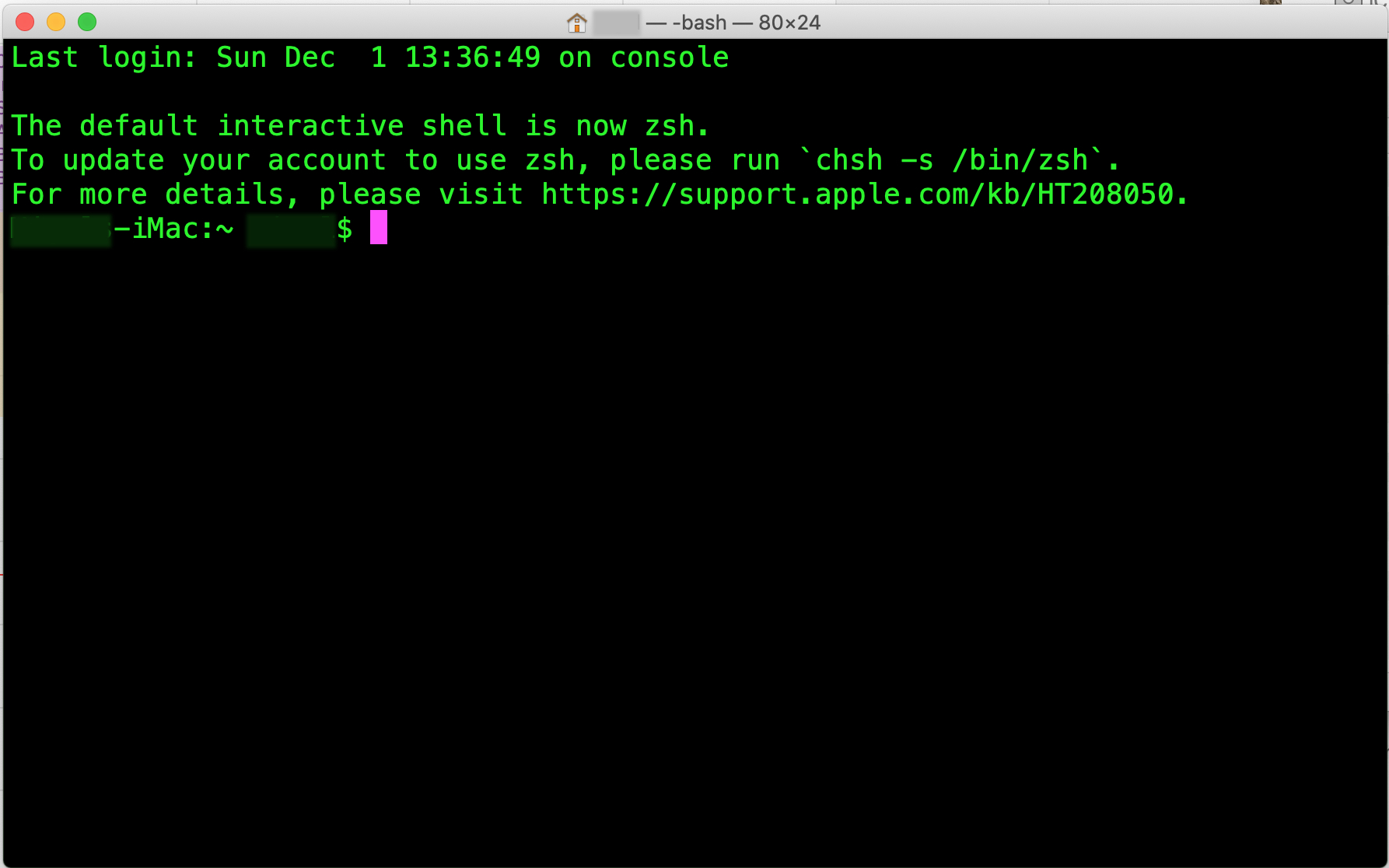


Personally I'm loath to switch to zsh to try it out as, strangely, my non-Apple apps such as Affinity Photo and QGIS Geospacial software seem to open their associated files and save without any problems. Affinity is quite happy saving a JPEG to a folder that Finder says couldn't be opened and the same for QGIS! I use these apps a lot and don't want to find out that zsh won't run them properly.


Hope this is useful/helpful? Apologies if it's not.


Ennsea

Nov 27, 2019 12:52 PM in response to Cambs_Lad

I've had the same problem now in two different instances. The first time was accessing a Numbers file that I often edit on my iPad but then accessed from the Mac. I logged off and on again but that didn't solve the issue and then I rebooted - a very MS Windows solution. I did update my iPad to the latest release as advised, in another thread, by SG (I can't track down that thread to continue the conversation). I tested this out opening the Numbers file, tried accessing via the Mac and I could actually share so thought the problem had gone away.


It's now re-occurred but this time the iPad's not involved. Downloaded a PDF copy of a manual for an old PC I'm trying to convert to Linux, and tried to move it from Preview to my 'PDFs' folder and got the message again as below.


I tried several other folders in my Documents and got the same message. It was almost as if my Documents folder was locked for 'write' access. I tried saving to my Desktop and got the same message again. I did manage to save to my MS OneDrive but couldn't move the file from OneDrive to the 'PDFs' folder. I got no message from MacOS for trying this move - it just didn't move over. Rebooted - problem went away and I was able to move the PDF PC manual from OneDrive to 'PDFs'.


Is Catalina a bit too secure and not releasing locks properly on folders for some obscure reason?


Enness


Nov 30, 2019 11:56 AM in response to Enssea

I can add to this thread. After logging off overnight I could not open MS Word files after logging back in. Some Word files did open. It was a selective problem. Rebooting the computer cured the problem, but only temporarily. The problem would repeat in the same manner. I then experienced the problem with a Pages file I created only the day before. And again, the file opened after I restarted the computer. The only common thread appears to be logging off overnight, but I'm not sure if that's the key, and I haven't found the cure. I am using a 21-inch Retina iMac and updated to Catalina shortly after it was released.

Dec 5, 2019 8:35 AM in response to PeterAtt

Having the same issue here and have been having the same issue since upgrade to Catalina. This problem which affects for iWork and MS Office files has occurred with earlier major macOS releases, too. Eventually, someone started paying attention at Apple, found the problem and provided a fix in an update release. FWIW, the problem appears to be associated with TimeMachine backup cycles. Access to the affected file(s) is alway possible after a reboot for some unknown period of time. This is past the point of irritating!

Dec 1, 2019 1:06 AM in response to mcburge1

I note that you say you're logging off over night which implies that you leave your Mac powered on? I tried logging off and on again just in case it was a user profile problem where logging back on resets the profile and the problem goes away. My experience is that only a reboot will clear it, sort of indicating a more fundamental problem with Catalina's kernel where file/folder security is handled. Just for info I have both an iPad and iPhone both of which can access the files that I can't open when the Mac exhibits this particular problem. Also, the fact that the Desktop can be locked in the same way when trying to save my work is worrying. If you're short of cloud space then you can lose stuff. I'm hoping Apple are monitoring this thread and are working on a fix. There's irony in the fact that it was Microsoft's OneDrive that saved me!!

Dec 9, 2019 6:32 AM in response to PeterAtt

Just for info - I've a new manifestation of the problem. When the 'The file “xxxxxxx” couldn’t be opened.' problem occurs (and you're not necessarily aware that it has!) attempts to attach something to an email results in the message below.


The message can't be saved as a draft and Mail can't be closed because the attachment has not been uploaded for sending so you are forced to quit Mail. I suspect that the reason the file can't be uploaded is related to the fact that it can't be opened.


Double clicking the attachment file to open it gave the '... couldn't be opened. ' message. I got around the problem by simply copying the file to the clipboard and then pasting to my MS OneDrive. I reopened Mail, retyped the mail message and attached the file from OneDrive and sent the mail without any problems.


Ennsea

Dec 3, 2019 5:25 AM in response to Enssea

Just a clarification. bash or zsh are command line interfaces to macOS and Finder and all the graphical stuff is just another interface to macOS. So saving and working with files in the graphical environment are absolutely not affected by either bash or zsh being your command line shell. Of course you can ruin your day by damaging something from the commandline. You can delete a file from the command line and it is gone in much the same way as moving a file from a Finder window to the Trash and then emptying the trash.


As to what you mean by "Logon (virtual machine)" I have no idea. Are you starting Terminal.app (from the Utilities folder inside your Applications folder)? Then you simply open a command line interface to macOS parallel to the graphical interface presented e.g. by Finder.


Why are you running a Terminal session at all? I think from your comments that you lack some basic unterstanding about Terminal and the command line (no offense, this is just my feeling from your posting).


Hope this soothes at least your fears about bash vs. zsh


---markus---

Dec 3, 2019 8:43 AM in response to ruggiero

Sorry to have irritated you Markus. Really didn’t mean to. My background is 40 years of IT so I’ve seen a lot of changes and my views are bit old fashioned. When I used Posix Unix in the 1980’s (and IBM mainframes before that) users were run as ‘virtual machines’ or VMs - discrete, secure entities in RAM that had all the necessary components loaded to give anyone who logged on the impression they were the sole user of the computer. Yep - I’m that old. Too many users for the old computer to manage and whop - idle VMs could be offloaded to a swap file on disc (sometimes referred to as ‘virtual memory’). One of my sys admins produced a script to test X Windows calling X from bash and passing the GUI to be used as a parameter. I just used my old experience as a basis so apologies.


Happy to accept that the MacOS GUI is it’s own shell and just runs a bash instance for command line access. Just out of interest how does MacOS keep users separate when they’re running at the same time - e.g. I logon, leave my session running whilst my wife is logged on? They’re obviously discrete entities and are secured by some sort of OS wrapper.

Dec 4, 2019 4:34 AM in response to Enssea

That's getting interesting now (and quite a bit off-topic)....


The relevant buzz-words are "virtual memory" and "pre-emptive scheduling". Virtual memory maps a virtual address space to real RAM in a way that each logged-in user thinks he owns the whole memory with tons of giga bytes (which of coarse are not there, there is only so much phyiscal RAM). In a similar way the operating system assigns each user/process/thread CPU timeslots. These slots are short (tens of milli seconds or so) and are allocated in a clever way (think round robin on steroids) to each process. All this happens fast enough so that an interactive user gets the impression that the computer only works for him or her. I suggest you read up on those two topics. All modern operating systems work in a similar fashion however each kernal implements its own strategy for allocating memory and cpu time slots to processes.


Have fun discovering all that modern stuff :-)


---markus---

(also an old hand in IT. Started in the early 1980's with an Apple ][, then worked for well over 6 years at Digital Equipment Corp and been doing (and still do) commercial SW development since those times)

Dec 6, 2019 3:32 AM in response to GSP_70

I've been having the problem since upgrading to Catalina and have used TimeMachine constantly since 2015. The disk sits on my desk and, up until Catalina install, the light on the front was either steady or fast flash when backing up. I noticed today that the disk light was flashing slowly almost as if it's in sleep mode. I decided to enter TimeMachine as I'd not checked it since moving to Catalina. I got the TimeMachine desktop, it flickered a couple of times and then crashed taking my Mail app with it and presenting a screen dump for Apple Analytics. The significant bit of the dump looks a rather familiar


"The file “Accounts.472.db.timemachine” couldn’t be opened."


followed by


"NSSQLiteErrorDomain=14} terminating with uncaught exception of type NSException abort() called"


Interesting that it terminated with an "uncaught exception". I've annotated the dump with what I was doing at the time and, all being well, it's gone off to Apple as I've Analytics switched on.


Let's all hope that this will spur Apple into action.


Keep smiling :)


Ennsea


This thread has been closed by the system or the community team. You may vote for any posts you find helpful, or search the Community for additional answers.

Unable to open files

Welcome to Apple Support Community
A forum where Apple customers help each other with their products. Get started with your Apple Account.