Apple Card statements can now be exported for importing to third party financial apps.

Many people have been asking about exporting Apple Card Statements for use with third party financial apps. This is now possible.


Go here for full details and instructions - Manage your Apple Card account - Apple Support & See your Apple Card spending history - Apple Support


Here is the important excerpt from that link


Export or download your Apple Card transactions

You can export or download transactions from a previous month as a .CSV file to use with third-party financial apps and programs that support this file format.

See how to export or download your Apple Card transactions.


This is not a question and I do not need technical assistance. I am posting this so people can find it easier.


Posted on Jan 24, 2020 5:48 AM

Reply
Question marked as Top-ranking reply

Posted on Feb 14, 2020 1:35 PM

Apple does provide a transaction download in either CSV or OFX format. The OFX format is an open standard for the transmission of financial data. Unfortunately the OFX format does not work with Quicken as they have a proprietary QFX format which is a derivation of the OFX format. I think they do this to make banks/providers pay a fee to Quicken to be listed in their authorized financial institutions.

There is utility software, which you can purchase, to convert the from OFX to QFX. I purchased a utility and it works fine with the OFX file exported from Apple Card. Too bad apple cannot pay the fee to create a native QFX file to more directly import the file without having to convert. Maybe in the future.

19 replies

Mar 7, 2020 11:40 AM in response to tcosta07

Apple allows the download in the standard Open Financial eXchange format (OFX), unfortunately Quicken has their own version of OFX called QFX (Quicken File eXchange) which only works with their software.


QFX is basically a proprietary version of OFX which must be licensed by a financial institution to be imported into Quicken. Apple would have to pay a fee to Quicken to license the Apple Card to be selectable as a bank in the Quicken software as well as creating a file in QFS format. The conversion programs available mimic a valid Quicken bank to allow the import, unfortunately I am not sure how long before Quicken decides to block these software conversions.


It would be much better if Quicken could allow the import of the OFX format for their customers. Alternatively, Apple could license the Apple Card as a bank in Quicken and produce the QFX format.


In any case, we the customers suffer as the battle (negotiations) goes on.

Mar 10, 2020 1:24 PM in response to askbarnabas

OK, i have created a simple work around using Excel, and a text editor. I am not an expert by any stretch, so I cannot warranty this but it has worked for me so far. Use at your own risk.


I created an excel file where I reserved the first 7 columns (A-G) for the exported data, I skipped column H, then the next 4 columns (I-M) created the following formulas to transform the exported data to the input field format Quicken expects, and then in the last column, N, I created formula to combine the fields with new line character codes. When the result in the last column is copied and pasted into a file in the text editor, it line breaks into the correct format. That file can then be named anything ending with .QIF which can be then imported into the specific account in Quicken.


EXCEL WORK:

Create a blank file

Column A-G is where I paste the CSV data which is in this order: Transaction Date Clearing Date Description Merchant Category Type Amount (USD)


Column H Blank (Skipped for visual spacing only)


Here are the formulas...

Column I ="D"&TEXT(A10,"mm/dd/yyyy")

Column J ="T"&TEXT(-G10,"0.00") the minus flips the sign of the bank's perspective to quicken's perspective.

Column K ="P"&PROPER(D10)

Column L ="M"&PROPER(C10)


Column M =I10&CHAR(10)&J10&CHAR(10)&K10&CHAR(10)&L10&CHAR(10)&"^"&CHAR(10)


Char(10) is a the new line and Quicken used the Carrot "^" as the end of record.


Now, open the CSV file in a different excel window, copy and paste to columns A-6 and fill the formulas down the other columns, then select the results in column M, and Copy.



Next, open a new file in a text editor (on my mac i use the OS's TextEdit app). Put !Type:vCard as the first line and press enter. Paste what was copied. If you text editor adds quotation marks (mine did), deleted them or remove with a Find/Replace.
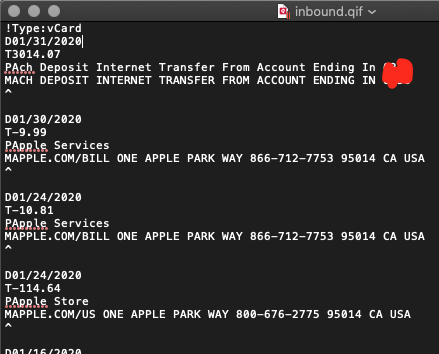


and save the file as NameHere.QIF


In Quicken, click the FILE menu, then IMPORT, then QIF FILE.

Browse to your file, DO NOT SELECT ALL ACCOUNTS, instead, select your apple card account.

Uncheck everything except TRANSACTIONS


This thread has been closed by the system or the community team. You may vote for any posts you find helpful, or search the Community for additional answers.

Apple Card statements can now be exported for importing to third party financial apps.

Welcome to Apple Support Community
A forum where Apple customers help each other with their products. Get started with your Apple Account.
