Time Capsule access via Time Machine blocked by Catalina (after clean install)

I installed Catalina about a week ago on a MacMini Late 2012 with quad core i7 and 4GB of RAM.


Initial backup via Time Machine to a 2GB Time Capsule that was less than half full naturally took a long time. When I tried to access that backup or older backups predating Catalina, I got grayed out images of the Time Capsule and blanks for all of the old backups.


I thought this was a problem unique to the installation and OS, as noted in threads such as this one:

https://discussions.apple.com/thread/250732950


However, daily backups from my MacAir to the Time Capsule are no longer accessible, both pre- and post-Catalina install.


I don't understand what's going on. Time Machine problems after Catalina install have been discussed in several threads for about 5 months now. Is an update coming to fix this problem or not?

Mac mini, macOS 10.15

Posted on Mar 13, 2020 6:35 PM

Reply

Similar questions

57 replies

Mar 20, 2020 1:49 AM in response to martindo123

The Apple support document should be followed. That is from apple themselves.. and always worth paying attention to.


Ah I found another thread that says to erase Data one first:

https://support.apple.com/en-us/HT208496


Any other advice? More stable if I revert to the OS that originally came with the MacMini?


I would not install Catalina.. but neither would I go back too far. The backup is useless if you go back beyond what was last OS you used before the upgrade to Catalina.. so if that is 10.13 go back to that.


I think you are missing the point.


when you restore via setup assistant you restore the entire backup including OS and all your files.. the restored computer should look and behave exactly as before you upgraded to Catalina.

Hence all your photos and whatever you lost should also be there..

Go back a few days if there are issues.. as Setup Assistant will allow you to choose an exact date so restore will return the computer to exactly that configuration and file set.

Once you complete that restore and make sure everything works.. make a bootable clone of the disk.. so you never have to go through the disaster that is Time Machine ever again.

You can upgrade to Mojave.. but I would not go further with older computer. Up to you.. but Catalina I think should be reserved for new hardware.

Mar 22, 2020 2:05 PM in response to LaPastenague

I would also start a new Time Machine backup.


Another long process via wifi -- nearly done after running overnight. TM says it is doing 99 GB of backup. This is after the Restore, email download and culling, Photos rebuilding itself, and moving current version of files from backup flash drive to Documents.


There is still something quirky about the printer sharing. I get "Printer not connected" via the MacAir. Found that there was an alternative name for the Canon 3100: "Canon 3100 @Martin's Mac Mini Canon 3100". Deleted both and then Added 3100 back. Now it works with cable connection but not wifi even though printer sharing is on. Internet sharing is off.


On the oldest machine (Grandpa's iMac inherited from my father) I see two alternate names: one @MacAir and the other @MacMini. Clicking the one for MacAir results in a prompt that some software is missing, and then it is "obtained" from App Store after I agree. However, after completeion, I still get "printer is not connected" -- cable is no long enough for connecting the iMac. Assuming that subtracting and adding the printer would be helpful, what else do I need to do?


I printed stuff via wifi in Feb, a couple weeks before the ill-fated Catalina install, so this is not a driver update problem.


Mar 22, 2020 6:39 PM in response to martindo123

"Canon 3100 @Martin's Mac Mini Canon 3100".


Long names with spaces are not helping.. Someone has set sharing on a computer as this seems to be very mixed up.


How exactly is the printer connected to the network? Is it set with wifi to the Time Capsule or another router in the network.


Make sure NO computer is set to share the printer. The ONLY circumstances for a shared printer from a computer is USB only where the Printer is plugged into a computer and shared to the network. If that is the case then only the one computer can have sharing set.


This is option on the Preferences /Printer setup.


I will assume you have the printer configured by wifi to the main router which is the Time Capsule.

Tell me anything wrong.. particularly if I have missed that the TC is not the main router.


I must say even my best efforts to keep a wifi connected printer alive on the network.. the brother HL-L5200DW in the screenshot was unsuccessful. It worked great for a while and then would go into a deep sleep or something and I had to power it off and on again to wake it up. I recently reverted to ethernet connection from the router and it is behaving hugely better. So if ethernet is possible.. plug it into the main router with ethernet. Also set a static IP so that the Printer is locked down. This can be done either from the printer perhaps or from the router using dhcp reservation (other terms are used but you can always lock an IP address to MAC address in the router).


You can still print by wifi even with the printer setup with ethernet.


The other possibility is to print using IPP instead of Bonjour..


This makes the fixed IP essential but it is more reliable..


Mar 22, 2020 7:02 PM in response to LaPastenague

How do I find out which network the printer is on? I also have assumed it was via the TC, but don't see anything indicated.


Also, I don't know how to get the second screen you showed -- is that part of Add Printer?


The Canon 3100 has a blue light indicating wifi is on. Yeah, sometimes the printer goes to sleep after inactivity but tapping the ON button wakes it. Never found this problematic.


I don't recall ever using Bonjour, and I think I may have blocked it in one of the setups (if that's possible -- maybe I just blocked its Notifications). But yes I see Bonjour as one option for linking the printer -- I switched away from it.


I downloaded two (dated from 2017) drivers from Canon: printer and scanner. Installing these revaled that the scanner was asking me if I wanted to use wifi or cable. I never realized that was an option -- have used cable connection for it for years. So now it works again. However, even after deleting and re-adding the printer, I can't use the wifi for it.


I noticed an old (2014) and larger (250 MB, about 5x the size of each download) .dmg from Apple that I think is the printer's original driver. I suppose re-installing that might help? I recall that the original instructions were tricky -- you had to link via cable first, then after the initial connection, wifi would become available.


Moving the printer upstairs and using ethernet is an option -- a bit inconvenient given that I do most of the printing here.

Mar 22, 2020 7:20 PM in response to martindo123

I don't recall ever using Bonjour


Bonjour is automatic and default.

Don't block it because that is ESSENTIAL for Network resources to be used by the computer.. It how Apple discovers devices.


UNLESS you configure it with static IP and use IPP setup.


My recommendation is to remove every occurrence of the printer on every computer. And reboot all the computers. Actual restarts.


Then redo the Printer setup via wifi to the TC.. it does not show up because Apple is convinced their systems work perfectly. However the actual MAC address or name will show up as a client connected to the TC.


Setup the reserved IP in the TC.


Click the + box at the bottom.


For description you can just put the same printer name as you use as its network share name.


If normal setup won't work you will need to use IPP printing.. yes.. you click + box add printer down the bottom and you can manually setup a printer.

You will need to extract drivers though.. so perhaps need to use that whole horrible Canon setup.. IMHO use IPP as it is probably going to work better and the drivers should still be there from last time you setup the printer.


Printers are not designed for long life span now.. and a couple of toner or ink replacements and you can just about afford a new printer. New brother is my recommendation.. if canon are not making it easy on the Mac give them a wide berth.

Mar 22, 2020 8:02 PM in response to LaPastenague

Thanks. I assume I should delete all printers, restart, then add one by one (beginning with the MacMini).

AND IF that doesn't work, try the IPP method.


Scanner is highly useful for getting reimbursed for business travel. Color printing is dispensable.

I'm thinking of laserjet next time, because I spent as much on inkjets in a year as I would on a cheapo newer printer.

But I'm sitting on an inventory of 3 unused inkjets so I'm motivated to stick with the Canon for most of this year.


I went looking for Bonjour and found that iStumbler can detect it. Apparently those @Martin's MacAir etc alternative names are already set up as IPP. At least this screen shot suggests it's been setup:


Mar 23, 2020 12:24 AM in response to martindo123

I deleted all printers from the 3 devices, then shut down all 3 together so none was active.

Cold start and added Canon for the MacMini, using software driver that is listed when Select Software is chosen.

Tested it with cable (OK) and then wifi (not OK). Printer Sharing on.


Added Canon for the MacAir (OS 10.9), selected driver, tested it with cable (OK) and wifi (something about kernel not being correct, so please contact vendor).


Added Canon for the old iMac (OS 10.8), selected driver, tested it by linking cable to keyboard (OK) and wifi (not OK).


Chose IPP with Add and gave it a separate name. However, its screen in 10.8 doesn't look like what you showed. I input IP taken from MacMini but left Location blank. Didn't work. Found this via Airport Utility on the MacAir clicking on TC:


Android.local is probably cell phone of wife or daughter. 192.168.1.x is the IP provided here. Last digit can vary.


Don't see how to get the screen you showed for Airport Utility -- if I try add device, it says none found.


Mar 23, 2020 4:15 AM in response to martindo123

I need you to make a few things clearer to me.


Tested it with cable (OK) and then wifi (not OK).


What cable.. I am guessing USB. Please make that absolutely clear.


When you test with WiFi that is very difficult if you have just configured the printer with USB which makes it a LOCAL Printer.. not a network Printer.


Don't see how to get the screen you showed for Airport Utility -- if I try add device, it says none found.


Is the TC the main router of the network.. if not this job must be done on the main router. Do you have any errors showing on the TC summary? Like double NAT which will mess things up like crazy.


Going back to your configuration of the printer wifi .. how are you doing that? Again I am unclear.

Did you use the USB connection to go into the canon actual printer setup pages and the wireless must be configured to join the wireless router.. NOT adhoc mode. It must use infrastructure mode. Is that how you did it? Or did you use WPS.. I see the main instructions from Canon say the wireless is setup by WPS.

https://ugp01.c-ij.com/ij/webmanual/Tutorial/TS3100%20series/EN/TRL/trl-3000-a.html


Printer Sharing on.

If you mean on the Mac printer setup.. No.. as soon as you turn on print sharing you totally mess up the network. Even wifi (if setup properly may not work) because it is looking for the computer and sending print jobs to the computer not the printer. Print sharing is ONLY used for a USB printer with NO WIFI CONFIGURATION. And it is only for other computers on the network to send jobs to the USB printer plugged into the computer. But if your Printer has WiFi it has an inbuilt print server and you should not send print jobs via another computer computer on the network.


Start over.. remove the printer from all the computers again. Make sure NONE have sharing turned on. Reset the printer to default.. You will need to read the manual to know how to do that.


Now only do the setup on the Mac Mini.. Until it works on the mini forget all the other computers.. none of them will work because you are not configuring the printer to the Time Capsule.. The printer will appear pretty much automatically on all the other computers via bonjour once it is part of the network.


Only do wifi setup.. although I understand if that is difficult.. use the WPS instructions .. Time Capsule has WPS but accessed only via the airport utility here. With the setup open go to Base Station and Add WPS printer.
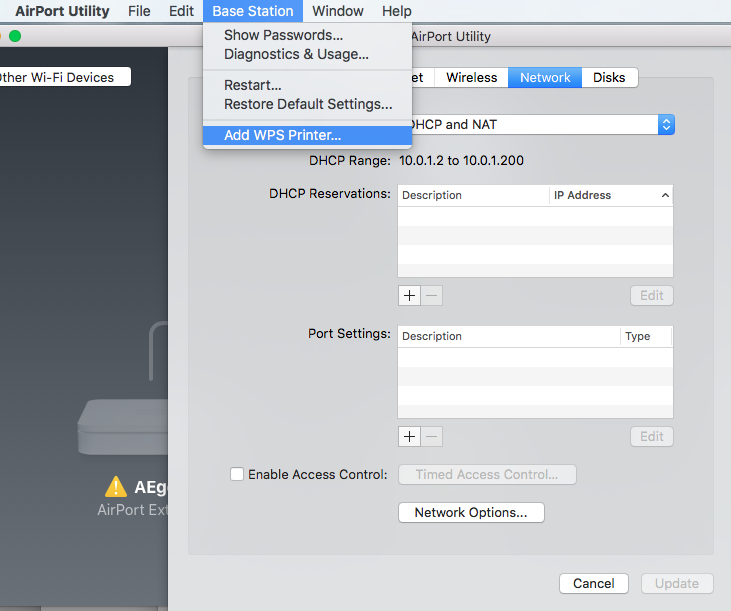


Do not use pin method.. always use first attempt.
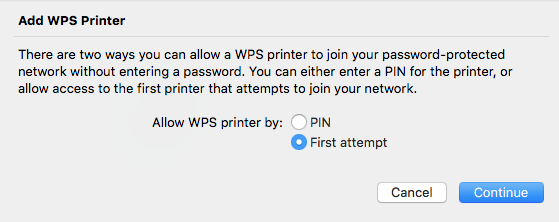


Trigger WPS on the printer and within a few seconds it should work. Note printer needs to be close to the TC so it has excellent wireless signal at least during the setup.


If it works properly the printer will appear as a client in the TC.

Make sure the TC is actually seeing the printer.. or use the printer test page to print out its current network configuration which will include the IP address.


That is the IP you must reserve in Airport Utility so it never changes. This can be left until last.. it is more important that you can print to it now.


You should now test. If it does not work.. open Terminal and type

ping printerIPaddress .. Where printerIPaddress is IPv4 address of the printer.. like 10.0.1.10


If ping responds then we might need to dig deeper.. but if ping does not respond you have no network connection to the printer and need to start over.. sorry. Or buy an AirPrint capable printer which are far easier to get working in my experience.


It will help me tremendously to give me your actual network setup.. with all the IP addresses.. and hopefully you can show which client is the printer and what IP it is getting. Screenshots of the entire network setup.


I went looking for Bonjour and found that iStumbler can detect it. Apparently those @Martin's MacAir etc alternative names are already set up as IPP. At least this screen shot suggests it's been setup:


I think this is wrong. and show you are configuring the Printer as ad hoc.. and not infrastructure mode. i.e. the printer is expecting clients .. whereas the printer should be a client on the router.

This is why ethernet is so much better.. if the printer has ethernet plug it into the TC.. and it will work about 200% better.




Mar 23, 2020 4:32 AM in response to LaPastenague

First, iStumbler no longer revealed any IPP after I deleted and re "found" the printer on each device.


Second, I found Canon IJ Network Tool in a Canon Utilities folder on the restored MacMini. I'm pretty sure this was part of the original setup as it refers to a manual. But it can't detect the printer:


Update didn't work. Your advice is a lot to assimilate and I'm leaving in the morning for a two-day trip. I'll deal with it later.


Thanks again. Meanwhile I have another small problem: neither old nor new password for the Airport Base Station is recognized. I did a reset with pin in the back and it only prompted me to rename the base station, not set a password.

Mar 27, 2020 12:59 AM in response to martindo123

Here's the new thread about printer wifi:

https://discussions.apple.com/thread/251218130

which has a back reference to this thread


Soft reset wasn't all that easy. I followed the instructions, duly found the Airport Extreme's own numeric named Network but kept getting Show Passwords grayed out in Airport Utility. Instead I was repeatedly prompted to Forget Device.


On the third or fourth try of soft reset, I finally got to see the passwords and it hit me that the TC base station password might have become the Airport base station password. Sure enough, using that passowrd worked. I then made a new Airport Extreme base station password and split off the Data disk of TC with its own password while I was at it. Done.

This thread has been closed by the system or the community team. You may vote for any posts you find helpful, or search the Community for additional answers.

Time Capsule access via Time Machine blocked by Catalina (after clean install)

Welcome to Apple Support Community
A forum where Apple customers help each other with their products. Get started with your Apple Account.