How to unlock my permanently locked iPad Air 2

Hello support,


I was playing around with the iOS 13 zoom feature and, for some reason, I got stuck and tried to blindly input my 5 digit access code which failed. As a result of this my iPad is permanently locked. I still remember my access code.


I downloaded the latest iTunes program (64 bit) for Windows 10 hoping it would allow me to unblock my iPad but, to my surprise, iTunes failed to recognize my iPad which I connected using an Apple cable. I must say that I have not used iTunes with the iPad in the past.


I own a Microsoft Surface i7 laptop with Windows 10 Professional

I tried various USB 2 and 3 ports but to no avail! One on the laptop itself and the other ones on the docking station.


My question is is there a way to (alternatively) unlock my iPad Air 2 since iTunes does not recognize it?


Thank you for your valuable support


Michel Hardeman

iPad Air 2, iPadOS 13

Posted on May 3, 2020 7:18 AM

Reply
Question marked as Top-ranking reply

Posted on May 5, 2020 2:48 AM

You could perhaps try a forced-restart immediately before attempting a DFU recovery of the iPad.


To force-restart:

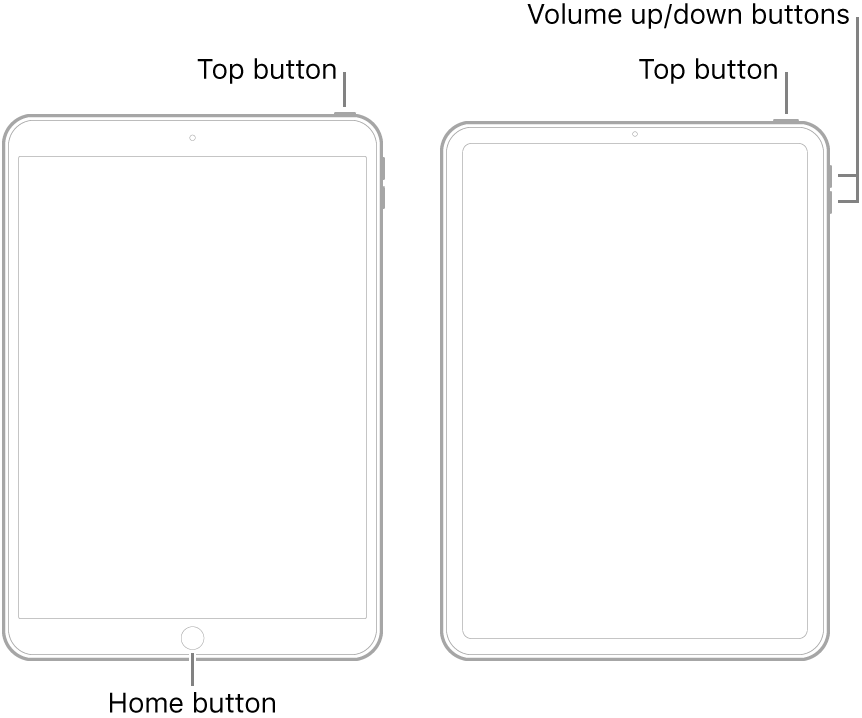
  • On an iPad with a Home button: Press and hold the top button and the Home button at the same time. When the Apple logo appears, release both buttons.
  • On an iPad with Face ID: Press and quickly release the volume up button, press and quickly release the volume down button, then press and hold the top button. When the Apple logo appears, release the button.


Here is an external link to the DFU procedure:

https://osxdaily.com/2010/12/04/ipad-dfu-mode/


Once in DFU mode, hopefully iTunes will recognise the iPad.


If an attempted DFU restore doesn’t resolve the problem - and Apple Support cannot help - you have to wait for the eventual reopening of the Apple Stores and access to the technicians at a Genius Bar.


Similar questions

5 replies
Question marked as Top-ranking reply

May 5, 2020 2:48 AM in response to MAJHardeman

You could perhaps try a forced-restart immediately before attempting a DFU recovery of the iPad.


To force-restart:

  • On an iPad with a Home button: Press and hold the top button and the Home button at the same time. When the Apple logo appears, release both buttons.
  • On an iPad with Face ID: Press and quickly release the volume up button, press and quickly release the volume down button, then press and hold the top button. When the Apple logo appears, release the button.


Here is an external link to the DFU procedure:

https://osxdaily.com/2010/12/04/ipad-dfu-mode/


Once in DFU mode, hopefully iTunes will recognise the iPad.


If an attempted DFU restore doesn’t resolve the problem - and Apple Support cannot help - you have to wait for the eventual reopening of the Apple Stores and access to the technicians at a Genius Bar.


May 5, 2020 2:04 AM in response to LotusPilot

Thanks again for your feedback.


The problem I am currently facing. Even Apple Support has no solution for this:

To be able to access the Recovery Mode on an iPad Air 2 is to press the Power button and the Home button simultaneously when the locked screen is shown. In my specific case the iDevice shuts down, no matter what I do, the device simply shuts down instead of accessing the Recovery Mode.

I admit that I had remapped the Home button slightly previously in iOS 13. Could that be the reason?


Is there any (alternative) to access the Recovery Environment in order to restore my iPad?


Erasing my iPad using iDevice on icloud.com/find. does not work for there is no Wi-Fi connection at the time the blocked screen is shown (Offline).


Thanks

This thread has been closed by the system or the community team. You may vote for any posts you find helpful, or search the Community for additional answers.

How to unlock my permanently locked iPad Air 2

Welcome to Apple Support Community
A forum where Apple customers help each other with their products. Get started with your Apple Account.