Numbers Budget vs. Transaction Categories

New to numbers, I set up the Budget categories on the respective tab and most categories show up as a drop down on the transaction sheet in the "Category" column but not all. Why? Also, some rows don't have the drop down, others do and I haven't inserted rows.

MacBook Pro 13″, macOS 10.15

Posted on Jun 21, 2020 3:10 PM

Reply
Question marked as Top-ranking reply

Posted on Jun 21, 2020 6:51 PM

Hi Sarah,


"I set up the Budget categories on the respective tab"


I'm assuming this means you "edited the Budget categories on the "Summary by Category" Table on the "Budget" Sheet to match the categories you want to use.


That alone does not make any changes to the pop-up menu cells on the Transactions table, but it does provide a convenient list from which to create the pop-up menu cells you need.


Here, I've added two categories, Memberships and Charitable, to the Summary by Category table:
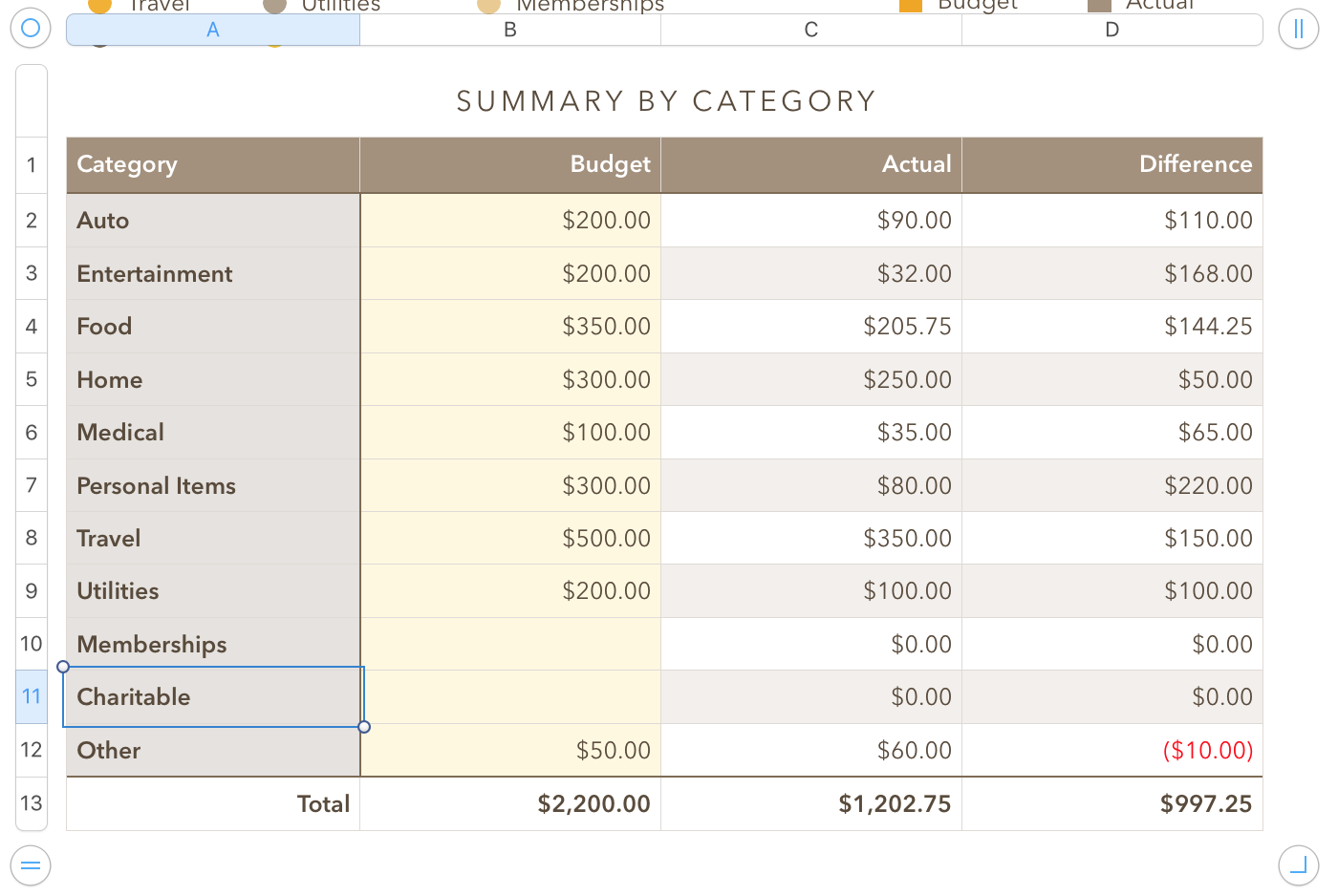


The next step is to convert that list to a set of pop-up menu cells, all with the same menu items (but each set to a different value).


Click on A2 ( Auto) to select that cell.

Press the Shift key and click on cell A12 ( Other ) to extend the selection to include all 11 cells.
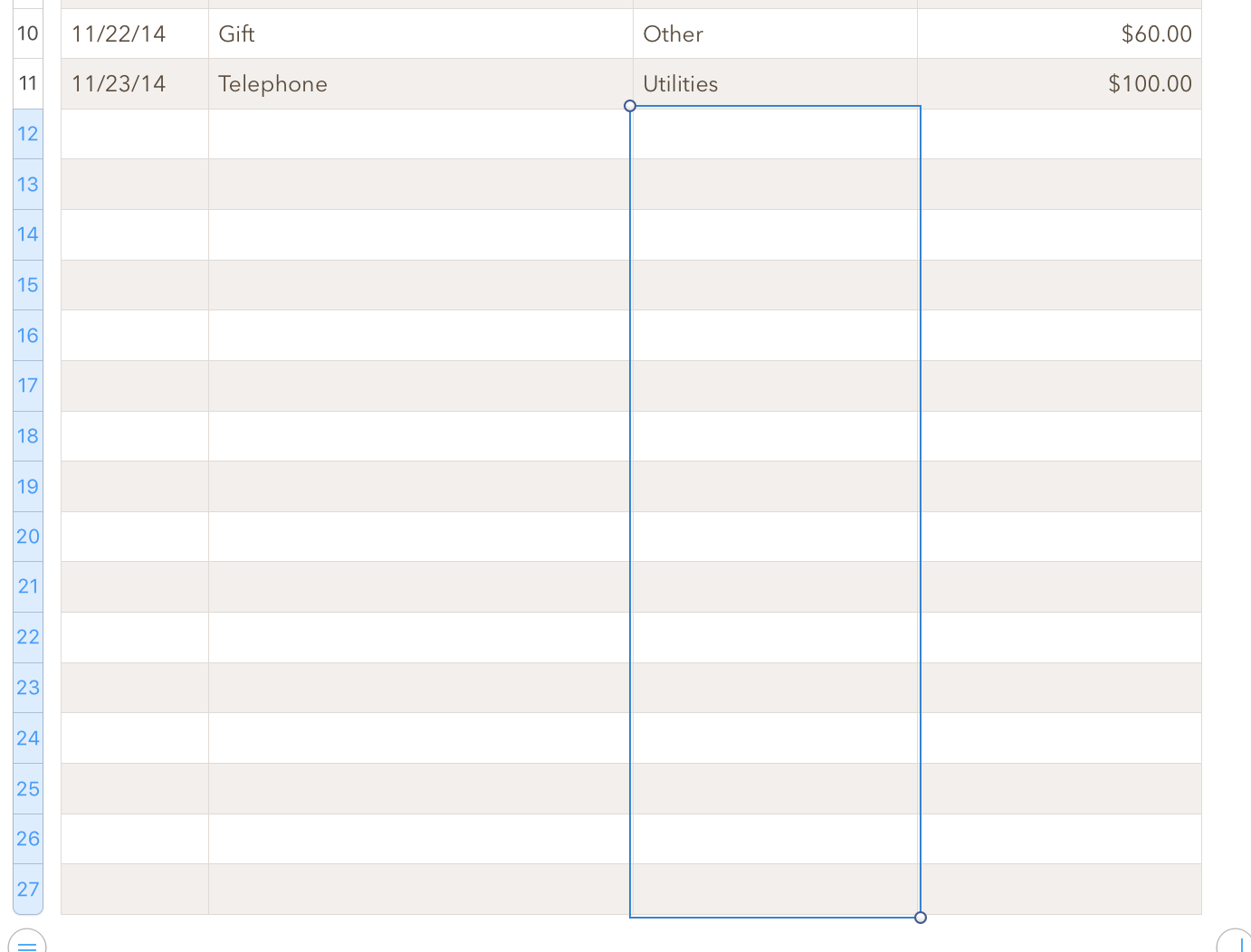
Click the format brush to open the Format Inspector, and choose Cell.

Click the pop-up menu labeled Data Format, and choose Pop-Up menu.


Each of the selected cells now contains a pop-up menu containing all eleven categories. In the Inspector, you will find a menu showing "Start with First Item", Click on the menu and change that to "Start with Blank" to allow the pop-up menu cells you are about to create to start with a blank cell.


On the Table, Click on cell A2 to select it. then click the v control to the right of the cell and choose "none" to set the cell to display a blank.

Press command-C to Copy the cell and its current setting.

Then reset the menu to Auto.


Click the Transactions tab to bring the Transactions Sheet to the front.

Select the first Blank cell in the Categories column and all the cells below it in that column, then press command-V to Paste.

All of the selected cells now contain the same pop-up menus, including the new categories that were added. The already used (and unselected) still contain the initial pop-up menu list provided in the template.


If you want to place the full set into the already used cells, you can select those cells AND the first one into which you just pasted the revised list, then, in the Cell Inspector, choose Combine (or Merge) menus. This adds the new items to the menus where you had not pasted the new menus, but does not change the current settings of those menus.


As time goes on, you can add a category to any pop-up menu cell then select all (or all unused) menu cells and use the merge feature to include the new item on all the selected menus.


Regards,

Barry


1 reply
Question marked as Top-ranking reply

Jun 21, 2020 6:51 PM in response to sarahbridgej9

Hi Sarah,


"I set up the Budget categories on the respective tab"


I'm assuming this means you "edited the Budget categories on the "Summary by Category" Table on the "Budget" Sheet to match the categories you want to use.


That alone does not make any changes to the pop-up menu cells on the Transactions table, but it does provide a convenient list from which to create the pop-up menu cells you need.


Here, I've added two categories, Memberships and Charitable, to the Summary by Category table:


The next step is to convert that list to a set of pop-up menu cells, all with the same menu items (but each set to a different value).


Click on A2 ( Auto) to select that cell.

Press the Shift key and click on cell A12 ( Other ) to extend the selection to include all 11 cells.

Click the format brush to open the Format Inspector, and choose Cell.

Click the pop-up menu labeled Data Format, and choose Pop-Up menu.


Each of the selected cells now contains a pop-up menu containing all eleven categories. In the Inspector, you will find a menu showing "Start with First Item", Click on the menu and change that to "Start with Blank" to allow the pop-up menu cells you are about to create to start with a blank cell.


On the Table, Click on cell A2 to select it. then click the v control to the right of the cell and choose "none" to set the cell to display a blank.

Press command-C to Copy the cell and its current setting.

Then reset the menu to Auto.


Click the Transactions tab to bring the Transactions Sheet to the front.

Select the first Blank cell in the Categories column and all the cells below it in that column, then press command-V to Paste.

All of the selected cells now contain the same pop-up menus, including the new categories that were added. The already used (and unselected) still contain the initial pop-up menu list provided in the template.


If you want to place the full set into the already used cells, you can select those cells AND the first one into which you just pasted the revised list, then, in the Cell Inspector, choose Combine (or Merge) menus. This adds the new items to the menus where you had not pasted the new menus, but does not change the current settings of those menus.


As time goes on, you can add a category to any pop-up menu cell then select all (or all unused) menu cells and use the merge feature to include the new item on all the selected menus.


Regards,

Barry


This thread has been closed by the system or the community team. You may vote for any posts you find helpful, or search the Community for additional answers.

Numbers Budget vs. Transaction Categories

Welcome to Apple Support Community
A forum where Apple customers help each other with their products. Get started with your Apple Account.