Hi, Rigadon1,
I was able to add a think bubble using the Keynote app. Scroll to the bottom of this post to see if it what you want. It sounds complicated to describe, but if you want to try it the procedure below is what I did. There may be easier ways to do this, but offhand this is what I came up with.
You can open the free download Keynote app and do a File/New. Select the Classic White presentation and delete off all of the text templates, leaving you with a white screen. Then copy the bubble that is in the Keynote emoji collection (Edit/Emoji and Symbols) and insert it into the screen. Use the text tool to type the text into the bubble. Export to desktop as an image. Create a duplicate of the image on your desktop. Open the duplicate in the Preview app. Do an Edit/Select All, Edit/Delete with the duplicate. You will be left with a blank transparency screen. Leave the duplicate open on your desk top. Now open the original image and use the Smart Lasso tool in Preview to outline the bubble. (To reveal the Smart Lasso tool you will need to do a View/Show Markup Toolbar. Then click on the dotted square in the upper left). After you have outlined the bubble, do an Edit/Copy of the outlined bubble. Then go to the duplicate transparency screen that you created and that is still open on your desktop. Do an Edit/Paste of the bubble into the transparency screen. Save to desktop. import into your iMovie project. Place the transparency above your video. Select it. Click on the overlay button in the toolbar at the upper right of your screen (the one that looks like overlapping rectangles). Choose Picture in Picture from the overlay selection box to insert the bubble into your video. Adjust its size and position. You can use the keyframe feature to make the bubble follow a moving person.
Here's the result that I got:
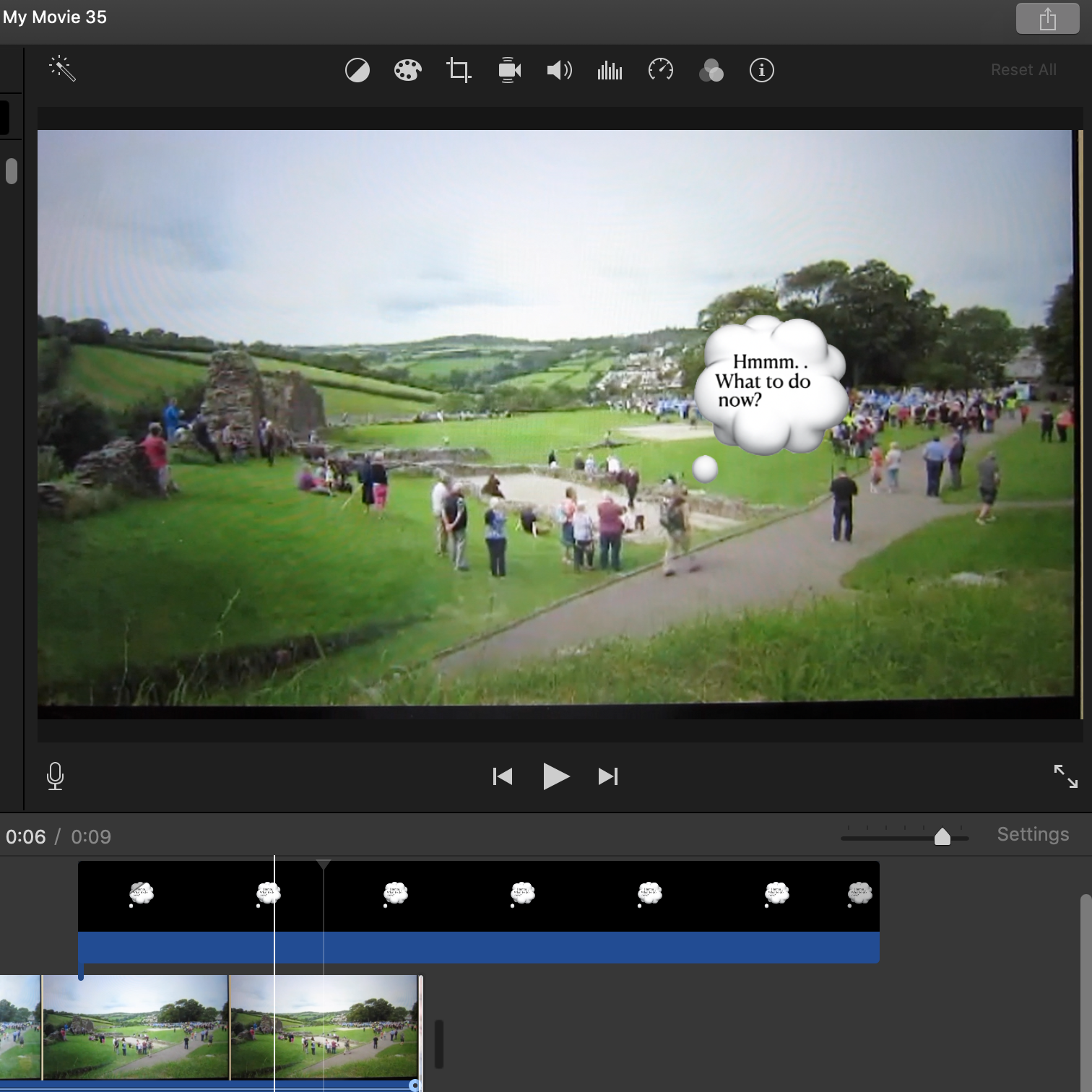
The the keystroke feature of Picture in Picture I can make the bubble follow the man as he is walking along. Check the Help menu for how to use the keystroke feature of PiP.
-- Rich

