Disk utility/first aid errors

i am having a major issue with my macOS. I cannot restore or reinstall macOS. I get errors inside disk utility/first aid. I get a (circle with a line through it) when i start up. and when I do get the (apple logo) upon start up, it just stays there until i eventually power off and start over. I have tried everything except throwing it out the window. agh!!!

iMac 21.5″, macOS 10.15

Posted on May 26, 2021 12:01 PM

Reply
Question marked as Top-ranking reply

Posted on May 26, 2021 7:00 PM

Boot into your Recovery HD, restart you mac while pressing and holding down the Command and R keys.

After you have booted to your Recovery HD you should see a Utilities panel.

Select Disk Utility and press Continue.

Click View in the menubar and select Show All Devices.

What do you see on the left hand panel.

You should see the Disk probably called Apple SSD..........

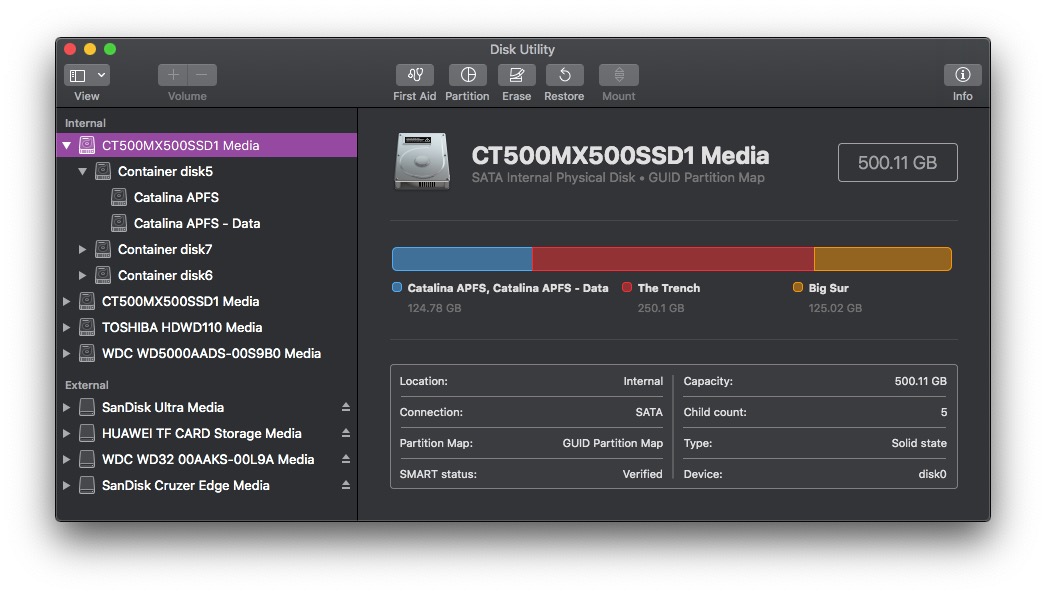
Underneath that and indented you should see a Container Disk with a number.

Underneath the Container Disk and indented are the two Volumes usually called

Macintosh HD and Macintosh HD - Data, please see the screenshot below for reference.


Can you run Disk Utility First Aid on first of all the Disk,

then in turn the Container Disk and then the two Volumes.


What results do you get.


Have you been making regular backups of your mac to an external hard drive.


If Disk Utility First Aid does not give green ticks for the Disk and its Volumes then you

will have to erase and reformat the Disk. This will of course mean that you will lose

all of your data, that is why it is very important to make regular backups to an external HD.


After erasing and reformatting the Disk you would then quit Disk Utility and then select Reinstall OS

or Restore from Time Machine Backup if you had been making backups.

If you need to reinstall the OS from Apples Recovery Servers your mac should be connected to your router

directly via cable, WiFi is too unreliable. Do not use any other devices that share the same internet connection

whilst your mac is downloading.


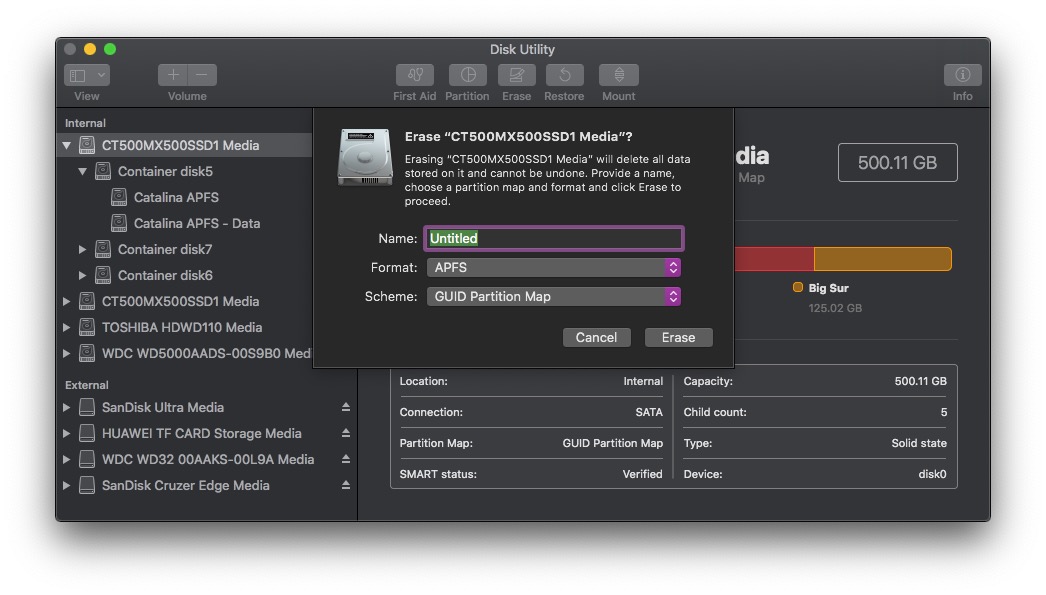
To Erase and Reformat the Disk you highlight the Disk (AppleSSD.....) click on Erase.

From the following drop down give the Disk a name.

Format: APFS.

Scheme: GUID Partition Map.

Click Erase.

When Done quit Disk Utility.


Similar questions

26 replies
Question marked as Top-ranking reply

May 26, 2021 7:00 PM in response to rickyclark

Boot into your Recovery HD, restart you mac while pressing and holding down the Command and R keys.

After you have booted to your Recovery HD you should see a Utilities panel.

Select Disk Utility and press Continue.

Click View in the menubar and select Show All Devices.

What do you see on the left hand panel.

You should see the Disk probably called Apple SSD..........

Underneath that and indented you should see a Container Disk with a number.

Underneath the Container Disk and indented are the two Volumes usually called

Macintosh HD and Macintosh HD - Data, please see the screenshot below for reference.


Can you run Disk Utility First Aid on first of all the Disk,

then in turn the Container Disk and then the two Volumes.


What results do you get.


Have you been making regular backups of your mac to an external hard drive.


If Disk Utility First Aid does not give green ticks for the Disk and its Volumes then you

will have to erase and reformat the Disk. This will of course mean that you will lose

all of your data, that is why it is very important to make regular backups to an external HD.


After erasing and reformatting the Disk you would then quit Disk Utility and then select Reinstall OS

or Restore from Time Machine Backup if you had been making backups.

If you need to reinstall the OS from Apples Recovery Servers your mac should be connected to your router

directly via cable, WiFi is too unreliable. Do not use any other devices that share the same internet connection

whilst your mac is downloading.


To Erase and Reformat the Disk you highlight the Disk (AppleSSD.....) click on Erase.

From the following drop down give the Disk a name.

Format: APFS.

Scheme: GUID Partition Map.

Click Erase.

When Done quit Disk Utility.


May 26, 2021 11:58 PM in response to rickyclark

You are Erasing the wrong thing, I have told you you need to Erase the Disk not the indented Volumes.

And if you were running macOS Catalina you should have the Disk then the Container Disk ,

then the Volumes Macintosh HD and Macintosh HD -Data.

Try again.

Highlight Apple HDD HTS541...

Click Erase.

Give the Disk a name.

Format: Mac OS Extended (Journaled) if reinstalling Sierra or APFS if you are reinstalling Catalina.

Scheme: GUID Partition Map.

Click on Erase.

When done quit Disk Utility.

Click on Reinstall OS press Continue.


What were the errors you got when using Disk Utility > First Aid.

May 26, 2021 9:43 PM in response to rickyclark

Okay so when you reboot to your Recovery HD using the Command and R key

and then ask it to reinstall the OS it will install the original OS your mac came preinstalled with from factory.

In your case it looks like macOS Sierra. macOS Sierra will only run on Mac OS Extended formatted disks, it cannot

be installed on APFS formatted Disks.

So go back to Disk Utility highlight the Disk and click Erase.

Give the Disk a name.

Format: Mac OS Extended (Journaled).

Scheme: GUID Partition Map.

Click Erase.

When Done quit Disk Utility.

Click on Reinstall OS.


If you want to have the mac reinstall the latest OS it can run then read this,

How to reinstall macOS – Apple Support

go to Other macOS Installation Options

As you have not provided what year your mac is it may be that it will install

macOS Big Sur.


May 26, 2021 8:39 PM in response to Eau Rouge

yes, I have tried this. And I would get “failed” on (Macintosh hd, Macintosh hdd) volumes. I would then click done.


i also tried to reinstall macOS with still no luck.


after doing all this, I restarted the Mac, and for some strange reason it’s no longer (Catalina). But now is trying to reinstall old operating system (Sierra). Even when I tried to reinstall that, I still got a error while trying to prepare installation.

May 27, 2021 11:54 AM in response to Eau Rouge

Ok gotcha, I was just doing it the way it said on the apple site. It said to do first aid on volumes 1st then work your way up.

but I have now been doing what you said. And erasing (apple Hdd) and it’s been about 2 1/2 hrs so far. Is it supposed to take that long? We shall see what happens. So far.....


but originally I was getting mounting errors,

freezes, or just not starting up completely.

This thread has been closed by the system or the community team. You may vote for any posts you find helpful, or search the Community for additional answers.

Disk utility/first aid errors

Welcome to Apple Support Community
A forum where Apple customers help each other with their products. Get started with your Apple Account.


