I accidentally deleted the com.apple.TCC folder

I accidentally deleted the com.apple.TCC folder, after looking at some websites that said it was malware, then I found out that it was a system file, what should I do? pls help me


[Re-Titled by Moderator]

Posted on Jun 9, 2021 3:58 AM

Reply
Question marked as Top-ranking reply

Posted on Jun 9, 2021 5:04 AM

There might be other ways but would suggest Reinstalling the OS. This will replace and overwrite any missing or corrupted System Files without touching anything else. BUT, before doing that - a Time Machine Backup is Strongly Suggested. It TM Backup can save you a great deal of time incase things go sideways.


The Method is to Restart the computer in Recovery Mode. For Intel Computers connect to charger and restart and Hold Command + r key immediately and hold until the Apple Logo appears. Note: You will have to look for Wifi Icon in this process and manually input the Wifi Password. Even better, connect via Ethernet Cable to Router. Once all that is done - Choose Reinstall macOS. This will automatically download the Full Installer of Big Sur and commence the installation.


The same Method is for the Newest M1 Chip except getting to Recovery Mode is different - Use macOS Recovery on a Mac with Apple silicon


12 replies
Question marked as Top-ranking reply

Jun 9, 2021 5:04 AM in response to DDP11oate

There might be other ways but would suggest Reinstalling the OS. This will replace and overwrite any missing or corrupted System Files without touching anything else. BUT, before doing that - a Time Machine Backup is Strongly Suggested. It TM Backup can save you a great deal of time incase things go sideways.


The Method is to Restart the computer in Recovery Mode. For Intel Computers connect to charger and restart and Hold Command + r key immediately and hold until the Apple Logo appears. Note: You will have to look for Wifi Icon in this process and manually input the Wifi Password. Even better, connect via Ethernet Cable to Router. Once all that is done - Choose Reinstall macOS. This will automatically download the Full Installer of Big Sur and commence the installation.


The same Method is for the Newest M1 Chip except getting to Recovery Mode is different - Use macOS Recovery on a Mac with Apple silicon


Jun 9, 2021 6:22 AM in response to DDP11oate

Back up your Mac with Time Machine

Learn how to create a backup of the files on your Mac.


Use Time Machine, the built-in backup feature of your Mac, to automatically back up your personal data, including apps, music, photos, email, and documents. Having a backup allows you to recover files that were deleted, or that were lost because the hard disk (or SSD) in your Mac needed to be erased or replaced. Learn how to restore your Mac from a backup.


Create a Time Machine backup

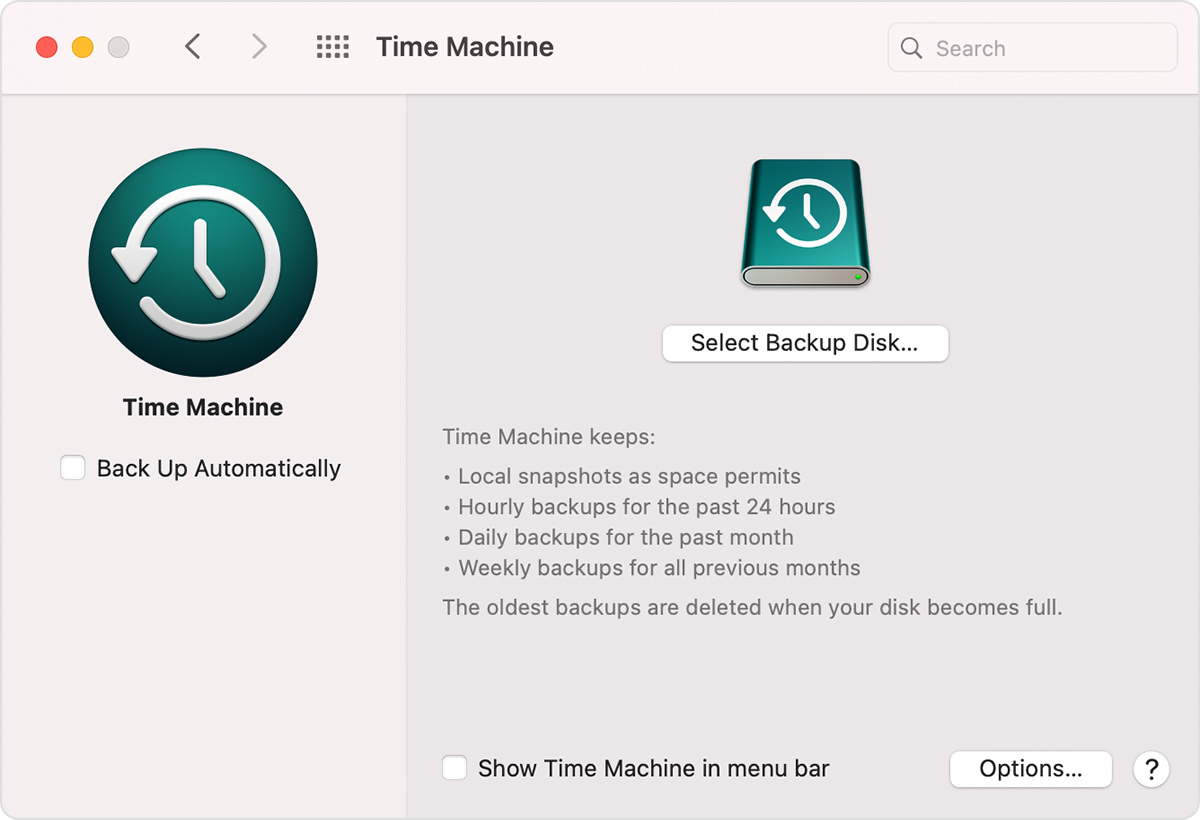
To create backups with Time Machine, all you need is an external storage device. After you connect the storage device and select it as your backup disk, Time Machine automatically makes hourly backups for the past 24 hours, daily backups for the past month, and weekly backups for all previous months. The oldest backups are deleted when your backup disk is full.

Connect an external storage device

Connect one of the following external storage devices, sold separately. Learn more about backup disks that you can use with Time Machine.

  • External drive connected to your Mac, such as a USB or Thunderbolt drive
  • Network-attached storage (NAS) device that supports Time Machine over SMB
  • Mac shared as a Time Machine backup destination
  • AirPort Time Capsule, or external drive connected to an AirPort Time capsule or AirPort Extreme Base Station (802.11ac)

Select your storage device as the backup disk

  1. Open Time Machine preferences from the Time Machine menu  in the menu bar. Or choose Apple menu  > System Preferences, then click Time Machine.
  2. Click Select Backup Disk.

Enjoy the convenience of automatic backups

After you select a backup disk, Time Machine immediately begins making periodic backups—automatically and without further action by you. The first backup may take a long time, but you can continue using your Mac while a backup is underway. Time Machine backs up only the files that changed since the previous backup, so future backups will be faster.

To start a backup manually, choose Back Up Now from the Time Machine menu  in the menu bar. Use the same menu to check the status of a backup or skip a backup in progress.


This thread has been closed by the system or the community team. You may vote for any posts you find helpful, or search the Community for additional answers.

I accidentally deleted the com.apple.TCC folder

Welcome to Apple Support Community
A forum where Apple customers help each other with their products. Get started with your Apple Account.