Editing Resume Template in Pages?

I been trying to edit the formatting of a Resume Template in Pages and been struggling.

Below the Header there is some white space I been trying to get rid of. I tried backspacing from the Summary section but it won't budge, also tried tweaking the spacing in the Style and Layout section - no bueno!


Any suggestions? Thanks!

Mac mini, macOS 10.15

Posted on May 15, 2022 8:23 PM

Reply
Question marked as Top-ranking reply

Posted on May 16, 2022 1:32 PM

Hi rocker,


I opened a new document using the "Modern Resume" template in Pages 11.2, then set these items for a closer look:


Click Format Brush and choose Document.

In View menu: choose Show Rulers, Show Layout.


Here's the resulting view of the top part of the unedited document:
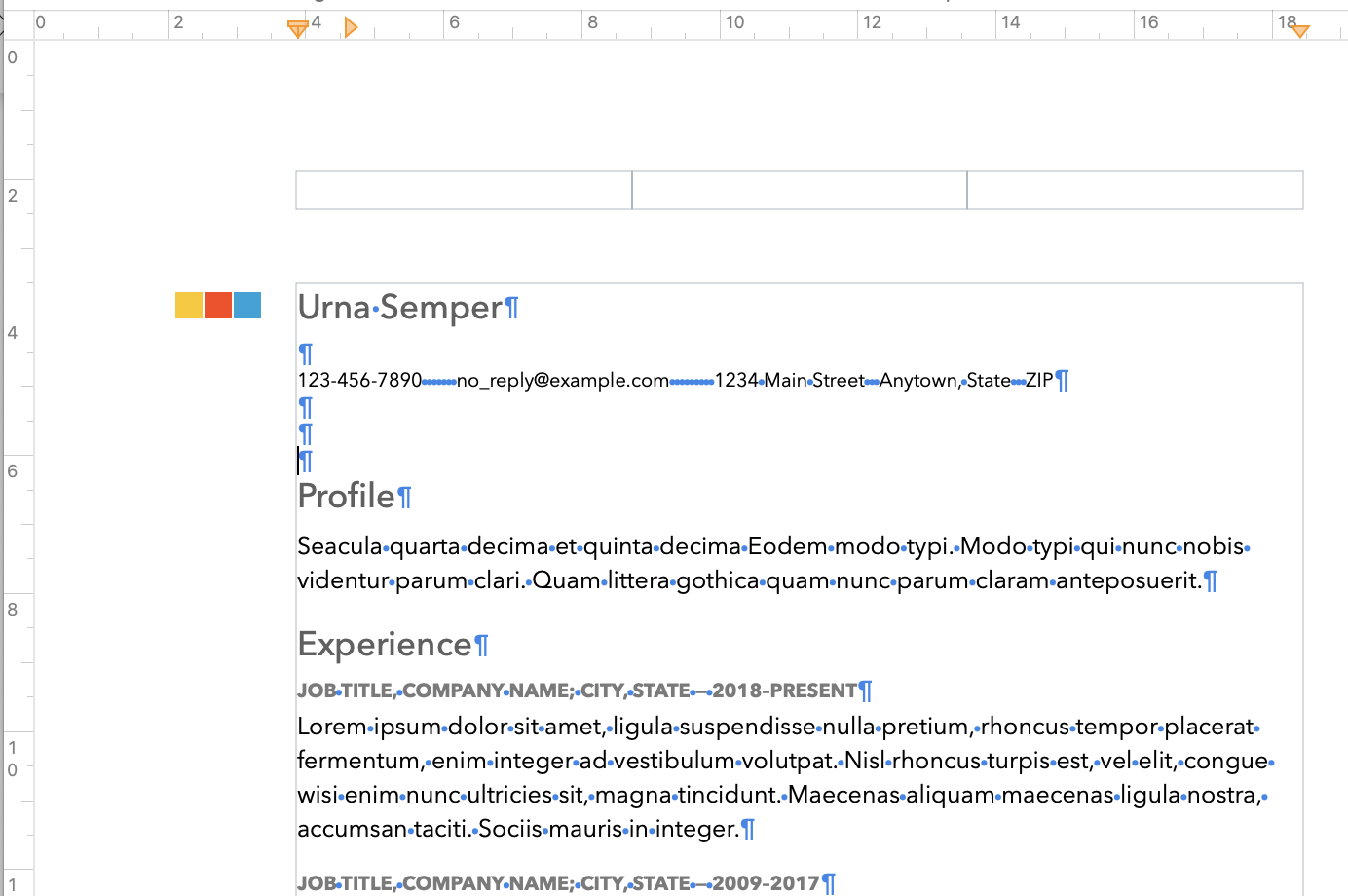

There are no "Text Boxes" in this document.


There are three "Header" boxes at the top of the page, and a matching set of three "Footer" boxes near the bottom of the page.


These are useful for holding page numbers, or for text that you want to repeat on each page of the resume.


If you do not want to use headers or footers, you can remove these boxes by unchecking the checkboxes for Headers and Footers in the Document Inspector, shown in picas' post above.


If you want to use a header, but move that header closer to the top of the page, leave the checkbox checked, and reduce the number in the stepper below Header either by using the stepper control or by entering the distance you want between the top of the page and the top of the header in the box.
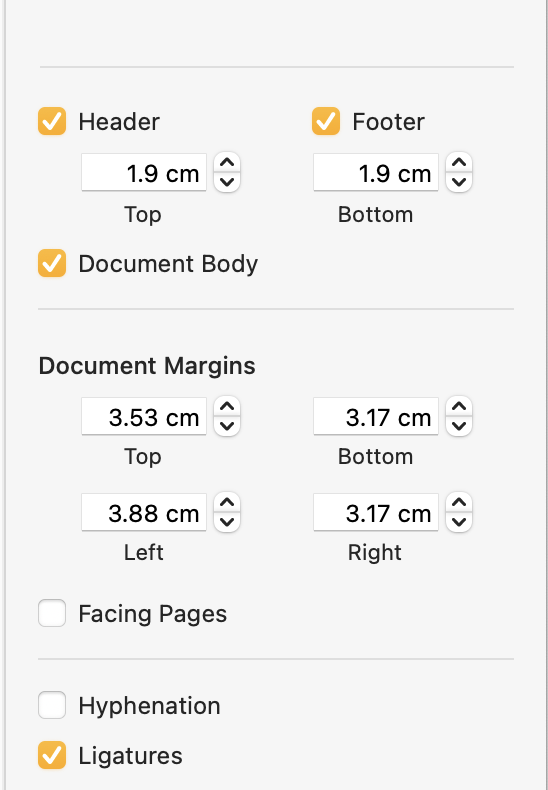

Two clicks on the 'down' v for Header brought the space between the top of the Header and the top of the page down from 1.9cm to 0.63 cm.


Three clicks on the v for the Top margin reduced that margin from the 3.53 cm setting seen above to 1.9 cm.


The effect on the page's top area is shown below.
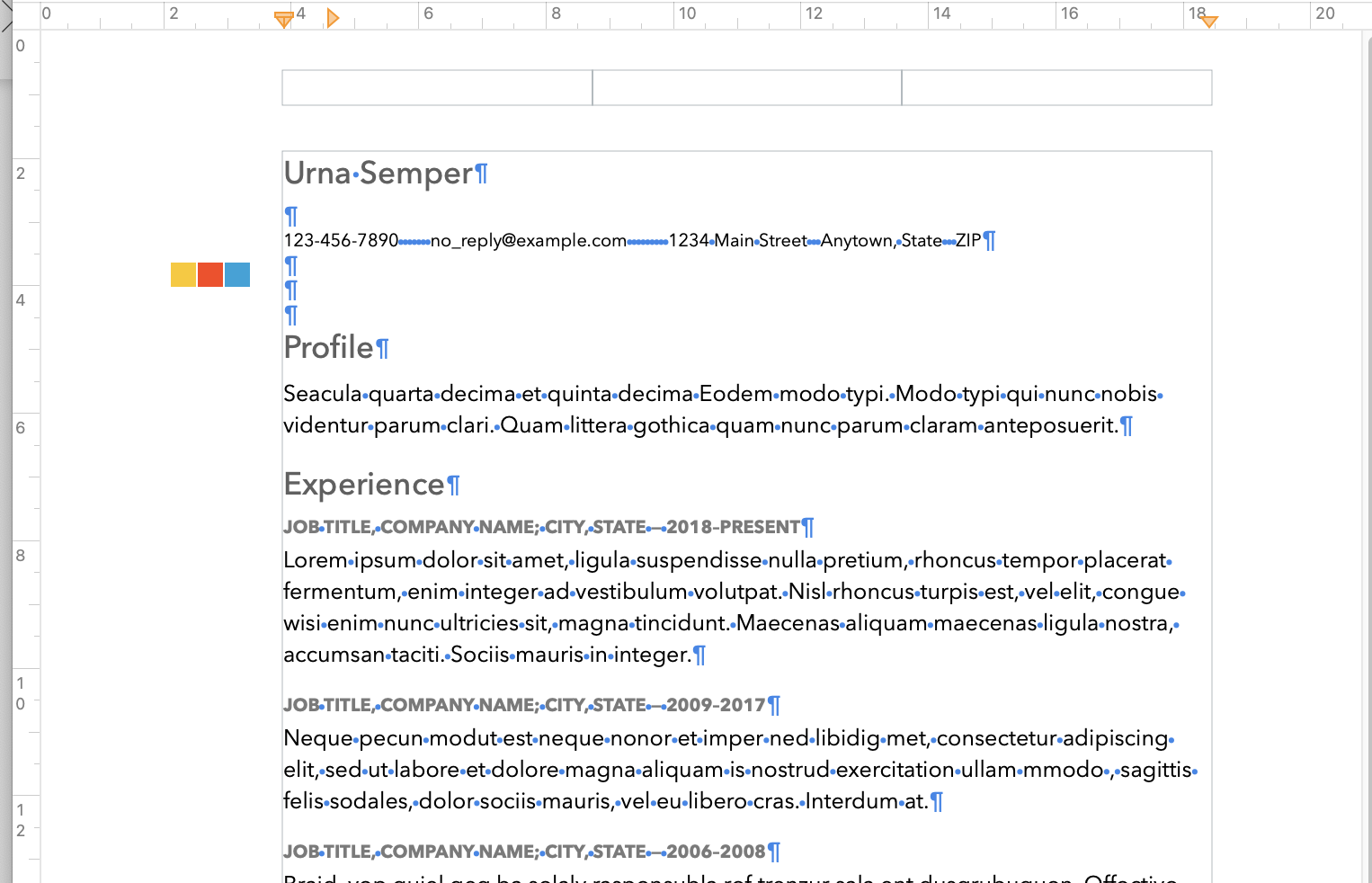


Note that the three-squares image, which is outside the print space determined by the Page margin settings, did not move up with the text when the Top margin and header were moved. This is a grouped object consisting of three Shapes. Click on it to select it, then use the up arrow key to move it up to align with the name again.


You may also have noticed that clicking in the two lines of text below "Profile" immediately Selects all of that placeholder text, and the first keystroke in the selection deletes the placeholder text, and places the typed character at the beginning of the space the placeholder was holding. This is normal, and the designed behaviour of Placeholder text.


All text on that page is Placeholder text.


But the three pilcrows ( ¶ ) stacked between the contact information and the Profile heading show the location of line feed characters. They are not placeholders, and can be deleted individually using the delete key.


Hope you find this information useful.


Regards,

Barry

8 replies
Question marked as Top-ranking reply

May 16, 2022 1:32 PM in response to rocker71

Hi rocker,


I opened a new document using the "Modern Resume" template in Pages 11.2, then set these items for a closer look:


Click Format Brush and choose Document.

In View menu: choose Show Rulers, Show Layout.


Here's the resulting view of the top part of the unedited document:


There are no "Text Boxes" in this document.


There are three "Header" boxes at the top of the page, and a matching set of three "Footer" boxes near the bottom of the page.


These are useful for holding page numbers, or for text that you want to repeat on each page of the resume.


If you do not want to use headers or footers, you can remove these boxes by unchecking the checkboxes for Headers and Footers in the Document Inspector, shown in picas' post above.


If you want to use a header, but move that header closer to the top of the page, leave the checkbox checked, and reduce the number in the stepper below Header either by using the stepper control or by entering the distance you want between the top of the page and the top of the header in the box.


Two clicks on the 'down' v for Header brought the space between the top of the Header and the top of the page down from 1.9cm to 0.63 cm.


Three clicks on the v for the Top margin reduced that margin from the 3.53 cm setting seen above to 1.9 cm.


The effect on the page's top area is shown below.


Note that the three-squares image, which is outside the print space determined by the Page margin settings, did not move up with the text when the Top margin and header were moved. This is a grouped object consisting of three Shapes. Click on it to select it, then use the up arrow key to move it up to align with the name again.


You may also have noticed that clicking in the two lines of text below "Profile" immediately Selects all of that placeholder text, and the first keystroke in the selection deletes the placeholder text, and places the typed character at the beginning of the space the placeholder was holding. This is normal, and the designed behaviour of Placeholder text.


All text on that page is Placeholder text.


But the three pilcrows ( ¶ ) stacked between the contact information and the Profile heading show the location of line feed characters. They are not placeholders, and can be deleted individually using the delete key.


Hope you find this information useful.


Regards,

Barry

May 15, 2022 9:33 PM in response to picas

Thanks for responding!


It's the Modern Resume.


Yes, the heading and contact lines are text boxes. I'm trying to raise the Profile section closer to those boxes to clear the white space and move everything up a bit, but it won't allow me to. Now, I can move the header and contact lines closer to the Profile section, but that doesn't accomplish what I want.

This thread has been closed by the system or the community team. You may vote for any posts you find helpful, or search the Community for additional answers.

Editing Resume Template in Pages?

Welcome to Apple Support Community
A forum where Apple customers help each other with their products. Get started with your Apple Account.