Cannot sign into Windows iCloud: get a pop-up with only a red circle with a white cross

Hi,

I am not able to sign into Windows iCloud. When I try, I get the following pop-up (after the busy sign circles for a while):

No other messages than this pop up. When I put in an invalid password, I get the message 'Your Apple ID or password is incorrect'. So it seems, that my pop-up is not related to invalid credentials.

I am on Windows 11 Pro (22621.819) and use iCloud 14.0.162.0.

I have tried an uninstall / re-install, but this didn't help.

Any suggestions how I could solve this problem or how I can find any hints on why iCloud generates the rather non-informative pop-up?

Thanks in advance!


Posted on Nov 10, 2022 1:38 PM

Reply
Question marked as Top-ranking reply

Posted on Jan 27, 2023 5:54 AM

I spent a few hours trying to reverse engineer what the issue is here with process monitor and eventually resolved it. The client certificate that iCloud uses to talk to the server appears to be getting broken in some way.


How I fixed it:

* certmgr.mmc, file->add/remove snap-in, certificates, my user account. There should be a certificate in Personal\Certificates with a Issued By of Apple iPhone Device CA. Delete it.

* In file explorer, go to %APPDATA%\Microsoft\Crypto\RSA. There should be a folder with a name like S-1-5-21...or the like. Go in there.

* Backup this directory before messing with it.

* Open each file with Notepad, starting with the oldest one. You're looking for one that has the string APNSDaemon in it. Delete that one.

* Restart the computer and icloud signin should work now.

85 replies
Question marked as Top-ranking reply

Jan 27, 2023 5:54 AM in response to yodelayheewho

I spent a few hours trying to reverse engineer what the issue is here with process monitor and eventually resolved it. The client certificate that iCloud uses to talk to the server appears to be getting broken in some way.


How I fixed it:

* certmgr.mmc, file->add/remove snap-in, certificates, my user account. There should be a certificate in Personal\Certificates with a Issued By of Apple iPhone Device CA. Delete it.

* In file explorer, go to %APPDATA%\Microsoft\Crypto\RSA. There should be a folder with a name like S-1-5-21...or the like. Go in there.

* Backup this directory before messing with it.

* Open each file with Notepad, starting with the oldest one. You're looking for one that has the string APNSDaemon in it. Delete that one.

* Restart the computer and icloud signin should work now.

Feb 5, 2023 11:49 AM in response to elsakl

Thanks so much for everyone that contributed. This worked great! But I'd like to add the a little correction. In this part:

* certmgr.mmc, file->add/remove snap-in, certificates, my user account. There should be a certificate in Personal\Certificates with a Issued By of Apple iPhone Device CA. Delete it.

The correct command to run is: MMC This will bring up the Microsoft Management Console. Alternative you can run the command: certmgr.msc to get directly to the snap-in.


Oh and for me I had three certificate listed in the certmgr.msc and I seemed to need to delete all of them. To be precise, I deleted the first one in the list, and delete the file in the RSA folder, but still couldn't login, I went back to the certmgr.msc and saw the other two and deleted them and that did it.


Again, I can't thank you all enough for posting to this. I had been on the phone for hours with Apple support, and they did acknowledge the issue, but told me it would require an update. Who knows how long that could take.


Mar 12, 2023 9:16 AM in response to tsu272

I was able to fix this by deleting my Outlook profile (via control panel/mail) and creating a new one. It sounds odd but once I built a new profile and added my accounts, iCloud started working and the red X and all issues went away. I had this issue on multiple machines and the only fix was a new Outlook profile. Hope this helps someone.

Apr 18, 2023 4:11 AM in response to mstrings8

I just deleted the file. I had quite a few files, fortunately user Jindong has written a script that will tell you which file has the "APNSDaemon" text in it.

This is the script - "Get-ChildItem -Path "$env:APPDATA\Microsoft\Crypto\" -File -Recurse | ForEach-Object { if (Get-Content $_.FullName | Select-String -Pattern "APNSDaemon") { $_ } } | Format-Table -Wrap".


Here is a link to the discussion. https://discussions.apple.com/thread/254365463?answerId=258575857022&page=3


Mar 4, 2024 6:43 PM in response to tsu272

I realise this has been going on for some time. I recognise that this problem presents its self in a range of ways. The suggestions people posted on this particular thread has helped me so I wanted to add my findings here too.


I have downloaded and installed the iCloud app on my windows 10 computer but I get the error message "User ID or password incorrect" when I try to login with my Apple ID and my associated password. I have attempted to reset my password twice. I can loginto My iPhone 14 and the App store using these same Apple ID credentials, so I know they work. For me the problem is purely with the iCloud App on my Windows 10 desktop computer.


When looking into the suggestions by DoctorBrown and Bluesky_114 below somewhere along the way I got an error:
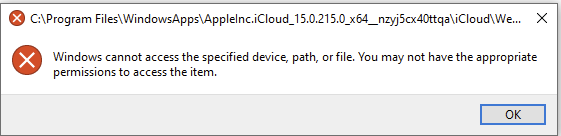


Which together with the suggestions in this post made think that permissions to access files needed for this app are not being handled correctly.


I went to: C:\Program Files\WindowsApps


I right clicked on the WindowsApps folder and selected Properties:
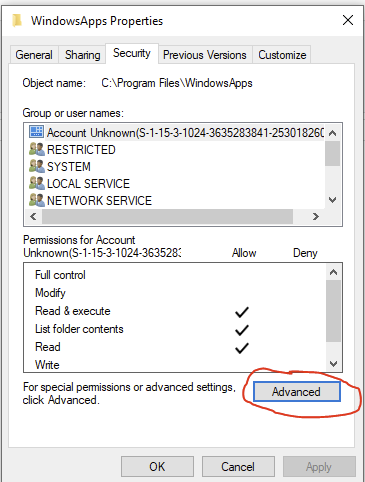


I clicked on the "Advanced" button.


I then got the screen below. The "Owner" was not set correctly so I clicked on the "Change" button
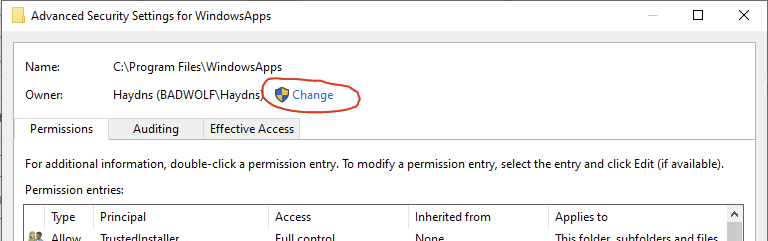


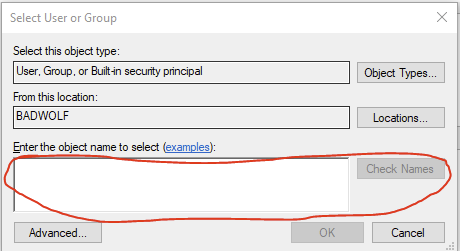
I got this window. I typed my user name in the "Enter the object name to seleect" text box then clicked the "Check Names" button. The correct User name then appears in the box.
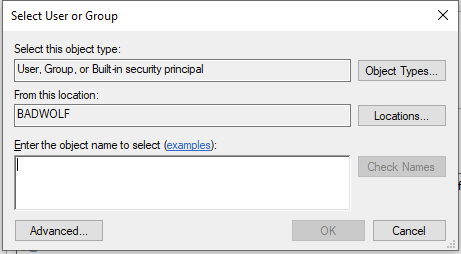


I then clicked ok.


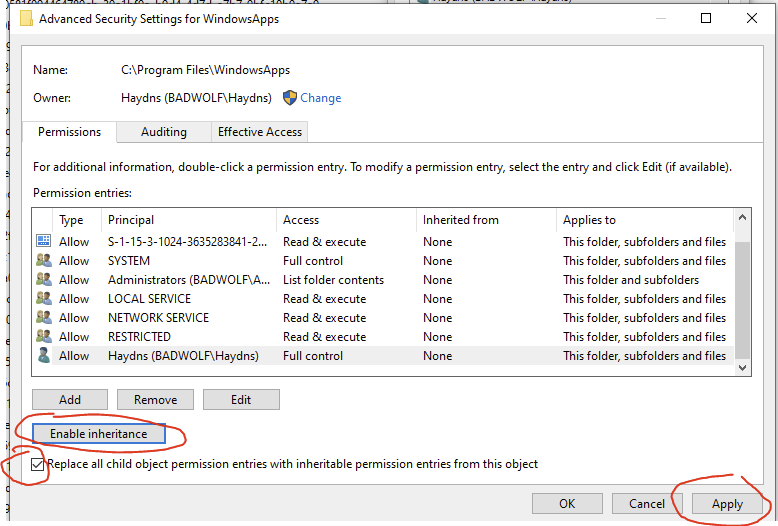
The owner name was now correct back on this screen below:
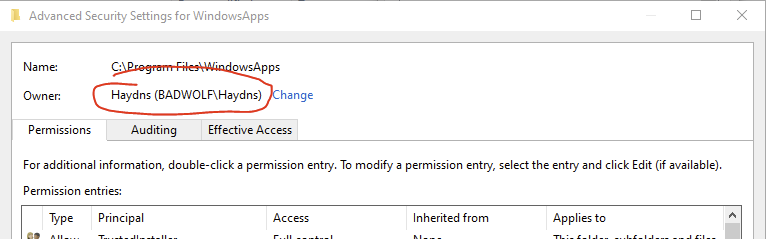


It is not shown in this screen capture since I had already actioned it, but there was a little check box under the owner name which asked if I wanted to propogate the ownership changes to all the child files and folders in this folder, which I did.


So the permissions were then propogated.


I see there is a similar box at the bottom of this window
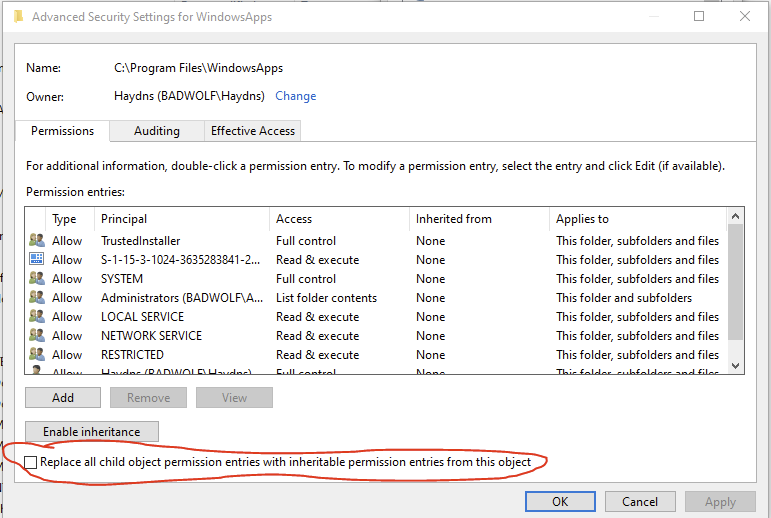


Next I was trying to actually edit the permissions that I had as a user for this folder and everything in it. I clicked on my USer Name, but when I clicked edit, I got an error message saying that the entry was corrupt and that I should create a new one. I therefore clicked on the Principal setting which said BADWOLF/Users and removed it.


I then Clicked "Add".
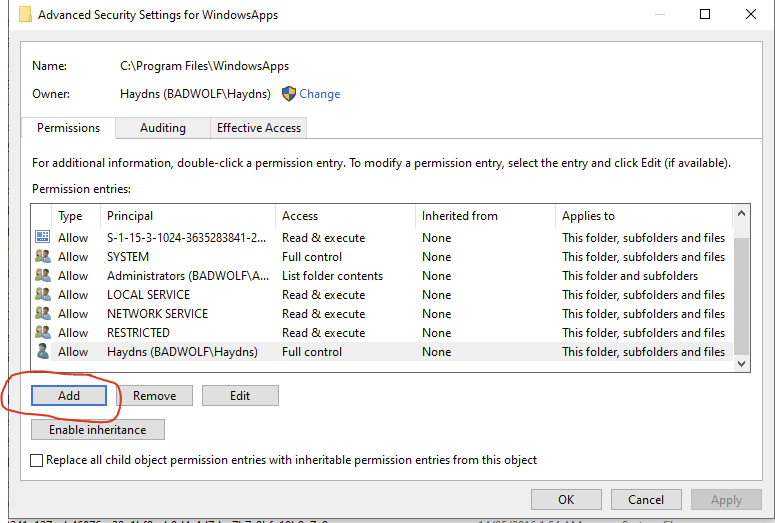


Then clicked "Select a principal"
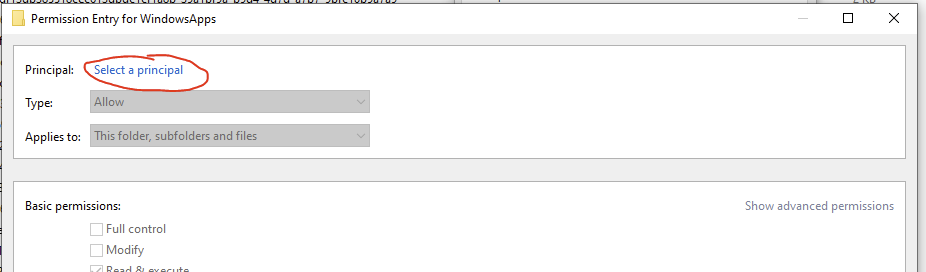


Then again typed my user name in the text box "Enter the object Name to select" and clicked "Check Names". The full user name then appears and I clicked OK:


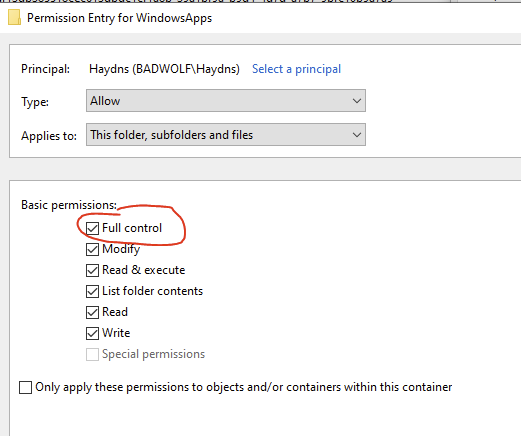
I was then able to select basic permissions, in which I chose "Full control"


When I clicked OK the Principal appeared in the Permissions Entry table. I clicked enable inheritance, "Replace all child object permission entries with inheritable permssion entries from this object" and clicked apply.


I then got a window asking me if I wanted to continue:
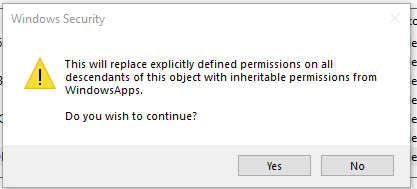


I clicked yes.


The permissions are applied which takes about a minute or so.


I clicked OK to get out of each of the WindowsApps properties dialogue boxes.


I closed the iCloud App.


I couldn't open the iCloud app after all my messing around. so I restarted my computer


Nov 22, 2022 3:14 AM in response to LELLIS1936

Hi,

Very helpful. I found this reddit thread where you can download version 7.18.0.22 of iCloud:https://www.reddit.com/r/iCloud/comments/gppnku/nonmicrosoft_store_download/


This one worked for me for logging in. As pointed out be joetorch you can upgrade to version 14 using the microsoft shop, but with that version: if you sign out, you are back to the same problem.


The problem seems to be related with the 2F authorization.

Feb 17, 2023 10:51 AM in response to keend0g

I think I have another step to workaround this issue. It looks like this issue is cause by issues with security. There can be multiple reasons the security config is messed up. I trust that someone with additional knowledge can verify this.


  • Open a cmd prompt: WIN-R > cmd
  • Enter the command:
wmic useraccount get name,sid
  • You will see a list of the user accounts configured on your system. The string have a format of:
S-1-5-21-...xxx-500, S-1-5-21-...xxx-1002, etc.

The numbers before the last dash should all be the same for all the users. This is the SID's of the user accounts.

  • Note the one for the name of the user that is logged in that can't login to iCloud.
  • Open Explorer and go to the following folder:
%appdata%\Microsoft\Crypto\RSA
  • I think you should see only one folder here that has the name of the SID determined above. If you see more than one, then move or delete the one that has a different SID. (I moved it to a Temp folder to make sure I could restore it in case this breaks something else.)
  • Log off and log back on. ( not certain if this is really necessary.)


You also may need to do the steps described by hronk and scuba-fan.


I'm not an expert on Security, YMMV. Any corrections or comments are welcome.


This thread has been closed by the system or the community team. You may vote for any posts you find helpful, or search the Community for additional answers.

Cannot sign into Windows iCloud: get a pop-up with only a red circle with a white cross

Welcome to Apple Support Community
A forum where Apple customers help each other with their products. Get started with your Apple Account.


