Hey there, and welcome to Apple Support Communities Csex2,
We can certainly understand your concern and are here to help.
We recommend checking out these steps for more information on how to setup an Exchange ActiveSync on your device and see if it matches up with your procedures.
" Set up Exchange ActiveSync on your iPhone or iPad
When you add your Exchange ActiveSync account, you can sync your Mail, Contacts, Calendars, Reminders, and Notes with your iOS device.
- Add your Exchange account
Tap Settings > Mail > Add Account > Microsoft Exchange.
If you're adding another account, tap Accounts > Add Account.
2. Enter your email address
Enter your email address, then tap Next. You can also enter an account description.
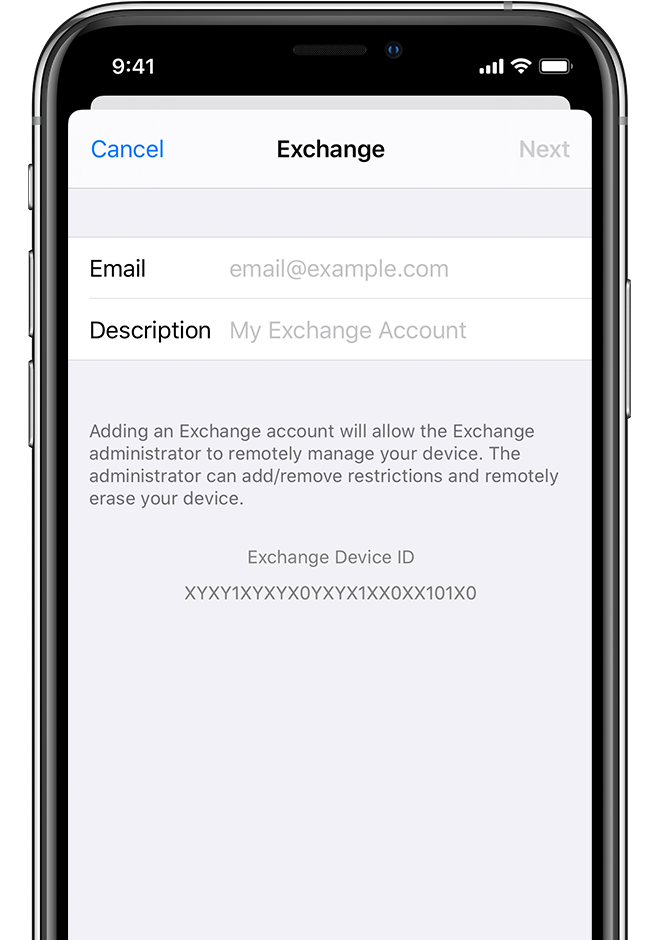 3. Connect to your Exchange Server
After you enter your email address, choose Sign In or Configure Manually.
Tap Sign In to automatically discover your Exchange account information. If your account uses modern authentication, you'll be guided through a custom authentication workflow.
Tap Configure Manually to set up your account with Basic authentication. Enter your email password, then tap Next. You might also be prompted to enter additional server information, which you can get from your Exchange Server administrator.
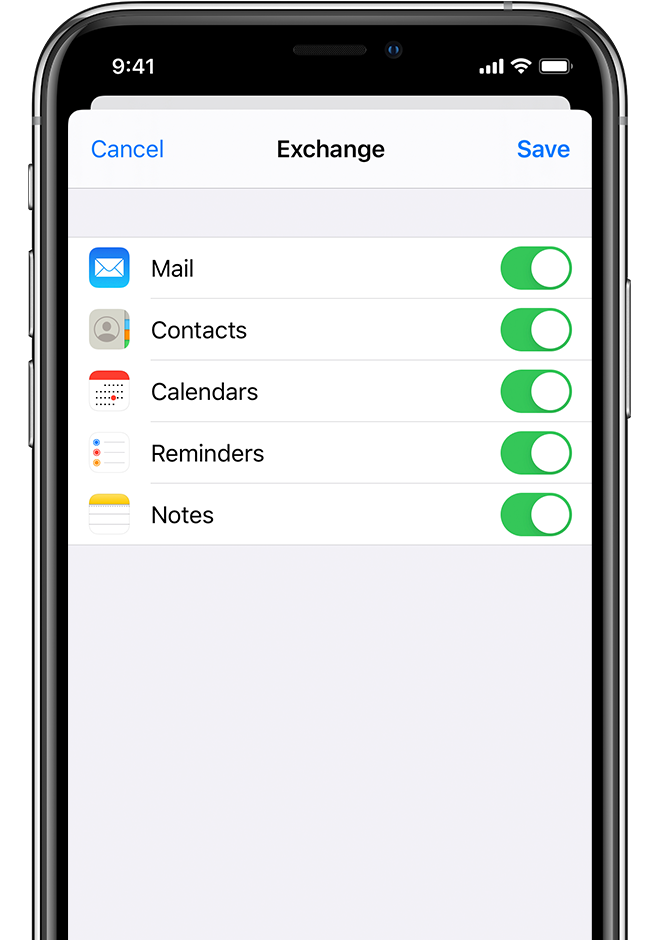
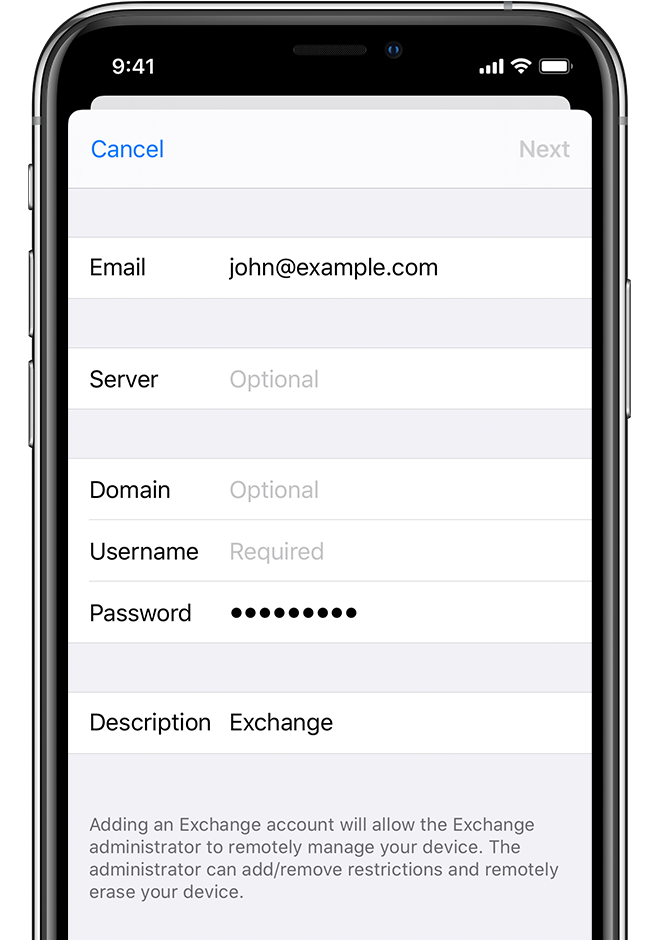 4. Sync your content
You can sync Mail, Contacts, Calendars, Reminders, and Notes. When you're finished, tap Save.
Edit your Exchange settings
Tap Settings > Mail > Accounts, then select your Exchange account. You can also set up automatic out-of-office replies, and change how often you want Mail to sync. To change advanced settings, tap your account name to change settings like SSL and S/MIME. "
If these steps do not help, then contacting your companies IT department would be the next best step.
For additional information, check out this link: Set up Exchange ActiveSync on your iPhone or iPad - Apple Support
These steps will help ensure your device is working with ease and can fix common issues like the ones you’re experiencing.
Kindest regards!


