Unable to Stop "Login Items Notification" from appearing on my Desktop

I have disabled EVERY Login Item shown in the System Settings that I can find but get a host of these notifications which appear randomly on my desktop in the R/H top corner.... Can anyone help please ?

System : Chip , Apple M1, macOS : Ventura 13.1

Mac mini, macOS 13.1

Posted on Dec 26, 2022 6:19 AM

Reply
Question marked as Top-ranking reply

Posted on Jan 1, 2023 7:15 AM

First of all, I want to sincerely thank you for posting an EtreCheck report. There have been many people complaining about this new feature in Ventura. But I think you are the very first person to provide an EtreCheck report to help us try to figure out what is causing this problem.


Unfortunately, that's a lot of bad news there. I will address issues one by one.


1) I think you must have changed the default notification display style. Normally, these notifications should look like this:
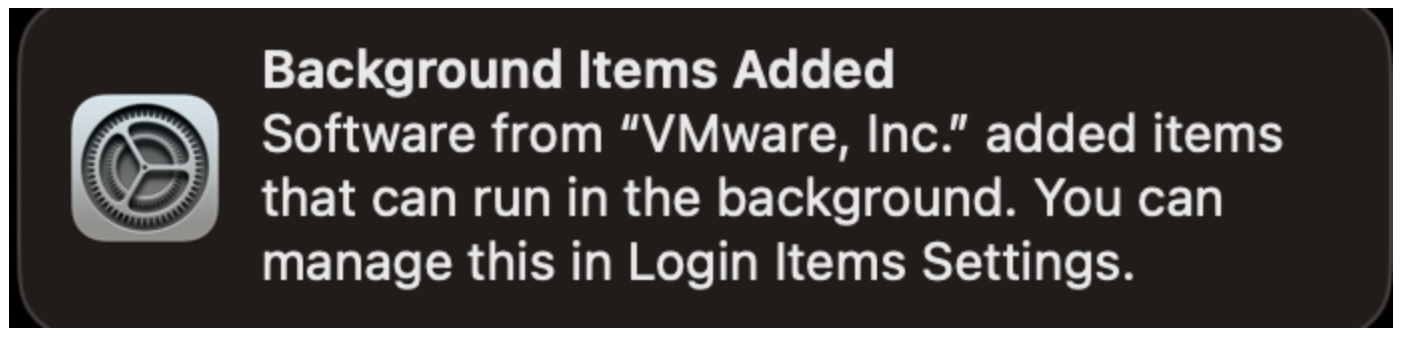
So go to System Settings > Notifications and see if you have turned off the "Preview" setting. I'm just guessing that this might be what is causing your notifications to be so content-free.


2) Those notifications listed in your EtreCheck report are unrelated to the notifications you are asking about. EtreCheck lists notifications from 3rd party apps in an attempt to identify notifications from scam ware apps. These notifications are from the operating system.


3) I went through your EtreCheck report and cross-referenced all of Apple's "background items" with EtreCheck's list. I think that it is that VirtualBox file that is responsible for the mysterious "osascripts". This file is also missing an install date in the EtreCheck report. Did you delete that file perhaps?


4) By far, the most interesting thing about your EtreCheck report is that this new "background items" interface in Ventura appears to be completely non-functional, at least on your computer. You have turned off everything except Hazel, but Hazel is not loaded. Many of the items that you have disabled are still loaded and/or running.


5) This complete failure of the the Ventura "background items" interface is probably what is causing all these notifications. It's totally lost it's mind.


And now for the bad part, which may have a silver lining.


Your Avira antivirus is still partially installed. You have a System Extension from Avira antivirus installed and running. I know you mentioned that you tried to remove it, but I think the damage was done before. Did you try to manually uninstall this app? Did you use one of those vile "app zapper" tools? Or did you try to use the official uninstaller or uninstallation instructions from the developer. Unfortunately, for System Extensions, all options may be wrong. These things are just a total disaster.


I'm not sure, but this could be causing this entire problem with your "background items". It is definitely something that needs to be fixed. There is no way to tell what this antivirus is doing while it is running out of control like this.


The only way to correct this problem is to erase your hard drive and reinstall the operating system. Then, when you restore, you have to make sure to restore only your user files and user accounts. Do NOT restore any apps, software, or "other files". That will only restore the problem and put you back at square one. You will have to manually reinstall any 3rd party software, like Hazel, you want to use. I recommend you take this opportunity to avoid installing anything that isn't absolutely necessary.


A side effect is that this should completely correct the problem with the notifications. This new "background items" user interface in Ventura is still poorly understood and apparently pretty buggy. I strongly urge you to avoid making any change of any kind in this interface. Do not attempt to turn anything on or off. In my opinion, this is one of the worst ideas Apple has had in a long time.


39 replies

Dec 27, 2022 1:44 AM in response to Owl-53

Hi, As you can see I've disabled ALL Login Items only allowing "Hazel" to remain Abled. The notifications that appear in the upper R/H corner of the Desktop seem to appear at random, I cannot detect any one App that triggers the "Notifications"..... I thought "Disabling" the Login Items was supposed to eliminate any loading or attempted loading of any Apps at Startup, but these Notifications can appear at any time after I've Started Up.

There are is 5 items named "Osascript" that refuse to be removed or deleted.... these are from an "unidentified developer" which Seem to be very stubbornly remaining in the list and I cannot delete them....

You ask what Apps provoke these notifications...... but I have no way of detecting which action provokes them and the notifications offer no clues..

Thanks for your help.

Happy New Year...

Ron..

Dec 31, 2022 6:03 AM in response to Owl-53

I have reinstalled Ventura 13.1, disabled every Login and Notification I can find on the System yet still when I login and after entering my password I can get unto 8 or 9 blank notifications in the R/H Top Corner of the Screen. (see attachment).

After dismissing the initial false Notications (at login) I can then use the system without further false Notifications

I am stumped but think it is something within the Ventura OS.

Surprised that no-one else has these symptoms.

My wife has a small MacBook Air with exactly the same Ventura OS 13.1 installed but she doesn't suffer these problems.....

Please any Apple Experts out there who can help...please do...

Jan 1, 2023 3:26 AM in response to Owl-53

Hi, Thanks for your help, much appreciated...

I hunted down all Avira files and deleted all of them but there is one that simply refuses to be deleted even when using the Avira Uninstall software. Keeps telling me I haven't got the right permissions...

It's located at : /Library/systemextensions/2A4E9462-9462-C17F-4160-A172-3FBE7FB1C44C

File Name : com.avira.scanservice.systemextension....... Simply reuses to be binned.....

Although I've tested a few Password Managers I only use Bitwarden and the Free Dashlane version. Besides these were all used without problems before I upgraded to Ventura.

In fact as I recall these Notification problems seem to have come with Ventura, can't say I was affected before that....

I've also used Hazel for many years without problems on previous operating systems.

Ron..

Jan 1, 2023 7:44 AM in response to etresoft

Thank you for your diagnosis and suggested remedies, I will most certainly scrub my existing SSD and start again as this problem is driving me mad !!

I have loaded up in Safe Mode and using Find Any File am still not allowed to remove the offending Avira files.

I'll address my answers to your comments by your reference number :

  1. Yes I did turn off the Preview, these are now turned back on.. (I am a novice trying to remedy an Apple problem, forgive me)
  2. To be honest I don't understand this one...
  3. Again I used Find Any File and removed all remaining fragments of VirtualBox which were left behind.
  4. Hazel is an Automatic Filing system which I use to maintain filing consistency.
  5. Noted..

Before I scrub my Hard Drives is there any further suggestions you may have as I will not be functioning for quite awhile, I foresee much confusion on my part....

THANK YOU...

Ron..


Jan 23, 2023 1:28 PM in response to twodogron

you are not the only one, I am having similar issues with the stupid notification stuff. I am not using or have ever installed any of the software that you are using. so it's probably a problem with the Apple OS. I have not found a solution for it. I am going to wipe the disk and install Mac OS Mojave onto it. this I know works.

there are many aspects of Ventura that I do not like.

This thread has been closed by the system or the community team. You may vote for any posts you find helpful, or search the Community for additional answers.

Unable to Stop "Login Items Notification" from appearing on my Desktop

Welcome to Apple Support Community
A forum where Apple customers help each other with their products. Get started with your Apple Account.
