iPad storage is always full

No matter what I delete, my iPad’s other and system fill all my storage up. My iPad is an 14.7.1 and it hasn’t IOS updated for around a year because of this lack of storage issue. I’ve deleted so many things, including photos, messages, apps, notes, safari data, etc, and yet still, other and system take up 3/4 of my 32GB storage. I also can’t even send text messages anymore because my iPad’s storage is so full they can’t send, and it just kicks me out of the app upon opening. Same with half of my other apps. Is there a way to fix this without wiping my entire device?


P.S. Has this iPad since Christmas 2018. Is it just that it’s too old?

iPad

Posted on Jan 19, 2023 7:11 PM

Reply
Question marked as Top-ranking reply

Posted on Jan 20, 2023 10:01 AM

System storage includes a lot of cached data. iPadOS16 appears to make more use of available storage for temporary system caches. A device with only 32GB of system storage will always struggle with available space - as you only have ~20GB of user storage for your data, files and photos.


Reported System Data (a.k.a. “other data”) can be expected to fluctuate. Your iPad will automatically and optimally manage its available system resources, using available free space to cache data and improve overall performance.


The only element of system storage that you can directly influence is perhaps your browser caches - which you can manually clear if you wish to do so.


For Safari:

Settings > Safari > Clear History & Website Data


For other browsers, you’ll need to find the relevant section of the App settings - which may be within the App itself.


Otherwise, transient system caches can be significantly reduced by performing a forced-restart of your iPad - although caches, by their nature, will again accumulate and be automatically managed by the operating system.


Force restart iPad (models with Face ID or with Touch ID in the top button)

If your iPad doesn’t have the Home button, do the following:

  1. Press and quickly release the volume button nearest to the top button.
  2. Press and quickly release the volume button farthest from the top button.
  3. Press and hold the top button.
  4. When the Apple logo appears, release the top button.
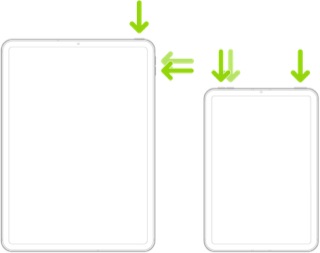


Force restart iPad (models with the Home button)

Press and hold the top button and the Home button at the same time. When the Apple logo appears, release both buttons.



Cached system data can also be cleared with a restore. More information about clearing system/other data is outlined here:

Clear Other storage on your iPhone or iPad - Apple Support


Otherwise, if your internal storage is full, your only option is to better manage the storage that you have - and delete unused Apps or unneeded data. 


These support pages should prove to be helpful:

About storage on your device and in iCloud – Apple Support

What's the difference between device storage and iCloud storage? – Apple Support

Manage your iCloud storage – Apple Support

How to check the storage on your iPhone, iPad and iPod touch – Apple Support


“Offloading” Apps can be a helpful method of creating temporary space for a software update.

https://9to5mac.com/2020/01/21/how-to-offload-apps-in-ios-to-save-space-without-deleting-their-data/


Additional information about creating sufficient space for installation of a software update can be found here:

If you need more space for an update on your iPhone, iPad, or iPod touch - Apple Support


External storage options can often help with managing limited internal storage. Depending upon your iPad model, the iPad will either have a Lightning or USB-C port - and may therefore require either an Adapter or USB hub to connect the USB Storage device. If your iPad has a Lightning port, you’ll need an Apple Lightning to USB3 Camera Adapter:


  • Lightning to USB 3 Camera Adapter

https://store.apple.com/uk/xc/product/MK0W2ZM/A

Similar questions

2 replies
Question marked as Top-ranking reply

Jan 20, 2023 10:01 AM in response to Breezexx

System storage includes a lot of cached data. iPadOS16 appears to make more use of available storage for temporary system caches. A device with only 32GB of system storage will always struggle with available space - as you only have ~20GB of user storage for your data, files and photos.


Reported System Data (a.k.a. “other data”) can be expected to fluctuate. Your iPad will automatically and optimally manage its available system resources, using available free space to cache data and improve overall performance.


The only element of system storage that you can directly influence is perhaps your browser caches - which you can manually clear if you wish to do so.


For Safari:

Settings > Safari > Clear History & Website Data


For other browsers, you’ll need to find the relevant section of the App settings - which may be within the App itself.


Otherwise, transient system caches can be significantly reduced by performing a forced-restart of your iPad - although caches, by their nature, will again accumulate and be automatically managed by the operating system.


Force restart iPad (models with Face ID or with Touch ID in the top button)

If your iPad doesn’t have the Home button, do the following:

  1. Press and quickly release the volume button nearest to the top button.
  2. Press and quickly release the volume button farthest from the top button.
  3. Press and hold the top button.
  4. When the Apple logo appears, release the top button.


Force restart iPad (models with the Home button)

Press and hold the top button and the Home button at the same time. When the Apple logo appears, release both buttons.


Cached system data can also be cleared with a restore. More information about clearing system/other data is outlined here:

Clear Other storage on your iPhone or iPad - Apple Support


Otherwise, if your internal storage is full, your only option is to better manage the storage that you have - and delete unused Apps or unneeded data. 


These support pages should prove to be helpful:

About storage on your device and in iCloud – Apple Support

What's the difference between device storage and iCloud storage? – Apple Support

Manage your iCloud storage – Apple Support

How to check the storage on your iPhone, iPad and iPod touch – Apple Support


“Offloading” Apps can be a helpful method of creating temporary space for a software update.

https://9to5mac.com/2020/01/21/how-to-offload-apps-in-ios-to-save-space-without-deleting-their-data/


Additional information about creating sufficient space for installation of a software update can be found here:

If you need more space for an update on your iPhone, iPad, or iPod touch - Apple Support


External storage options can often help with managing limited internal storage. Depending upon your iPad model, the iPad will either have a Lightning or USB-C port - and may therefore require either an Adapter or USB hub to connect the USB Storage device. If your iPad has a Lightning port, you’ll need an Apple Lightning to USB3 Camera Adapter:


  • Lightning to USB 3 Camera Adapter

https://store.apple.com/uk/xc/product/MK0W2ZM/A

Jan 19, 2023 7:25 PM in response to Breezexx

Breezexx Said:

"iPad storage is always full: No matter what I delete, my iPad’s other and system fill all my storage up. [...]P.S. Has this iPad since Christmas 2018. Is it just that it’s too old?"

-------


Troubleshooting iPad Storage:

Internal storage cannot be upgraded. It is what it is. So, the maximum internal storage capacity never increases, even if you upgraded your iCloud plan. Learn More here: What's the Difference Between Device Storage and iCloud Storage? Apple Support


So, what to do...

Clear Space, Using my User Tips:

This thread has been closed by the system or the community team. You may vote for any posts you find helpful, or search the Community for additional answers.

iPad storage is always full

Welcome to Apple Support Community
A forum where Apple customers help each other with their products. Get started with your Apple Account.
