finder not working on mac ventura
Hi Guys
Recently I installed Ventura after that finder search is not showing anything. Specifically in Servers.
can anybody help me in this.
Thank You
iMac, OS X 10.11
Hi Guys
Recently I installed Ventura after that finder search is not showing anything. Specifically in Servers.
can anybody help me in this.
Thank You
iMac, OS X 10.11
Hello vinod77z,
Thank you for reaching out in Apple Support Communities. We recommend to rebuild the Spotlight index, as it can help resolve the ability to search in Finder. Here are the steps we recommend for you to perform:
Rebuild the Spotlight index
Follow the appropriate steps, based on the version of macOS that you're using.
macOS Ventura or later
1. Choose Apple menu > System Settings.
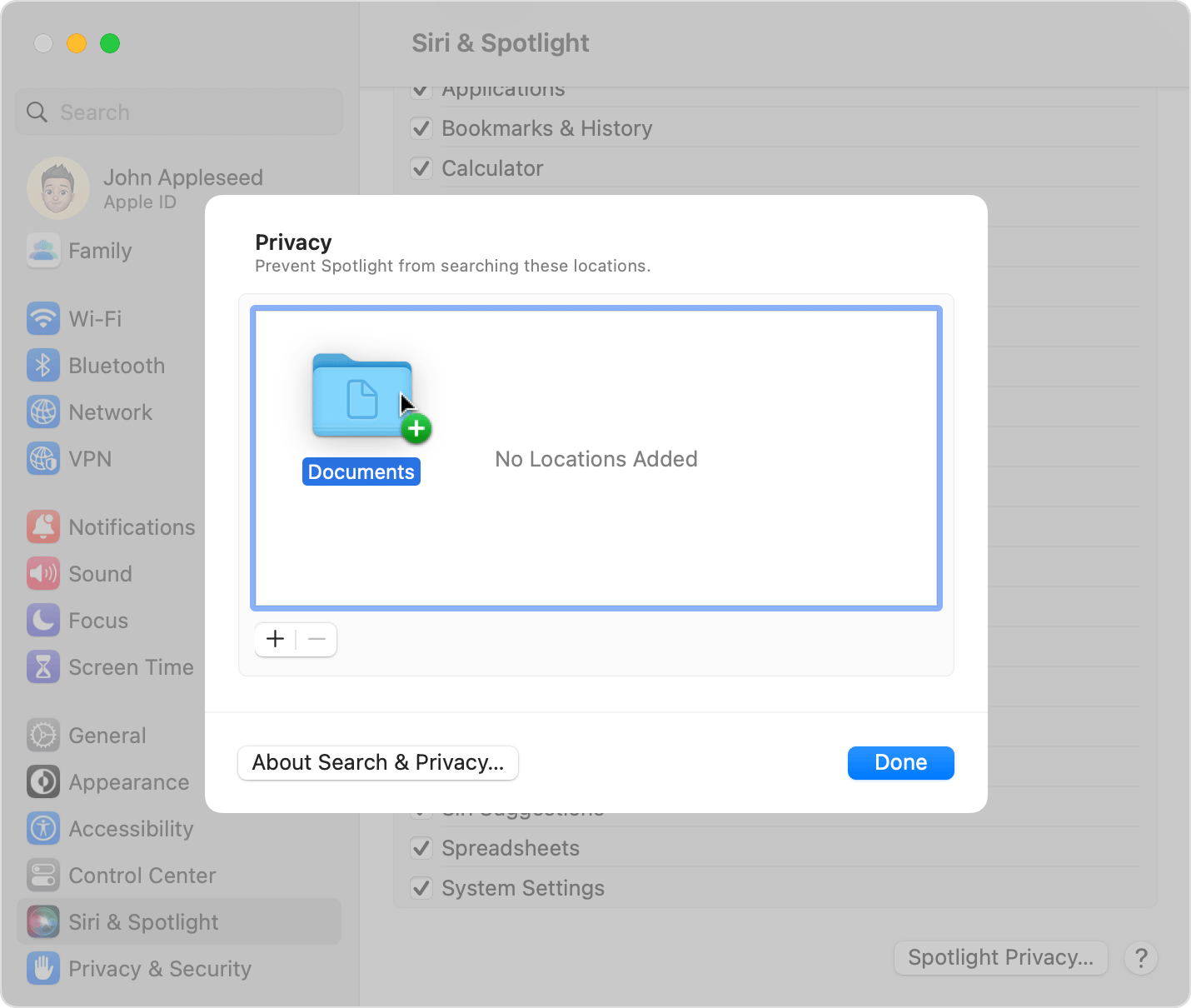
2. Click Siri & Spotlight in the sidebar, then scroll down and click Spotlight Privacy on the right.
3. Drag the disk or folder that you want to index again to the list of locations that Spotlight is prevented from searching. Or click the add button (+) and select the disk or folder to add.*
4. From the same list of locations, select the disk or folder that you just added. Then click the remove button (–) to remove it from the list.
5. Click Done, then quit System Settings. Spotlight will reindex the contents of the disk or folder. This can take some time, depending on the amount of information being indexed.
Following these steps can help and is outlined in this article: Rebuild the Spotlight index on your Mac - Apple Support
We look forward to hearing back from you with an update.
Kind regards.
Hello vinod77z,
Thank you for reaching out in Apple Support Communities. We recommend to rebuild the Spotlight index, as it can help resolve the ability to search in Finder. Here are the steps we recommend for you to perform:
Rebuild the Spotlight index
Follow the appropriate steps, based on the version of macOS that you're using.
macOS Ventura or later
1. Choose Apple menu > System Settings.
2. Click Siri & Spotlight in the sidebar, then scroll down and click Spotlight Privacy on the right.
3. Drag the disk or folder that you want to index again to the list of locations that Spotlight is prevented from searching. Or click the add button (+) and select the disk or folder to add.*
4. From the same list of locations, select the disk or folder that you just added. Then click the remove button (–) to remove it from the list.
5. Click Done, then quit System Settings. Spotlight will reindex the contents of the disk or folder. This can take some time, depending on the amount of information being indexed.
Following these steps can help and is outlined in this article: Rebuild the Spotlight index on your Mac - Apple Support
We look forward to hearing back from you with an update.
Kind regards.
finder not working on mac ventura