Hello Woodoil,
Sounds like you're struggling to create an iCloud email address for your iCloud account. What happens if you visit the iCloud website using a browser? Are you able to sign in and see the Mail option? You can use this link to check: iCloud
In case this continues to occur on your Mac, we'd ensure it's completely up to date on the latest version for the latest fixes: Update macOS on Mac
Use Software Update
Before following these steps, it's a good idea to back up your Mac.
1. From the Apple menu in the corner of your screen, choose System Settings or System Preferences.
* If you chose System Settings, click General on the left side of the window. Then click Software Update on the right.
* If you chose System Preferences, click Software Update in the window.
4. Software Update then checks for new software.
* If Software Update finds new software, click the button to install it. The button might be named Update Now, Upgrade Now, Install Now, or Restart Now, for example. You might then be asked to enter your administrator password.
* If Software Update says that your Mac is up to date, then no new software is currently available for your Mac model. Software Update shows only software that is compatible with your Mac.
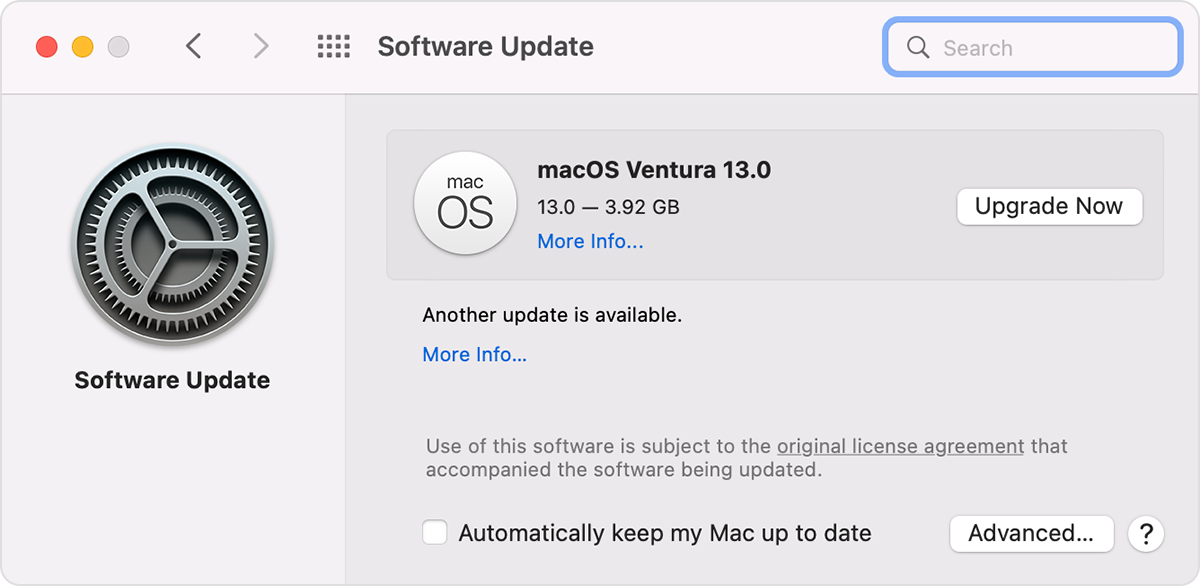
If you don't see Software Update
If you don't see an item named Software Update, choose View > Software Update from the menu bar in System Settings or System Preferences. Or use Search in the corner of the window to search for Software Update.
If your older Mac doesn't include Software Update, open the App Store app instead. It's in your Applications folder. Then click the Updates tab in the App Store to check for updates. You can also search for software by name.
After updating the Mac, make sure to test out creating an iCloud email address again using these specific steps: Create a primary email address for iCloud Mail
Create a primary iCloud Mail address on your Mac
1. On your Mac, do one of the following:
* macOS Ventura 13.3 or later: Choose Apple menu  > System Settings, click [your name] at the top of the sidebar, then click iCloud on the right. Below Apps Using iCloud, click iCloud Mail, then turn on Sync this Mac.
* macOS Ventura: Choose Apple menu > System Settings, click [your name] at the top of the sidebar, click iCloud on the right, click iCloud Mail, then click Turn On.
* macOS 12 or earlier: Choose Apple menu > System Preferences, click Apple ID, click iCloud, then select iCloud Mail (or Mail).
2. Follow the onscreen instructions to create an iCloud Mail address.
3. If you don’t see onscreen instructions after turning on iCloud Mail on your Mac, you already have a primary iCloud email address.
Keep in mind, you'll want to select or choose an iCloud email that hasn't already been taken.
Let us know if this helps out or not. If not, are you receiving any errors along the way? As those may help us moving forward.
Take care!


