Error "this file cannot be opened because you do not have permission to view it"

For a few weeks, I'd intermittently been getting the error 'You do not have permission to save files to this location.' When this happened, I'd be unable to save or edit my documents. I would restart my computer, and everything would go back to normal. Then, documents started disappearing. However, when I try to save new documents with the same names as the missing documents, I get an error saying that a file with that name already exists in that folder. Where are these files? How can I access them?


I talked to Apple Support; they said it's a permissions issue and told me just to wipe my computer and sign in as a new user. I'd really like to recover these files, though.


[Re-Titled by Moderator]

MacBook Pro 13″

Posted on Apr 28, 2023 10:57 AM

Reply

Similar questions

5 replies

May 1, 2023 12:34 PM in response to bby1

Hi bby1,


Thank you for using the Apple Support Communities! To change permissions for files and folders, you'll want to follow the steps below that can help:


Change permissions for files, folders, or disks on Mac


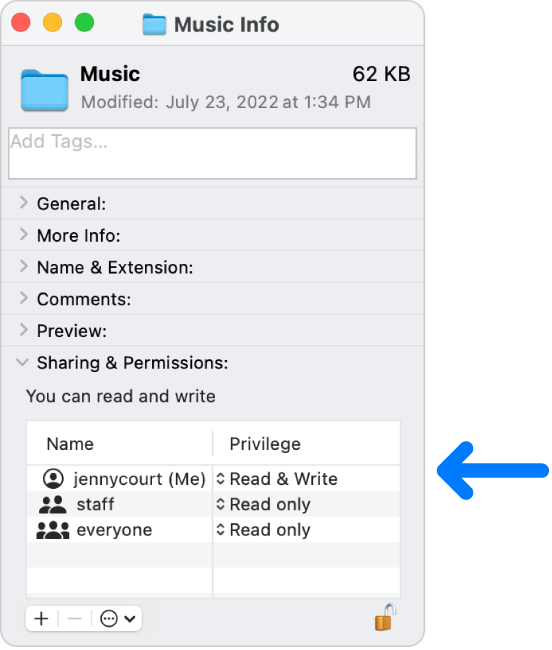
Permission settings determine who can view and alter files on the computer. You change permission settings at the bottom of the Info window for a file, folder, or disk in the Finder. For example, you can change permission settings for a folder so that other users who log in to your Mac, or connect to it for file sharing, can view but not change files in a folder.
The permission settings at the bottom of an Info window.

Assign permissions to users and groups
1. On your Mac, select a disk, folder, or file, then choose File > Get Info.
2. If the information in Sharing & Permissions isn’t visible, click the arrow . (You may also need to scroll down.)
3. Select a user or group in the Name column, click the pop-up menu, then choose a privilege setting.
* Read & Write: Allows a user to open the item and change it.
* Read only: Allows a user to open the item, but not change its contents.
* Write only (Drop Box): Makes a folder into a drop box. Users can copy items to the drop box, but can’t open it. Only the owner of the drop box can open it.
* No Access: Blocks all access to the item.
You can undo any changes to privilege settings for a user or group in the Sharing & Permissions section since opening the Info window. Before closing the Info window, click the Action pop-up menu  at the bottom of the window, then choose “Revert changes.”
Apply permissions to all items in a folder or a disk
1. On your Mac, select a folder or disk, then choose File > Get Info.
2. If the information in Sharing & Permissions isn’t visible, click the arrow  next to Sharing & Permissions. (You may also need to scroll down.)
3. Click the Action pop-up menu  at the bottom of the window, then choose “Apply to enclosed items.”
Change an item’s owner
1. On your Mac, select the item, then choose File > Get Info.
2. If the information in Sharing & Permissions isn’t visible, click the arrow  next to Sharing & Permissions. (You may also need to scroll down.)
3. If the new owner’s name isn’t listed in the Name column in the Sharing & Permissions section, click the Add button  to add the new owner.
4. Select the new owner in the Name column, click the Action pop-up menu  at the bottom of the window, then choose “Make __ the owner.” 
You can undo any changes to an item’s owner in the Sharing & Permissions section since opening the Info window. Before closing the Info window, click the Action pop-up menu  at the bottom of the window, then choose “Revert changes.”
Add or remove a user or group in the Name column
1. On your Mac, select an item, then choose File > Get Info.
2. If the information in Sharing & Permissions isn’t visible, click the arrow  next to Sharing & Permissions. (You may also need to scroll down.)
3. In the Sharing & Permissions section, do any of the following:
* Add a user or group: Click the Add button  below the list, select a user or group, then click Select.
* Remove a user or group: Select the user or group, then click the Remove button  below the list.
You can undo adding or removing a user or group in the Sharing & Permissions section since opening the Info window. Before closing the Info window, click the Action pop-up menu  at the bottom of the window, then choose “Revert changes.”


Hope this helps!

Have a great day.


May 18, 2024 2:22 PM in response to Grant Bennet-Alder

I have the same setup and I am the person designated "Read and Write" - still tells me I don't have Permission. So I gave everyone Read & Write - tells me I don't have permission. So i saved everything, rebooted, loaded the document I'm trying to save from the the same file folder, tried to save that now renamed document in that same fold - no Permissions. Something is broken. Anyone have the same?

This thread has been closed by the system or the community team. You may vote for any posts you find helpful, or search the Community for additional answers.

Error "this file cannot be opened because you do not have permission to view it"

Welcome to Apple Support Community
A forum where Apple customers help each other with their products. Get started with your Apple Account.