How can I remove Search Alpha from Safari?

For 2 weeks now, search alpha has started to appear every time I open safari. I have tried to follow in the steps of some websites with the intention of solving this and nothing changes.

I hope someone can help me with this and maybe give me some advice so that it doesn't happen to me anymore.


[Re-Titled by Moderator]

MacBook Air (M2, 2022)

Posted on May 3, 2023 4:09 PM

Reply
Question marked as Top-ranking reply

Posted on Jun 4, 2023 6:07 PM

Toni_125, please follow the instructions below.


First, ensure you have a reliable backup of your Mac, in case something should go wrong with continued troubleshooting. To learn how to do that, please read Back up your Mac with Time Machine.


  • A backup is a fundamental prerequisite regardless of whatever method you may choose uninstall adware, and would apply even if your Mac were running perfectly well. Do not overlook this fundamental requirement. It's important.


Next: This step will prevent the scam products from loading so that they can be removed while they are inactive. Restart in "Safe Mode", and log in: How to use safe mode on your Mac - Apple Support. Starting in Safe Mode takes longer than usual so let it finish. The rogue processes affecting that Mac are inoperative in "Safe Mode".


The following files and / or folders need to be deleted while using your Mac in "Safe Mode":


First screenshot:


Nothing needs to be deleted from the folders in your other two screenshots, but please read my comments regarding "Malwarebytes" later.


Drag those selections of files to the Trash. You may be asked to authenticate. Confirm they are no longer present in that folder. Leave all the others alone for now.


Next: open Safari and select the Safari menu > Preferences (or Settings) > Extensions. If you see any Safari Extensions that you do not recognize or understand, simply click the Uninstall button and they will be gone. No Safari Extensions are required for normal operation. Then, select the General pane and review your Homepage selection. Then, select the Search pane and confirm your desired Search Engine. Repeat those equivalent actions for any other browser you may use (Brave, Firefox, or Opera for example).


There may also be adware-associated app icons in your Mac's Applications folder. Open it and examine its contents. Any unwanted or mysterious app icons should be obvious to you, but again please don't remove anything if you are uncertain—ask first. Identify any suspicious apps by name, or post another screenshot.


Next: In an abundance of caution, examine System Preferences (or Settings) > Extensions. Determine if there are any System Extensions that may have been installed without your knowledge. Ask if you're uncertain.


Remaining in System Preferences, check for the presence of any Profiles. Profiles are installed by organizations with a need to manage Macs deployed in institutional corporate or educational environments (for example), but have also been exploited by adware creators and similar malcontents. If any Profiles are installed on your Mac an icon like this will appear in System Preferences:


If you see that icon in System Preferences, select it. To remove a Profile, select it, then click the [—] (minus) button and authenticate.


Remaining in System Preferences, open Users & Groups. Select your User Account's Login Items. You may or may not find those Applications in its list. If you do, select them then click the [—] (minus) button to remove them from Login Items.


You can then restart your Mac and log in as usual. Evaluate its operation and ensure everything is working as you expect it should.


Next: You can see for yourself that "Malwarebytes" did nothing to prevent you from installing the "Search Alpha" adware, nor did it appear to help in removing it. It's up to you to determine whether you want to keep it around or not, but if something isn't doing your Mac any good I recommend uninstalling it. Follow its uninstallation instructions.


Next: if you want to eradicate all remaining adware remnants post a screenshot of the following folder, in the same manner as you did earlier:


~/Library/Application Support


It is normal for that folder to contain many items, but anything associated with the above adware may contain identical names. If you find a folder or folders bearing those names, drag those folders to the Trash. Without the files you already removed or the reintroduction of similar malware, they can do nothing but occupy space. These can be removed if you wish, but again don't remove anything if you are uncertain.


Finally: If any of the above actions result in abnormal operation or if something else stops working, the easiest way to recover would be to restore the Time Machine backup you created as a prerequisite, so the importance of that fundamental step cannot be overemphasized.

102 replies
Question marked as Top-ranking reply

Jun 4, 2023 6:07 PM in response to Toni_125

Toni_125, please follow the instructions below.


First, ensure you have a reliable backup of your Mac, in case something should go wrong with continued troubleshooting. To learn how to do that, please read Back up your Mac with Time Machine.


  • A backup is a fundamental prerequisite regardless of whatever method you may choose uninstall adware, and would apply even if your Mac were running perfectly well. Do not overlook this fundamental requirement. It's important.


Next: This step will prevent the scam products from loading so that they can be removed while they are inactive. Restart in "Safe Mode", and log in: How to use safe mode on your Mac - Apple Support. Starting in Safe Mode takes longer than usual so let it finish. The rogue processes affecting that Mac are inoperative in "Safe Mode".


The following files and / or folders need to be deleted while using your Mac in "Safe Mode":


First screenshot:


Nothing needs to be deleted from the folders in your other two screenshots, but please read my comments regarding "Malwarebytes" later.


Drag those selections of files to the Trash. You may be asked to authenticate. Confirm they are no longer present in that folder. Leave all the others alone for now.


Next: open Safari and select the Safari menu > Preferences (or Settings) > Extensions. If you see any Safari Extensions that you do not recognize or understand, simply click the Uninstall button and they will be gone. No Safari Extensions are required for normal operation. Then, select the General pane and review your Homepage selection. Then, select the Search pane and confirm your desired Search Engine. Repeat those equivalent actions for any other browser you may use (Brave, Firefox, or Opera for example).


There may also be adware-associated app icons in your Mac's Applications folder. Open it and examine its contents. Any unwanted or mysterious app icons should be obvious to you, but again please don't remove anything if you are uncertain—ask first. Identify any suspicious apps by name, or post another screenshot.


Next: In an abundance of caution, examine System Preferences (or Settings) > Extensions. Determine if there are any System Extensions that may have been installed without your knowledge. Ask if you're uncertain.


Remaining in System Preferences, check for the presence of any Profiles. Profiles are installed by organizations with a need to manage Macs deployed in institutional corporate or educational environments (for example), but have also been exploited by adware creators and similar malcontents. If any Profiles are installed on your Mac an icon like this will appear in System Preferences:


If you see that icon in System Preferences, select it. To remove a Profile, select it, then click the [—] (minus) button and authenticate.


Remaining in System Preferences, open Users & Groups. Select your User Account's Login Items. You may or may not find those Applications in its list. If you do, select them then click the [—] (minus) button to remove them from Login Items.


You can then restart your Mac and log in as usual. Evaluate its operation and ensure everything is working as you expect it should.


Next: You can see for yourself that "Malwarebytes" did nothing to prevent you from installing the "Search Alpha" adware, nor did it appear to help in removing it. It's up to you to determine whether you want to keep it around or not, but if something isn't doing your Mac any good I recommend uninstalling it. Follow its uninstallation instructions.


Next: if you want to eradicate all remaining adware remnants post a screenshot of the following folder, in the same manner as you did earlier:


~/Library/Application Support


It is normal for that folder to contain many items, but anything associated with the above adware may contain identical names. If you find a folder or folders bearing those names, drag those folders to the Trash. Without the files you already removed or the reintroduction of similar malware, they can do nothing but occupy space. These can be removed if you wish, but again don't remove anything if you are uncertain.


Finally: If any of the above actions result in abnormal operation or if something else stops working, the easiest way to recover would be to restore the Time Machine backup you created as a prerequisite, so the importance of that fundamental step cannot be overemphasized.

Jul 2, 2023 6:26 AM in response to AnmolMaggon

AnmolMaggon, please follow the instructions below.


First, ensure you have a reliable backup of your Mac, in case something should go wrong with continued troubleshooting. To learn how to do that, please read Back up your Mac with Time Machine.


  • A backup is a fundamental prerequisite regardless of whatever method you may choose uninstall adware, and would apply even if your Mac were running perfectly well. Do not overlook this fundamental requirement. It's important.


Next: This step will prevent the scam products from loading so that they can be removed while they are inactive. Restart in "Safe Mode", and log in: How to use safe mode on your Mac - Apple Support. Starting in Safe Mode takes longer than usual so let it finish. The rogue processes affecting that Mac are inoperative in "Safe Mode".


The following files and / or folders need to be deleted while using your Mac in "Safe Mode":


Third screenshot:


  • Drag all the files in that folder except the two with google in their names to the Trash.


Nothing needs to be deleted from the folders in your other two screenshots.


Drag those selections of files to the Trash. You may be asked to authenticate. Confirm they are no longer present in that folder. Leave all the others alone for now.


Next: open Safari and select the Safari menu > Preferences (or Settings) > Extensions. If you see any Safari Extensions that you do not recognize or understand, simply click the Uninstall button and they will be gone. No Safari Extensions are required for normal operation. Then, select the General pane and review your Homepage selection. Then, select the Search pane and confirm your desired Search Engine. Repeat those equivalent actions for any other browser you may use (Brave, Firefox, or Opera for example).


There may also be adware-associated app icons in your Mac's Applications folder. Open it and examine its contents. Any unwanted or mysterious app icons should be obvious to you, but again please don't remove anything if you are uncertain—ask first. Identify any suspicious apps by name, or post another screenshot.


Next: In an abundance of caution, examine System Preferences (or Settings) > Extensions. Determine if there are any System Extensions that may have been installed without your knowledge. Ask if you're uncertain.


Remaining in System Preferences, check for the presence of any Profiles. Profiles are installed by organizations with a need to manage Macs deployed in institutional corporate or educational environments (for example), but have also been exploited by adware creators and similar malcontents. If any Profiles are installed on your Mac an icon like this will appear in System Preferences:


If you see that icon in System Preferences, select it. To remove a Profile, select it, then click the [—] (minus) button and authenticate.


Remaining in System Preferences, open Users & Groups. Select your User Account's Login Items. You may or may not find those Applications in its list. If you do, select them then click the [—] (minus) button to remove them from Login Items.


You can then restart your Mac and log in as usual. Evaluate its operation and ensure everything is working as you expect it should.


Next: if you want to eradicate all remaining adware remnants post a screenshot of the following folder, in the same manner as you did earlier:


~/Library/Application Support


It is normal for that folder to contain many items, but anything associated with the above adware may contain identical names. If you find a folder or folders bearing those names, drag those folders to the Trash. Without the files you already removed or the reintroduction of similar malware, they can do nothing but occupy space. These can be removed if you wish, but again don't remove anything if you are uncertain.


Finally: If any of the above actions result in abnormal operation or if something else stops working, the easiest way to recover would be to restore the Time Machine backup you created as a prerequisite, so the importance of that fundamental step cannot be overemphasized.

Sep 1, 2023 2:17 PM in response to alaliwk

alaliwk, please follow the instructions below.


First, ensure you have a reliable backup of your Mac, in case something should go wrong with continued troubleshooting. To learn how to do that, please read Back up your Mac with Time Machine.


  • A backup is a fundamental prerequisite regardless of whatever method you may choose uninstall adware, and would apply even if your Mac were running perfectly well. Do not overlook this fundamental requirement. It's important.


Next: This step will prevent the scam products from loading so that they can be removed while they are inactive. Restart in "Safe Mode", and log in: How to use safe mode on your Mac - Apple Support. Starting in Safe Mode takes longer than usual so let it finish. The rogue processes affecting that Mac are inoperative in "Safe Mode".


The following files and / or folders need to be deleted while using your Mac in "Safe Mode":


First screenshot:


Second screenshot:


  • Delete the file named "com.Software-Updater.agent.plist"


Nothing needs to be deleted from the folders in the third screenshot.


Drag those selections of files to the Trash. You may be asked to authenticate. Confirm they are no longer present in that folder. Leave all the others alone for now.


Next: open Safari and select the Safari menu > Preferences (or Settings) > Extensions. If you see any Safari Extensions that you do not recognize or understand, simply click the Uninstall button and they will be gone. No Safari Extensions are required for normal operation. Then, select the General pane and review your Homepage selection. Then, select the Search pane and confirm your desired Search Engine. Repeat those equivalent actions for any other browser you may use (Brave, Firefox, or Opera for example).


There may also be adware-associated app icons in your Mac's Applications folder. Open it and examine its contents. Any unwanted or mysterious app icons should be obvious to you, but again please don't remove anything if you are uncertain—ask first. Identify any suspicious apps by name, or post another screenshot.


Next: In an abundance of caution, examine System Preferences (or Settings) > Extensions. Determine if there are any System Extensions that may have been installed without your knowledge. Ask if you're uncertain.


Remaining in System Preferences, check for the presence of any Profiles. Profiles are installed by organizations with a need to manage Macs deployed in institutional corporate or educational environments (for example), but have also been exploited by adware creators and similar malcontents. If any Profiles are installed on your Mac an icon like this will appear in System Preferences:


If you see that icon in System Preferences, select it. To remove a Profile, select it, then click the [—] (minus) button and authenticate.


Remaining in System Preferences, open Users & Groups. Select your User Account's Login Items. You may or may not find those Applications in its list. If you do, select them then click the [—] (minus) button to remove them from Login Items.


You can then restart your Mac and log in as usual. Launch Safari, evaluate its operation and ensure everything is working as you expect it should.


Next: if you want to eradicate all remaining adware remnants post a screenshot of the following folder, in the same manner as you did earlier:


~/Library/Application Support


It is normal for that folder to contain many items, but anything associated with the above adware may contain identical names. If you find a folder or folders bearing those names, drag those folders to the Trash. Without the files you already removed or the reintroduction of similar malware, they can do nothing but occupy space. These can be removed if you wish, but again don't remove anything if you are uncertain.


Finally: If any of the above actions result in abnormal operation or if something else stops working, the easiest way to recover would be to restore the Time Machine backup you created as a prerequisite, so the importance of that fundamental step cannot be overemphasized.

Sep 20, 2023 5:11 PM in response to uGOAT

uGOAT, please follow the instructions below.



First, ensure you have a reliable backup of your Mac, in case something should go wrong with continued troubleshooting. To learn how to do that, please read Back up your Mac with Time Machine.


  • A backup is a fundamental prerequisite regardless of whatever method you may choose uninstall adware, and would apply even if your Mac were running perfectly well. Do not overlook this fundamental requirement. It's important.


Next: This step will prevent the scam products from loading so that they can be removed while they are inactive. Restart in "Safe Mode", and log in: How to use safe mode on your Mac - Apple Support. Starting in Safe Mode takes longer than usual so let it finish. The rogue processes affecting that Mac are inoperative in "Safe Mode".


The following files and / or folders need to be deleted while using your Mac in "Safe Mode":


First screenshot:
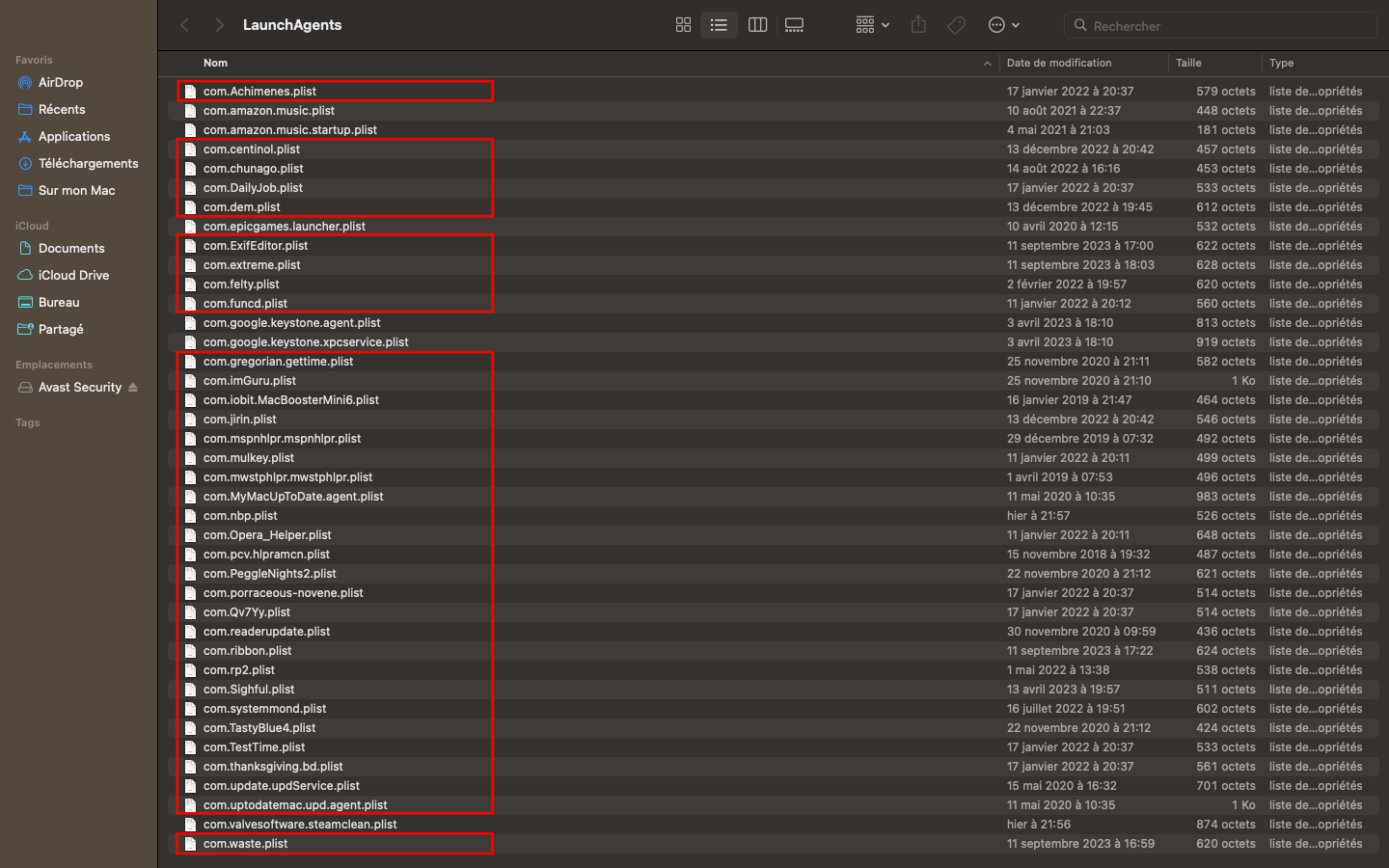


Second screenshot:
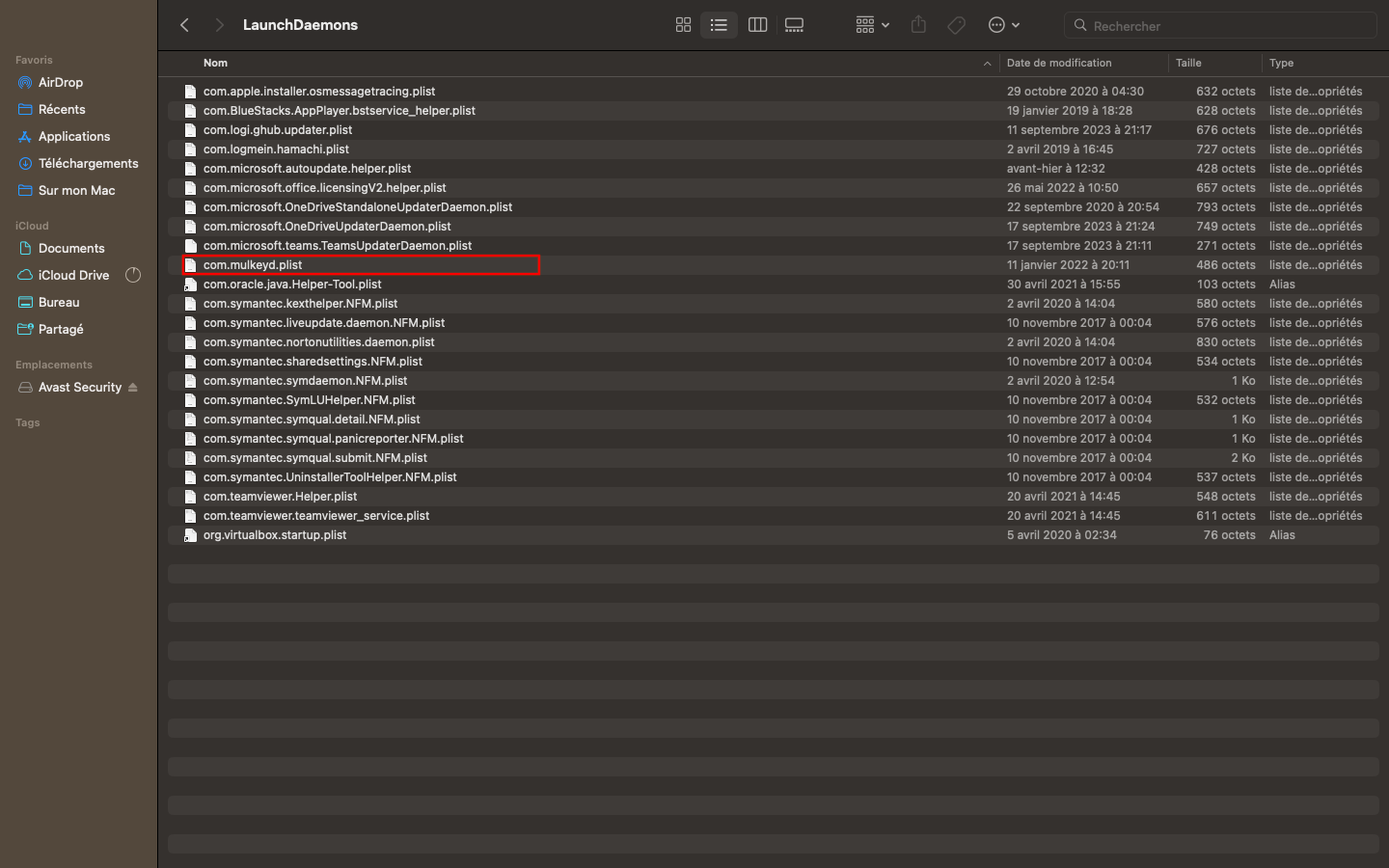


Nothing needs to be deleted from the folders in the third screenshot, but please read my comments regarding "Symantec" later.


Drag those selections of files to the Trash. You may be asked to authenticate. Confirm they are no longer present in that folder. Leave all the others alone for now.


Next: open Safari and select the Safari menu > Preferences (or Settings) > Extensions. If you see any Safari Extensions that you do not recognize or understand, simply click the Uninstall button and they will be gone. No Safari Extensions are required for normal operation. Then, select the General pane and review your Homepage selection. Then, select the Search pane and confirm your desired Search Engine. Repeat those equivalent actions for any other browser you may use (Brave, Firefox, or Opera for example).


There may also be adware-associated app icons in your Mac's Applications folder. Open it and examine its contents. Any unwanted or mysterious app icons should be obvious to you, but again please don't remove anything if you are uncertain—ask first. Identify any suspicious apps by name, or post another screenshot.


Next: In an abundance of caution, examine System Preferences (or Settings) > Extensions. Determine if there are any System Extensions that may have been installed without your knowledge. Ask if you're uncertain.


Remaining in System Preferences, check for the presence of any Profiles. Profiles are installed by organizations with a need to manage Macs deployed in institutional corporate or educational environments (for example), but have also been exploited by adware creators and similar malcontents. If any Profiles are installed on your Mac an icon like this will appear in System Preferences:



If you see that icon in System Preferences, select it. To remove a Profile, select it, then click the [—] (minus) button and authenticate.


Remaining in System Preferences, open Users & Groups. Select your User Account's Login Items. You may or may not find those Applications in its list. If you do, select them then click the [—] (minus) button to remove them from Login Items.


You can then restart your Mac and log in as usual. Launch Safari, evaluate its operation and ensure everything is working as you expect it should.


Next: Like all non-Apple "anti-virus" products, "Symantec" did nothing to prevent you from installing the "Search Alpha" malware, nor did it appear to aid in removing it. Uninstall it according to its instructions. After following those instructions, confirm no files containing their names appear in any of those folders.


Although you did not install it, "Avast" is in the same general category of junk that must never be installed on Macs. Do not install it, or anything like it, on a Mac.


Next: if you want to eradicate all remaining adware remnants post a screenshot of the following folder, in the same manner as you did earlier:


~/Library/Application Support


It is normal for that folder to contain many items, but anything associated with the above adware may contain identical names. If you find a folder or folders bearing those names, drag those folders to the Trash. Without the files you already removed or the reintroduction of similar malware, they can do nothing but occupy space. These can be removed if you wish, but again don't remove anything if you are uncertain.


Finally: If any of the above actions result in abnormal operation or if something else stops working, the easiest way to recover would be to restore the Time Machine backup you created as a prerequisite, so the importance of that fundamental step cannot be overemphasized.


Oct 4, 2023 10:00 AM in response to lks9

lks9, please follow the instructions below.


First, ensure you have a reliable backup of your Mac, in case something should go wrong with continued troubleshooting. To learn how to do that, please read Back up your Mac with Time Machine.


  • A backup is a fundamental prerequisite regardless of whatever method you may choose uninstall adware, and would apply even if your Mac were running perfectly well. Do not overlook this fundamental requirement. It's important.


Next: This step will prevent the scam products from loading so that they can be removed while they are inactive. Restart in "Safe Mode", and log in: How to use safe mode on your Mac - Apple Support. Starting in Safe Mode takes longer than usual so let it finish. The rogue processes affecting that Mac are inoperative in "Safe Mode".


The following files and / or folders need to be deleted while using your Mac in "Safe Mode":


Second screenshot:


Nothing needs to be deleted from the folders in the other two screenshots for now, but I have a comment regarding the "mjrecorder" file in your first screenshot that I will address later.


Drag those selections of files to the Trash. You may be asked to authenticate. Confirm they are no longer present in that folder. Leave all the others alone for now.


Next: open Safari and select the Safari menu > Preferences (or Settings) > Extensions. If you see any Safari Extensions that you do not recognize or understand, simply click the Uninstall button and they will be gone. No Safari Extensions are required for normal operation. Then, select the General pane and review your Homepage selection. Then, select the Search pane and confirm your desired Search Engine. Repeat those equivalent actions for any other browser you may use (Brave, Firefox, or Opera for example).


There may also be adware-associated app icons in your Mac's Applications folder. Open it and examine its contents. Any unwanted or mysterious app icons should be obvious to you, but again please don't remove anything if you are uncertain—ask first. Identify any suspicious apps by name, or post another screenshot.


Next: In an abundance of caution, examine System Preferences (or Settings) > Extensions. Determine if there are any System Extensions that may have been installed without your knowledge. Ask if you're uncertain.


Remaining in System Preferences, check for the presence of any Profiles. Profiles are installed by organizations with a need to manage Macs deployed in institutional corporate or educational environments (for example), but have also been exploited by adware creators and similar malcontents. If any Profiles are installed on your Mac an icon like this will appear in System Preferences:


If you see that icon in System Preferences, select it. To remove a Profile, select it, then click the [—] (minus) button and authenticate.


Remaining in System Preferences, open Users & Groups. Select your User Account's Login Items. You may or may not find those Applications in its list. If you do, select them then click the [—] (minus) button to remove them from Login Items.


You can then restart your Mac and log in as usual. Launch Safari, evaluate its operation and ensure everything is working as you expect it should.


Next: Regarding the "mjrecorder" file in your first screenshot, you may find the following Discussion of interest: How do I remove MJAudioRecorder from my Mac - Apple Community. I would not mention it if not for the fact that so many people appeared interested in removing it, and well-designed software should not be difficult to remove. I doubt it is related to the problem at hand; it's just something that stood out as unusual.


Next: if you want to eradicate all remaining adware remnants post a screenshot of the following folder, in the same manner as you did earlier:


~/Library/Application Support


It is normal for that folder to contain many items, but anything associated with the above adware may contain identical names. If you find a folder or folders bearing those names, drag those folders to the Trash. Without the files you already removed or the reintroduction of similar malware, they can do nothing but occupy space. These can be removed if you wish, but again don't remove anything if you are uncertain.


Finally: If any of the above actions result in abnormal operation or if something else stops working, the easiest way to recover would be to restore the Time Machine backup you created as a prerequisite, so the importance of that fundamental step cannot be overemphasized.

Oct 19, 2023 5:48 PM in response to hsnmalik

hsnmalik, please follow the instructions below.


First, ensure you have a reliable backup of your Mac, in case something should go wrong with continued troubleshooting. To learn how to do that, please read Back up your Mac with Time Machine.


  • A backup is a fundamental prerequisite regardless of whatever method you may choose uninstall adware, and would apply even if your Mac were running perfectly well. Do not overlook this fundamental requirement. It's important.


Next: This step will prevent the scam products from loading so that they can be removed while they are inactive. Restart in "Safe Mode", and log in: How to use safe mode on your Mac - Apple Support. Starting in Safe Mode takes longer than usual so let it finish. The rogue processes affecting that Mac are inoperative in "Safe Mode".


The following files and / or folders need to be deleted while using your Mac in "Safe Mode":


Third screenshot:


Fourth screenshot:


Nothing needs to be deleted from the folders in the other screenshots for now, but please read my comments regarding certain other files later.


Drag those selections of files to the Trash. You may be asked to authenticate. Confirm they are no longer present in that folder. Leave all the others alone for now.


Next: open Safari and select the Safari menu > Preferences (or Settings) > Extensions. If you see any Safari Extensions that you do not recognize or understand, simply click the Uninstall button and they will be gone. No Safari Extensions are required for normal operation. Then, select the General pane and review your Homepage selection. Then, select the Search pane and confirm your desired Search Engine. Repeat those equivalent actions for any other browser you may use (Brave, Firefox, or Opera for example).


There may also be adware-associated app icons in your Mac's Applications folder. Open it and examine its contents. Any unwanted or mysterious app icons should be obvious to you, but again please don't remove anything if you are uncertain—ask first. Identify any suspicious apps by name, or post another screenshot.


Next: In an abundance of caution, examine System Preferences (or Settings) > Extensions. Determine if there are any System Extensions that may have been installed without your knowledge. Ask if you're uncertain.


Remaining in System Preferences, check for the presence of any Profiles. Profiles are installed by organizations with a need to manage Macs deployed in institutional corporate or educational environments (for example), but have also been exploited by adware creators and similar malcontents. If any Profiles are installed on your Mac an icon like this will appear in System Preferences:


If you see that icon in System Preferences, select it. To remove a Profile, select it, then click the [—] (minus) button and authenticate.


Remaining in System Preferences, open Users & Groups. Select your User Account's Login Items. You may or may not find those Applications in its list. If you do, select them then click the [—] (minus) button to remove them from Login Items.


You can then restart your Mac and log in as usual. Launch Safari, evaluate its operation and ensure everything is working as you expect it should.


Next: Are you aware of having installed some "nursing exam prep" software, and are you certain you need it? I am suspicious of that file because its presence has been a common factor affecting others experiencing identical problems. Example: why is there a random plist file on my mac?? please help!! If you know you need that software, leave that file alone. Otherwise, restart your Mac in "Safe Mode" again, and drag it to the Trash.


Next: That Mac is hosting a torrent client. Presumably, you are aware of the risks that entails. The fact that you were affected by the "Search Alpha" malware suggests that you may need to be more circumspect regarding such risks though.


Finally: If any of the above actions result in abnormal operation or if something else stops working, the easiest way to recover would be to restore the Time Machine backup you created as a prerequisite, so the importance of that fundamental step cannot be overemphasized.

Oct 23, 2023 6:28 PM in response to patrickyu28

patrickyu28, please follow the instructions below. This is Part 1 of 2 replies so please be sure to read the one that follows next.


First, ensure you have a reliable backup of your Mac, in case something should go wrong with continued troubleshooting. To learn how to do that, please read Back up your Mac with Time Machine.


  • A backup is a fundamental prerequisite regardless of whatever method you may choose uninstall adware, and would apply even if your Mac were running perfectly well. Do not overlook this fundamental requirement. It's important.


Next: This step will prevent the scam products from loading so that they can be removed while they are inactive. Restart in "Safe Mode", and log in: How to use safe mode on your Mac - Apple Support. Starting in Safe Mode takes longer than usual so let it finish. The rogue processes affecting that Mac are inoperative in "Safe Mode".


The following files and / or folders need to be deleted while using your Mac in "Safe Mode":


First screenshot:


Nothing needs to be deleted from the folder in the second screenshot.


A screenshot of the third folder is missing. That folder may be empty, in which case there is no need to provide a screenshot of it. If you forgot to include it though, please review Removing "Search Marquis" / "Search Baron" / etc on your own - Apple Community again and post the missing one.


Drag those selections of files to the Trash. You may be asked to authenticate. Confirm they are no longer present in that folder. Leave all the others alone for now.


Next: open Safari and select the Safari menu > Preferences (or Settings) > Extensions. If you see any Safari Extensions that you do not recognize or understand, simply click the Uninstall button and they will be gone. No Safari Extensions are required for normal operation. Then, select the General pane and review your Homepage selection. Then, select the Search pane and confirm your desired Search Engine. Repeat those equivalent actions for any other browser you may use (Brave, Firefox, or Opera for example).


There may also be adware-associated app icons in your Mac's Applications folder. Open it and examine its contents. Any unwanted or mysterious app icons should be obvious to you, but again please don't remove anything if you are uncertain—ask first. Identify any suspicious apps by name, or post another screenshot.


Next: In an abundance of caution, examine System Preferences (or Settings) > Extensions. Determine if there are any System Extensions that may have been installed without your knowledge. Ask if you're uncertain.


Remaining in System Preferences, check for the presence of any Profiles. Profiles are installed by organizations with a need to manage Macs deployed in institutional corporate or educational environments (for example), but have also been exploited by adware creators and similar malcontents. If any Profiles are installed on your Mac an icon like this will appear in System Preferences:


If you see that icon in System Preferences, select it. To remove a Profile, select it, then click the [—] (minus) button and authenticate.


Remaining in System Preferences, open Users & Groups. Select your User Account's Login Items. You may or may not find those Applications in its list. If you do, select them then click the [—] (minus) button to remove them from Login Items.


You can then restart your Mac and log in as usual. Evaluate its operation and ensure everything is working as you expect it should.


Reply Part 2 of 2 follows next.

Nov 8, 2023 10:23 AM in response to liron288

liron288, please follow the instructions below.


First, ensure you have a reliable backup of your Mac, in case something should go wrong with continued troubleshooting. To learn how to do that, please read Back up your Mac with Time Machine.


  • A backup is a fundamental prerequisite regardless of whatever method you may choose uninstall adware, and would apply even if your Mac were running perfectly well. Do not overlook this fundamental requirement. It's important.


Next: This step will prevent the scam products from loading so that they can be removed while they are inactive. Restart in "Safe Mode", and log in: How to use safe mode on your Mac - Apple Support. Starting in Safe Mode takes longer than usual so let it finish. The rogue processes affecting that Mac are inoperative in "Safe Mode".


The following files and / or folders need to be deleted while using your Mac in "Safe Mode":


First screenshot:


  • Drag the file named "com.cheesepoofs.plist" to the Trash.


Drag those selections of files to the Trash. You may be asked to authenticate. Confirm they are no longer present in that folder. Leave all the others alone for now.


Next: open Safari and select the Safari menu > Preferences (or Settings) > Extensions. If you see any Safari Extensions that you do not recognize or understand, simply click the Uninstall button and they will be gone. No Safari Extensions are required for normal operation. Then, select the General pane and review your Homepage selection. Then, select the Search pane and confirm your desired Search Engine. Repeat those equivalent actions for any other browser you may use (Brave, Firefox, or Opera for example).


There may also be adware-associated app icons in your Mac's Applications folder. Open it and examine its contents. Any unwanted or mysterious app icons should be obvious to you, but again please don't remove anything if you are uncertain—ask first. Identify any suspicious apps by name, or post another screenshot.


Next: In an abundance of caution, examine System Preferences (or Settings) > Extensions. Determine if there are any System Extensions that may have been installed without your knowledge. Ask if you're uncertain.


Remaining in System Preferences, check for the presence of any Profiles. Profiles are installed by organizations with a need to manage Macs deployed in institutional corporate or educational environments (for example), but have also been exploited by adware creators and similar malcontents. If any Profiles are installed on your Mac an icon like this will appear in System Preferences:


If you see that icon in System Preferences, select it. To remove a Profile, select it, then click the [—] (minus) button and authenticate.


Remaining in System Preferences, open Users & Groups. Select your User Account's Login Items. You may or may not find those Applications in its list. If you do, select them then click the [—] (minus) button to remove them from Login Items.


You can then restart your Mac and log in as usual. Launch Safari, evaluate its operation and ensure everything is working as you expect it should.


Next: if you want to eradicate all remaining adware remnants post a screenshot of the following folder, in the same manner as you did earlier:


~/Library/Application Support


It is normal for that folder to contain many items, but anything associated with the above adware may contain identical names. If you find a folder or folders bearing those names, drag those folders to the Trash. Without the files you already removed or the reintroduction of similar malware, they can do nothing but occupy space. These can be removed if you wish, but again don't remove anything if you are uncertain.


Finally: If any of the above actions result in abnormal operation or if something else stops working, the easiest way to recover would be to restore the Time Machine backup you created as a prerequisite, so the importance of that fundamental step cannot be overemphasized.

Nov 16, 2023 7:15 PM in response to jklee1132

jklee1132, there is one folder missing from the screenshots you posted. It is either


/Library/LaunchAgents


or


~/Library/LaunchAgents


The contents of that missing folder may or may not be required though. For now please follow the instructions below. If they do not solve the problem please write back and post the missing screenshot.


This is Part 1 of 2 replies so please read the next one regarding Application Support.


First, ensure you have a reliable backup of your Mac, in case something should go wrong with continued troubleshooting. To learn how to do that, please read Back up your Mac with Time Machine.


  • A backup is a fundamental prerequisite regardless of whatever method you may choose uninstall adware, and would apply even if your Mac were running perfectly well. Do not overlook this fundamental requirement. It's important.


Next: This step will prevent the scam products from loading so that they can be removed while they are inactive. Restart in "Safe Mode", and log in: How to use safe mode on your Mac - Apple Support. Starting in Safe Mode takes longer than usual so let it finish. The rogue processes affecting that Mac are inoperative in "Safe Mode".


The following files and / or folders need to be deleted while using your Mac in "Safe Mode":


Last screenshot:


Drag those selections of files to the Trash. You may be asked to authenticate. Confirm they are no longer present in that folder. Leave all the others alone for now.


Next: open Safari and select the Safari menu > Preferences (or Settings) > Extensions. If you see any Safari Extensions that you do not recognize or understand, simply click the Uninstall button and they will be gone. No Safari Extensions are required for normal operation. Then, select the General pane and review your Homepage selection. Then, select the Search pane and confirm your desired Search Engine. Repeat those equivalent actions for any other browser you may use (Brave, Firefox, or Opera for example).


There may also be adware-associated app icons in your Mac's Applications folder. Open it and examine its contents. Any unwanted or mysterious app icons should be obvious to you, but again please don't remove anything if you are uncertain—ask first. Identify any suspicious apps by name, or post another screenshot.


Next: In an abundance of caution, examine System Preferences (or Settings) > Extensions. Determine if there are any System Extensions that may have been installed without your knowledge. Ask if you're uncertain.


Remaining in System Preferences, check for the presence of any Profiles. Profiles are installed by organizations with a need to manage Macs deployed in institutional corporate or educational environments (for example), but have also been exploited by adware creators and similar malcontents. If any Profiles are installed on your Mac an icon like this will appear in System Preferences:


If you see that icon in System Preferences, select it. To remove a Profile, select it, then click the [—] (minus) button and authenticate.


Remaining in System Preferences, open Users & Groups. Select your User Account's Login Items. You may or may not find those Applications in its list. If you do, select them then click the [—] (minus) button to remove them from Login Items.


You can then restart your Mac and log in as usual. Launch Safari, evaluate its operation and ensure everything is working as you expect it should.


Part 2 of 2 replies appears next.

Nov 27, 2023 2:39 PM in response to teeeee4

teeeee4 there is one folder missing from the screenshots you posted. It is either


/Library/LaunchAgents


or


~/Library/LaunchAgents


The contents of that missing folder may or may not be required though. For now please follow the instructions below. If they do not solve the problem please write back and post the missing screenshot.


First, ensure you have a reliable backup of your Mac, in case something should go wrong with continued troubleshooting. To learn how to do that, please read Back up your Mac with Time Machine.


  • A backup is a fundamental prerequisite regardless of whatever method you may choose uninstall adware, and would apply even if your Mac were running perfectly well. Do not overlook this fundamental requirement. It's important.


Next: This step will prevent the scam products from loading so that they can be removed while they are inactive. Restart in "Safe Mode", and log in: How to use safe mode on your Mac - Apple Support. Starting in Safe Mode takes longer than usual so let it finish. The rogue processes affecting that Mac are inoperative in "Safe Mode".


The following files and / or folders need to be deleted while using your Mac in "Safe Mode":


Second screenshot:


Drag those selections of files to the Trash. You may be asked to authenticate. Confirm they are no longer present in that folder. Leave all the others alone for now. Please read my comments regarding "Disk Drill" later.


Next: open Safari and select the Safari menu > Preferences (or Settings) > Extensions. If you see any Safari Extensions that you do not recognize or understand, simply click the Uninstall button and they will be gone. No Safari Extensions are required for normal operation. Then, select the General pane and review your Homepage selection. Then, select the Search pane and confirm your desired Search Engine. Repeat those equivalent actions for any other browser you may use (Brave, Firefox, or Opera for example).


There may also be adware-associated app icons in your Mac's Applications folder. Open it and examine its contents. Any unwanted or mysterious app icons should be obvious to you, but again please don't remove anything if you are uncertain—ask first. Identify any suspicious apps by name, or post another screenshot.


Next: In an abundance of caution, examine System Preferences (or Settings) > Extensions. Determine if there are any System Extensions that may have been installed without your knowledge. Ask if you're uncertain.


Remaining in System Preferences, check for the presence of any Profiles. Profiles are installed by organizations with a need to manage Macs deployed in institutional corporate or educational environments (for example), but have also been exploited by adware creators and similar malcontents. If any Profiles are installed on your Mac an icon like this will appear in System Preferences:


If you see that icon in System Preferences, select it. To remove a Profile, select it, then click the [—] (minus) button and authenticate.


Remaining in System Preferences, open Users & Groups. Select your User Account's Login Items. You may or may not find those Applications in its list. If you do, select them then click the [—] (minus) button to remove them from Login Items.


You can then restart your Mac and log in as usual. Launch Safari, evaluate its operation and ensure everything is working as you expect it should.


Next: Regarding "Disk Drill" please refer to the following: Am trying to remove DiskDrill … - Apple Community


Next: if you want to eradicate all remaining adware remnants post a screenshot of the following folder, in the same manner as you did earlier:


~/Library/Application Support


It is normal for that folder to contain many items, but anything associated with the above adware may contain identical names. If you find a folder or folders bearing those names, drag those folders to the Trash. Without the files you already removed or the reintroduction of similar malware, they can do nothing but occupy space. These can be removed if you wish, but again don't remove anything if you are uncertain.


Finally: If any of the above actions result in abnormal operation or if something else stops working, the easiest way to recover would be to restore the Time Machine backup you created as a prerequisite, so the importance of that fundamental step cannot be overemphasized.

May 9, 2023 1:31 PM in response to Maekilob

Maekilob, please follow the instructions below.


First, ensure you have a reliable backup of your Mac, in case something should go wrong with continued troubleshooting. To learn how to do that, please read Back up your Mac with Time Machine.


  • A backup is a fundamental prerequisite regardless of whatever method you may choose uninstall adware, and would apply even if your Mac were running perfectly well. Do not overlook this fundamental requirement. It's important.


Next: This step will prevent the scam products from loading so that they can be removed while they are inactive. Restart in "Safe Mode", and log in: Use safe mode to isolate issues with your Mac. Starting in Safe Mode takes longer than usual so let it finish. The rogue processes affecting that Mac are inoperative in "Safe Mode".


The following files and / or folders need to be deleted while using your Mac in "Safe Mode":


First screenshot:


  • Delete all the files in that folder except us.zoom.ZoomDaemon.plist. Leave that one in place.


Second screenshot:


  • Delete all the files in that folder.


Third screenshot:


  • Delete all the files in that folder.


Drag those selections of files to the Trash. You may be asked to authenticate. Confirm they are no longer present in those folders. Leave all the others alone for now. In the end only one file will remain — the one with Zoom in its name, in your first screenshot. Please review my comments regarding "Anydesk" later.


Next: open Safari and select the Safari menu > Preferences... > Extensions. If you see any Safari Extensions that you do not recognize or understand, simply click the Uninstall button and they will be gone. No Safari Extensions are required for normal operation. Then, select the General pane and review your Homepage selection. Repeat those equivalent actions for any other browser you may use (Brave, Firefox, or Opera for example).


There may also be adware-associated app icons in your Mac's Applications folder. Open it and examine its contents. Any unwanted or mysterious app icons should be obvious to you, but again please don't remove anything if you are uncertain—ask first. Identify any suspicious apps by name, or post another screenshot.


Next: In an abundance of caution, examine System Preferences > Extensions. Determine if there are any System Extensions that may have been installed without your knowledge. Ask if you're uncertain.


Remaining in System Preferences, check for the presence of any Profiles. Profiles are installed by organizations with a need to manage Macs deployed in institutional corporate or educational environments (for example), but have also been exploited by adware creators and similar malcontents. If any Profiles are installed on your Mac an icon like this will appear in System Preferences:


If you see that icon in System Preferences, select it. To remove a Profile, select it, then click the [—] (minus) button and authenticate.


Remaining in System Preferences, open Users & Groups. Select your User Account's Login Items. You may or may not find those Applications in its list. If you do, select them then click the [—] (minus) button to remove them from Login Items.


You can then restart your Mac and log in as usual. Evaluate its operation and ensure everything is working as you expect it should.


Next: if you want to eradicate all remaining adware remnants post a screenshot of the following folder, in the same manner as you did earlier:


~/Library/Application Support


It is normal for that folder to contain many items, but anything associated with the above adware may contain identical names. If you find a folder or folders bearing those names, drag those folders to the Trash. Without the files you already removed or the reintroduction of similar malware, they can do nothing but occupy space. These can be removed if you wish, but again don't remove anything if you are uncertain.


Note: I have reason to believe the searchalpha problem coincided with the installation of "anydesk" from an illegitimate source. You may wish to review AnyDesk installed by scammer - Apple Community.


Anydesk is remote access software; a legitimate product that has nevertheless been leveraged by those with criminal intent. You are likely to find remnants of Anydesk in ~/Library/Application Support. These can be removed at your discretion. If you need the Anydesk product obtain it only from its developer website, and never blindly following the results of some search engine.


Finally: If any of the above actions result in abnormal operation or if something else stops working, the easiest way to recover would be to restore the Time Machine backup you created as a prerequisite, so the importance of that fundamental step cannot be overemphasized.

Oct 28, 2023 7:47 AM in response to masitudor

masitudor, please follow the instructions below.


First, ensure you have a reliable backup of your Mac, in case something should go wrong with continued troubleshooting. To learn how to do that, please read Back up your Mac with Time Machine.


  • A backup is a fundamental prerequisite regardless of whatever method you may choose uninstall adware, and would apply even if your Mac were running perfectly well. Do not overlook this fundamental requirement. It's important.


Next: This step will prevent the scam products from loading so that they can be removed while they are inactive. Restart in "Safe Mode", and log in: How to use safe mode on your Mac - Apple Support. Starting in Safe Mode takes longer than usual so let it finish. The rogue processes affecting that Mac are inoperative in "Safe Mode".


The following files and / or folders need to be deleted while using your Mac in "Safe Mode":


Second screenshot:


Nothing needs to be deleted from the folders in the other two screenshots for now, but please read my comments regarding "CleanMyMac" later.


Drag those selections of files to the Trash. You may be asked to authenticate. Confirm they are no longer present in that folder. Leave all the others alone for now.


Next: open Safari and select the Safari menu > Preferences (or Settings) > Extensions. If you see any Safari Extensions that you do not recognize or understand, simply click the Uninstall button and they will be gone. No Safari Extensions are required for normal operation. Then, select the General pane and review your Homepage selection. Then, select the Search pane and confirm your desired Search Engine. Repeat those equivalent actions for any other browser you may use (Brave, Firefox, or Opera for example).


There may also be adware-associated app icons in your Mac's Applications folder. Open it and examine its contents. Any unwanted or mysterious app icons should be obvious to you, but again please don't remove anything if you are uncertain—ask first. Identify any suspicious apps by name, or post another screenshot.


Next: In an abundance of caution, examine System Preferences (or Settings) > Extensions. Determine if there are any System Extensions that may have been installed without your knowledge. Ask if you're uncertain.


Remaining in System Preferences, check for the presence of any Profiles. Profiles are installed by organizations with a need to manage Macs deployed in institutional corporate or educational environments (for example), but have also been exploited by adware creators and similar malcontents. If any Profiles are installed on your Mac an icon like this will appear in System Preferences:


If you see that icon in System Preferences, select it. To remove a Profile, select it, then click the [—] (minus) button and authenticate.


Remaining in System Preferences, open Users & Groups. Select your User Account's Login Items. You may or may not find those Applications in its list. If you do, select them then click the [—] (minus) button to remove them from Login Items.


You can then restart your Mac and log in as usual. Launch Safari, evaluate its operation and ensure everything is working as you expect it should.


Next: Like all similarly categorized "cleaning" products, "CleanMyMac" is garbage that should never be installed on any Mac. Uninstall it in strict accordance with its instructions.


Next: if you want to eradicate all remaining adware remnants post a screenshot of the following folder, in the same manner as you did earlier:


~/Library/Application Support


It is normal for that folder to contain many items, but anything associated with the above adware may contain identical names. If you find a folder or folders bearing those names, drag those folders to the Trash. Without the files you already removed or the reintroduction of similar malware, they can do nothing but occupy space. These can be removed if you wish, but again don't remove anything if you are uncertain.


Finally: If any of the above actions result in abnormal operation or if something else stops working, the easiest way to recover would be to restore the Time Machine backup you created as a prerequisite, so the importance of that fundamental step cannot be overemphasized.

Nov 19, 2023 6:23 PM in response to egvinson

egvinson, there is one folder missing from the screenshots you posted. It is either


/Library/LaunchAgents


or


~/Library/LaunchAgents


The contents of that missing folder may or may not be required though. For now please follow the instructions below. If they do not solve the problem please write back and post the missing screenshot.


First, ensure you have a reliable backup of your Mac, in case something should go wrong with continued troubleshooting. To learn how to do that, please read Back up your Mac with Time Machine.


  • A backup is a fundamental prerequisite regardless of whatever method you may choose uninstall adware, and would apply even if your Mac were running perfectly well. Do not overlook this fundamental requirement. It's important.


Next: This step will prevent the scam products from loading so that they can be removed while they are inactive. Restart in "Safe Mode", and log in: How to use safe mode on your Mac - Apple Support. Starting in Safe Mode takes longer than usual so let it finish. The rogue processes affecting that Mac are inoperative in "Safe Mode".


The following files and / or folders need to be deleted while using your Mac in "Safe Mode":


First screenshot:


  • Drag all the files in that folder to the Trash.


Second screenshot:


  • Drag all the files in that folder except the one with Zoom in its name to the Trash.


Drag those selections of files to the Trash. You may be asked to authenticate. Confirm they are no longer present in that folder. Leave all the others alone for now.


Next: open Safari and select the Safari menu > Preferences (or Settings) > Extensions. If you see any Safari Extensions that you do not recognize or understand, simply click the Uninstall button and they will be gone. No Safari Extensions are required for normal operation. Then, select the General pane and review your Homepage selection. Then, select the Search pane and confirm your desired Search Engine. Repeat those equivalent actions for any other browser you may use (Brave, Firefox, or Opera for example).


There may also be adware-associated app icons in your Mac's Applications folder. Open it and examine its contents. Any unwanted or mysterious app icons should be obvious to you, but again please don't remove anything if you are uncertain—ask first. Identify any suspicious apps by name, or post another screenshot.


Next: In an abundance of caution, examine System Preferences (or Settings) > Extensions. Determine if there are any System Extensions that may have been installed without your knowledge. Ask if you're uncertain.


Remaining in System Preferences, check for the presence of any Profiles. Profiles are installed by organizations with a need to manage Macs deployed in institutional corporate or educational environments (for example), but have also been exploited by adware creators and similar malcontents. If any Profiles are installed on your Mac an icon like this will appear in System Preferences:


If you see that icon in System Preferences, select it. To remove a Profile, select it, then click the [—] (minus) button and authenticate.


Remaining in System Preferences, open Users & Groups. Select your User Account's Login Items. You may or may not find those Applications in its list. If you do, select them then click the [—] (minus) button to remove them from Login Items.


You can then restart your Mac and log in as usual. Launch Safari, evaluate its operation and ensure everything is working as you expect it should.


Next: if you want to eradicate all remaining adware remnants post a screenshot of the following folder, in the same manner as you did earlier:


~/Library/Application Support


It is normal for that folder to contain many items, but anything associated with the above adware may contain identical names. If you find a folder or folders bearing those names, drag those folders to the Trash. Without the files you already removed or the reintroduction of similar malware, they can do nothing but occupy space. These can be removed if you wish, but again don't remove anything if you are uncertain.


Finally: If any of the above actions result in abnormal operation or if something else stops working, the easiest way to recover would be to restore the Time Machine backup you created as a prerequisite, so the importance of that fundamental step cannot be overemphasized.

Aug 4, 2023 5:34 PM in response to kimdrack

kimdrack, please follow the instructions below. You do not need to reinstall macOS.


First, ensure you have a reliable backup of your Mac, in case something should go wrong with continued troubleshooting. To learn how to do that, please read Back up your Mac with Time Machine.


  • A backup is a fundamental prerequisite regardless of whatever method you may choose uninstall adware, and would apply even if your Mac were running perfectly well. Do not overlook this fundamental requirement. It's important.


Next: This step will prevent the scam products from loading so that they can be removed while they are inactive. Restart in "Safe Mode", and log in: How to use safe mode on your Mac - Apple Support. Starting in Safe Mode takes longer than usual so let it finish. The rogue processes affecting that Mac are inoperative in "Safe Mode".


The following files and / or folders need to be deleted while using your Mac in "Safe Mode":


First screenshot:


  • Drag all the files in that folder to the Trash.


Nothing needs to be deleted from the folders in your other two screenshots.


Drag those selections of files to the Trash. You may be asked to authenticate. Confirm they are no longer present in that folder. Leave all the others alone for now.


Next: open Safari and select the Safari menu > Preferences (or Settings) > Extensions. If you see any Safari Extensions that you do not recognize or understand, simply click the Uninstall button and they will be gone. No Safari Extensions are required for normal operation. Then, select the General pane and review your Homepage selection. Then, select the Search pane and confirm your desired Search Engine. Repeat those equivalent actions for any other browser you may use (Brave, Firefox, or Opera for example).


There may also be adware-associated app icons in your Mac's Applications folder. Open it and examine its contents. Any unwanted or mysterious app icons should be obvious to you, but again please don't remove anything if you are uncertain—ask first. Identify any suspicious apps by name, or post another screenshot.


Next: In an abundance of caution, examine System Preferences (or Settings) > Extensions. Determine if there are any System Extensions that may have been installed without your knowledge. Ask if you're uncertain.


Remaining in System Preferences, check for the presence of any Profiles. Profiles are installed by organizations with a need to manage Macs deployed in institutional corporate or educational environments (for example), but have also been exploited by adware creators and similar malcontents. If any Profiles are installed on your Mac an icon like this will appear in System Preferences:


If you see that icon in System Preferences, select it. To remove a Profile, select it, then click the [—] (minus) button and authenticate.


Remaining in System Preferences, open Users & Groups. Select your User Account's Login Items. You may or may not find those Applications in its list. If you do, select them then click the [—] (minus) button to remove them from Login Items.


You can then restart your Mac and log in as usual. Evaluate its operation and ensure everything is working as you expect it should.


Next: if you want to eradicate all remaining adware remnants post a screenshot of the following folder, in the same manner as you did earlier:


~/Library/Application Support


It is normal for that folder to contain many items, but anything associated with the above adware may contain identical names. If you find a folder or folders bearing those names, drag those folders to the Trash. Without the files you already removed or the reintroduction of similar malware, they can do nothing but occupy space. These can be removed if you wish, but again don't remove anything if you are uncertain.


Finally: If any of the above actions result in abnormal operation or if something else stops working, the easiest way to recover would be to restore the Time Machine backup you created as a prerequisite, so the importance of that fundamental step cannot be overemphasized.

This thread has been closed by the system or the community team. You may vote for any posts you find helpful, or search the Community for additional answers.

How can I remove Search Alpha from Safari?

Welcome to Apple Support Community
A forum where Apple customers help each other with their products. Get started with your Apple Account.