Hi there Rugustino,
If you are having issues syncing your music to your iPhone only, it may be set to sync automatically rather than manually. To turn off syncing automatically, follow these steps from Sync iTunes content on PC with your devices that are also relevant for a Mac using iTunes:
Keep items from being synced automatically
If there are some items you never want synced (for example, if they’re too big to fit on your device), you can keep them from being synced.
You can also turn off automatic syncing for music, movies, and TV shows. You must do this if you want to sync iPod classic, iPod nano, or iPod shuffle with more than one iTunes library, or automatically fill your device with songs using Autofill (see the next task, below).
Note: To sync content from your computer to iPod classic, iPod nano, or iPod shuffle, use iTunes on Windows 10 or later.
1. Connect your device to your computer.
2. You can connect your device using a USB or USB-C cable or a Wi-Fi connection. To turn on Wi-Fi syncing, see Sync iTunes content on PC with devices on Wi-Fi.
3. In the iTunes app  on your PC, click the Device button near the top left of the iTunes window.

5. Click Summary.
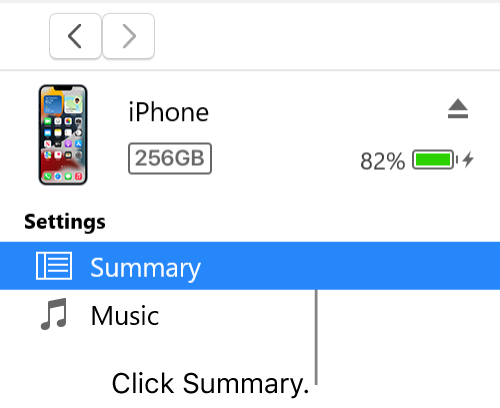
6. Do any of the following:
* Keep individual items from being synced: Select “Sync only checked [items].” Then deselect the checkbox next to any items in your iTunes library that you don’t want synced.
* Note: If you don’t see this option, choose Edit > Preferences, click General, then make sure “List view checkboxes” is selected.
* Turn off automatic syncing for music, movies, and TV shows: Select “Manually manage [items].”
7. Click Apply.
If this continues after selecting to manually manage content on your iPhone, then let us know if this device has ever synced with another music library and which version of iOS it is running under Settings > General > About > Version. We'll use those details to narrow this down further.
Also, if you click on the lock icon next to your iPhone, does anything appear that explains why this may be showing?
Thanks!