Control Call History Sharing Across Your Devices
Are you seeing call logs from your iPhone appearing on your iPad, Macbook, or Apple Watch? This happens because Apple devices can sync call history when signed in with the same Apple ID. If you'd prefer to keep your call logs private on a specific device, here's how to stop them from syncing:
Turning Off Call History Syncing:
- Open the Settings app on your iPhone.
- Tap on your name at the top (your Apple ID banner).
- Select iCloud.
- Scroll down and tap Show All.
- Look for options related to call history syncing, such as Phone, Contacts, or FaceTime.
- Turn off the toggle for any option that might be syncing call history.
Important Note: This process will only prevent future call logs from syncing. Any calls already logged on other devices before you disable syncing will remain there. Unfortunately, there's no way to retroactively remove those entries.
Additional Tips:
- You can also manage call syncing through a specific device's settings menu. For example, on an iPad, go to Settings > Phone and turn off Calls on Other Devices.
- Consider using a separate Apple ID for devices where you don't want call history to sync.
Watch the GIF below
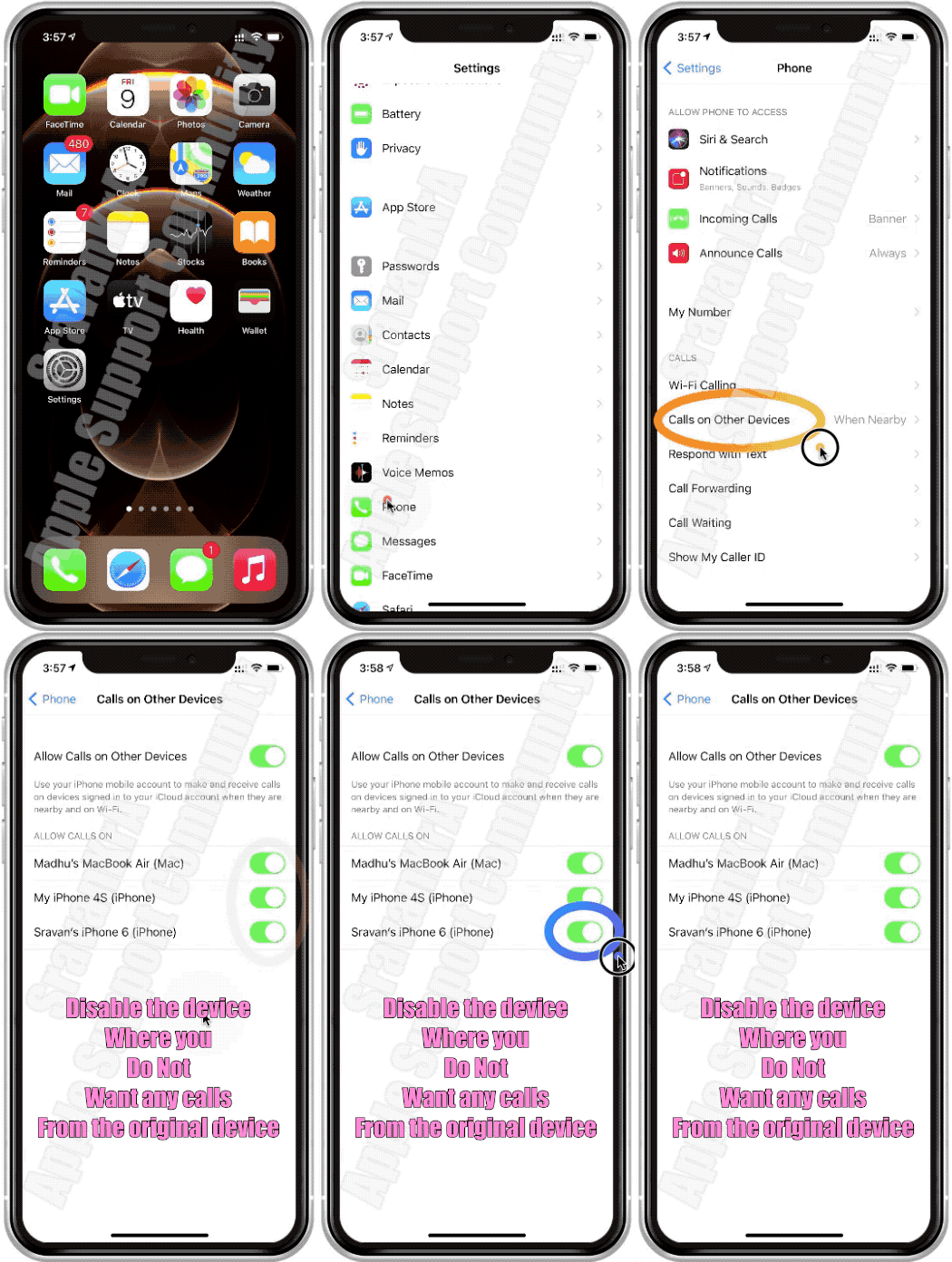
By following these steps, you can control which devices share your call history and maintain privacy across your Apple devices.

