how to rotate an image with Mac Photos without changing the size?

This is MADDENING. I want to use the "Crop" function in Mac Photos to rotate an image slightly. I open the image, press "Crop" at top, and adjust the "Straighten" selector. The image rotates smoothly, BUT IT ALSO INCREASES THE SIZE, such that parts of the image get cropped off. How in the world do you "Straighten" without changing the size??? As an aside, how do you change the magnification of the image in Mac Photos?


This is major screwball. Help!

iMac 24″, macOS 14.5

Posted on May 27, 2024 6:08 PM

Reply
Question marked as Top-ranking reply

Posted on May 28, 2024 7:51 AM

Dannymac22 wrote: Maybe someone could just agree with what I am seeing.

It looks to me like everyone understands exactly what you are seeing. You have a picture like this:
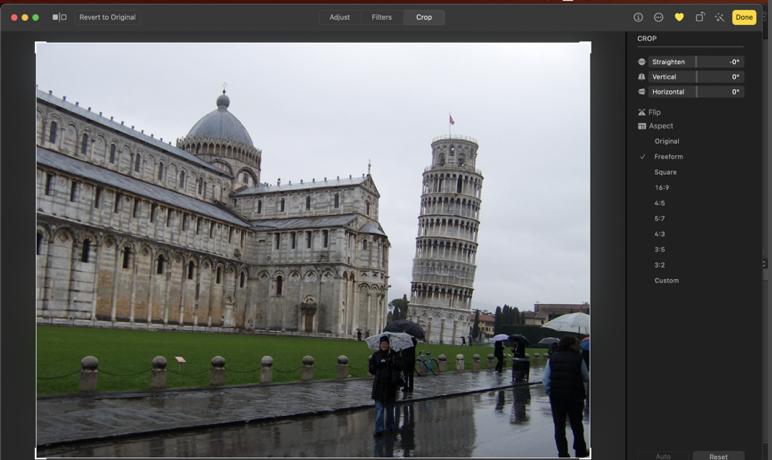

You don't like that tower to be at such a funny angle, so you straighten it and get this

With the tower nice and straight (and my wife leaning....)


But you wanted this:
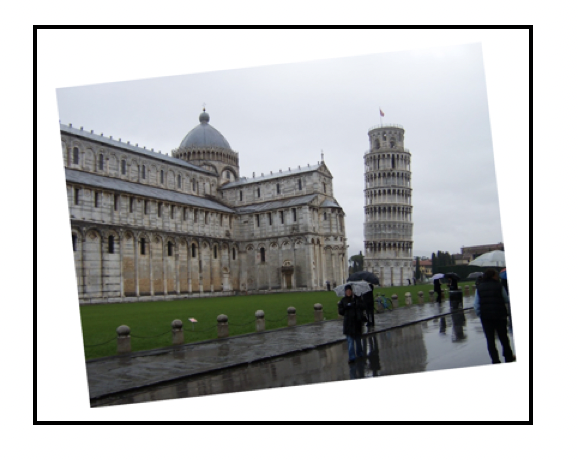
And it seems to me that everyone told you that Photos doesn't do that-- Photos always makes rectangular pictures. This is not unusual for popular image editors. In fact, I don't remember anyone in this discussion group ever before mentioning that they needed this, so it's not likely to be something Apple would add to Photos.


That's why léonie thoughtfully suggested using GraphicConverter ($40) which is what I used to make the above image of the famous leaning wife of Pisa.


By the way, there is no "expansion" going on. As Yer_Man explained, in Photos, the remaining picture fills the screen, just like any other pictures does. One of the main advantages to straightening and/or cropping a picture is that the main subject better fills the screen.


I hope this helps you see what we see...

16 replies
Question marked as Top-ranking reply

May 28, 2024 7:51 AM in response to Dannymac22

Dannymac22 wrote: Maybe someone could just agree with what I am seeing.

It looks to me like everyone understands exactly what you are seeing. You have a picture like this:


You don't like that tower to be at such a funny angle, so you straighten it and get this

With the tower nice and straight (and my wife leaning....)


But you wanted this:

And it seems to me that everyone told you that Photos doesn't do that-- Photos always makes rectangular pictures. This is not unusual for popular image editors. In fact, I don't remember anyone in this discussion group ever before mentioning that they needed this, so it's not likely to be something Apple would add to Photos.


That's why léonie thoughtfully suggested using GraphicConverter ($40) which is what I used to make the above image of the famous leaning wife of Pisa.


By the way, there is no "expansion" going on. As Yer_Man explained, in Photos, the remaining picture fills the screen, just like any other pictures does. One of the main advantages to straightening and/or cropping a picture is that the main subject better fills the screen.


I hope this helps you see what we see...

May 27, 2024 10:44 PM in response to Dannymac22

The crop tool is cropping the image automatically to the size of the embedded rectangle when you straighten the image to avoid empty triangles at the border. The crop tool can only crop to a rectangle with horizontal and vertical borders. The same goes for the perspective correction tool.


To avoid the cropping you have to extend the canvas with an external editor before you straighten the image - then you can straighten it without cutting off parts of the image.

I am using Graphic Converter or Luminar 4 to add a very wide border around the image. You can also use Preview to create a very large empty image and paste the image you want to straighten into the center of the new, empty background. Then straighten this image and use the retouch tool to fill-in the empty triangles at the border.


If you take a screenshot of the straightened image you may lose resolution, because the resolution will be limited to the pixel size of your display.


May 27, 2024 7:17 PM in response to Dannymac22

Photos does not support rotating images at specific angles. If you use the Straighten function in Crop, the edges of the image will get cropped regardless of the degree of rotation.


The simplest solution might be to use third-party software or online services. Rotating an image at a specific angle is a relatively simple task, and you should be able to find many tools online that can meet your needs.


Another workaround is to use Preview. Open your image with Preview and use a two finger twisting gesture to rotate the image as you like. The image will snap back to normal once you let go, but you can take a screenshot to clipboard while maintaining the rotated view. Then, paste it from the clipboard into preview and save it. The image generated by this workaround may differ in quality from the original one and might require cropping to achieve a better result.

May 28, 2024 5:58 AM in response to Dannymac22

By expand, do you mean that the image zooms in a little - or a lot - depending on how much you you're straightening? This is inevitable, as the app is straightening the image not the canvas. In fact, Photos has no concept of canvas - the image is the canvas.


There is no way to do what you want with an app as basic as Photos. With a more powerful editor you could straighten the canvas but what would give you irregular what (or whatever colour you choose) borders around the image. That's what the external editor feature is for.

May 28, 2024 8:29 AM in response to Dannymac22


If you look at this picture:


And make it a rectangle with no white stuff:

(Most people don't like the white parts in their pictures.)


Then you get this


Looks bigger, because the straightened rectangular image fills the space. If it's rotated more, then more of the corners must be cut off to make a rectangle, and so it fills the space more.


Also, if its aspect ratio becomes closer to the aspect ratio of the screen, then it fills better. My camera takes pictures in a 4:3 aspect ratio, but I almost always crop them to 16:9 or 16:10 to fill a TV or Computer screen. I re-crop for digital picture frames or web spaces.


If rotating an image cuts off an important part of the the picture, I usually choose to rotate it less rather than leaving white corners. Or I trash the image.


May 28, 2024 6:14 AM in response to Dannymac22

Just try it. Again, you call up a Photos image. Press "Edit" in upper right corner. The black-bordered edit frame appears. Press "Crop" at top. A crop menu appears at left. Pull the "Straighten" bar (at upper right) back and forth. The image rotates continuously AND it expands slightly. Maybe by 10-15%. The sides of the image end up outside the rectangle boundary. Your press done, and your image is rotated, with all the sides cropped off. Oh, it you try to rotate THAT image, you can do it handily, but it expands and gets cropped even more.


Why does "Straighten" also mean "expand"? This comes across as some kind of joke by Apple. "Straighten" is an odd word. My edges are already pretty straight, they're just tilted!


I just want to rotate an image without cropping it. Mac Photos conveniently lets me rotate it with "Straighten", but insists on cropping. I guess I could make a new image with a wide white border around it, and then rotate that, and strip off the remaining white border.


Maybe someone could just agree with what I am seeing. There seems to be some reluctance to doing that.

May 28, 2024 8:06 AM in response to Richard.Taylor

Well, no.


What I have it a tilted picture like this.


I do a "Straighten " on it, and I end up with this.


So the image is now rotated, but the edges are all cropped off, because the image has been enlarged.


I have to agree that it looks like Photos doesn't do what I want it to do, but it sure isn't obvious why it is doing what it's doing. "Straighten" makes no sense at all.


Actually, Gimp works a treat, so I'm done, but still very puzzled about what "Straighten" is supposed to accomplish.


May 28, 2024 8:25 AM in response to Dannymac22

Again, the image is not enlarged. It is zoomed in so that the resulting crop fits within the available image. Given the example you show it's not surprising that the core of the image is lost - that's a pretty significant tilt in the shot. A lesson for the camera operator more than the editor I would suggest. The issue here is that the operator has not allowed him/herself enough space to recover the situation. The straighten feature works perfectly well when you have a little tilt, not a shot like that.

May 28, 2024 4:46 AM in response to Dannymac22

Let's see, I think people aren't understanding what's going on here. I slide the "Straighten" selector, and the image rotates smoothly. I can rotate to any angle I want. Yes, Photos DOES support rotating images to arbitrary angles.That's nice. BUT, as it rotates, the image expands and it ends up being clipped by the sides of the enclosing rectangle. Why in the world does "Straighten" expand the image? I'm supposed to extend the canvas first? And I need a separate app to do that? That's kind of crazy.


The issue is, once I rotate the right amount, how do I capture the whole image that I rotated, since a substantial part of it has been clipped off?

May 28, 2024 5:03 AM in response to Dannymac22

Let's see, I think people aren't understanding what's going on here. I slide the "Straighten" selector (that's the selector at upper right in the "Crop" menu), and the image rotates smoothly. I can rotate to any angle I want. Yes, Photos DOES support rotating images to arbitrary angles.That's nice. BUT, as it rotates, the image expands and it ends up being clipped by the sides of the enclosing rectangle. Why in the world does "Straighten" expand the image? I'm supposed to extend the canvas first? And I need a separate app to do that? That's kind of crazy.


The issue is, once I rotate the right amount, how do I capture the whole image that I rotated, since a substantial part of it has been clipped off? Um, there is a "Zoom" slider? I sure don't see that. Where is it? That would be useful in this situation.

This thread has been closed by the system or the community team. You may vote for any posts you find helpful, or search the Community for additional answers.

how to rotate an image with Mac Photos without changing the size?

Welcome to Apple Support Community
A forum where Apple customers help each other with their products. Get started with your Apple Account.

