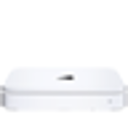
Poor resolution when plugged into 1080p 32" TV
any ideas?
Mac Mini, Mac OS X (10.6.4)
This fixed it for me. Had to go to the Source menu -> Tools -> Edit Name. Then select 'DVI PC'. Setting the sharpness to 0 also helped. But I think setting the input name is a better solution. I guess there is a fair bit of image processing that goes on inside the TV. If the input signal is already good, like from a PC at the right resolution, the input processing just distorts things.
This is just plain wrong. How many months have passed? How many pages of pseudo solutions?
If Apple decided to include a HDMI port as a display option, it should work with devices that come with HDMI inputs. TV with HDMI, I think, can't be a novelty that Apple couldnt test before rolling out the Mac Mini.
Changing input's name? That works on Samsung TV but there are other brands of the market. It doesn't work on my Panasonic plasma. Buying DVI converter? No. My TV doesn't have a DVI port. And asking people to spend extra money to solve Apple's own problem isn't the way to do it.
My system: i5, 10.8.5, Panasonic Viera plasma 1080p.
This is unacceptable. I'm seriously considering looking into a class-action lawsuit in recognition of all the valuable time lost to people here, not to mention all the money spent, after basing buying decisions on Apple's misrepresentations. As I write this, Apple's web page is still touting HDMI as a way to use 3rd-party displays, saying "it just works".
This is being typed on an older 2009 mini driving a cheap walmart 32" tv at 1080p, and the text and all else look glorious. It just worked. However, the machine has other problems which means I'll have to start using something else.
I've bought several generations of mini from Apple since then and tried to get them displaying decent text that wouldn't cause my eyes to bleed. Huge number of hours wasted, tried different screens, different adapters; I took the machines into the local Apple-affiliate geniuses who claimed the issue didn't exist. "We can't see it". When clearly, from this discussion string, it has been a long-running problem since 2010. When one considers that only a tiny fraction of 1% of people will actually complain about such a thing, there's no reason to think that a huge number of people have been punked. As in, every person since 2010 who has tried to use one at 1920x1080 resolution on an HDTV.
Pushing the problem back on the users - which is what I experienced - is pretty shaky, since Apple is clearly aware of this problem. I even have perhaps-overly-uncharitable thoughts wondering whether they intentionally crippled the text display because people using a mini and HDTV could get a better experience than those using an iMac. They have crippled features in low-end product before, and it's a reasonable business move - IF IT'S DISCLOSED. But Apple has touted these machines as being fully usable with HDMI monitors including HDTV's. That's a lie, if one wishes to use them for text - and frankly, most of what many of us use a computer for is text-based.
There are those within Apple who know that this defect exists and is being stonewalled. I'd just note to those of you who have posted here that you're owed some money - you didn't get what you paid for. The most profitable company on earth has seen fit to sell you a product that Just Doesn't Work.

Hi all!
I'm experiencing similar problems.
I've bought a new Mac Mini (designated as a late 2012 model in 'About This Mac'. When I hook it up to an also newly bought Sharp LC-22LE250K TV over HDMI, I get good video and images but text and desktop graphics are not up to scratch, and are somewhat grainy as many have described on this post.
However, do the same with my older LG TV (using Game picture preset) and newish Samsung TV (just plug and play) and everything is perfect.
To improve things on the Sharp I have reduced the picture sharpness to zero (which helps a bit to improve the icons) but the text is still not very good. I've changed the input name to PC and that didn't do anything.
What has made more of a difference on the Sharp is making very fine adjustments to underscan (System Preferences > Displays).
Get a screen with lots of text (this one is pretty good) and look at the text as you make slight incremental adjustments up and down. Some will be clearer than others. What I've done is adjusted things so the stalk of the Apple logo in the top right hand corner is fully visable, then made moved the slider to the right, watching the text change until an optimum is found.
This far from perfect, but is about as good as I think I'm going to get with this TV.
I think the problem may lie in how the TV and the Mac Mini 'talk' to each other over HDMI. Some TV's are able to get it right first time, others (to quote C3PO) may be using a more "peculier dialect".
Any other suggestions would be welcome.
EUREKA!
1) On your Mac Mini In System Preferences > Displays, set 'Underscan' to off (slider all the way to the left).
2) On your TV turn the sharpness settings to zero or minimal.
3) On your TV, access your menu settings for Picture and adjust the pitcure sie / zoom. If it has an "Auto" selection, ignore this. Select 'Full Screen' or full or whatever passes for that. On my Sharp TV it's Menu > Picture > Advance Settings > Picture Zoom > Full. On my Samsung TV it's Tools > Picture Zoom > Screen Fit.
DO NOT SELECT 16:9 - THIS THE PROBLEM!
Now everything is brill!
Thanks, PalNova. This led to the solution for me. I was plugging in to the HDMI port on my 1080p external monitor and getting poor resolution. I got an adapter and instead plug in to the DVI port on the monitor, and the display is excellent.
The SIMPLEST, EASIEST and ONLY solution I found was to adjust the 1080p TV monitor's SHARPNESS setting to its LOWEST level or put it close to '0' (i.e., if the setting indicates '0' = low and '10' = high).
All of these advices such as changing HDMI/DVI cables, adjusting overscan, screen size, font smoothing under Windows, etc. does NOT work. I've tried them all to no avail.
Adjusting the screen resolution under Windows 7 or 8.1 to 1920 X 1080 (interlace) instead of (progressive) with refresh rate of either 25, 29, 30Hz may help a little.
But for me I set the SHARPNESS to '0' and left the Resolution to 1920 X 1080 (progressive) and Refresh Rate at 60Hz.
The SIMPLEST, EASIEST and ONLY solution I found was to adjust the 1080p TV monitor's SHARPNESS setting to its LOWEST level or put it close to '0' (i.e., if the setting indicates '0' = low and '10' = high).
All of these advices such as changing HDMI/DVI cables, adjusting overscan, screen size, font smoothing under Windows, etc. does NOT work. I've tried them all to no avail.
Adjusting the screen resolution under Windows 7 or 8.1 to 1920 X 1080 (interlace) instead of (progressive) with refresh rate of either 25, 29, 30Hz may help a little.
But for me I set the SHARPNESS to '0' and left the Resolution to 1920 X 1080 (progressive) and Refresh Rate at 60Hz.
Thanks PalNova for your contribution!
I've just bought a LG Full HDTV 32” with LED IPS Display (model: 32LB5600) to replace my old LG 23" Full HD Monitor/TV and I've got the "horrible not crispy text" & pixelation issue solved by simply changing the HDMI input name to PC. Actually, I've noticed that the HDMI input name was not set by factory default, so it is worth checking if your TV brand has a similar option for that.
As the post #11 on AVS Forum suggests, by changing the HDMI input name, it not only does set the 'name' for the HDMI input but also adjusts settings to 'match' the input signal with the 'input peripheral'. Setting it to PC causes a 1:1 mapping to occur and the TV to do a true pass through of the signal from the PC to the output display.
Setting Sharpness parameter to 0 helped in my case.
I also had to play around with other display settings. Happens that "Game" mode is optimal for me. And I'm using mac for coding, not gaming. I's an LG 1080p
Don't know if this solution has been posted already so please forgive me if I'm spamming.
What I have done on both my Mini's is that I use a hdmi to dvi cable for the mac hdmi-port and then another adapter on the tv side to revert back to hdmi before i connect it to my LG 65" LED. The sound is connected via the optical port to a Logitech Z906 (tv-speakers are crappy anyway).
This way i "fool" the Mini to think it's connected via DVI before i revert back to the HDMI port on my tv (tv doesn't have DVI).
It feels kinda stupid but I don't mind not knowing exactly why this works as long as the results are so good... 😉
I get none of the graininess from hdmi only and the picture quality is super without any major adjustments on the tv. Of course i make some adjustments on the tv but none are maxed out as many of the previous posters have mentioned, mine are just for personal taste and room adaption etc.
Hdmi -> Dvi -> hdmi = no graininess and excellent picture quality like you would expect from a regular computer screen.
Poor resolution when plugged into 1080p 32" TV