Safari won't connect to internet but other browsers will

Firefox and Chrome can connect to the internet but since upgrading to Yosemite, Safari, iTunes and other Apple Apps have an exceedingly difficult time connecting to the internet. (ie server not found) I have to resort to turning off/on my wifi and/or restarting my computer. All other non-Apple applications can access the internet just fine.

MacBook Air, OS X Yosemite (10.10)

Posted on Nov 18, 2014 11:12 AM

Reply
Question marked as Top-ranking reply

Posted on Dec 21, 2015 9:20 AM

Safari/Preferences/Advanced - enable the Develop menu, then go there and Empty Caches. Quit/reopen Safari and test. Then try Safari/History/Show History and delete all history items. Quit/reopen Safari and test. You can also try try Safari/Clear History…. The down side is it clears all cookies.Doing this may cause some sites to no longer recognize your computer as one that has visited the web site. Go to Finder and select your user/home folder. With that Finder window as the front window, either select Finder/View/Show View options or go command - J. When the View options opens, check ’Show Library Folder’. That should make your user library folder visible in your user/home folder. Select Library./Caches/com.apple.Safari/Caches.db and move it to the trash.


Go to Safari Preferences/Extensions and turn all extensions off. Test. If okay, turn the extensions on one by one until you figure out what extension is causing the problem.


Safari Corruption See post by Linc Davis

30 replies
Question marked as Top-ranking reply

Dec 21, 2015 9:20 AM in response to andyappel

Safari/Preferences/Advanced - enable the Develop menu, then go there and Empty Caches. Quit/reopen Safari and test. Then try Safari/History/Show History and delete all history items. Quit/reopen Safari and test. You can also try try Safari/Clear History…. The down side is it clears all cookies.Doing this may cause some sites to no longer recognize your computer as one that has visited the web site. Go to Finder and select your user/home folder. With that Finder window as the front window, either select Finder/View/Show View options or go command - J. When the View options opens, check ’Show Library Folder’. That should make your user library folder visible in your user/home folder. Select Library./Caches/com.apple.Safari/Caches.db and move it to the trash.


Go to Safari Preferences/Extensions and turn all extensions off. Test. If okay, turn the extensions on one by one until you figure out what extension is causing the problem.


Safari Corruption See post by Linc Davis

Nov 19, 2014 9:39 AM in response to Eric Root

Wireless connectivity is not the problem.


As I stated, I can surf the web using any non-Apple applications such as: Firefox, Chrome, DropBox, Skype, Adobe, Outlook, Mint, etc. I can also use AppleAirPlay to stream video to my AppleTV. However, to test your theory, I connected to the internet through a wired connection. I am still having problems connecting to the internet with Apple Apps such as: Safari, iTunes, AppStore, iMessage and Maps.


This problem does not always persist. It arises a few times a day and my current solution is to disconnect/reconnect to the internet and/or restart the computer. This issue started after my Yosemite update.

Jul 22, 2015 11:09 PM in response to RaptorMammut

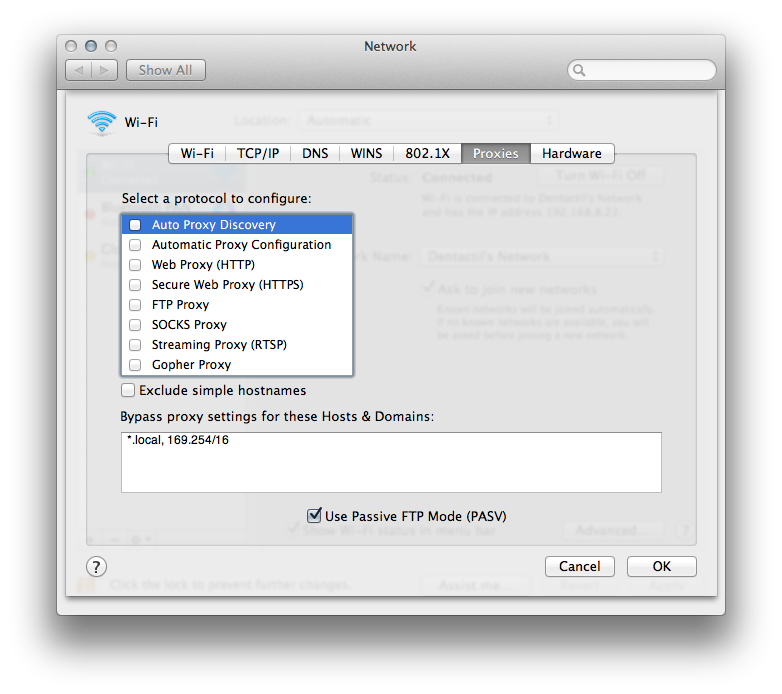
Whenever you experience issues with Safari, App Store, iTunes and any other service that uses the "same" WebKit, but seem to see no problem in Google Chrome or Firefox, it's good to check if you have your Proxies configuration clear. Since sometimes Chrome (and Firefox) override these settings (for their own multi platform stuff), they may work while the formers fail.

This is easily checked by opening Safari -> Preferences -> Advanced -> Proxies (Change Settings).

Make sure Autodiscover is not checked. It should probably look all empty like this:

User uploaded file

note/off-topic: the Use PASV FTP is usually a good idea if you are behind a router/modem/NAT like Airport Extreme or AirportExpress (or any other to be honest), since FTP was not designed to be used behind these "hacks". In any case, if you don't know what it is, you can safely ignore it, but if you have FTP problems every now and then (or FTP is slow as ****), check that and try again.

The local ignores for proxies was added by the Operating System, but it's usually a good idea to have your local stuff ignore the proxy. 😉

Nov 19, 2014 1:42 PM in response to RaptorMammut

Same here. Tried reseting the browser. Other forums suggested unchecking/turning off safari in the icloud drive settings changing search engine to Bing. No luck.


I think the problem is broader than Safari and Apple apps. When I connect to the hotel wifi, only Chrome works. I cannot connect to my office 365 server with Outlook either.


When I connect tethered to my iphone, Outlook can connect, but Safari still will not load a page. Messages app doesn't seem to work with either connection, but everything works fine on the same connection on my ipad.

Aug 2, 2016 1:25 PM in response to RaptorMammut

HE FOUND THE SOLUTION!!!

User uploaded filejamesk88Mar 15, 2015 4:56 AM in response to Th3Jack0f5pades

User uploaded fileLevel 1 (10 points)

Mar 15, 2015 4:56 AM Re: Safari doesn't work but other browsers doin response to Th3Jack0f5pades

Go to terminal and enter these commands one after the other


sudo launchctl unload -w /System/Library/LaunchDaemons/com.apple.discoveryd.plist

sudo launchctl load -w /System/Library/LaunchDaemons/com.apple.discoveryd.plist

Jan 25, 2015 11:21 PM in response to RaptorMammut

I'm also having this problem. I am posting right now using Chrome because Safari never connects to the hotel's sign-in page. It also appears that other software such as Mail behave as if there is no Internet connection. So despite being able to get online with Chrome, I get failed to connect errors from Mail, Transit, and even Safari in the iOS Simulator is failing to connect.


All that said, my iPad and iPhone have no issues connecting.


I am certain this is a Yosemite issue, but I can't find a fix for it.

Jan 28, 2015 9:10 AM in response to RaptorMammut

Hope this helps. It seems that my problem was related to having Sophos Anti Virus installed. It occurred to me that I didn't have this problem prior to being forced to install an antivirus app. I uninstalled it and restarted my MacBook Pro. I was able to immediately join my hotels wifi using Safari. I will also note that the shut down portion of the restart took a long time. Three minutes wouldn't be an exageration.

Feb 16, 2015 1:32 PM in response to RaptorMammut

Same problem here too. running 10.10.2 on a macbook pro with all latest app store updates. Close macbook with firefox, chrome, and safari all running normally. When I reopen the macbook safari will not connect to the internet, times out. Firefox and chrome no problem, work normally. It is happening right now and I'm as a result writing this on firefox. Restarting safari did not fix the problem but restarting wifi after restarting safari did. Note that both firefox and chrome connected just fine to the internet BEFORE the wifi was restarted, but not safari. Please, no instructions about how to fix wifi since it is clearly not the issue. It is something in the way safari connects to the internet since 3rd party apps work fine. Guess I should figure out how to file a bug with apple.

Feb 25, 2015 8:05 AM in response to RaptorMammut

I, too, am experiencing this problem. It occurs with both Safari and Firefox. It wasn't bad at the start; occasionally what seemed like my internet would cut out while I was surfing, but then the problem began to last for longer durations. As of this morning, I've been trying to get Safari to open for two hours with no success.


Here's the specifics. I open Safari. Most times, the load bar will extend about 1/6 the length and stop, displaying my homepage address in the address bar. Sometimes, the load bar will creep halfway, and part of my homepage will appear; typically, images don't load, and sometimes the page format gets wonky. Rarely, the homepage will fully load! I can even move through the homepage's image slideshow seamlessly. However, if I try to go to another page, I'm back at the 1/6 occurrence. Very rarely, everything works fine. Closing the laptop or Quitting Safari kills the connection, and I have to start this stupid process all over again. Finally, Firefox is either all or nothing; either the pages load and work fine, or nothing works at all.


I've done a DNS manual adjustment, I've created a specific Network, I've unchecked Safari from the iCloud options, I've run scans for malware and viruses (and came out clean), and I've done a clean reinstall of Yosemite. There's no need for me to tweak my router or contact my ISP; every other wireless application in our house is functioning perfectly. It's not the wifi.


Nothing's working, and I'm about to throw my computer out a window (not really, just frustrated). Any help would be so very appreciated.

Feb 27, 2015 9:49 PM in response to Azarra54

Here's a workaround, restart discoveryd from a command prompt:

$ sudo launchctl unload -w /System/Library/LaunchDaemons/com.apple.discoveryd.plist

$ sudo launchctl load -w /System/Library/LaunchDaemons/com.apple.discoveryd.plist


you'll need to do this every time it happens til they get a round tuit for the fix, sigh.

for confirmation of the broken state do a search for 'apple networking discoveryd broken' without the quotes

Mar 9, 2015 6:32 AM in response to RaptorMammut

Hey all,


A follow-up to my previous issue:


I have solved it, and I can't believe that this was the issue. After doing all of those other workarounds, I saw on here that someone had uninstalled their computer security software and that doing so had done the trick. So I went and uninstalled Avast! from my computer. Lo and behold, suddenly my internet works. Every time, without fail, I can load up my internet; it never drops or stalls as it did before. It's also back to its normal speeds.


For those of you who are struggling with internet connectivity issues like mine, start by uninstalling whatever sort of security system you have; that's probably the issue. I've got some paranoid speculative ideas on why this is the case, but I'm not certain 100%. Apple really should take a look at this issue, because we shouldn't have to sacrifice security, of all things, to wade in the cesspool of possible viruses known as the internet. -_-

Mar 9, 2015 7:31 AM in response to Azarra54

I have the exact same issue, however no antivirus installed. I have tried to install the public beta 2 times now with the same results (restored from Time Machine and tried again a few days later). Other browsers/applications work except for anything Apple related.


The common thread here seems to be, after installing the update, everything works great for a limited time. However, when I start Safari after a few minutes of use, I am asked to allow Webkit to know my location. Whether I choose DENY or ALLOW, I end up bricking any kind of Apple product. I can not seem to find that others discovered this, however I'm 100% this is the culprit, since it happened 2 times instantaneously.

How do I go about removing this access from Webkit? I looked through the Keychain, the Safari Location services, etc. and I can't find how to do this. I think if we try this, it will work.

This thread has been closed by the system or the community team. You may vote for any posts you find helpful, or search the Community for additional answers.

Safari won't connect to internet but other browsers will

Welcome to Apple Support Community
A forum where Apple customers help each other with their products. Get started with your Apple Account.