Ringtones ‘On my Device’ but not showing up under Settings-Sounds

I had to ask a new question as the other thread closed.


I had 48 custom ringtones on my iPhone. Today, I added one more and now that’s the only one on there. When I go to Settings - Sounds, all my ringtones are gone.


But when I connect my iPhone to iTunes (12.7) they show up under On My Device - Tones, yet back under Sounds they’re not there.


I followed your advice on the previous thread and drag dropped from desktop to phone icon in iTunes, but only 4 copied. I deleted two albums from my iPhone to make more room, but still no more than four of the forty-eight show up. Really frustrating!


Can you please tell me what’s going on?


Now my Tones tab says 318 items but there are six of each tone: five greyed out with the perforated citcle, one in black with exclamation mark.


A t advice, instructions much appreciated.


Thank you

Posted on Apr 29, 2018 8:11 PM

Reply
Question marked as Top-ranking reply

Posted on Apr 30, 2018 4:07 PM

Hello Ange,

Thank you for using Apple Support Communities! I understand that custom ringtones previously synced from iTunes do not appear on your iPhone. I would be happy to help point you in the right direction from here.

The first step would be to delete any duplicates showing in the Tones tab in iTunes:

Use tones and ringtones with your iPhone, iPad, or iPod touch - Apple Support

Specifically, follow the steps in this section:

Use iTunes to delete custom tones that you manually added to your iOS device

If you manually added custom tones to your iOS device, you can delete them from your device using iTunes.

  1. Connect your device to your computer.
  2. Open iTunes. Make sure that you have the latest version.
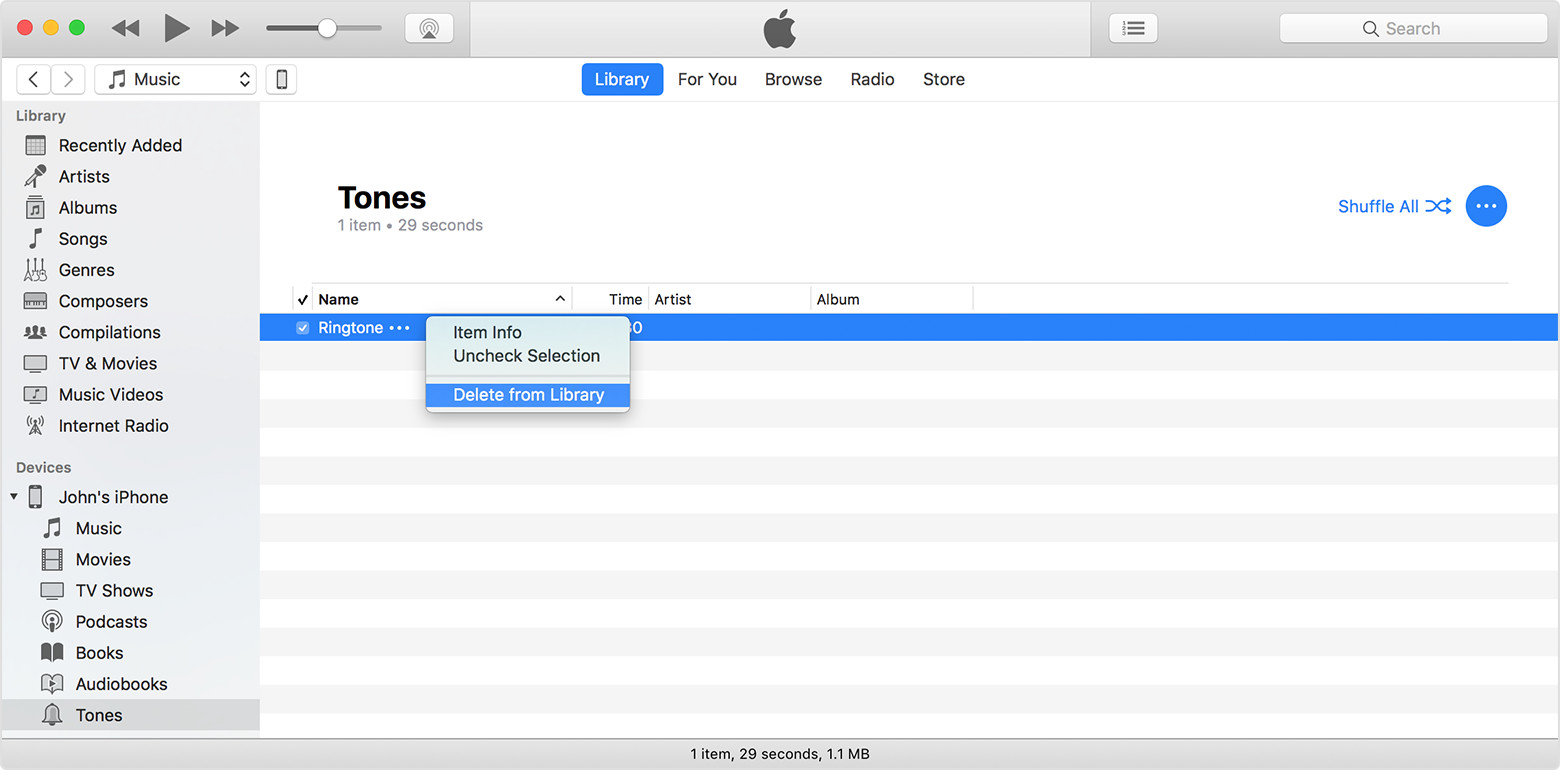
  3. In the left sidebar of iTunes, click Tones under your device's name.
  4. Control-click or right-click the tone that you want to delete, then click delete tone.User uploaded file

If you don't see an option to delete tone, you might have to turn off "Manually manage music and videos":

  1. In the upper-left corner of iTunes, click the device icon User uploaded file.
  2. Scroll to the Options section, and uncheck the box next to "Manually manage music and videos." Then click done.

You might see a message that your device is synced with another library. This means that you've used a different computer to sync your device in the past, and iTunes can't sync without first erasing and replacing all iTunes content on your device.


After that, follow the steps under "Move custom ringtones from iTunes to your iOS device" in the above resource. As far as the tones showing with the perforated circle and exclamation mark, iTunes may not be able to find the location for that media file. The following support article provides some troubleshooting steps to try for that issue:

If you see an exclamation point next to your items in iTunes - Apple Support

Let us know if you have questions from here.

Cheers!
12 replies
Question marked as Top-ranking reply

Apr 30, 2018 4:07 PM in response to Ange Donovan

Hello Ange,

Thank you for using Apple Support Communities! I understand that custom ringtones previously synced from iTunes do not appear on your iPhone. I would be happy to help point you in the right direction from here.

The first step would be to delete any duplicates showing in the Tones tab in iTunes:

Use tones and ringtones with your iPhone, iPad, or iPod touch - Apple Support

Specifically, follow the steps in this section:

Use iTunes to delete custom tones that you manually added to your iOS device

If you manually added custom tones to your iOS device, you can delete them from your device using iTunes.

  1. Connect your device to your computer.
  2. Open iTunes. Make sure that you have the latest version.
  3. In the left sidebar of iTunes, click Tones under your device's name.
  4. Control-click or right-click the tone that you want to delete, then click delete tone.User uploaded file

If you don't see an option to delete tone, you might have to turn off "Manually manage music and videos":

  1. In the upper-left corner of iTunes, click the device icon User uploaded file.
  2. Scroll to the Options section, and uncheck the box next to "Manually manage music and videos." Then click done.

You might see a message that your device is synced with another library. This means that you've used a different computer to sync your device in the past, and iTunes can't sync without first erasing and replacing all iTunes content on your device.


After that, follow the steps under "Move custom ringtones from iTunes to your iOS device" in the above resource. As far as the tones showing with the perforated circle and exclamation mark, iTunes may not be able to find the location for that media file. The following support article provides some troubleshooting steps to try for that issue:

If you see an exclamation point next to your items in iTunes - Apple Support

Let us know if you have questions from here.

Cheers!

Apr 30, 2018 7:18 PM in response to jeremy_v

Hi Jeremy,


Firstly, thank you for taking so much time to provide such a detailed response, it is very much appreciated. I’ll try all the steps you have listed here tomorrow, but, if I may just ask one further question:


If I uncheck ‘manually manage music’, then iTunes will delete all the music on my phone correct? So, if I try to add it back, will the ringtones be lost as the phone resyncs?


Is it possible to just press ‘restore from a backup’ and choose a date prior to when I lost my tones? Or is the backup only the last one saved?


Anyway, I’ll try your advice and let you know how I get on. I really appreciate all the help.


Thank you

Ange

Apr 30, 2018 7:26 PM in response to turingtest2

Hi TuringTest2,


Thank you again for helping, and so soon after my recent query.


I know how to create the ringtones, and I had copies of those I custom made in a folder, all with the m4r extension. I drag and dropped this onto the iPhone in iTunes from the desktop, but only 4 copied from 51.


It seems like my phone now has way more in-built tones than before. Are these taking up space which is why the others won’t copy back? I think if that’s the case, then nothing for it but to get third party software. Very annoying - I much prefer waking up to The ****** than ‘Bamboo’. Sigh.


Thanks again and I’ll let you know how it goes. Like your namesake, you’re a Genius.


Ange

May 4, 2018 1:35 PM in response to turingtest2

Hi Tt2,


I searchec online for a 3rd party software to clean out the tones folder but every website says you cannot delete ios tones, the inbuilt ones already on the phone. What’s annoying is that there seems to be more than before. Is there a certain amount of space/ringtone files the phone will hold? I have a 16GB iPhone 5s.


If I downloaded an older version of iTunes prior to 12.7, could I just put all my own ringtones back?


Thank you for your help

Ange

May 4, 2018 2:11 PM in response to turingtest2

Thank you so very much! It worked, and it was so easy! I just chose import and dropped my m4rs in and they have all showed up on my phone again.


Thank you for your helpful advice and recommending iFunbox. I’d spent a lot of time making those ringtones and it was fiddly, so I’m glad to have them all back again.


You’ve made my day. Thanks for everything.

May 6, 2018 2:47 PM in response to turingtest2

Hi Tt2,


I’m sorry to bother you about this issue again, but I just wanted to follow up with another thing that’s a bit strange.


When I set ringtones for calls and text, the list under Settings-Sounds is less comprehensive than when I try to choose a sound for an alarm alert. One list shows Blue Monday and Don’t You Want Me? But these don’t show up under Settings-Sounds.


Yet, when I do select a sound under the black menu, when the alarm goes off it reverts to the default ‘opening’ and not the custom tone m4r I made.


What do you think the glitch is down to? I have an iPhone 5s.


Any ideas would be greatly appreciated.

Thanks

Ange

User uploaded fileUser uploaded file

This thread has been closed by the system or the community team. You may vote for any posts you find helpful, or search the Community for additional answers.

Ringtones ‘On my Device’ but not showing up under Settings-Sounds

Welcome to Apple Support Community
A forum where Apple customers help each other with their products. Get started with your Apple Account.