iTunes could not connect to this iPhone. Could not send a message to the device.
I'm trying to get music from my itunes on a Mac desktop to my iphone se.....I get the message above. Any ideas for a fix or workaround? Thanx
iPhone SE, Imac10.7.5
I'm trying to get music from my itunes on a Mac desktop to my iphone se.....I get the message above. Any ideas for a fix or workaround? Thanx
iPhone SE, Imac10.7.5
- Make sure that your iOS device is unlocked and on the Home screen.
- Make sure that you have the latest version of iTunes that works with your computer.
- Check that you have the latest software on your Mac or Windows PC.
- Make sure that your device is turned on.
- If you see a Trust this Computer alert, unlock your device and tap Trust.
- Unplug all USB accessories from your computer except for your device. Try each USB port to see if one works. Then try a different Apple USB cable.
- Restart your computer and iPhone, iPad, or iPod.
- Try connecting your device to another computer. If you have the same issue on another computer, contact Apple Support.
- Make sure that your iOS device is unlocked and on the Home screen.
- Make sure that you have the latest version of iTunes that works with your computer.
- Check that you have the latest software on your Mac or Windows PC.
- Make sure that your device is turned on.
- If you see a Trust this Computer alert, unlock your device and tap Trust.
- Unplug all USB accessories from your computer except for your device. Try each USB port to see if one works. Then try a different Apple USB cable.
- Restart your computer and iPhone, iPad, or iPod.
- Try connecting your device to another computer. If you have the same issue on another computer, contact Apple Support.
If your Mac doesn't support High Sierra, or you're using Snow Leopard or Lion and would like to upgrade to High Sierra, follow these steps:
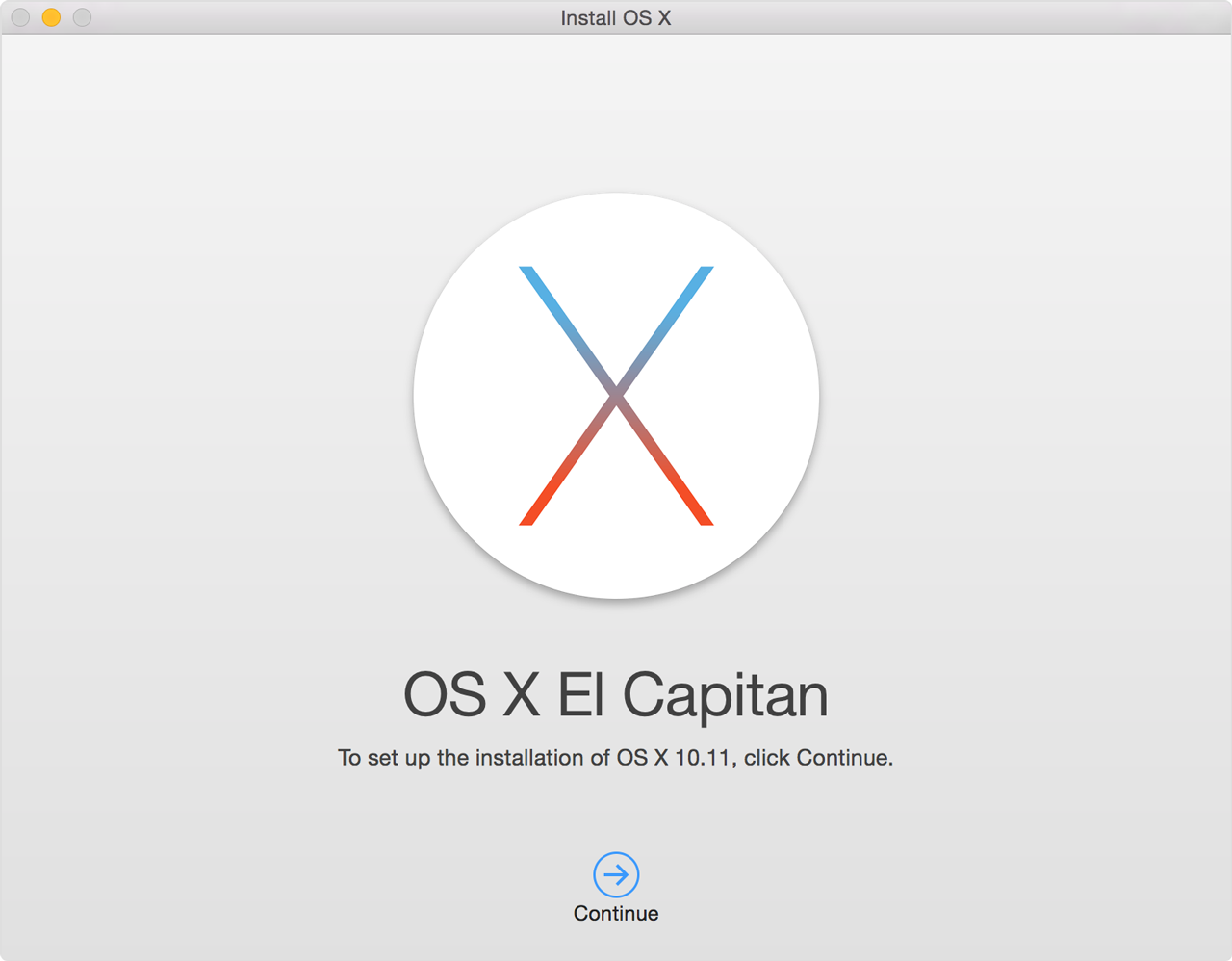
- Use this link to open the El Capitan page on the App Store: Get OS X El Capitan.
- Click the Download button on the El Capitan page. If your Mac is compatible with El Capitan, a file named Install OS X El Capitan downloads to your Applications folder.
- After download is complete, the installer opens automatically. Click Continue and follow the onscreen instructions.
My Mac OS is 10.7.5....unable to update any more....Mid 2011
What else can I do? I have 5400+ songs on this thing.
Thanx for any and all help.
Tim
21.5-inch, Mid 2011
Processor 2.5 GHz Intel Core i5
Memory 4 GB 1333 MHz DDR3
Software Mac OS X Lion 10.7.5 (11G63)
Tried upgrading to El Capitan....says my computer won't support it.
Need another path if possible.
iTunes could not connect to this iPhone. Could not send a message to the device.