Mac email will not retain mail settings

There is a serious issue occurring where my email settings in preferences are not being retained. This was an issue in the latter updates of Sierra and has gotten worse with Mojave. It is an issue that affect my desktop and laptop but not my iphone or ipad.


Upon a restart, mail will take all my non-Mac email accounts offline expcept for my iCloud account.


One IMAP email account, for example, has my user name, password, Port, Authentication set to "Password", "Automatically manage connections" unchecked, Advanced IMAP Setting set to TLS Certificate "None" and "Allow insecure authentication" checked.


The issues that can occur are:


1) Will not let me save changes. Charter provides my internet connection but I use Hostirian to provide and maintain my emails and websites.


2) If the computer has been restarted, the info that I input into preferences has reverted to Automatically Manage Connection Settings and changed the Outgoing Mail Server. When I uncheck the Automatically manage connection settongs, I then see that the USE TLS/SSL box has been checked and that "Allow for insecure authentication" has been unchecked.


These accounts are for my business email. Hostirian assures me that they can see activity on their end, but my laptop and desktops are failing to let me into my email accounts or not retaining the information that will allow me to properly use my email.


What is the issue here and what do I need to do to fix it?

Mac Pro, macOS Mojave (10.14), null

Posted on Oct 13, 2018 7:54 AM

Reply

Similar questions

1 reply

Oct 15, 2018 9:45 AM in response to Charles Barnes

Hi Charles Barnes,

Thank you for posting in the Apple Support Communities. I see you're finding that the Mail application isn't retaining your email account settings.

You mentioned that only your desktop and laptop are affected; are both running macOS Mojave?

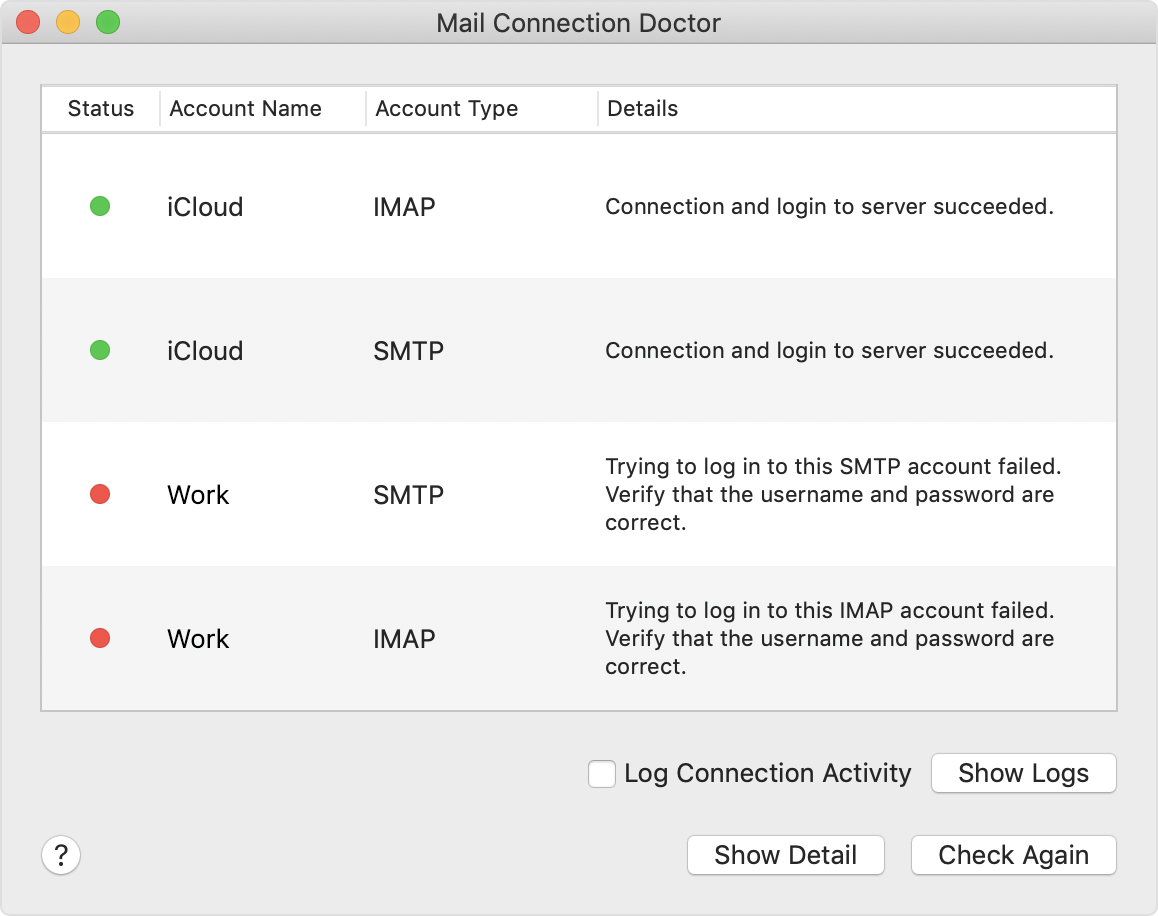
When you restart your Mac and find your accounts are offline, what's the exact message that you see? To make sure all bases have been covered, you might check that and try the steps here, in the article titled Use Mail Connection Doctor .

Open the Mail app, then choose Window > Connection Doctor from the menu bar.

User uploaded file

If you're connected to the Internet but Mail Connection Doctor shows a red dot next to one or more of your accounts, check the Details column for more information about the issue.


Regarding your settings changing after restart, it sounds like the "Automatically manage connections" box may be the reason. Have you verified that your settings match those found here, in the Mail Settings Lookup tool?

Before trying the next step, it's a good practice to verify that you're able to log into your webmail account using a web browser like Safari. Once you test that you're able to do so, which helps to confirm your login credentials, you might try removing and re-adding one of your IMAP accounts and then testing to see if it retains your settings. You can use this to Add or remove email accounts in Mail on Mac :

Remove an email account

When you remove an email account from Mail, the account’s messages are deleted and no longer available on your Mac. Copies of messages remain on the account’s mail server and are still available (from webmail, for example).

Important: If you’re unsure whether messages you want to keep are still on the mail server, move or copy them to a mailbox stored on your Mac (the mailbox appears in the On My Mac section in the Mail sidebar) before you delete the account in Mail.

  1. In the Mail app User uploaded file on your Mac, choose Mail > Preferences, then click Accounts.

  2. Select an account, then click the Remove button User uploaded file.

    Note: If the account is used by other apps on your Mac, you’re asked to remove the account in Internet Accounts System Preferences. Click the button to open Internet Accounts, then deselect the Mail checkbox for the account. To stop using the account in all apps, make sure the account is selected, then click the Remove button User uploaded file.

    Add an email account

  3. The first time you open the Mail app User uploaded file on your Mac, it may prompt you to add an account. Select an account type—if you don’t see your type, select Other Mail Account—then enter your account information.

    User uploaded file
  4. If you already added an email account, you can still add more. In Mail, choose Mail > Add Account, select an account type, then enter your account information. Make sure the Mail checkbox is selected for the account.

  5. If you’re using an account on your Mac with other apps, such as Contacts or Messages, you can also use that account with Mail. In Mail, choose Mail > Accounts to open Internet Accounts preferences, select the account on the left, then select the Mail checkbox on the right.


I hope the information I've provided helps.

Kindest regards.

This thread has been closed by the system or the community team. You may vote for any posts you find helpful, or search the Community for additional answers.

Mac email will not retain mail settings

Welcome to Apple Support Community
A forum where Apple customers help each other with their products. Get started with your Apple Account.