Hi akfromnyc,
Thank you for posting in the Apple Support Communities. I see you've been unable to access a specific website from your Mac.
Testing in multiple browsers was a good step. While it sounds like the issue is affecting all browsers, there are still some good steps to be found here
If Safari doesn't load a page or webpage items are missing
:
If you're logged into a user account that is restricted by Parental Controls or other web filtering software, some pages or page elements might not load if those sites aren't allowed. For example, embedded videos might not display if they're hosted on a site other than the one you're viewing.
Check with your administrator to see if you can get access to the site that you're trying to view.
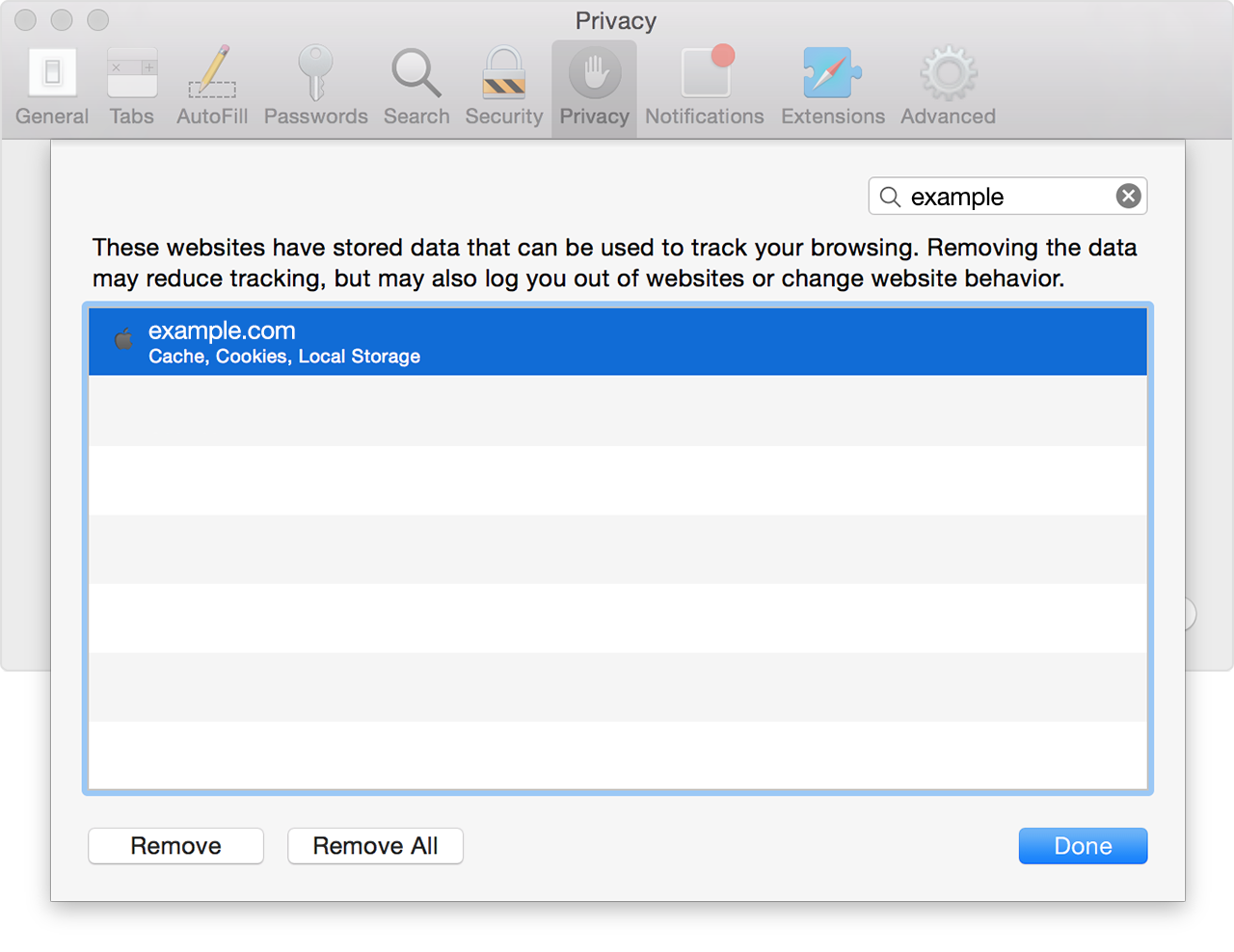
If only one webpage or website isn't working, you can remove data related to that site to see if it fixes the issue. Use these steps to remove cookies, cache, and other data stored by Safari for a specific site:
- Choose Safari > Preferences.
- Click the Privacy icon.
- Click the Details button.
- Search for the name or domain of the website whose data you want to remove.
- In the results list, click the domain (like example.com) that has data you want to remove.
- Click Remove.
- When you're finished, click Done and close the preferences window.
The steps above are still potentially relevant even if the issue persists across multiple browsers. You might also check to make sure your date and time settings are accurate. Here's how to
Change settings in System Preferences
:
To open System Preferences, click the System Preferences icon  in the Dock or choose Apple menu > System Preferences.
Options are organized into preferences. For example, options that control how the desktop appears are located in Desktop & Screen Saver preferences.
Preferences appear as a grid of icons; the icons shown may vary depending on your Mac and the apps you have installed. Click an icon to open a preference pane and see the options.
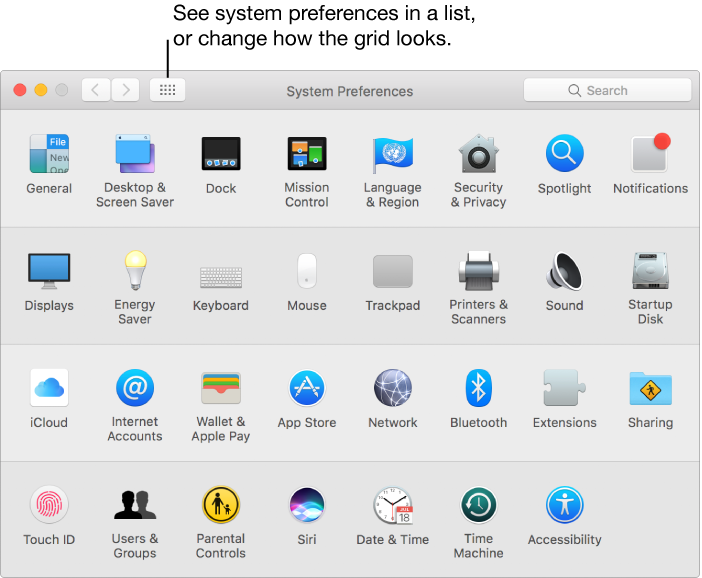
From there, click Date & Time and make sure it's accurate and set to update automatically.
If it is, and you complete the steps above, testing in safe mode would be a great next step. If the issue occurs with multiple browsers, testing in safe mode will help narrow things down further by ruling out third-party login items, among other things. Here's how to
Use safe mode to isolate issues with your Mac
:
Safe mode (sometimes called safe boot) is a way to start up your Mac so that it performs certain checks and prevents some software from automatically loading or opening. Starting your Mac in safe mode does the following:
- Verifies your startup disk and attempts to repair directory issues, if needed
- Loads only required kernel extensions
- Prevents startup items and login items from opening automatically
- Disables user-installed fonts
- Deletes font caches, kernel cache, and other system cache files
If your Mac has an issue that goes away when you start up in safe mode, you might be able to isolate the cause.

To start up in safe mode:
- Start or restart your Mac, then immediately press and hold the Shift key. The Apple logo appears on your display. If you don't see the Apple logo, learn what to do.
- Release the Shift key when you see the login window. If your startup disk is encrypted with FileVault, you might be asked to log in twice: once to unlock the startup disk, and again to log in to the Finder.
To leave safe mode, restart your Mac without pressing any keys during startup.
If an issue doesn't happen when your Mac is started in safe mode, try restarting without pressing any keys.
- If the issue comes back, you might have incompatible login items.
- If the issue doesn't come back, it was probably caused by a cache or directory issue with your startup disk, which safe mode fixed.
I hope this is helpful.
Kind regards.



