How do you put video inside of shapes on Final Cut Pro X.

I am trying to put video inside of shapes in Final Cut Pro X like displayed in this video: aeth - LAPSANG / SOUCHONG (Official Music Video) - YouTube


I can only find tutorials of video inside of text. Is there anyone that can help me?

MacBook Pro with Retina display

Posted on Oct 28, 2018 8:46 AM

Reply
Question marked as Top-ranking reply

Posted on Oct 28, 2018 8:21 PM

This might help:

http://sight-creations.com/fxexchange/Cutouts.zip

It's an "effect" — apply it to a clip. Combine your shape generators in a stack and create a compound clip (make sure the length of the shape generators is as long as your cut needs to be!)


Click on the Drop Zone for this effect and choose a first frame (an "early enough" frame) of your shapes compound.


The default blend mode is set to Stencil Alpha (similar to luma - but guaranteed "opaque" cutouts with shapes). Try the other blend modes - you get some interesting effects and you can "double exposure" clips with it (overlay, hard light, color burn, etc.)


Stacked shapes generator:

User uploaded file

the compound clip:

User uploaded file


All your collected shapes in "one throw":

User uploaded file


The drop zone also gives you scale and pan controls to help you resize and align the parts.


If you need help installing:

https://fcpxtemplates.com/installing-plugins-for-fcpx/

27 replies
Question marked as Top-ranking reply

Oct 28, 2018 8:21 PM in response to dbraggins15

This might help:

http://sight-creations.com/fxexchange/Cutouts.zip

It's an "effect" — apply it to a clip. Combine your shape generators in a stack and create a compound clip (make sure the length of the shape generators is as long as your cut needs to be!)


Click on the Drop Zone for this effect and choose a first frame (an "early enough" frame) of your shapes compound.


The default blend mode is set to Stencil Alpha (similar to luma - but guaranteed "opaque" cutouts with shapes). Try the other blend modes - you get some interesting effects and you can "double exposure" clips with it (overlay, hard light, color burn, etc.)


Stacked shapes generator:

User uploaded file

the compound clip:

User uploaded file


All your collected shapes in "one throw":

User uploaded file


The drop zone also gives you scale and pan controls to help you resize and align the parts.


If you need help installing:

https://fcpxtemplates.com/installing-plugins-for-fcpx/

Oct 29, 2018 4:28 AM in response to dbraggins15

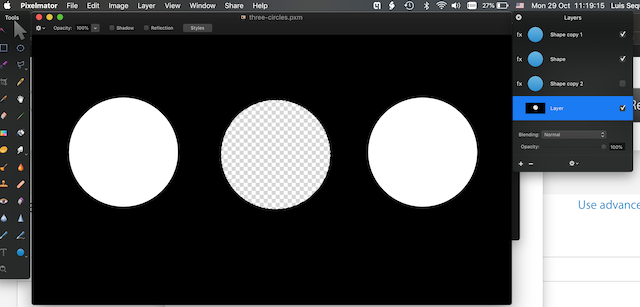
Below is a file in Pixelmator with two white circles, one transparent circle and a black background. If put above a video in FCP X, only the part of the video under the transparent circle will show.
User uploaded file


Note: I had to research a bit how to do this, particularly how to cut a "whole" in the black background. As I expected, it is not hard.


Summarily:


1) Make three copies of the white circle and position then on the frame.

2) Add a black background by creating a new layer and using the paint-bucket tool to fill it completely. Move it below in the layer order so you see the white circles again.

3) Command-click the middle circle thumbnail in the layers list (this is the part I had to look up and it is SO useful... Thank you for setting me up to find this!). This creates a SELECTION matching the circle.

4) Select the black layer in the list and press DELETE. This creates the "hole" in the black layer

5) Select the middle circle and make it transparent by changing the fill and stroke to None, or disable its layer altogether.


Oct 29, 2018 1:04 AM in response to dbraggins15

You already got several great options but let me suggest another one which might in some cases be easier-I’m thinking of several shapes in different colors and video playing in some parts of the screen.

You can prepare your image in Pixelmator using shapes, text, etc, and make the desired areas transparent.

Then all you have to do is connect the still image above the video.

Oct 28, 2018 6:49 PM in response to dbraggins15

You combine a matte shape with the video below into a compound clip. Each of the compound clips, with the shape and the video, is a separate element. You can stack the compounds on top of each other and, using the transform function, position them where you want. Use a custom or color generator of make the color background and put that on the layer on the bottom.

Oct 28, 2018 8:43 PM in response to fox_m

PS - you can get a lot of similar shapes used in the video you linked by using a Title and using text characters (and there's a wealth of material in Unicode). To add a Unicode character to a title, at the cursor prompt type Control-Command-Spacebar to call up the "Emoji & Symbols" window. Find a character that has the shape you need and double click on it. It will be inserted into text in FCPX. Examples: ◼︎►♗ ♫ ✔︎ ✘, etc. [The browser seems to favor the emoji (image) versions... You can control the font in FCPX Text Inspector.]

Oct 31, 2018 4:19 AM in response to dbraggins15


I still can't work out how to do this on Pixelmator.


If I understand correctly, there is a video playing inside the black square, right?


One layer - white (or a slight gradient, or whatnot):

User uploaded file


Another layer - a black square. Keep the fill at color or gradient for now.

Command-click the square layer in the layers list. This makes a selection equal to the square.


User uploaded file

Change the shape's Fill to None.

Switch to the bottom layer and press delete. This will delete the area under the square.


User uploaded file


Done.

This thread has been closed by the system or the community team. You may vote for any posts you find helpful, or search the Community for additional answers.

How do you put video inside of shapes on Final Cut Pro X.

Welcome to Apple Support Community
A forum where Apple customers help each other with their products. Get started with your Apple Account.

