Mojave shutting down by itself
Since changing to Mojave, my laptop computer periodically shuts off by itself while I am working. Does anyone have a solution to thus issue yet?
MacBook Pro TouchBar and Touch ID, iOS 12.0.1
Since changing to Mojave, my laptop computer periodically shuts off by itself while I am working. Does anyone have a solution to thus issue yet?
MacBook Pro TouchBar and Touch ID, iOS 12.0.1
Please try the following, in order. Stop at any step where the issue is resolved:
What: Use safe mode to isolate issues with your Mac- Apple Support
How: At boot-up, hold down the <shift> key until the Apple logo appears on the screen.
Select Copy Report
Please try the following, in order. Stop at any step where the issue is resolved:
What: Use safe mode to isolate issues with your Mac- Apple Support
How: At boot-up, hold down the <shift> key until the Apple logo appears on the screen.
Select Copy Report
About unexpected restarts
In rare cases, your Mac might encounter an unrecoverable issue affecting all open apps. When this happens, your Mac must be restarted. This is sometimes due to what is known as a "kernel panic" because an underlying part of the operating system (the "kernel") has determined there is an issue that requires a restart.
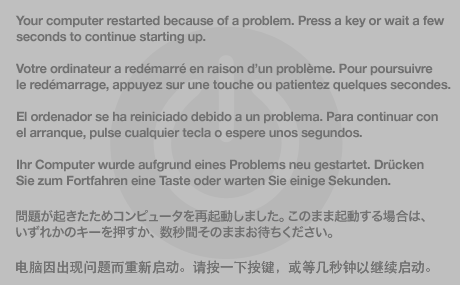
If your computer experiences a kernel panic, a message may appear for a few seconds explaining that the computer has been restarted: "Your computer restarted because of a problem. Press a key or wait a few seconds to continue starting up." After a moment, the computer continues starting up.
You'll find additional detailed steps in the article linked above, and those will help you to troubleshoot what may be a kernel panic. I hope this helps to get started.Preventing unexpected restarts
In most cases, kernel panics are not caused by an issue with the Mac itself. They are usually caused by software that was installed, or a problem with connected hardware.
To help avoid kernel panics, install all available software updates until Software Update reports, "Your software is up to date." OS X updates help your Mac handle the kinds of issues that can cause kernel panics, such as malformed network packets, or third party software issues. For most kernel panics, updating your software is all you have to do.
After your computer restarts
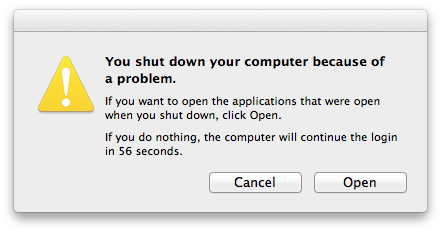
Once your Mac restarts successfully, an alert message appears, "You shut down your computer because of a problem."
Click Open to re-open any apps that were active before you restarted. If you believe the issue may have been caused by one of the apps that you were using, click Cancel instead. If you don't click anything for 60 seconds, OS X automatically continues as if you had clicked Open.Software known to cause kernel panics
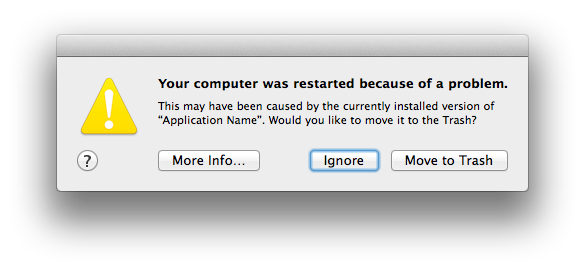
OS X Mavericks helps you correct kernel panics related to software you may have installed. If the cause of the kernel panic is known, Mavericks offers to help you disable its related software:
- If "More Info…" appears, click it to see more details about the issue, including possible workarounds or resolutions.
- Selecting the option to "Ignore" does not alter the software that may be related to the issue.
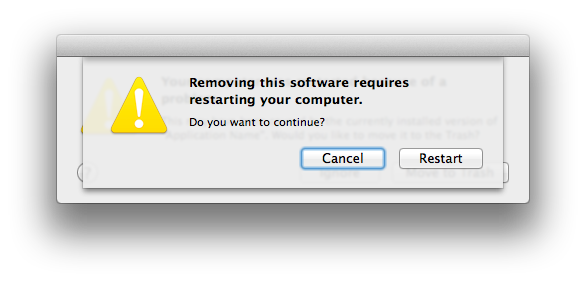
- "Move to Trash" moves software that is likely related to the issue to the Trash, but the Trash is not automatically emptied. When you select this option, an additional sheet appears:
- Click "Restart" to disable the software that may be responsible for the issue.
- When prompted, enter an administrator name and password.
- Click "Move to Trash".
- After restarting, the related software is in your Trash.
Click the Trash icon in the Dock to see which software was removed.
Contact the developer of the software to see if an update or more information is available.- Empty the Trash if you want to permanently remove the third party software.
Then I would think that you will need to speak with your employer or company's IT support folks for further assistance on this. Sorry, I couldn't help out. Good luck!
There is no message or alert to tell me the machine is about to shut down. It just goes black and shuts off. I typically have Microsoft Word and Outlook for Exchange server on when this happens, but I don't know that it is only while these programs are running.
I tried these and it still shuts off; I now suspect it is part of my employer's new encryption system since I occasionally get a message that the computer needs to reboot to encrypt files. Then it shuts off.
Three things:
"Post constructive comments and questions. Unless otherwise noted, your Submission should either be a technical support question or a technical support answer. Constructive feedback about product features is welcome as well. If your Submission contains the phrase "I'm sorry for the rant, but…" you are likely in violation of this policy."
Ref: Apple Support Communities Use Agreement- Matt K. (ASC Host)
yes Buddy ,
Its really frustrating...And I got a new laptop, all hope went into gutter.
@Apple:- Need refund .. take your precious notebook back.
Mojave shutting down by itself