You can use Migration Assistant to migrate from your backup to your new computer.
This article explains about Migration Assistant: How to move your content to a new Mac - Apple Support
Although the article appears to focus on using Migration Assistant with the two Macs connected to one another, if you read carefully it also explains that you can run Migration Assistant and instead migrate from the backup to the new computer:
- If both computers are using macOS Sierra or later, just make sure that they're near each other and have Wi-Fi turned on. If either is using OS X El Capitan or earlier, connect them to the same network using Wi-Fi or Ethernet.
- Or connect them using target disk mode and the appropriate cable or adapter. Then start up your old computer in target disk mode.
- Or connect your new Mac to a Time Machine backup of your old Mac.
Once you are running Migration Assistant, as the article explains, you can chose a subset of the old Mac to migrate over:
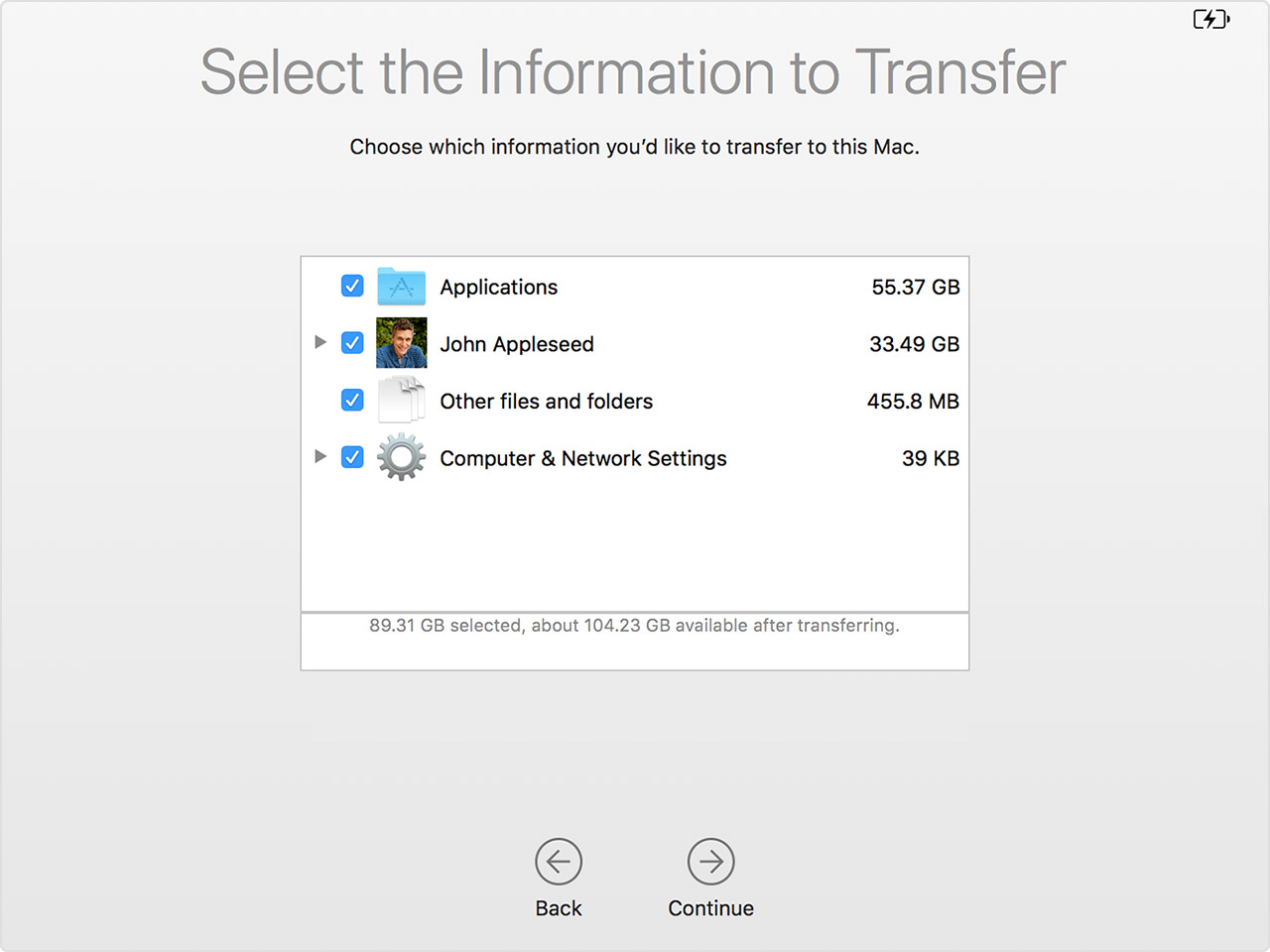
In the example shown, you can choose to migrate specific user accounts (and can choose which files associated with each account to bring over), Applications (all or none), Other Files and Folders (all or none), and Computer & Network Settings (you can choose which to bring over).
Migration Assistant also works with "clone" type backups (made with Disk Utility, CCC, SuperDuper etc.).



