Text not working new iPhone XR
New iPhone XR text not working. Only shows Apple ID for send and reply for iMessage when I install my SIM card. But when I remove SIM card my phone number appears. Phone number however is listed under Apple ID.
New iPhone XR text not working. Only shows Apple ID for send and reply for iMessage when I install my SIM card. But when I remove SIM card my phone number appears. Phone number however is listed under Apple ID.
As you can see above, I've also copied a section of that article here for your convenience. I would still recommend pulling it up and making sure everything is set up to have those messages working with your phone number.Set up your phone number
On your iPhone:
- Go to Settings > Messages and make sure that iMessage is on. You might need to wait a moment for it to activate.
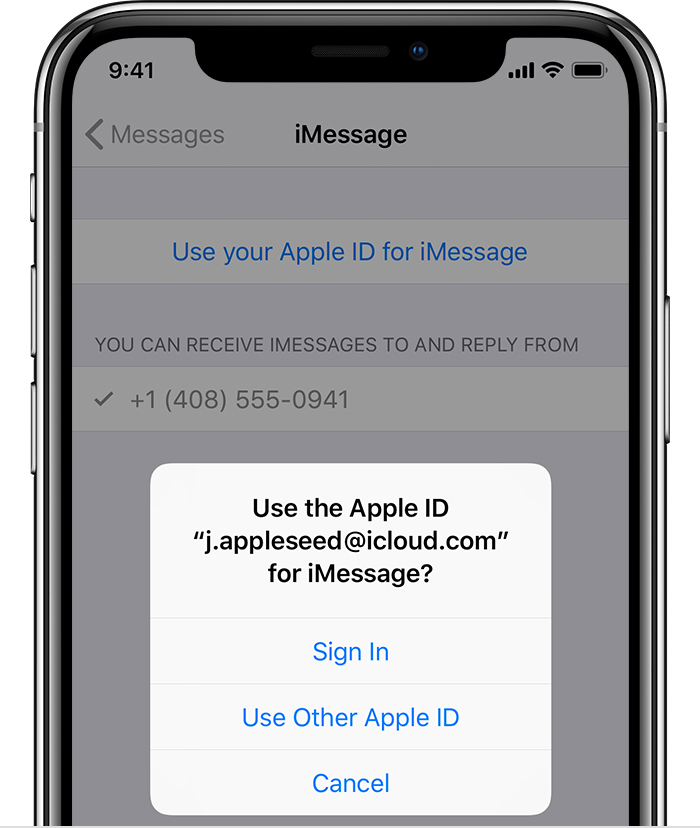
- Tap Send & Receive. If you see “Use your Apple ID for iMessage,” tap it and sign in with the same Apple ID that you use on your Mac, iPad, and iPod touch.
- In the "You can receive iMessages" section, make sure that your phone number and Apple ID are selected.
- Go to Settings > FaceTime and make sure that your phone number and Apple ID are selected in the "You can be reached at" section.
As you can see above, I've also copied a section of that article here for your convenience. I would still recommend pulling it up and making sure everything is set up to have those messages working with your phone number.Set up your phone number
On your iPhone:
- Go to Settings > Messages and make sure that iMessage is on. You might need to wait a moment for it to activate.
- Tap Send & Receive. If you see “Use your Apple ID for iMessage,” tap it and sign in with the same Apple ID that you use on your Mac, iPad, and iPod touch.
- In the "You can receive iMessages" section, make sure that your phone number and Apple ID are selected.
- Go to Settings > FaceTime and make sure that your phone number and Apple ID are selected in the "You can be reached at" section.
Text not working new iPhone XR