The macOS Catalina dictionary app cannot be in use

I've got my MacBook Pro 2015 with version10.15.4, and after updating somehow I can't use my dictionary application. It has only wikipedia in it. I've tried to reinstall macOS Catalina several times but still the dictionary won't be in use at all.

And also I can't even find /System/Library/AssetsV2/com_apple_MobileAsset_DictionaryServices_dictionaryOS

this dictionary file at all. So I have no idea at all and couldn't find other people who doesn't even have the dictionary file like me. Anyone have ideas how to fix this problem? I really need the dictionary please help.

MacBook Pro 13", macOS 10.15

Posted on Apr 4, 2020 8:40 AM

Reply
Question marked as Top-ranking reply

Posted on Apr 24, 2020 6:20 AM

I've been facing the same problem ever since I upgraded to Catalina a few days ago. After reading millions of responses on how to fix it, and just when I was on the brink of giving up, I finally managed to solve the problem and restore my dictionary resources! I was actually inspired by the reply of one of the users here (but on another thread) , but I had to add a few minor tweaks to his steps for the solution to work for me. So a big thank you to that user!


In brief, what we'll need for this solution is to go back to a back-up from Time Machine that predates the date of our upgrade, and restore the folder to our Desktop or Library. It's very simple, I'm no tech expert at all, but this is actually very easy to follow. So don't give up just yet guys, you've got this!


Important: My external hard drive was my entry point to the solution, so if you guys have your files backed up on an external hard drive, you should be able to have your dictionary resources back by following the steps below:


1- Connect your external hard drive to your MacBook (on the importance of this step: the external hard drive allows you to access files and applications on Time Machine that you had on your MacBook from before the date of your upgrade, and that's exactly what you'll need).

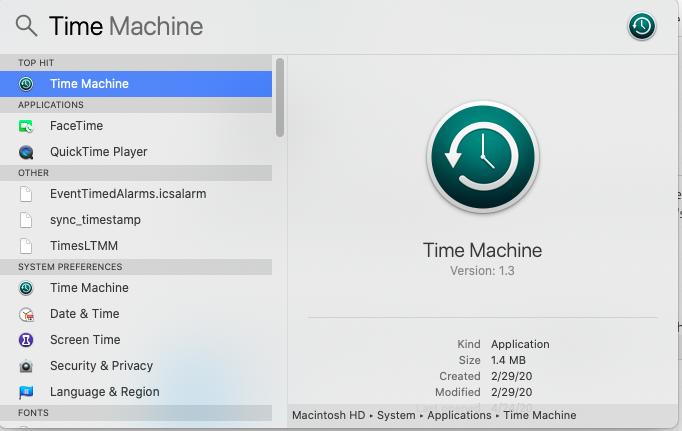
2- Open the Time Machine app from your Applications Folder, or by typing Time Machine in your Spotlight Search as shown in the picture below

3- After you open the Time Machine app, wait a bit for your earlier backup dates to show up. Once shown, choose any backup you've done before your upgrade. For example in my case, I upgraded to Catalina in April 2020, so I chose a backup I did on January 12, 2020, as shown below:
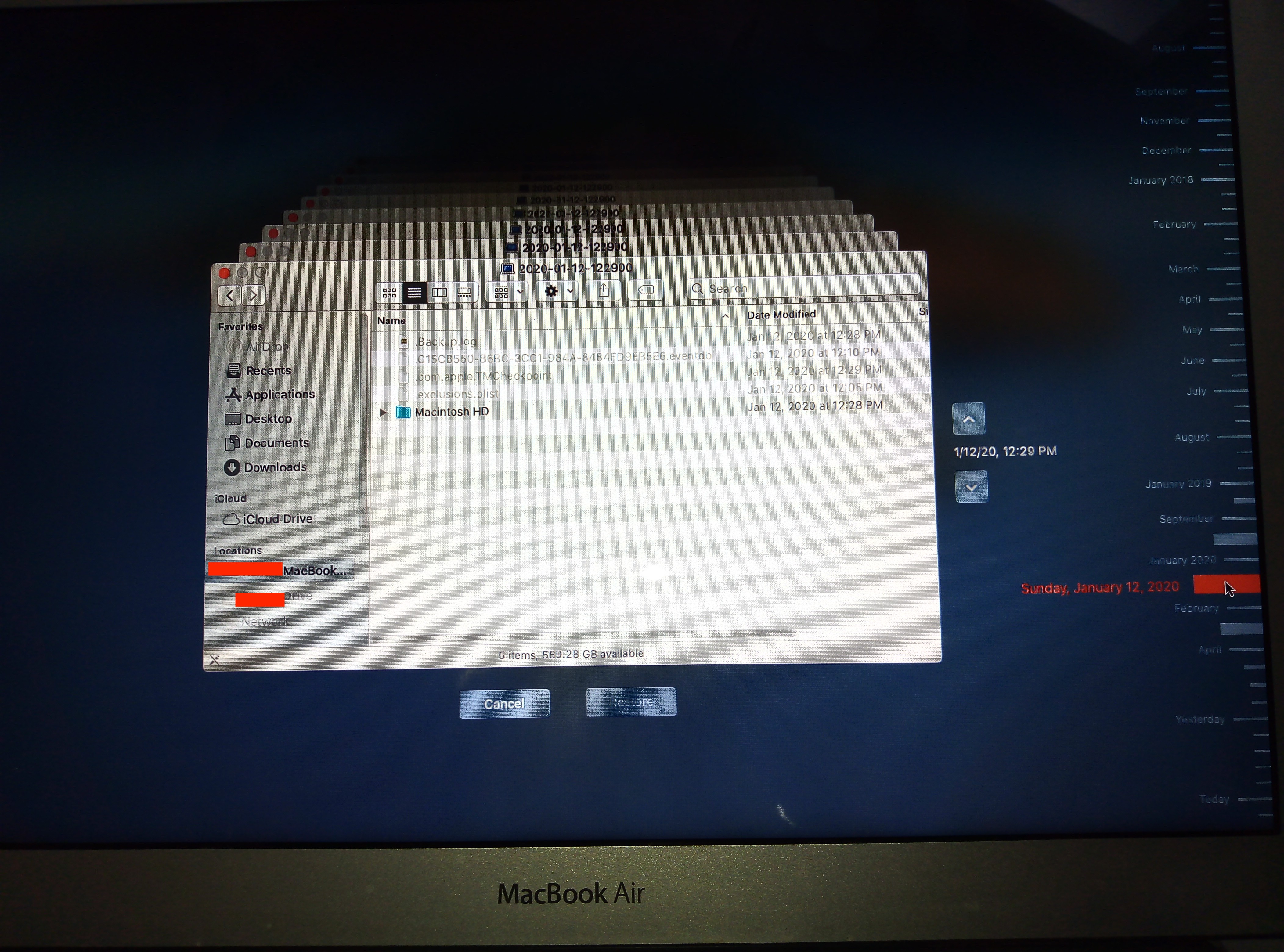


4- On your Time Machine, go to your Macintosh HD --> Library --> Dictionaries, and restore the entire Dictionaries Folder by simply clicking on "Dictionaries", then "Restore".

5- Now this will restore your old Dictionaries folder to your current MacOs. If prompted to choose a location for your restored folder, just choose Library in your Macintosh HD (or Desktop and then move to Library); if not, it will automatically be restored into Library anyway.

6- Open your Dictionary application (the one broken with only Wikipedia as a resource) from your MacBook, go to File --> Open Dictionaries Folder and leave this folder open.

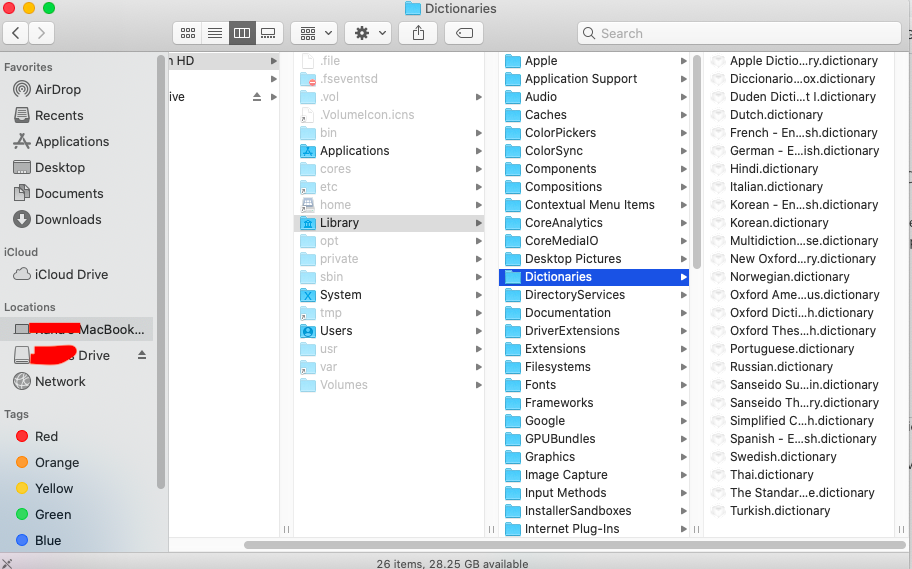
7- Now go back to your Macintosh HD --> Library --> Dictionaries (this should be the folder you just restored from your Time Machine/hard drive -- shown in the picture below), and move all the resources you have on it to the Dictionaries Folder you opened in step 6.


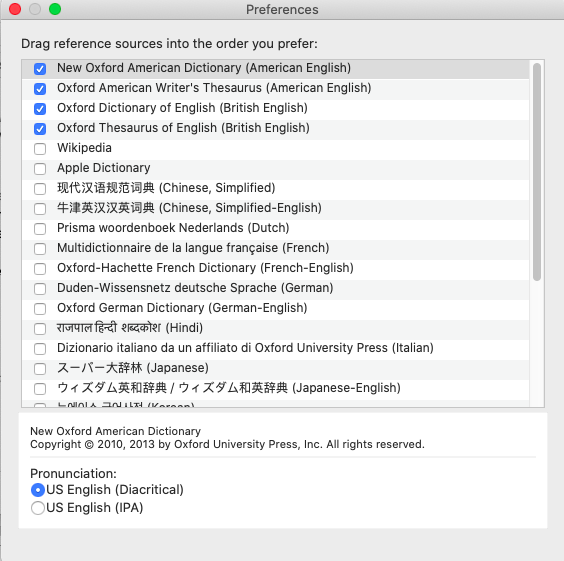
8- FInally, relaunch your Dictionary app, go to Preferences, and you should now be able to see all the resources you moved into it in Step 7, as shown below. Et voilà :) Problem should be solved!

I hope I didn't miss any step, and hope this works for you guys!!


Cheers,

Rana


38 replies

Apr 29, 2020 10:33 AM in response to RanaMakki

Hello, thank your for this solution. I had high hopes for it, but I do not have a "Dictionaries" folder in any of my back ups (all the way back to 2017). I do know that immediately prior April 23, 2020, when I upgraded to Catalina, I was simply able to right click on a word and the dictionary popped up as always. After an hour-and-a-half long journey I am giving up. Where does one find a "Dictionaries" Folder. Also, when I do a spotlight search for Time Machine what comes up doesn't even show "Time Machine" as a result. As an essential employee I am still working and really don't have time to mess with this. It should "just work."

Jun 5, 2020 7:40 AM in response to Kappy

Is the suggestion of installing that 10.15.4 Combo Update still recommended if you are running 10.15.5? I just installed it from scratch, and I don't want to mess my newly installed system, after spending so much time setting it up.

And why doesn't Apple provide a solution for this problem, instead of relying on people fishing around a forum for a solution? I find it very annoying that I have to waste time finding an answer to something that it seems they should be aware of.

Jun 5, 2020 11:35 AM in response to Kappy

It was clear to me that the reply predated the 10.15.5 that's why I asked. I just looking for an answer not judging your previous answer. But I have to disagree on the part that Apple has nothing to do with the issue or trying to find a solution, since it is obvious that it seems to be a recurring problem for people. I mean, they design the software and the hardware, and (at least on my case) it was a clean installation, should I blame the issue on evil spirits? Did everybody here have the same glitch at the same moment of the installation process? Or do their systems all happen to have the same malfunction that cause the Dictionary to disappear? I am trying to be logical.

And sure, I am venting a little, because it is frustrating that support is delegated too often to let people look for an answer on their own.

Besides, I just went thru another issue, when after trying to add a contact by clicking on the arrow that pops next to a phone number in Safari (actually it was on an email in Mail), it decided to merge the information to my card, and left me cleaning up the mess. So yes, I am getting the feeling that somebody is getting sloppy, and I can't afford to spend my time fixing computer glitches.

I understand that is not your fault, and actually really appreciate the quick response to my question on your part.

Thank you!

Jun 5, 2020 12:20 PM in response to Kappy

I agree, seems logical that the new updater will solve the problem... 🤞🏼And I am not that eager on assign blame here, but I am on finding a solution, and since, as I said, the installation problem to which you refer happens on an Apple computer, with Apple software, the cause of problem IMHO is more than likely not out of that realm. Could be a power fluctuation or some other momentary issue? I guess it could, but what a coincidence that it happens at the dictionary stage... maybe some bad words 🤭 Also, the fact that a software update solves the problem may give us a clue. After all, that's what updates are for, because sh*t happens, And I am glad that the update came fast enough, and while I am spending time while setting up this new machine. So, no, on the second part I don't agree 😉 And it doesn't benefit me, other than the mental exercise, to speculate too much on the matter, especially after complaining about not having time to spend on fixing these things!

Anyway, thanks for your help!

Jun 5, 2020 1:58 PM in response to Jose Reino

Many, many people have had problems with Catalina and losing all of their Mail data, or having my experience, which is that I found the data in a file, but it's a big mess. There are articles, blog posts, discussions, etc. all over the place complaining about it. Some people had a different problem with their Mail and that one was fixed in 10.15.3. (Empty emails, corrupted emails, etc.) I found the Dictionary fix an easy one. I forget now which discussion group had the answer, but you didn't need to do an OS update. But Mail is not fixable. I just got a new laptop, because I happened to need one, and it already had Catalina installed. I imported from my original Time Machine, that had El Capitan on it, and, yep, the same problem. No, don't blame yourself. Apple is well aware of this problem and either can't fix it or has chosen not to after knowing about it since October 2019.

Jul 11, 2020 6:27 PM in response to dmribeiro

Thank you so much @dmribeiro! This was the solution. Just a quick tip though if you're not familiar with terminal commands: after the second command to remove that parent directory, the system may ask you to override the default function to protect this folder. You just have to put in your system password in order to give permission.


Thanks again for saving me hours on the phone with apple support! These evil spirits (lol) won't win as long as we help each other and post progress


Cheers!

This thread has been closed by the system or the community team. You may vote for any posts you find helpful, or search the Community for additional answers.

The macOS Catalina dictionary app cannot be in use

Welcome to Apple Support Community
A forum where Apple customers help each other with their products. Get started with your Apple Account.
