4K Monitors for Mac Mini M1

Hi All,


I have got my new and Shiny mini M1 this week. I am currently using it with my old 24inch monitor.


now it is search time for new two 4K 27inch Monitors.


could you advise what kind of Monitor I should look for my M1 for best 4K resolution.


Should I go for with HDMI monitors?

Should I go for Display Port using USB-C to DP cable?

Should I go for USB-C monitors which are costlier than above two?


Regards

JM

Mac mini 2018 or later

Posted on Dec 18, 2020 2:11 AM

Reply
Question marked as Top-ranking reply

Posted on Dec 18, 2020 9:08 AM

After a great deal of reading and research, I purchased the recently released LG 27UN850-W. To say that I have been pleased with the choice would be an understatement. It is all I hoped for, and more, in that it solved the problem my previous monitor had with not waking up with my M1 Mac mini.


I disagree with VikingOSX on this: "One consideration is that if you opt for a 4K display, everything will appear smaller on the screen"


With a 4k display set in preferences to use its native "default for this display" resolution, what you see visually on screen with a 27" 4k monitor is exactly the same size as what you would see on a 27" 1080p monitor. Bear with me as this takes a bit (at least it did for me) to wrap your brain around. A 1080p monitor is 1920x1080 while a 4k monitor is 3840x2160. If you double 1920 you get 3840 and double 1080 get 2160. What Apple does is use a scaling factor. For each single pixel on 1080p, the 4k monitor displays four pixels, in a 2 x 2 grid. Double the horizontal (1920 = 3840) and double the vertical (1080 = 2160).


Bottom line, on screen, you have 4 times as many pixels making up the screen content, yet at the same visual size as 1080p. Packing 4 times as many pixels into the same physical space results in much sharper text, lines, curves, etc. What VikingOSX said would be true with different display resolution settings, but that is not how Apple intended it to be set for a 4k monitor.


The concept above is exactly how built in Apple displays work. Retina display is essentially all about packing in a high pixels per inch count. With a 27" 1080p monitor, you get 6,653 pixels per square inch. With a 27" 4k monitor, you get 26,628 pixels per square inch.


I have attached a screenshot of my LG 27UN850-W and you can see that the UI and text is not proportionally tiny or hard to read. Click it and open it up to full size to see.

42 replies
Question marked as Top-ranking reply

Dec 18, 2020 9:08 AM in response to VikingOSX

After a great deal of reading and research, I purchased the recently released LG 27UN850-W. To say that I have been pleased with the choice would be an understatement. It is all I hoped for, and more, in that it solved the problem my previous monitor had with not waking up with my M1 Mac mini.


I disagree with VikingOSX on this: "One consideration is that if you opt for a 4K display, everything will appear smaller on the screen"


With a 4k display set in preferences to use its native "default for this display" resolution, what you see visually on screen with a 27" 4k monitor is exactly the same size as what you would see on a 27" 1080p monitor. Bear with me as this takes a bit (at least it did for me) to wrap your brain around. A 1080p monitor is 1920x1080 while a 4k monitor is 3840x2160. If you double 1920 you get 3840 and double 1080 get 2160. What Apple does is use a scaling factor. For each single pixel on 1080p, the 4k monitor displays four pixels, in a 2 x 2 grid. Double the horizontal (1920 = 3840) and double the vertical (1080 = 2160).


Bottom line, on screen, you have 4 times as many pixels making up the screen content, yet at the same visual size as 1080p. Packing 4 times as many pixels into the same physical space results in much sharper text, lines, curves, etc. What VikingOSX said would be true with different display resolution settings, but that is not how Apple intended it to be set for a 4k monitor.


The concept above is exactly how built in Apple displays work. Retina display is essentially all about packing in a high pixels per inch count. With a 27" 1080p monitor, you get 6,653 pixels per square inch. With a 27" 4k monitor, you get 26,628 pixels per square inch.


I have attached a screenshot of my LG 27UN850-W and you can see that the UI and text is not proportionally tiny or hard to read. Click it and open it up to full size to see.

Jan 18, 2021 1:41 PM in response to TrafGib

Hi,


I have finally bought two Lenovo 28 inch 4K monitor L28u. I got very good deal over Christmas.

It has HDMI and Display Ports.

I have attached one monitor with HDMI and second with USB-c to Display port in my Mac mini M1.


I don’t have any flickering or wake up issues with both the monitors.


I don’t see any difference with HDMI or USB-c ports connectivity on my Mac mini.


overall very good purchase and pleased with these monitors.


one thing to mention as I use these monitors for office work, coding, excels, word documents etc. I am more comfortable with 2560x1440 resolution than 3840x2160 as with 3840 although I get more space but fonts are too small.


JM

Jun 7, 2021 6:33 AM in response to Craig Best

HDMI works. and allows you to leave the limited USB4/Thunderbolt (USB-C) ports open. However, reconsider the downside of going with 4k monitors larger than 27". With a Mac, the display is all about DPI (dots per inch). With 4k on a 27" monitor you get 163.18 DPI. When you go 4k on a 31.5" monitor it drops to 139.87 DPI. Bottom line, 4k resolution contains a fixed number of pixels. The larger the monitor, the more you are spreading out those pixels, reducing sharpness and clarity. Apple products always target a DPI around 215 to 220 +/-. That is why you see the new 24" iMac jump up to 4.5k, so the DPI increases. To me, the extra screen real estate, above 27", is not worth the drastic reduction in DPI and picture quality.

Dec 19, 2020 8:08 AM in response to JMavi

That, or give up 4k to go with one of the wide format monitors. However, in other threads here, it seems that the wide format folks are having a lot of issues with monitor flickering, etc.


I don't know you motivation for two monitors, but if having them is mission critical for your usage, then (if it were me) I would be sure that the 2nd monitor was USB-C so that I could stick with USB-C to USB-C connection. I would want my two monitors to be twins, so that would mean USB-C capability for both, even through I would only be using HDMI on one of them.


For my setup, I went with the LG 27UN850-W monitor which has both USB-C and HDMI. Currently, I am using mine as HDMI to HDMI and it is working perfectly. I have not tested the USB-C connection.

Dec 30, 2020 10:03 PM in response to VikingOSX

I have the same monitor — 32 inch LG 32UN800-B 4K HDR-10 Ultrafine Ergo — bought from Costco for $600. Currently I have it connected to my M1 MacBook Air using the USB-C to USB-C cable that came with the monitor. No issues. Wakes from sleep. Crisp image. I also have a USB-C to DisplayPort cable I may try at another time. Colors are good. I will run my Spyder5 Pro color calibrater later, but out-of-the box is more than acceptable (I may change my mind after calibration). Running at its native 4K resolution. And yes, the text is pretty small. I may try some of the other resolution options. One of the best things about this particular monitor is the stand it comes with. Able to set the screen at the best distance for my eyes.

Jun 2, 2021 1:29 AM in response to JMavi

I'm using a Samsung C49G95TSSC 49" monitor (it's a 5k monitor). It's fantastic ! I had to mess with some settings to get it all to work on my displayport. There is only 1 frustration (when you reboot, you need to unplug the displayport cable and plug it back in and it works again...not so bad because I don't reboot much). But the screen size is fantastic and super clear

Jan 17, 2021 7:00 AM in response to Godssouljah007

Exactly what "nightmares with some 4k monitors" are you referring to?


Many are experiencing issues with monitors waking up when coming out of sleep, but that is not specific to 4k monitors. Is your concern/question related to the specific 27UD88 monitor your purchased, of just 4k monitors in general?


Much further up the post, you will see my screenshot and comments on my LG 27UN850-W. As stated there, I could not be more pleased with my choice. Looking on the LG website, the specs on your 27UD88-W are very similar to the 27UN850-W.


As I did my research for buying mine, I found it to be very frustrating as LG has far too many monitor models that are way too similar, no perceptible meaning built into the model numbers, and they are inconsistent with the application of specification naming such that when you use the "Compare" function, you find what seems to be differences that really are not. Two monitors can both have the same spec, they just show up in two different places on the compare list because LG did not maintain consistency in how they listed the spec.


With all that said, as I looked back through the specs on your 27UD88-W, I do not see any concerns that would prompt me to want to send it back. I only went with the 27UN850-W as it was a brand new model for LG in this class, and would hopefully benefit from any recent design changes they felt were needed in the line.


Regarding 4k in general, I personally would not go for a lesser resolution. Part of the Apple magic is the high DPI count. That is why you see 4k on the 21.5" iMac and 5k on the 27" iMac. Going with a 4k 27" monitor drops you below the 215+ DPI mark, however it still makes for a crisp and clear display.


3840x2160 4k on a 27" monitor = 168.18 DPI

21.5" iMac 4090x2304 = 218.58 DPI

27" iMac 5120x2880 5k = 217.58 DPI

Jan 19, 2021 8:54 AM in response to JMavi

The setting is for "the overall fonts size of the entire system".


Click on your Apple icon in the upper left corner of your screen. Then select System Preferences > Displays.


On the resulting screen, you should be able to simply select the "Default for display" option to have everything setup automatically for a 4k display resolution, yet the text will appear equivalent to a larger 1080p layout.


If you want to see more options, select the radio button for "Scaled" instead. You will see several boxes allowing you to pick different relative font sizes. By default, the blue outline should already be around the selection that results in text that "Looks like 1920 x 1080", which you can see called out below the picture of the monitor. Again, this should already be the selected default when you use the radio button to select "Default for this display" rather than "Scaled".
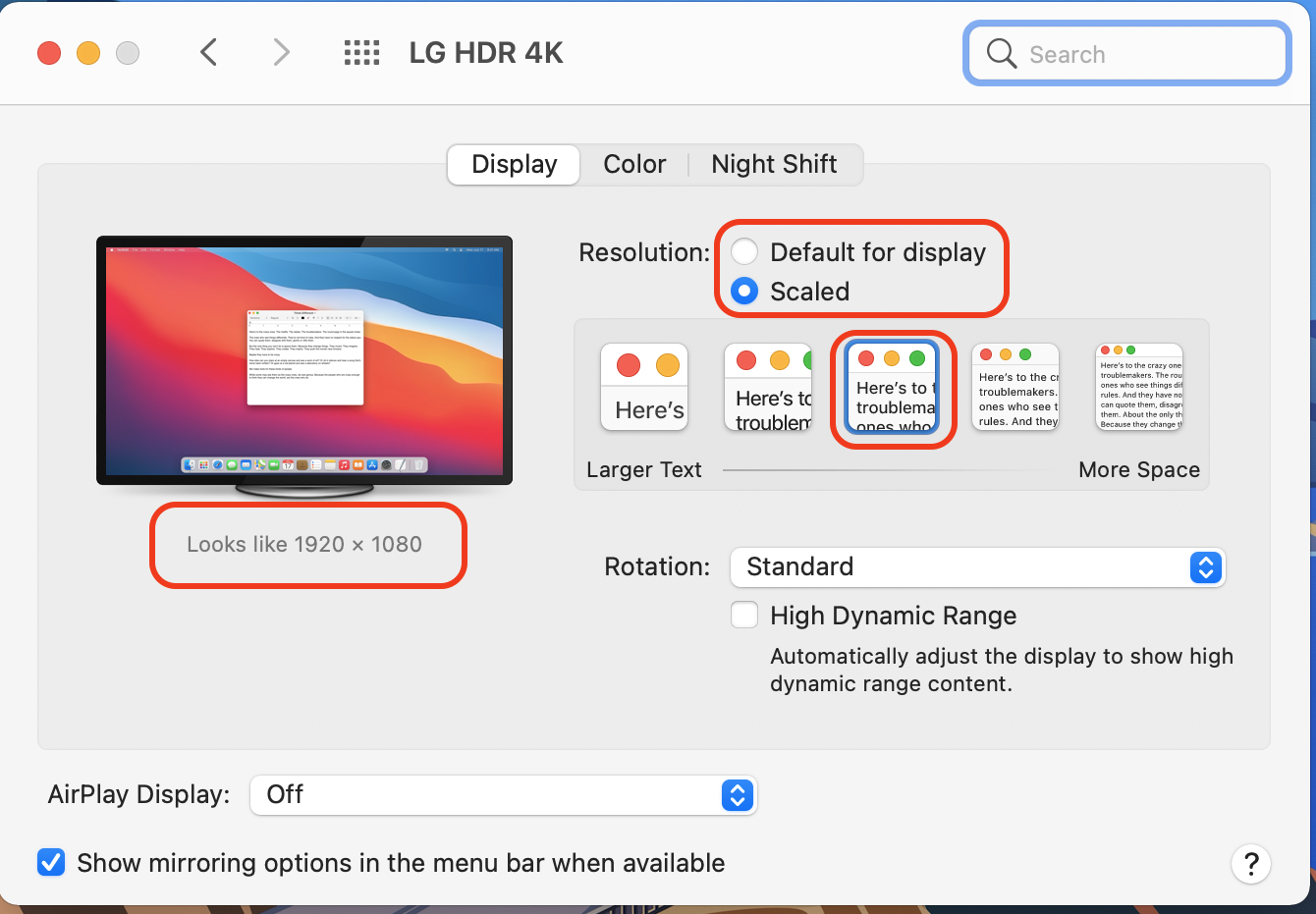


Based on the many posts I see about resolution settings, this feature seems to mess with people for some reason. I believe that some conclude that selecting this changes their entire screen to "Looks like 1920 x 1080", which is not the case. The overall display screen stays at the native 4k 3840x2160 resolution, and it is only the UI and text that scales up.


This is done using a 1:4 scaling algorithm. In other words, on the 4k screen, what we think of as a single pixel at 1080p is instead shown as a square 2x2 grid. So, 1 pixel is shown as 2 horizontal and 2 vertical pixels, which doubles the vertical and horizontal size of each pixel. The net result is that 1920x1080 doubled in vertical & horizontal becomes 3840x2160. This is how you can actually be viewing a 4k screen yet have the text scaled up to readable size that "looks like" 1080p, yet because it has 4 times the pixel content the fonts appear super sharp and crisp.


It is such an elegant solution that I have never ceased to be befuddled by the many posts I see on here where folks seem to get headed down a rabbit hole on odd resolution settings that are not native to their monitor. Best as I can tell, there must be some option or setting that I am unaware of by which folks don't see the same settings that I show in my screenshot above, as they tend to describe something wildly different from what I am seeing.


At any rate, good luck sorting it out and I hope all my rambling above helps.

Dec 21, 2020 7:31 AM in response to VikingOSX

Ah, so you have a 32" monitor but still with the standard 16:9 aspect ratio. I was thinking that you were using a 21:9 UltraWide monitor. I know that at 4k both would still have the same 2160 vertical resolution. What I don't know is what the 21:9 monitors do regarding the horizontal resolution to take advantage of that extra real estate.


3840x2160 4k on a 27" monitor = 168.18 DPI

3840x2160 4k on a 32" monitor = 137.68 DPI

21.5" iMac 4090x2304 = 218.58 DPI

27" iMac 5120x2880 5k = 217.58 DPI

Popular rumor for new M1 iMac (24" 5k) = 244.77 DPI


Not sure that I would jump on board a 24' display, after having a 27", but that 245 DPI should look stunning!

Jan 16, 2021 11:30 AM in response to JMavi

Hello will the LG UHD 4K monitor model #27UD88 work with the new Mac mini m1 that I just purchased? I just purchased the monitor and Mac mini and I received the monitor first and I have been reading about some nightmares with some 4K monitors and the new Mac mini! So I’m asking should I return the monitor and get a different one or will the monitor I bought work with the new Mac mini? Thanks greatly appreciated !

This thread has been closed by the system or the community team. You may vote for any posts you find helpful, or search the Community for additional answers.

4K Monitors for Mac Mini M1

Welcome to Apple Support Community
A forum where Apple customers help each other with their products. Get started with your Apple Account.

