Problems installing Big Sur 11.2 update

Hi,

For the past few days I have been trying to install the Big Sur 11.2 update, however, it keeps crashing.


It downloads then goes to the the 15 minutes left to prepare the update finally moves to 10 minutes left to prepare then errors out. The error is: download failed. An error occurred while downloading.


I have tried a whole bunch of different attempts. WiFi, Ethernet to the router, tried installing with a backup user to no avail.


I am using a 2019 16 inch MacBook Pro.


Any suggestions appreciated.

Craig

MacBook Pro with Touch Bar

Posted on Feb 2, 2021 7:55 AM

Reply
Question marked as Top-ranking reply

Posted on Feb 4, 2021 10:08 AM

Boot into Safe Mode by booting with the Shift key held down and check there to see if the problem persists.  Reboot normally and test again.


NOTE: Safe Mode boot can take up to 10 minutes as it's doing the following; 

• Verifies your startup disk and attempts to repair directory issues, if needed

• Loads only required kernel extensions (prevents 3rd party kernel/extensions from loading)

• Prevents Startup Items and Login Items from opening automatically

• Disables user-installed fonts 

• Deletes font caches, kernel cache, and other system cache files


Similar questions

105 replies

Feb 5, 2021 8:47 AM in response to Creosormed

Beansoft:


SUCCESS FINALLY!!!! Thanks to your suggestion, I simply went to the Apple Store Update tab and downloaded the entire Big Sur 11.2 update package from there. It took an hour. I watched TV during that hour. Then I returned and started the install. I played with my iPad for a couple of hours. When I returned to my iMac Big Sur 11.2 was installed with no issues. It is working perfectly. This approach was easy and trouble-free. If Apple had suggested this approach I would have not wasted hours over several days. I shall remember this in the future.

Feb 11, 2021 11:43 AM in response to Graeme MacArthur.

YES They are. I did this way and resolved problem.


1 : Shutdown >>

2: SAFE-MODE(REBOOT see below)

  • IF Your Apple silicon(M1): Turn on Power and hold power button >> until you see the startup options window

>> Select Options>>Continue>>reinstall BigSur OS

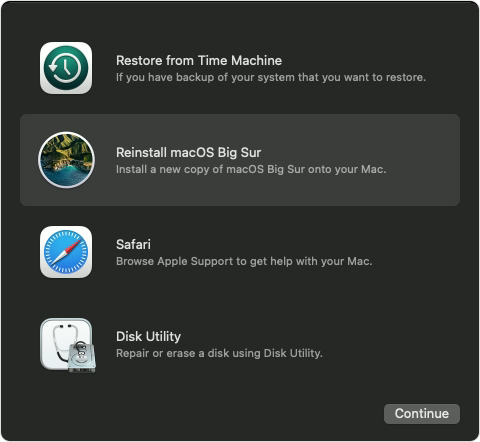
  • IF Your Intel processor(OLD): Connection to the internet. Then turn on Power and immediately hold Command (⌘)-R >> until you see an Apple logo or other image >>reinstall BigSur OS

Feb 7, 2021 12:14 PM in response to Craig Abruzzese

I have Mac OS (M1) Big Sur did not download for 10 times.

Actually I reboot again and recover Big Sur, Now finally I Done it.

  1.  Apple menu > System Preferences, then click Security & Privacy.
  2. Click the FileVault tab.
  3. Click , then enter an administrator name and password.
  4. Click Turn Off FileVault.


[ ReBooting your M1 Mac to macOS Recovery ]

  1. Click the Apple menu and choose “Shut Down”.
  2. Now press and hold the power button until you see “Loading startup options. (40sec around)
  3. Click “Options”.
  4. Lastly, click “Continue” and enter the password for an administrator account, if requested.

Booting your Intel-based Mac to macOS Recovery

The process of starting up Intel-based Macs from macOS Recovery has not changed. To use this mode, simply press the same Command (⌘)-R keyboard combination as before.

  1. Press and hold your Mac’s power button for at least 10 seconds to turn it off, then let go.
  2. With your Mac computer turned off, press the Power button to turn it back on and immediately press and hold the Command (⌘)-R key combination on the internal keyboard.


Feb 6, 2021 10:46 AM in response to rmarriott

It feels like Apple does not want me to upgrade to Big Sur ... today I finally decided to make a clean install from Mojave to Big Sur on my main internal drive but the three attempts all taking 60 minutes to download the current Big Sur installer ALL failed at the VERY FINAL "The update could not be verified. An error occurred while installing the selected updates". Duh! I'll try later maybe in safe mode which seems to be the current trend :-/


Or maybe I just wait for Apple to get its act together and send feedback to:


https://www.apple.com/feedback/

Feb 12, 2021 6:44 AM in response to andyfromroseville

Thank you very much for this input. I had problems once again with the second/latest Big Sur update a couple of days ago and once again, used the Safe Mode to install. Like many other users, I am rather disappointed with Apple that there should be these problems with their updates.


But with my MacBook Pro I can only connect wirelessly to the router, so perhaps this is an issue. With my limited knowledge, I would be reluctant to start fiddling with router settings but if these problems continue, I may need to investigate this further.


Thanks again.

Mar 9, 2021 4:43 PM in response to MyApple8MyPC

I tried to update Big Sur on my 2015 MacBook Pro to 11.2.3 and without making any changes I clicked on the update button in Software Update and the update failed with the message "Download failed An error occurred while downloading the selected updated. Please check your internet connection and try again."

The upgrading to Big Sur from Catalina and all the subsequent updates to Big Sur have failed on my MacBook Pro initially. They all fail during the installation phase after the download phase when the installation process says "5 minutes remaining"

I've put a post earlier here in this topic outlining what I did to resolve it. I applied the workaround outlined in the earlier post each time a Big Sur update fails.

I think there may be various causes of why installing and updating Big Sur is happening.

I can only say that my workaround has always worked for me when the installation process has 5 minutes to go.

Chances are my workaround won't work for update failures occurring at other points during the update.

This thread has been closed by the system or the community team. You may vote for any posts you find helpful, or search the Community for additional answers.

Problems installing Big Sur 11.2 update

Welcome to Apple Support Community
A forum where Apple customers help each other with their products. Get started with your Apple Account.