
iPhone voice to text not working
Voice to text is not working . The microphone is enabled and works in other apps, just not messages.
[Re-Titled by Moderator]
iPhone 12
Voice to text is not working . The microphone is enabled and works in other apps, just not messages.
[Re-Titled by Moderator]
iPhone 12
I have iPhone 11 Pro Max.. anyway my dictation in messages worked and then it didn’t. It would pop up when I tried to use it but nothing happened.
not sure if this will work for anyone else, but I went into the keyboard settings and disabled it, then enabled it again. And it’s been working since.
I have iPhone 11 Pro Max.. anyway my dictation in messages worked and then it didn’t. It would pop up when I tried to use it but nothing happened.
not sure if this will work for anyone else, but I went into the keyboard settings and disabled it, then enabled it again. And it’s been working since.
This happened to me -- my ability to dictate texts stopped working intermittently, then stopped suddenly and completely. I tried to many things and nothing worked. Then, working my way through many troubleshooting tips on another site, it said to check for software updates (General > Software Update). There was an update to download, even though I have Automatic Updates turned on. I updated (to iOS 16.3) and it immediately fixed the problem! 🎉
I found out what was causing mine. It was cell to Jack, which is an external device connected to my iphone that works on Bluetooth. When I turned off that hardware,
or Bluetooth device
then my phone text to voice worked.
I installed a Bluetooth device that made the dictation feature stop working (cell2jack). Once I turn this Bluetooth device off it works. Check the new Bluetooth devices that you installed. This could be the problem.
I had turned on restrictions in my screen time. Once I got rid of that, I’m able to fully use it again.
Installing the Canadian (English) keyboard and deleting the American (English)keyboard. It's WORKING NOW!
Yes! Thank you. I'm Canadian now, Eh? Actually, Just deleting the English Keyboard and re-installing fixes the issue as well. But, **** that was a frustrating few days without Speech to Text working. So glad I FINALLY found your post and got it working. I was about to wipe my phone and start over too!
All I had to do was turn the phone off and back on again.
Try General > Software Update, and see if there is software update you can download for our phone. That fixed this problem for me.
I was able to fix this issue by turning dictation off, then back on.
Hi, MIKL6180
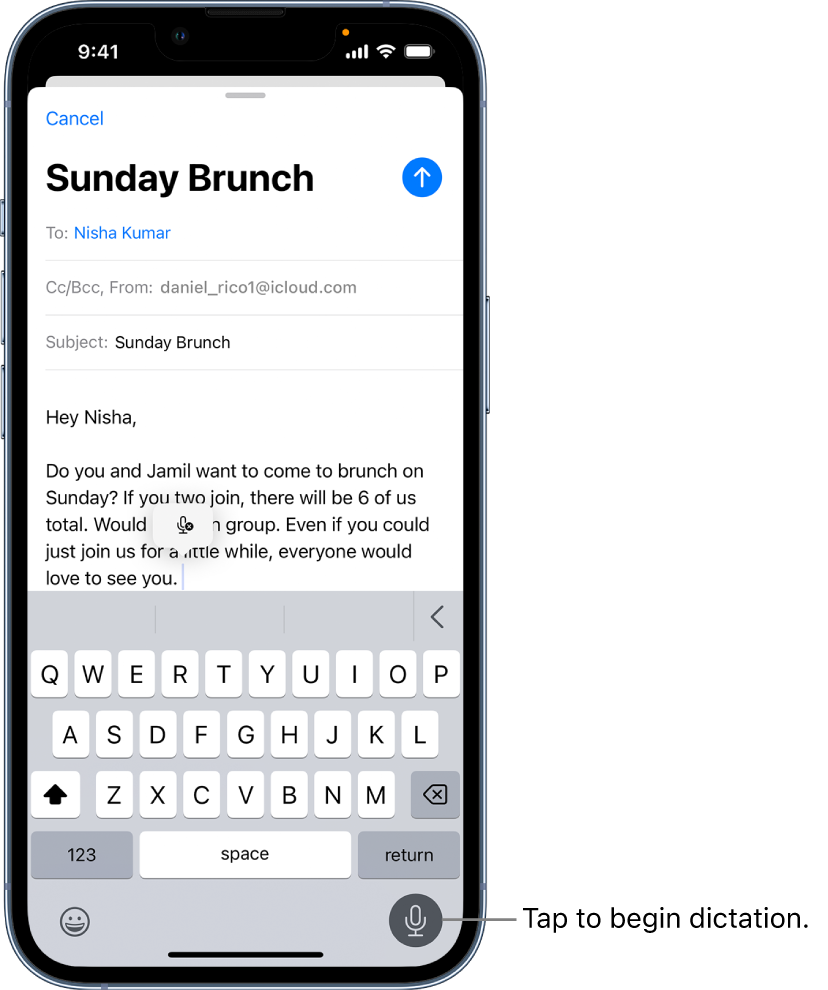
You'll need to make sure you're following these steps to dictate text:
"Dictate text
 on the onscreen keyboard or in any text field where it appears (as in Messages, for example). Then speak., make sure Enable Dictation is turned on in Settings
  > General > Keyboard. > General > Keyboard and turning off Auto-Punctuation.
 .
.
"
Dictate text on iPhone - Apple Support
If you still have issues afterwards, you'll need to reach out to Apple directly: Apple Support
Cheers.
Crazy! I was going nuts. Thanks to the original poster that suggested the keyboard swap. Just so you know, you can switch back to the American English keyboard and it'll work.
Yes, delete your American English keyboard and Install the Canadian English keyboard. This will fix the issue. You can re-install the American English keyboard and it will work again too.
Yes, yes, yes! I too tried everything short of restoring my iPhone. The thing that fixed it was suggested here.
Installing the Canadian (English) keyboard and deleting the American (English)keyboard. It's WORKING NOW!
My iphone did an update to 16.1.2 the other night and my microphone now works! Hope it lasts!!!
iPhone voice to text not working



