Mac Mini M2 wifi issues

New Mac Mini M2 has constant issues with wifi. Its unusable. Ethernet works perfectly, but when using wifi the connection will consistently drop packets. Wifi works perfectly with older Mac mini M1, MacBook Pro, Intel Mac in the same small office. I have turned off all other devices and still have same issue. Did a factory reset and same issues.

Mac mini (2023 with M2)

Posted on Jan 25, 2023 12:47 PM

Reply
Question marked as Top-ranking reply

Posted on Jan 28, 2023 11:30 PM

**Solution discovered** (but Mac MUST release a fix for this soon. Very unhappy with my new Mac Mini M2 Pro.)


it is a problem with Wi-Fi 6 routers that combine all the bands under one SSID (Wi-Fi name).


If you have Spectrum, their “smart” router doesn’t have the function to separate the bands and therefore will NOT work. You need to get another router and the bands have to be named separately as others have said in the posts.


this is an issue that shouldn’t be an issue, and I’m surprised no fix has come for this yet so regular people don’t have to become network professionals to get their internet to work!

535 replies
Question marked as Top-ranking reply

Jan 28, 2023 11:30 PM in response to K2Kevin

**Solution discovered** (but Mac MUST release a fix for this soon. Very unhappy with my new Mac Mini M2 Pro.)


it is a problem with Wi-Fi 6 routers that combine all the bands under one SSID (Wi-Fi name).


If you have Spectrum, their “smart” router doesn’t have the function to separate the bands and therefore will NOT work. You need to get another router and the bands have to be named separately as others have said in the posts.


this is an issue that shouldn’t be an issue, and I’m surprised no fix has come for this yet so regular people don’t have to become network professionals to get their internet to work!

Jan 29, 2023 3:50 AM in response to K2Kevin

*** PROBLEM FOUND ***


Just separate my wifi network from shared SSID into 2 standalone SSID, 2.4GHz only and 5GHz only.

Now manually connected to "2.4 only", it works perfectly without any problem, the "5 only" somehow works, but not stable, many packages are getting lost, get some big swing on the chart when doing a speedtest.net.


*** UPDATE ***

Disable AWDL will solve the 5GHz connection problem:


Disable: sudo ifconfig awdl0 down

Enable: sudo ifconfig awdl0 up


The airdrop and some other direct link function will be disabled, but at least I can use the 5g WIFI for now, until apple release a solution.


Aug 7, 2023 12:57 PM in response to K2Kevin

Hi, I would just like to share the solution to this issue. After going around in circles trying different things this is how to fix the slow wifi issue. First, the culprit is the HDMI cable, there is interference when using a regular HDMI cable from from those off brand at amazon. This threw me off because I had just purchased brand new ones for 4k 120hz so I thought how could this be? Well it was, after many hours of testing, this was my result. I begrudgingly purchased expensive "Certified" "Low EMI" Cables from amazon and after swapping them, the issue was gone instantly. Tried this with different cables and sure enough the expensive cable tripled the speed instantly!!!


If you don't want to spend the money, you can also fix this by using a USB-C to HDMI adapter. That seemed to work as well with the cheaper cables. But you will not get 120hz refresh rate on your monitor, you'll be limited to 60hz.


Anyways, this is probably a design flaw by the position of the Apple's wireless card or it might be a software issue, who knows. It is what it is.


Here is the link the amazon cable i purchased: https://www.amazon.com/gp/product/B07YF7QMNK?th=1


Jan 28, 2023 12:19 PM in response to Josh-bw

The same exact thing was happening to me yesterday. I had all three bands of my wifi router (2.4, 5, and 6) in one wifi network name. Just like you mentioned I had to toggle the wifi off and on every 5 minutes. So I tried renaming all 3 bands (e.g. wifiName_2.4, wifiName_5, and wifiName_6) so I have to specifically choose which band I want to connect to. This seemed to resolve the issue. Yesterday, I left my computer (M2 Mac mini) connected to the 5GHz wifi band and it did not cut out. Today, I'm testing the 6GHz band and it has not cut out yet. Hope this helps.

Mar 23, 2023 9:34 PM in response to dennis_hackethal

I can repeatedly fix/break this issue now on every Mac I have. I hope several of you try this and report back. Good news is, it’s not hardware!


tl;dr


Ultimate Fix: Change your AP to use channel 6 for 2.4Ghz and 149 for 5Ghz. Sounds ridiculous, if you don't read the rest.

-----


Apple uses a virtual interface for AirDrop/AirPlay/Sidecar called "awdl0" that passes traffic through the active physical interface (en0). AWDL scans on channel 6 for 2.4Ghz and 149 for 5Ghz (or 44 in Europe/UK). If your WiFi AP isn't running on those channels, your Mac is briefly switching to those and back (Why Apple is strictly using those channels, is beyond me…).


If you are unable to change the WiFi AP channels (work, school, business, etc)… Then you can do the following “work-around” with caveats:


  1. Open a terminal session, then run these commands:
sudo ifconfig awdl0 up
sudo ifconfig awdl0 down
ping x.x.x.x (Gateway IP will work).


Monitor the pings. You should now see they have much lower latency and are stable. That, and overall network activity is drastically improved. Browsing, file sharing, streaming, remote sessions, VPN stays connected, etc...


It's important to up/down awdl0 each time. If MacOS re-enables the interface after it's been manually disabled, it may not stick otherwise.


Caveats:

  1. MacOS monitors awdl0 and will re-enable it every few minutes if it’s inactive. You’ll need to setup a cron job using perl/python (baseline scripts below) to monitor and maintain a down state. Be cautious using “sudo ifconfig awdl0 delete” instead, if it even allows it.
  2. You will lose AirDrop/AirPlay/Sidecar functionality, again this is a “work-around” if you can't change the AP channels to 6/149.


Sources:

https://mjtsai.com/blog/2022/12/19/disabling-awdl-to-work-around-ventura-wi-fi-issues/

https://forums.macrumors.com/threads/wi-fi-jitter-erratic-ping-latency-due-to-awdl-airdrop-airplay.2373916/

https://apple.stackexchange.com/questions/451646/force-disabling-awdl-on-ventura-or-above/454060


Perl:

#!/usr/bin/perl
use strict;
use warnings;
# The name of the interface to monitor
my $interface = "awdl0";
# Run the command to get the status of the interface
my $status = `ifconfig $interface`;
# Check if the interface is active
if ($status =~ /status: active/i) {
    print "The $interface interface is active. Disabling...\n";
    # Run the commands to disable the interface
    system("sudo ifconfig $interface up");
    system("sudo ifconfig $interface down");
} else {
    print "The $interface interface is not active.\n";
}


Python:

#!/usr/bin/env python3
import subprocess
# The name of the interface to monitor
interface = "awdl0"
# Run the command to get the status of the interface
status_cmd = f"ifconfig {interface}"
status = subprocess.check_output(status_cmd, shell=True).decode()
# Check if the interface is active
if "status: active" in status:
    print(f"The {interface} interface is active. Disabling...")
    # Run the command to disable the interface
    enable_cmd = f"sudo ifconfig {interface} up"
    disable_cmd = f"sudo ifconfig {interface} down"
    subprocess.check_output(enable_cmd, shell=True)
    subprocess.check_output(disable_cmd, shell=True)
else:
    print(f"The {interface} interface is not active.")


Jun 22, 2023 11:49 PM in response to Ken Shimabukuro

Ken Shimabukuro,

following your advice,

In the past two days, I conducted interference tests on the cables I currently have in order to gain a clearer understanding of the problem. Here are the details of the testing:


Environment Information: Mac mini Pro m2, approximately 3 meters straight-line distance from the Wi-Fi.


Four cable specifications were tested, with the left side representing the Mac mini interface specification and the right side representing the monitor interface specification:


Cable-1: HDMI to DVI

Cable-2: HDMI to MDMI (no specific mention of electromagnetic interference resistance)

Cable-3: HDMI to HDMI (product description emphasizes passing EMI testing, but no built-in ferrite core )

Cable-4: Type C to HDMI


Testing Method A:

After connecting the cables in the normal manner, I used the "ping google.com" command to obtain response time statistics and packet loss ratio.


Testing Method B:

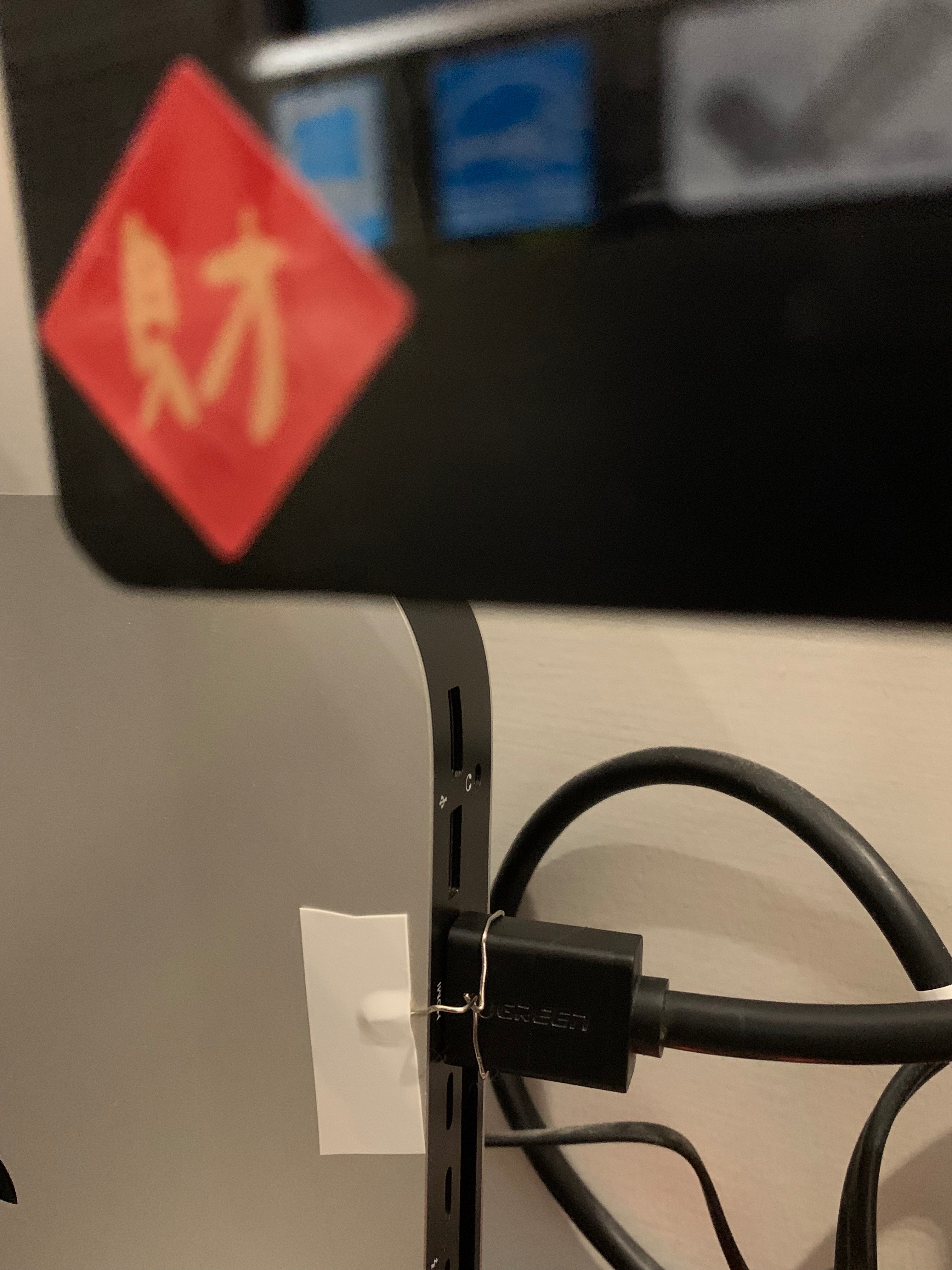
This part of the testing focused only on the cables that experienced packet loss. I connected them in the normal manner, but I placed a loop made of a paperclip around the HDMI port on the Mac mini, making contact with the Mac mini's casing.


Results of Testing Method A:


Cable-1:

--- google.com ping statistics ---

647 packets transmitted, 493 packets received, 23.8% packet loss

round-trip min/avg/max/stddev = 7.789/497.955/3202.940/399.555 ms


Cable-2:

--- google.com ping statistics ---

643 packets transmitted, 642 packets received, 0.2% packet loss

round-trip min/avg/max/stddev = 5.586/45.693/418.921/62.881 ms


Cable-3:

--- google.com ping statistics ---

655 packets transmitted, 655 packets received, 0.0% packet loss

round-trip min/avg/max/stddev = 5.409/25.787/387.142/37.545 ms


Cable-4:

--- google.com ping statistics ---

3451 packets transmitted, 3451 packets received, 0.0% packet loss

round-trip min/avg/max/stddev = 5.420/13.269/421.740/17.034 ms


After conducting Testing Method A, it was found that Cable-3 and Cable-4 did not experience any packet loss. Therefore, only Cable-1 and Cable-2 were subjected to Testing Method B.


============================================================================


Results of Testing Method B:


Cable-1:

--- google.com ping statistics ---

72 packets transmitted, 14 packets received, 80.6% packet loss

round-trip min/avg/max/stddev = 7.306/20.203/56.552/12.645 ms


For some reason, after starting Testing Method B, the entire network almost became unresponsive with no response. Therefore, the testing for Cable-1 had to be abandoned.


Cable-2:

--- google.com ping statistics ---

761 packets transmitted, 761 packets received, 0.0% packet loss

round-trip min/avg/max/stddev = 5.430/12.367/180.786/14.893 ms


After two rounds of testing:


Cable-1: It was directly abandoned and no longer used on the Mac mini, as the network quality deteriorated almost every time it was used.


Cable-2: After Testing Method B, the packet loss disappeared, and the Ping statistics were similar to Cable-3 and Cable-4. However, since it requires a temporary grounding device, a longer duration of testing is needed to determine if the problem is truly resolved.


Cable-3: Similarly, it is an HDMI cable and performs normally without the need for an additional temporary grounding device. Does passing the EMI test truly achieve effective electromagnetic interference resistance?


Cable-4: It consistently performed well and helped narrow down the problem to the HDMI interface.


Currently, I am using Cable-4 and will wait until I have a longer period of free time to switch to Cable-3 or Cable-2 with the temporary grounding device and conduct extended testing (approximately half a day to a full day of normal operation).


The above information is provided for reference.


Jun 29, 2023 9:18 AM in response to Ken Shimabukuro

Ken Shimabukuro,

Regarding the test data provided for the cables, I would like to add some information:


Cable-1: HDMI to DVI:

I couldn't find any information about this cable. It was previously used with a Mac mini (2018) when using a wired network, so there were no Wi-Fi issues at that time. However, when used with the Mac mini m2 Pro, Wi-Fi problems occurred.


Cable-2: HDMI to MDMI:

This is the UGreen 20276 cable (https://www.amazon.com/High-Speed-Cable-Style-20276/dp/B076G4MKQ1?language=en_US). I couldn't find any information in the cable's details regarding shielding or passing EMI testing. Therefore, this cable experienced packet loss issues during the ungrounded testing.


Cable-3: HDMI to HDMI:

According to the packaging information, this is a product from a Taiwanese manufacturer, and the product description mentions that it has passed EMI testing.

Link: https://www.pc-3c.com/product.aspx?productid=774 (the product description is in Chinese)

During testing, Cable-3 already achieved a result of no packet loss during the ungrounded testing.


The difference between Cable-2 and Cable-3 lies in whether the product description explicitly mentions passing EMI testing. Therefore, my speculation is that using cables that have passed EMI testing might help avoid this issue.


Cable-4 is a Type-C interface (j5create JCC153G), which is not affected by this issue.

Feb 4, 2023 7:05 PM in response to K2Kevin

Messing around with this some more and found another thing that might help. I have a Netgear R8000p router. On the router I turned off beam forming (which I think is probably marketing bs anyway on a consumer router) and am getting a major improvement on packet loss at https://packetlosstest.com/


Before, it was random whether I would get 0% packet loss or 75%+ packet loss. After turning beam forming off I have been getting consistently 0% packet loss (still getting some late packets but no worse than my 2016 MacBook Pro in the same room) Even after turning air drop, air play, etc back on still 0% packet loss. I'm also able to maintain the 0% packet loss with a single SSID (not splitting my 5ghz and 2.4ghz bands). Also still maintains 0% packet loss after making ethernet active again (no ethernet network connection, but I had made ethernet inactive previously with some improvement)


None of my other devices had a problem with the beam forming router setting before the new mini, so this still is on Apple for whatever this defect is. Hopefully, the improvement holds. Various things I have tried sometimes show an improvement for awhile and then go back to being flaky. Only time will tell though.

Mar 5, 2023 6:20 PM in response to Cruzorium

I fixed mine by following Cruzorium's solution. See the details below.


Notes:

  • I didn't change my router. My router is Motorola AC 1600. Has two bands (2.4 & 5).
  • My OS is Ventura 13.0. Didn't upgrade it. Didn't reinstall it.
  • The downside of this solution is you can't use bluetooth and AirDrop for now.


Cruzorium wrote:

For me only disabling AWDL works.  "sudo ifconfig awdl0 down"
This is definitely not Router related. I have tried several routers and even one of them on all bands - 2.4, 5 and 6Ghz and its the same. It does not happen under Bootcamp (Windows), so that rules out hardware fault. It affects my 2017 MacBook Pro, M1 Air and M2 Max.

Some information around the web:
https://github.com/jamestut/awdlkiller
https://www.meter.com/mac-osx-awdl-psa
(definitely not fixed on 13.2.1 contrary to what they state here)


Jan 27, 2023 7:08 AM in response to K2Kevin

I had the same issue. I noticed that my iPad mini was still connected in the display settings as a monitor (was testing feature). One I selected disconnect, haven't had any wifi drops and slowness. For reference, I had prior done a couple reboots and would re-gain performance briefly and then it would drop out. Also, I am Xfinity/Comcast 1G.


This wasn't an issue on day one but started suddenly. Again, after disconnecting my iPad in Display settings, haven't noticed a single drop or perceived slowness.


Hope this helps someone.

Jan 30, 2023 5:04 PM in response to hanlanx

Thanks for this suggestion, but unfortunately it didn't work for me. I ran the disable command and confirmed the status: inactive. Everything was fine while it was on the 2.4, but as soon as it (the Mac mini) switched over to the 5, the problem with instability/reconnects/slowness returned.


FWIW, I opened a support ticket with Apple on Jan 25 with a follow-up call about an hour ago. After updating them on the behavior between 2.4 & 5, they asked if I was on OS 13.2. I confirmed that I was and his response was that it is a hardware issue. He said the latest release would have fixed things if it were software related. They've issue a replacement order, so fingers crossed that one is good.

Feb 4, 2023 4:25 AM in response to K2Kevin

I have a 2.4 GHz network and a separate 5 GHz.

The network are separated because some old IoT devices won’t connect an hybrid wifi network.

I could not connect to the 5 GHz network with my mini M2 pro. 2.4 GHz was working fine but is a bit slow nowadays.

I read here and could not find the answer to give a thanks that changing the hdmi cable could solve the issue. I was very doubtful but I removed my HDMI 2.1 cable and used an old and shorter HDMI cable and it worked! I have 250 Mbit/s with 5 GHz wifi. I lost the 4K at 120 Hz.

2 possibilities:

  • the grounding of the cheap hdmi 2.1 cable was defective and this 2 m long cable acted as an antenna and interfered with the radio part of the WiFi chip.
  • the radio part of the WiFi chip in the M2Pro and the hdmi cable are too close and some interference may occur.


I will try a new and shorter Hdmi 2.1 cable and I may try optical HDMI cable to be sure that the cable is not an antenna.

Feb 5, 2023 11:20 AM in response to K2Kevin

My Mac mini M2 (Base model) had the same terrible Wifi Performance when I set it up yesterday. I set it up the same location as my previous M1 Mac mini. Wifi reception never was an issue here.


Thanks to the helpful posters in this topic I was able to resolve my issues.

I can confirm the following two options worked for me:


### by hanlanx ###

Disable AWDL will solve the 5GHz connection problem:

Disable: sudo ifconfig awdl0 down

Enable: sudo ifconfig awdl0 up

###


Unfortunately you will lose some functionality like AirDrop oder AirPlay Receiver. So I also tried to switch my HDMI cable as some of you had reported this to be solving the issue.

As I had another spare monitor I switched from my Eizo HDMI Monitor to a DELL DisplayPort Monitor.

Afterwards I enabled AWDL again an restarted my Mac.


Since about 3 hours WiFi is finally working without any further issues.


Still, this is a bad first hand experience and not anyone can change to a different display connection.

I hope it will be possible to fix for everyone via software update.

Feb 6, 2023 7:47 AM in response to dennis_hackethal

For anyone that has Asus routers, you might have compatibility issues with the M2 or any new Apple enabled Wifi6E product discovering 6Ghz networks. Here is a write-up from Intuibits:


This is Adrian, the developer of WiFi Explorer.


Thank you for sharing the scan results. I’ve confirmed your ASUS Wi-Fi router is not using a capability called “Reduced Neighbor Reports” (RNRs) to advertise the presence of co-located 6 GHz networks. RNRs are necessary for macOS (and Wi-Fi Explorer using active scan mode) to discover 6 GHz networks. You can read more about RNRs here: https://rowelldionicio.com/reduced-neighbor-report-plays-a-critical-role-in-wi-fi-6e/


Please make sure the firmware in your ASUS Wi-Fi routers is up-to-date. Also, RNRs may be a capability that needs to be enabled in your Wi-Fi router. RNRs can also be referred to as out-of-band discovery.


If you can’t enable RNRs on your ASUS Wi-Fi router, you may need to contact ASUS and let them know about this issue.

Feb 11, 2023 12:07 PM in response to K2Kevin

Temporary Workaround 🫠


This is definitely a real issue that Apple needs to fix.

Here's a workaround until Apple provides an update 🤞


  1. In your Wi-Fi access point (or router) split your combined SSID into 2 SSIDs: e.g., my-wifi to my-wifi2G and my-wifi5G
  2. Connect to my-wifi5G: This fixes the package dropping issue, but the internet speed is still 25% of what it should be
  3. Run `sudo ifconfig awdl0 down` in a terminal. This fixes the speed issue, but kills Airdrop, Airplay, ..., etc.


Hope this helps so you don't have to waste hours like I did.

This thread has been closed by the system or the community team. You may vote for any posts you find helpful, or search the Community for additional answers.

Mac Mini M2 wifi issues

Welcome to Apple Support Community
A forum where Apple customers help each other with their products. Get started with your Apple Account.

