High Sierra contacts not working

Hope someone can help. I am trying to use Contacts on my Mac since upgrading to High Sierra.

I keep my contacts in iCloud.

Whenever I open Contacts, no window opens. It changes the menu bar to Contacts but nothing happens. Right clicking the dock icon says "Application Not Responding".

I unchecked contacts in iCloud (System Preferences > iCloud) and was then able to open contacts. The second I re-enabled contacts in iCloud and immediately the app froze again.

Is anyone else having this issue? I'd love to know how to fix it - I use contacts all the time.

MacBook Pro (Retina, 13-inch,Early 2015), macOS High Sierra (10.13), null

Posted on Oct 11, 2017 6:55 PM

Reply
Question marked as Top-ranking reply

Posted on Oct 11, 2017 7:01 PM

Start with this fix:

  • Quit Contacts.app
  • Go to User’s Library.
  • Navigate to ~/Library/Application Support/AddressBook
  • Make a backup copy of this entire "AddressBook" folder. (in case things goes wrong.
  • Delete the file AddressBook-v22.abcddb
  • Restart Contacts app (on Mac) and this file will be repopulated.


Dave Sag posted these steps that fixed sync for him. https://discussions.apple.com/thread/8086745?answerId=32374121022#32374121022


  1. quit Contacts
  2. open ~/Library/Containers and delete anything with addressbook in its name
  3. open ~/Library/Application Support and delete anything with addressbook in its name
  4. open ~/Library/Preferences and delete anything with addressbook in its name
  5. open ~/Library/Caches and delete anything with addressbook in its name
  6. opened System Preferences : iCloud and uncheck contacts
  7. restart your mac
  8. when it boots back up open System Preferences :iCloud and check contacts


Another user posted this fix:


I logged in to iCloud.com, and under Settings > Advanced chose "Restore Contacts", and then restored the contacts from a backup that iCloud.com had automatically performed yesterday. Then, all my contacts appeared on my iMac. Do note that all contacts that have been added after the backup will be lost.


Show User's Library

The User's Library folder is hidden by default. To unhide:


Option 1) Select the Finder in the Dock. Under Go in the Menu bar > hold down the Option key and you’ll see the Library.


Option 2) You can also select the Home folder in the sidebar of a Finder window.

Pull down the “View” menu and select “Show View Options”

Check the box for “Show Library Folder”


User uploaded file

126 replies
Question marked as Top-ranking reply

Oct 11, 2017 7:01 PM in response to Davo10101

Start with this fix:

  • Quit Contacts.app
  • Go to User’s Library.
  • Navigate to ~/Library/Application Support/AddressBook
  • Make a backup copy of this entire "AddressBook" folder. (in case things goes wrong.
  • Delete the file AddressBook-v22.abcddb
  • Restart Contacts app (on Mac) and this file will be repopulated.


Dave Sag posted these steps that fixed sync for him. https://discussions.apple.com/thread/8086745?answerId=32374121022#32374121022


  1. quit Contacts
  2. open ~/Library/Containers and delete anything with addressbook in its name
  3. open ~/Library/Application Support and delete anything with addressbook in its name
  4. open ~/Library/Preferences and delete anything with addressbook in its name
  5. open ~/Library/Caches and delete anything with addressbook in its name
  6. opened System Preferences : iCloud and uncheck contacts
  7. restart your mac
  8. when it boots back up open System Preferences :iCloud and check contacts


Another user posted this fix:


I logged in to iCloud.com, and under Settings > Advanced chose "Restore Contacts", and then restored the contacts from a backup that iCloud.com had automatically performed yesterday. Then, all my contacts appeared on my iMac. Do note that all contacts that have been added after the backup will be lost.


Show User's Library

The User's Library folder is hidden by default. To unhide:


Option 1) Select the Finder in the Dock. Under Go in the Menu bar > hold down the Option key and you’ll see the Library.


Option 2) You can also select the Home folder in the sidebar of a Finder window.

Pull down the “View” menu and select “Show View Options”

Check the box for “Show Library Folder”


User uploaded file

Dec 1, 2017 4:13 PM in response to Davo10101

I've wrestled with a slightly different, while somewhat similar, problem the last few days following the download of Mac OS High Sierra 10.13.1 on my 2012 (up until now extremely reliable) iMac. My Messages program essentially froze and all names from previous messages were replaced with phone numbers in addition to the Contacts app being empty no matter how many times I turned iCloud on and off in that app. I tried a few of the suggested solutions (after first making sure all my contacts were safely in iCloud), and this is what finally worked for me:


  • Go to System Preferences and log completely out of your iCloud Account
  • Shut down your computer entirely and wait a few minutes (maybe get something to drink, take the dog for a walk, watch an episode of Supernatural, etc.)
  • Restart your computer in Safe Mode (after hearing the start up sound, hold down the shift key until the little apple shows up, then wait patiently for the computer to boot up)
  • I surfed a bit in Safe Mode, then opened Contacts and, low and behold, there were all my contacts and groups! Yay!
  • Then I turned on Messages and it was back to normal again, too. Yay again!
  • Then I held my breath (optional) and restarted my computer (not in safe mode). And VOILA, everything is back to it's happy Mac self with my Messages and Contacts.


Good luck! Hopefully this will be of assistance to some of you struggling with these same kinds of issues.

Oct 11, 2017 7:33 PM in response to Davo10101

My guess is after you deleted the items you didn't restart then empty the trash before opening contacts.


You can verify if Contacts.app is working by testing in a new User.


CREATE A NEW USER


Go to System Preferences --> Create a New User in Users & Groups.

Switch to the New User by logging out/in or use Fast User Switching.

Log in with your Apple ID but only select contacts to sync.

Open Contacts.


Do you still see the issue?

Dec 20, 2017 10:17 AM in response to auxbuss

Glad to hear Contacts worked in the new User.

So, once again, I deleted ~/Library/Application Support/AddressBook.

Refer back to my comments above. You need to also delete other files in your User's folder. You might not need to go total nuke following all steps so try deleting these first. If you still have problems, then try the total nuke option.


  • Go to your User's Library > Caches
  • Delete com.apple.AddressBook and com.apple.AddressBookSourceSync


  • Go to User's Library > Containers, delete com.apple.AddressBook
  • Go to User's Library Preferences, delete com.apple.AddressBook.plist

Nov 2, 2017 10:29 AM in response to Davo10101

Like others here, I have been unable to open the Contacts app since upgrading to High Sierra. And I've tried all of the above -- and a dozens more things -- trying to fix it. I do have some data to add to the issue, and I'd be interested in any feedback.


In the Console app -> system.log I see this suggestd failure message every 3 seconds:

Nov  2 17:12:36 MBP com.apple.xpc.launchd[1] (com.apple.suggestd[540]): Service exited with abnormal code: 1
Nov  2 17:12:36 MBP com.apple.xpc.launchd[1] (com.apple.suggestd): Service only ran for 0 seconds. Pushing respawn out by 3 seconds.
Nov  2 17:12:39 MBP com.apple.xpc.launchd[1] (com.apple.suggestd[542]): Service exited with abnormal code: 1
Nov  2 17:12:39 MBP com.apple.xpc.launchd[1] (com.apple.suggestd): Service only ran for 0 seconds. Pushing respawn out by 3 seconds.


So, in an attempt to debug, I did the following:


  1. Reboot into recovery mode
  2. Switch off SIPS:
    csrutil disable
  3. Reboot
  4. Unload suggestd:
    launchctl unload /System/Library/LaunchAgents/com.apple.suggestd.plist

This resulted in the above error messages ceasing -- unsurprising, since the process has been stopped. It also resulted in the Contacts app being usable again. Not only could it be used, but it immediately sent and received updates to contacts to and from other devices. In other words, the Contacts app works as expected.


This is clearly not a long term solution, since, I presume, suggestd needs to run. It does however pinpoint the problem, at least, in my case.

Nov 28, 2017 3:33 AM in response to Davo10101

The Issue:

On initial setup MacBook Pro with High Sierra downloads contacts from icloud.com

However subsequent entries and/or edits made on iPhone are not replicated to MacBook Pro address book. These changes are instantly visible on iCloud.com

Changes made to contacts on MacBook Pro are NOT visible in iCloud.com


Proposed Fixes (didn't work):

Spent about 2 hours with 4 different Apple advisors, who were no help. Last chap who was a supervisor (Jeremy) just d/c me.

I was even advised to re-install macOS which I did, but made no difference.

I also deleted the com.apple.addressbook in ~/Library/Containers. restarted etc...

This took me back to stage one, where contacts are pulled down fine but no subsequent changes are reflected in address book.


The Fix that DID work:

1. Log into iCloud.com > Contacts.

2. Make sure ALL your contacts are up to date on ICLOUD.com then Export ALL contacts to vCard which will then be downloaded to Mac nice and safe!

3. DELETE all contacts from iCloud.com

4. wait a few minutes for contacts to disappear from your iPhone etc...

5. IMPORT the contacts which were downloaded to your Mac, BACK into iCloud.com

6. MacBook Pro address book will now populate, along with your iPhone, iPad etc.


ALL FIXED! 🙂


REMINDER: MAKE SURE ALL YOUR CONTACTS ARE UPTO DATE ON ICLOUD.COM before DELETING them!

Dec 3, 2017 11:46 AM in response to jwestveer

See your previous posts....am I supposed to search discussions for your previous posts? There is only one previous posts in this discussion.


CREATE A NEW USER

Go to System Preferences --> Create a New User in Users & Groups.

Switch to the New User by logging out under the Apple in the Menu Bar.

Log into the new User.

Login with your Apple ID but only check contacts.


Do you still see the issue?

If no, then the problem is in your User's folder.

Dec 3, 2017 4:17 PM in response to jwestveer

I take offence to you implying I haven't offerd constructive suggestions. I've done nothing but try to help you. I understand you are frustrated, but I don't work for Apple. I volunteer my time here. You'll occasionally see someone from Apple reply but mainly Apple Discussions is user to user support


The previous post has the steps to completely remove everything. I suggest you go over these again. Otherwise, you can move to the new User and bring over your data to the new User.


  1. quit Contacts
  2. open ~/Library/Containers and delete anything with addressbook in its name
  3. open ~/Library/Application Support and delete anything with addressbook in its name
  4. open ~/Library/Preferences and delete anything with addressbook in its name
  5. open ~/Library/Caches and delete anything with addressbook in its name
  6. opened System Preferences : iCloud and uncheck contacts
  7. restart your mac (empty the trash)
  8. when it boots back up open System Preferences :iCloud and check contacts

Dec 6, 2017 1:21 PM in response to auxbuss

Have you tested in a new User?


CREATE A NEW USER


  • Go to System Preferences --> Create a New User in Users & Groups.
  • Switch to the New User by logging out/in or use Fast User Switching.
  • Log in with your Apple ID but only select contacts to sync.
  • Open Contacts.
  • Do you still see the issue?


Apple doesn’t routinely monitor the discussions. These are mostly user to user discussions.


BugReporter http://bugreporter.apple.com

Free ADC (Apple Developer Connection) account needed for BugReporter. Setup a free account

http://developer.apple.com/programs/register/


How to attach a sysdiagnose to send Bug Report


Mac OS X Feedback (no account needed)

https://www.apple.com/feedback/macos.html

Dec 7, 2017 11:58 AM in response to JohnOwen

Troubleshooting is a process of elimination. You start with the simplest option like testing in a new User. When a new User solves the problem, it's not always easy to find the find the culprits in your main User. Moving to the new User is not simple for many users.

To further complicate matters there is not always one solution for everyone. While some users find simple solutions work for them, others require a nuclear option.


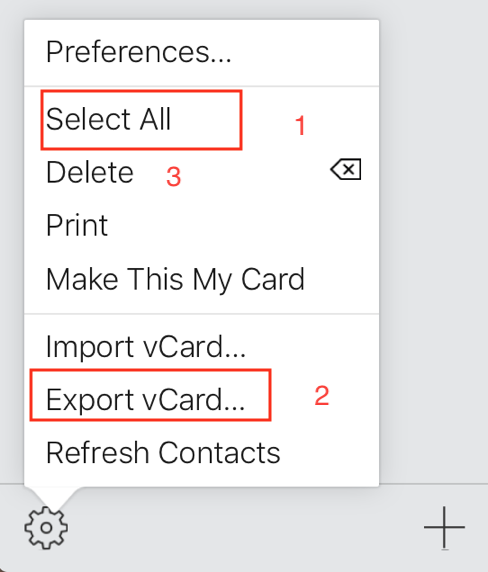
Export your Contacts (You always start by backing up first.)


Contacts on your Mac:


1. Select all Contacts (Under Edit in the Menu bar > Save All (command A

2. File > Export gives you two options. Do both options: ExportvCard… and Contacts Archive (use this only if you want to overwrite all contacts)

3. Also under File, select Export as PDF… (you can’t have too many backups)


Turn off iCloud > Contacts

1. Go to System Preferences > iCloud

2. Uncheck Contacts


Contacts on iCloud:

1. Log into iCloud.com > Contacts.

2. Export ALL contacts to vCard which will then be downloaded to Mac.

3. Delete all contacts in the cloud.

User uploaded file


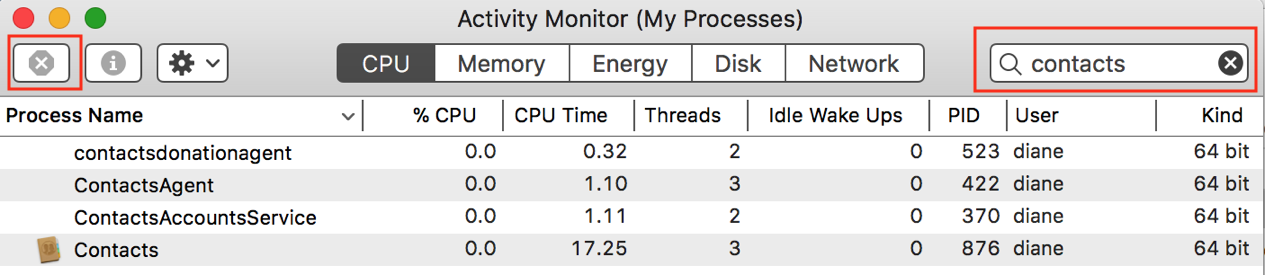
Quit Contacts, Mail and Messages.


  • Open Activity Monitor in Applications/Utilities
  • Search for Contacts and quit all processes by clicking on the X.
User uploaded file


In your User’s Library…

  • Navigate to User’s Library/Application Support/AddressBook
  • Rename to AddressBookXXXX


  • Go to your User's Library > Caches
  • Delete com.apple.AddressBook and com.apple.AddressBookSourceSync


  • Go to User's Library > Containers, delete com.apple.AddressBook
  • Go to User's Library Preferences, delete com.apple.AddressBook.plist


  • Restart in Safe Boot mode by holding down the Shift key when restarting, when you get to the login screen, restart normally. Use safe mode to isolate issues with your Mac - Apple Support
  • Login
  • Empty the trash
  • Open System Preferences > iCloud and check to sync Contacts
  • Open Contacts > import the file exported from iCloud.


If needed, you can import from the vCard backup. Importing from Contact Archive .abbu will overwrite everything in Contacts.


If you still have problems…


Reinstall macOS High Sierra. This is not a complex process, but it does take some time for the download and the install process. This does not remove your files but it's always advised that you backup first.


  • You can download the full High Sierra installer again or
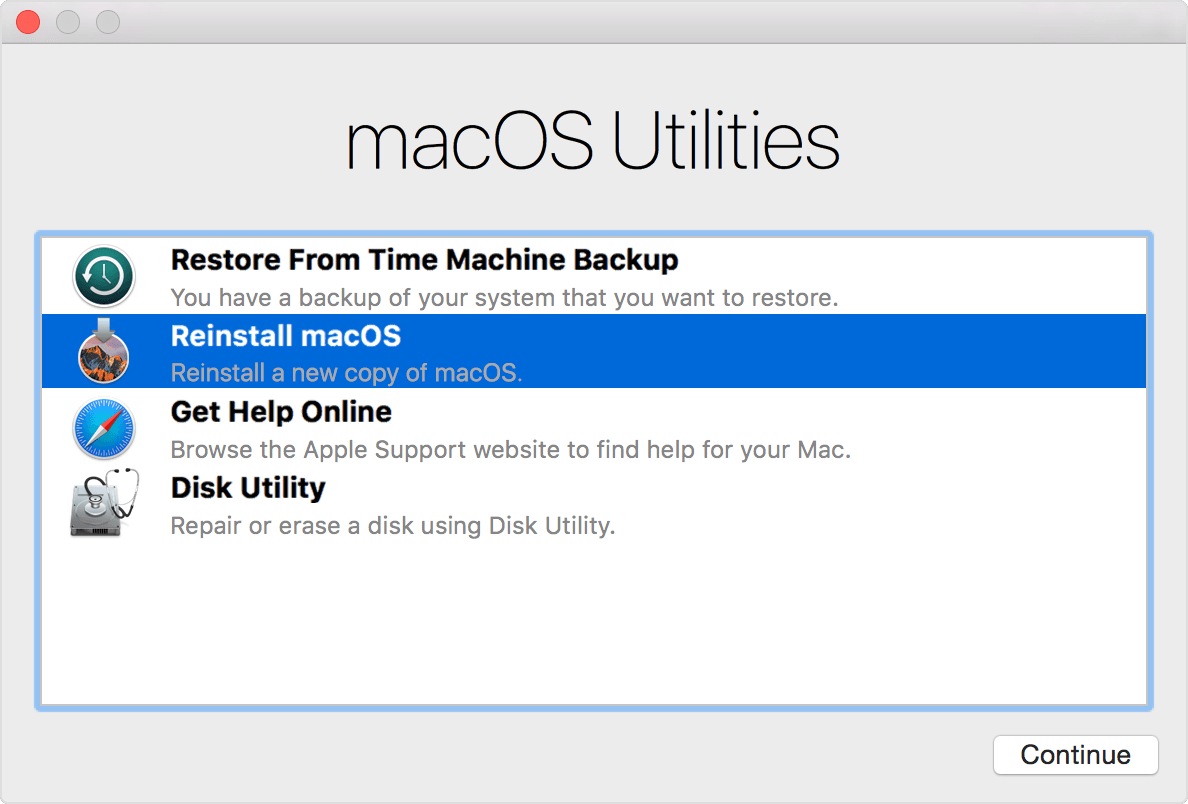
  • You can boot from the recovery drive to reinstall macOS


Boot into the Recovery Drive by holding down Command R when restarting.

https://support.apple.com/en-au/HT201314
User uploaded file


Open Disk Utility

Run First Aid on your internal drive, Macintosh HD

Quit Disk Utility


Select Reinstall macOS

Depending on your internet connection this could take some time to download the installer. Connect via Ethernet if possible

(You can reinstall High Sierra over High Sierra. This process should not damage your data but it's always advised that you backup first. I recommend a clone backup.


*Show User's Library


The User's Library folder is hidden by default. To unhide:


Option 1) Select the Finder in the Dock. Under Go in the Menu bar > hold down the Option key and you’ll see the Library.


Option 2) You can also select the Home folder in the sidebar of a Finder window.

Pull down the “View” menu and select “Show View Options”

Check the box for “Show Library Folder”


Software used to Clone:

You will need an external drive formatted as GUID, Mac OS Extended Journaled

CarbonCopyClonerhttp://www.bombich.com/download.html (All options are available free for 30 days)

SuperDuper!http://www.shirt-pocket.com/ (Free forever to do an erase and install. Purchased version allows for smart updates and schedules)

This thread has been closed by the system or the community team. You may vote for any posts you find helpful, or search the Community for additional answers.

High Sierra contacts not working

Welcome to Apple Support Community
A forum where Apple customers help each other with their products. Get started with your Apple Account.
