The macOS Catalina dictionary app cannot be in use

I've got my MacBook Pro 2015 with version10.15.4, and after updating somehow I can't use my dictionary application. It has only wikipedia in it. I've tried to reinstall macOS Catalina several times but still the dictionary won't be in use at all.

And also I can't even find /System/Library/AssetsV2/com_apple_MobileAsset_DictionaryServices_dictionaryOS

this dictionary file at all. So I have no idea at all and couldn't find other people who doesn't even have the dictionary file like me. Anyone have ideas how to fix this problem? I really need the dictionary please help.

MacBook Pro 13", macOS 10.15

Posted on Apr 4, 2020 8:40 AM

Reply
Question marked as Top-ranking reply

Posted on Apr 24, 2020 6:20 AM

I've been facing the same problem ever since I upgraded to Catalina a few days ago. After reading millions of responses on how to fix it, and just when I was on the brink of giving up, I finally managed to solve the problem and restore my dictionary resources! I was actually inspired by the reply of one of the users here (but on another thread) , but I had to add a few minor tweaks to his steps for the solution to work for me. So a big thank you to that user!


In brief, what we'll need for this solution is to go back to a back-up from Time Machine that predates the date of our upgrade, and restore the folder to our Desktop or Library. It's very simple, I'm no tech expert at all, but this is actually very easy to follow. So don't give up just yet guys, you've got this!


Important: My external hard drive was my entry point to the solution, so if you guys have your files backed up on an external hard drive, you should be able to have your dictionary resources back by following the steps below:


1- Connect your external hard drive to your MacBook (on the importance of this step: the external hard drive allows you to access files and applications on Time Machine that you had on your MacBook from before the date of your upgrade, and that's exactly what you'll need).

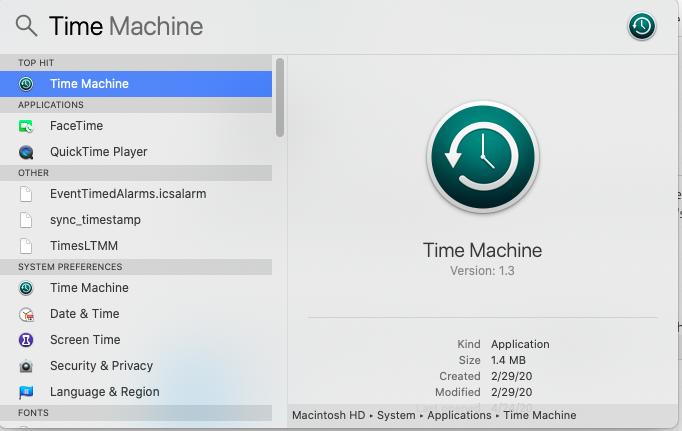
2- Open the Time Machine app from your Applications Folder, or by typing Time Machine in your Spotlight Search as shown in the picture below

3- After you open the Time Machine app, wait a bit for your earlier backup dates to show up. Once shown, choose any backup you've done before your upgrade. For example in my case, I upgraded to Catalina in April 2020, so I chose a backup I did on January 12, 2020, as shown below:
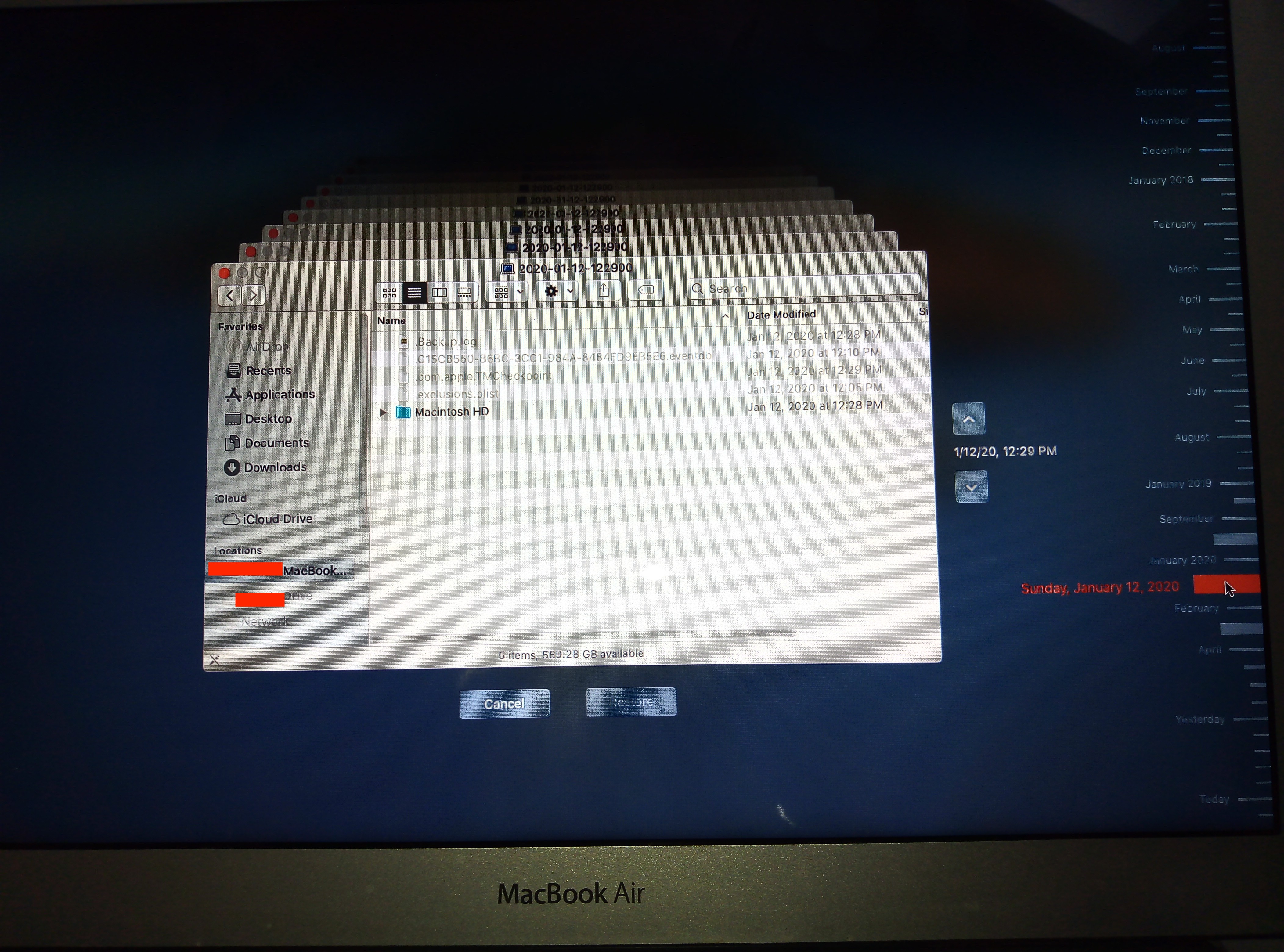


4- On your Time Machine, go to your Macintosh HD --> Library --> Dictionaries, and restore the entire Dictionaries Folder by simply clicking on "Dictionaries", then "Restore".

5- Now this will restore your old Dictionaries folder to your current MacOs. If prompted to choose a location for your restored folder, just choose Library in your Macintosh HD (or Desktop and then move to Library); if not, it will automatically be restored into Library anyway.

6- Open your Dictionary application (the one broken with only Wikipedia as a resource) from your MacBook, go to File --> Open Dictionaries Folder and leave this folder open.

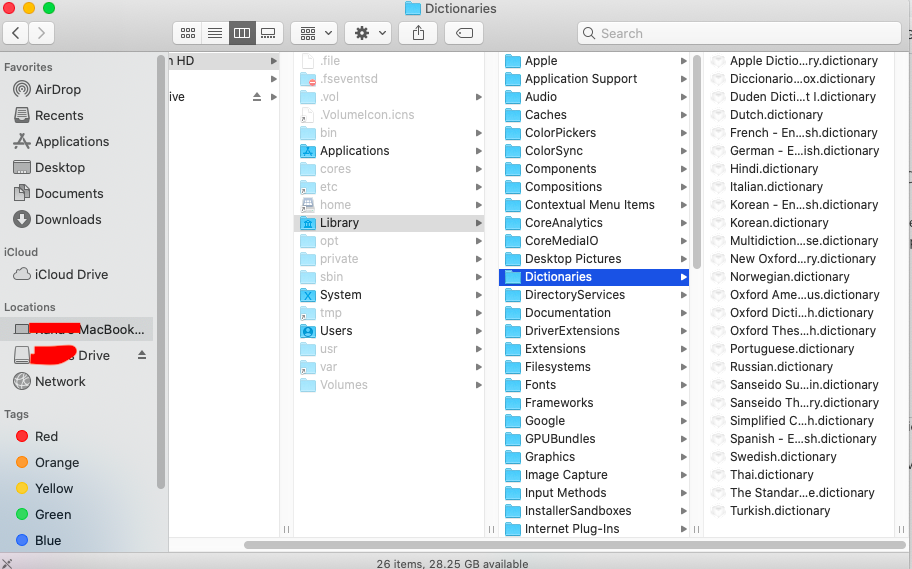
7- Now go back to your Macintosh HD --> Library --> Dictionaries (this should be the folder you just restored from your Time Machine/hard drive -- shown in the picture below), and move all the resources you have on it to the Dictionaries Folder you opened in step 6.


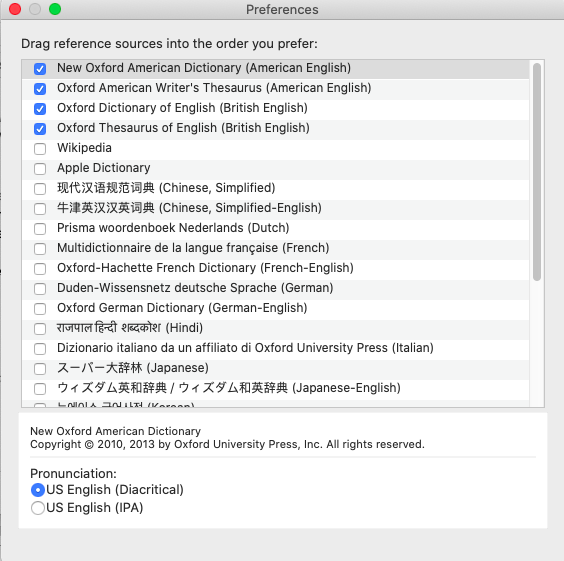
8- FInally, relaunch your Dictionary app, go to Preferences, and you should now be able to see all the resources you moved into it in Step 7, as shown below. Et voilà :) Problem should be solved!

I hope I didn't miss any step, and hope this works for you guys!!


Cheers,

Rana


38 replies
Question marked as Top-ranking reply

Apr 24, 2020 6:20 AM in response to sunyoungb

I've been facing the same problem ever since I upgraded to Catalina a few days ago. After reading millions of responses on how to fix it, and just when I was on the brink of giving up, I finally managed to solve the problem and restore my dictionary resources! I was actually inspired by the reply of one of the users here (but on another thread) , but I had to add a few minor tweaks to his steps for the solution to work for me. So a big thank you to that user!


In brief, what we'll need for this solution is to go back to a back-up from Time Machine that predates the date of our upgrade, and restore the folder to our Desktop or Library. It's very simple, I'm no tech expert at all, but this is actually very easy to follow. So don't give up just yet guys, you've got this!


Important: My external hard drive was my entry point to the solution, so if you guys have your files backed up on an external hard drive, you should be able to have your dictionary resources back by following the steps below:


1- Connect your external hard drive to your MacBook (on the importance of this step: the external hard drive allows you to access files and applications on Time Machine that you had on your MacBook from before the date of your upgrade, and that's exactly what you'll need).

2- Open the Time Machine app from your Applications Folder, or by typing Time Machine in your Spotlight Search as shown in the picture below


3- After you open the Time Machine app, wait a bit for your earlier backup dates to show up. Once shown, choose any backup you've done before your upgrade. For example in my case, I upgraded to Catalina in April 2020, so I chose a backup I did on January 12, 2020, as shown below:


4- On your Time Machine, go to your Macintosh HD --> Library --> Dictionaries, and restore the entire Dictionaries Folder by simply clicking on "Dictionaries", then "Restore".

5- Now this will restore your old Dictionaries folder to your current MacOs. If prompted to choose a location for your restored folder, just choose Library in your Macintosh HD (or Desktop and then move to Library); if not, it will automatically be restored into Library anyway.

6- Open your Dictionary application (the one broken with only Wikipedia as a resource) from your MacBook, go to File --> Open Dictionaries Folder and leave this folder open.

7- Now go back to your Macintosh HD --> Library --> Dictionaries (this should be the folder you just restored from your Time Machine/hard drive -- shown in the picture below), and move all the resources you have on it to the Dictionaries Folder you opened in step 6.


8- FInally, relaunch your Dictionary app, go to Preferences, and you should now be able to see all the resources you moved into it in Step 7, as shown below. Et voilà :) Problem should be solved!


I hope I didn't miss any step, and hope this works for you guys!!


Cheers,

Rana


Apr 24, 2020 7:26 AM in response to ksjohnson1970

Hi, I've been facing the same problem ever since I upgraded to Catalina a few days ago. After reading millions of responses on how to fix it, and just when I was on the brink of giving up, I finally managed to solve the problem and restore my dictionary resources! I was actually inspired by the reply of one of the users here (but on another thread) , but I had to add a few minor tweaks to his steps for the solution to work for me. So a big thank you to that user!


In brief, what we'll need for this solution is to go back to a back-up from Time Machine that predates the date of our upgrade, and restore the folder to our Desktop or Library. It's very simple, I'm no tech expert at all, but this is actually very easy to follow. So don't give up just yet guys, you've got this!


Important: My external hard drive was my entry point to the solution, so if you guys have your files backed up on an external hard drive, you should be able to have your dictionary resources back by following the steps below:


1- Connect your external hard drive to your MacBook (on the importance of this step: the external hard drive allows you to access files and applications on Time Machine that you had on your MacBook from before the date of your upgrade, and that's exactly what you'll need).

2- Open the Time Machine app from your Applications Folder, or by typing Time Machine in your Spotlight Search as shown in the picture below


3- After you open the Time Machine app, wait a bit for your earlier backup dates to show up. Once shown, choose any backup you've done before your upgrade. For example in my case, I upgraded to Catalina in April 2020, so I chose a backup I did on January 12, 2020, as shown below:


4- On your Time Machine, go to your Macintosh HD --> Library --> Dictionaries, and restore the entire Dictionaries Folder by simply clicking on "Dictionaries", then "Restore".

5- Now this will restore your old Dictionaries folder to your current MacOs. If prompted to choose a location for your restored folder, just choose Library in your Macintosh HD (or Desktop and then move to Library); if not, it will automatically be restored into Library anyway.

6- Open your Dictionary application (the one broken with only Wikipedia as a resource) from your MacBook, go to File --> Open Dictionaries Folder and leave this folder open.

7- Now go back to your Macintosh HD --> Library --> Dictionaries (this should be the folder you just restored from your Time Machine/hard drive -- shown in the picture below), and move all the resources you have on it to the Dictionaries Folder you opened in step 6.


8- FInally, relaunch your Dictionary app, go to Preferences, and you should now be able to see all the resources you moved into it in Step 7, as shown below. Et voilà :) Problem should be solved!


I hope I didn't miss any step, and hope this works for you guys!!


Cheers,

Rana

Apr 4, 2020 11:46 AM in response to sunyoungb

What exactly happens when you try opening the Dictionary app in the Applications folder? Do you see this:


Note the listed choices in the tab bar. With Wikipedia selected like in the above, select Preferences from the Dictionary menu. This should open a window like the one you posted. Mine looks like this:


Am I correct in assuming that you do not see the above on your computer? If that is the case then may I suggest you try the following: Download and Install the macOS Catalina 10.15.4 Combo Update. See if the problem is fixed. If it isn't, then you need to try the procedure you will find in my next post

Apr 4, 2020 11:46 AM in response to Kappy

A Troubleshooting Procedure that may Fix Problems with macOS El Capitan or Later


You should try each, one at a time, then test to see if the problem is fixed before going on to the next.


    Be sure to backup your files before proceeding if possible.


  1. Shutdown the computer, wait 30 seconds, restart the computer.
  2. Disconnect all third-party peripherals.
  3. Resetting your Mac's PRAM and NVRAM
  4. Reset the System Management Controller (SMC)
  5. Reset your Startup Disk and Sound preferences, if needed, after resetting the PRAM.
  6. Test in safe mode to see if the problem persists, then restart normally.  Use safe mode to isolate issues with your Mac and Playing Safe - what does Safe mode do?
  7. Repair the disk by booting from the Recovery HD. Immediately after the chime hold down the Command and R keys until the Utility Menu appears. Choose Disk Utility and click on the Continue button. Select the indented (usually, Macintosh HD) volume entry from the side list.  Click on the First Aid button in the toolbar. Wait for the Done button to appear. Quit Disk Utility and return to the Utility Menu. Restart the computer from the Apple Menu.
  8. Repair permissions on the Home folderResolve issues caused by changing the permissions of items in your home folder.
  9. Create a New User Account Open Users & Groups preferences. Click on the lock icon and enter your Admin password when prompted. On the left under Current User click on the Add [+] button under Login Options. Setup a new Admin user account. Upon completion log out of your current account then log into the new account. If your problems cease, then consider switching to the new account and transferring your files to it - Transferring files from one User Account to another.
  10. Reinstall OS X by booting from the Recovery HD using the Command and R keys. When the Utility Menu appears select Install OS X then click on the Continue button.
  11. Erase and Install OS X Restart the computer. Immediately after the chime hold down the Command and R keys until the Apple logo appears. When the Utility Menu appears:


     1. Select Disk Utility from the Utility Menu and click on the Continue button.

     2. When Disk Utility loads select the drive (out-dented entry) from the Device list.

     3. Click on the Erase button in Disk Utility's toolbar. A panel will drop down.

     4. Set the Format type to APFS (for SSDs only) or Mac OS Extended (Journaled.)

     5. Click on the Apply button, then wait for the Done button to activate and click on it.

     6. Quit Disk Utility and return to the Utility Menu.

     7. Select Install OS X and click on the Continue button.


Aug 3, 2020 6:18 PM in response to sunyoungb

A search for a different problem brought me to this topic.

Kappy's solution fixed that problem too :-)


My problem was that I had to "right/control click look up myword" twice.

The first try was always ignored and the second attempt always worked.

Dictionary app had been set to only use Wikipedia.

Checking the Oxford boxes fixed this :-)

Jun 26, 2020 3:58 PM in response to sunyoungb

I had the same problem when I upgraded from Sierra to Catalina. I spent about 5 hours trying to figure this out by myself and via Apple support. Reloaded the software twice...did not work. Finally Apple escalated the problem. I worked with a tech. Basically I had go into MacOS restore and I believe utilities to bring up terminal. He gave me some commands in terminal and when I rebooted the Apple Dictionaries and thesaurus magically reappeared. Save some time and call Apple support to get the obscure commands for MacOS restore terminal.


Trying to copy a Library from a previous backup as per someone's post, (I don't recommend this because I copied the library folder to my desktop and now I will have to spend hours dealing with Apple Support to delete the folder. I have my reservations. about whoever said MAC is easier than WIN. I asked tech about deleting the library folder I put on my desktop and they said I would have to work with support to reload my software again just to delete the extra library folder.)


Also Downloading and applying the MacOS Combo Update as suggested didn't help.

Jun 5, 2020 11:51 AM in response to Jose Reino

Since reinstalling the 10.15.4 combo fixed the user's problem in April, then you might expect the same would work for you once the combo updater for 10.15.5 was released, which was when you updated your computer. Disagree with me to your heart's content. I don't mind. But since there is nothing yet proven wrong other than an installation problem on a user's computer, then it appears this is not an Apple problem/bug in macOS. Would you not agree?


Apr 20, 2020 8:53 PM in response to ksjohnson1970

Apple does not monitor these forums. For Apple Support:


Contacting Apple Customer and Support Service


  1. Apple Store Customer Service at 1-800-676-2775 or visit online Help for more information.
  2. Primary support help at Contact Support.
  3. To contact product and tech support:  Contacting Apple for support and service including international calling numbers.


FYI: These are user-only forums. This is not Apple Support. if you need to contact Apple Support, then contact product and tech support:  Contacting Apple for support and service including international calling numbers.


These forums only provide help with Apple products. Thank you for your understanding and support.

Jun 7, 2020 11:15 AM in response to Jose Reino

I'm not sure where to find the rules for posting here, so I don't know if it's okay to just link to an article I found. But I wonder if this method would help? I haven't tried it myself. I lost my Dictionary when upgrading to Catalina, but if I remember correctly, I only had to go into Preferences and check off the ones listed there. The article lists another method, the one on the page about deleting the dictionaries and replacing them from your System Library. Perhaps you should ask someone if it's okay to do this?


https://android-pc-ios-data-recovery.com/fix-mac-dictionary-app/

Apr 12, 2020 8:13 PM in response to sunyoungb

I have this same issue. I recently upgraded to macOS Catalina and my Dictionary app is missing all of the usual dictionary files. When I open it, I only have the "All" and "Wikipedia" tabs. Also, going into preferences it shows wikipedia as the only dictionary available. Very upsetting as I used the dictionary and thesaurus function often as I am a writer. I have searched high and low and none of the "fixes" I have come across on any site have worked.

Apr 12, 2020 10:01 PM in response to sarahjane1989

True I’ve looked up for everywhere but never found answers for it. I can say dictionary is one of the most useful app that I used but still can’t fix it and I don’t know why it’s not working which is making me more upset about it😔 Some people say to downgrade or change the os but I want dictionary on the macOS Catalina. Anyway if I find the solution I’ll be back with the answer so we all can solve.

Apr 20, 2020 5:21 PM in response to sunyoungb

I've tried all the posted fixes. Still nothing. I upgraded to Catalina from El Capitan; running a MacBook Pro late 2013 that now has MacOS Catalina 10.15.4. Have tried finding the Assets V2, etc. etc. etc. and have reinstalled Catalina twice; tried it from creating a new Admin user, etc. etc. etc. NOTHING. The Dictionary app still only has Wikipedia. Do we think Apple will actually monitor these chats and address the problem or is there another route someone would recommend? Thank you!

This thread has been closed by the system or the community team. You may vote for any posts you find helpful, or search the Community for additional answers.

The macOS Catalina dictionary app cannot be in use

Welcome to Apple Support Community
A forum where Apple customers help each other with their products. Get started with your Apple Account.